

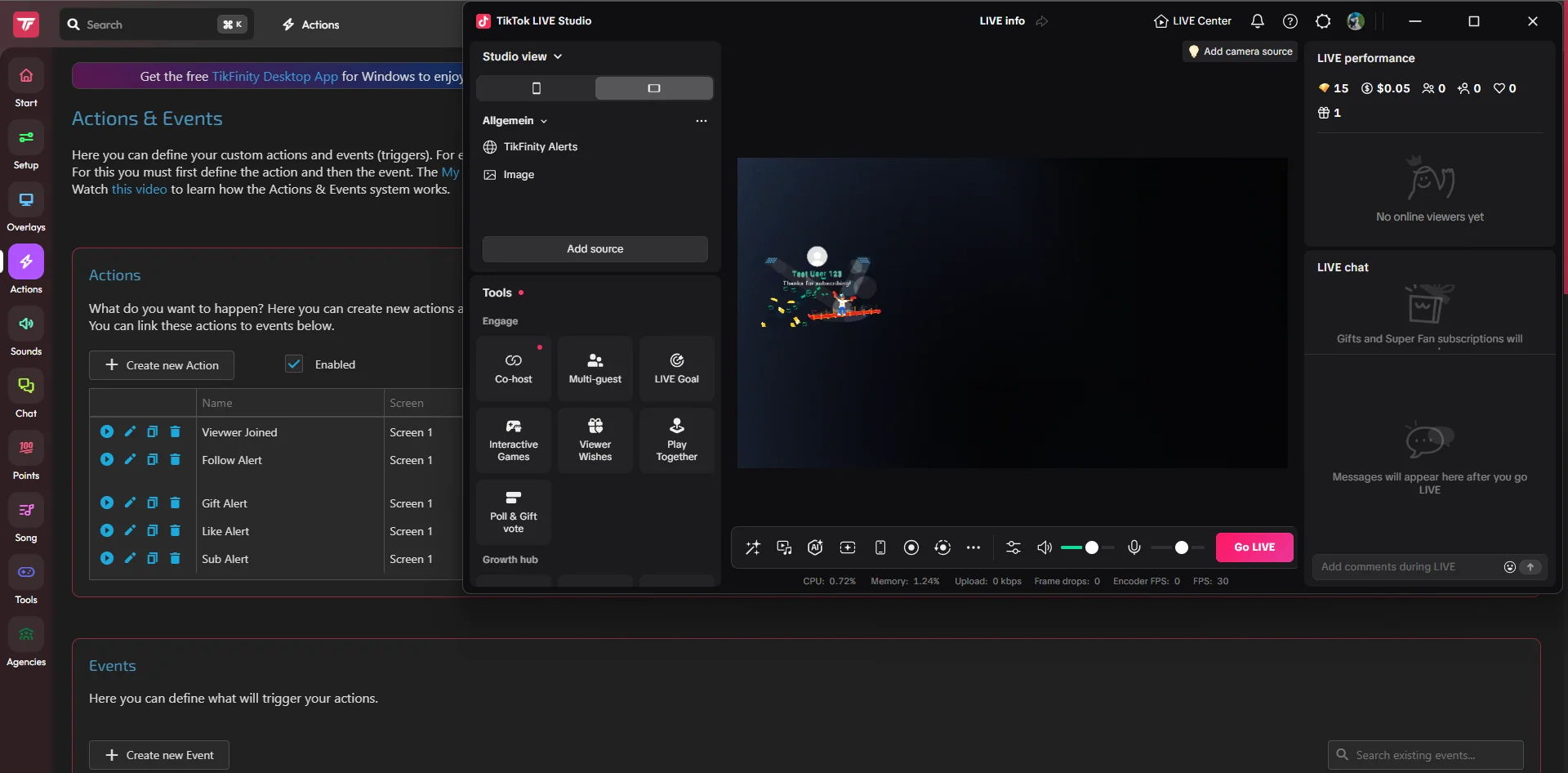
Timer in TikTok LIVE Studio: Link source and countdown control
Prepare the timer widget, embed its address and check the start, pause, reset and the appearance of the numbers in the LIVE Studio scene.
Read the guide ↗50 free guides for streamers and YouTube creators. Set up mobile LIVE, OBS, chat and TTS, learn the Thunderstream desktop program, and prepare recordings, thumbnails and subtitles.
Guides found: · Views ↓
Prepare the timer widget, embed its address and check the start, pause, reset and the appearance of the numbers in the LIVE Studio scene.
Read the guide ↗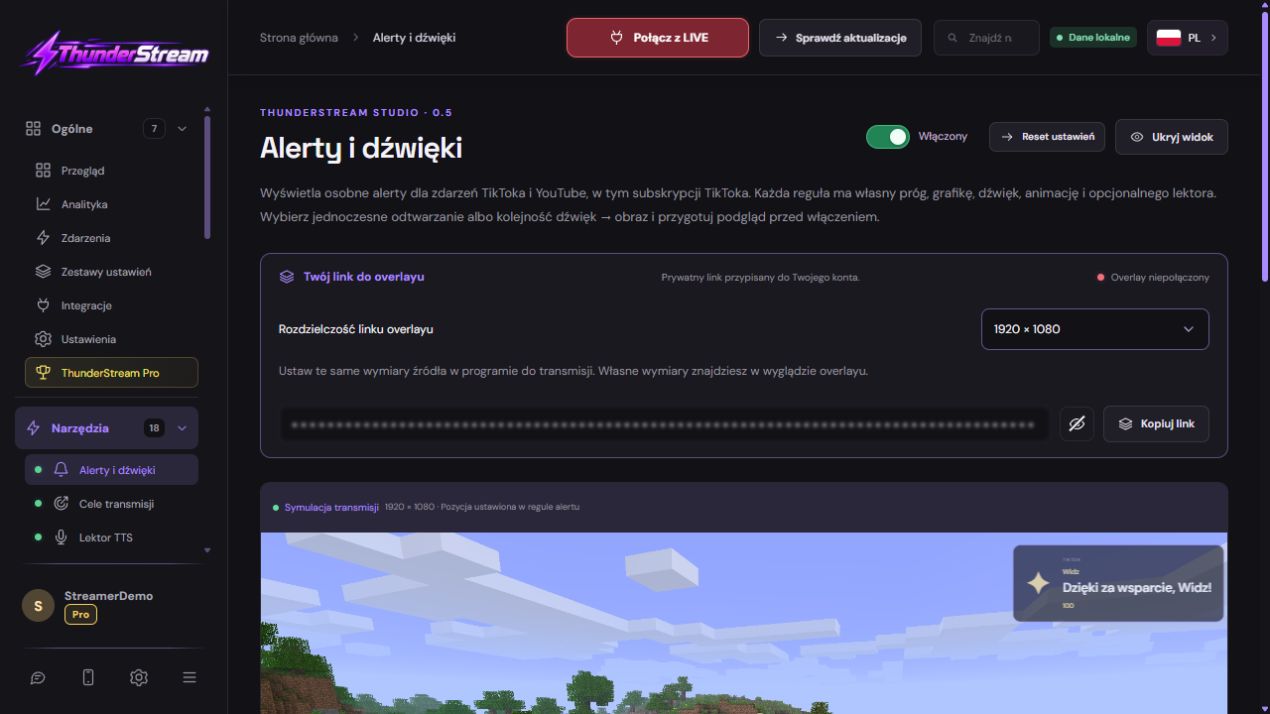
Build separate alert rules, choose threshold, GIF, sound and animation. Check nickname, coins, gift series and configuration record.
Read the guide ↗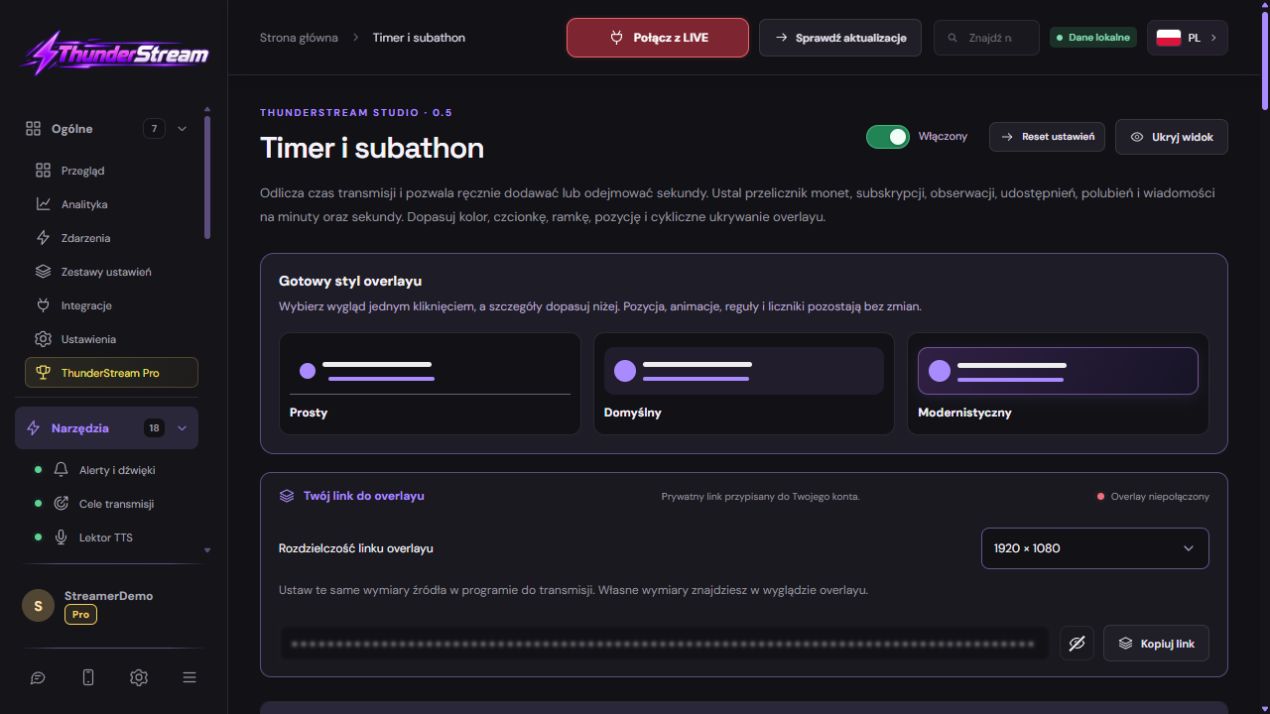
Set the start time, maximum and interaction rates. Test pause, reset, platform events and visible timer on OBS or LIVE Studio.
Read the guide ↗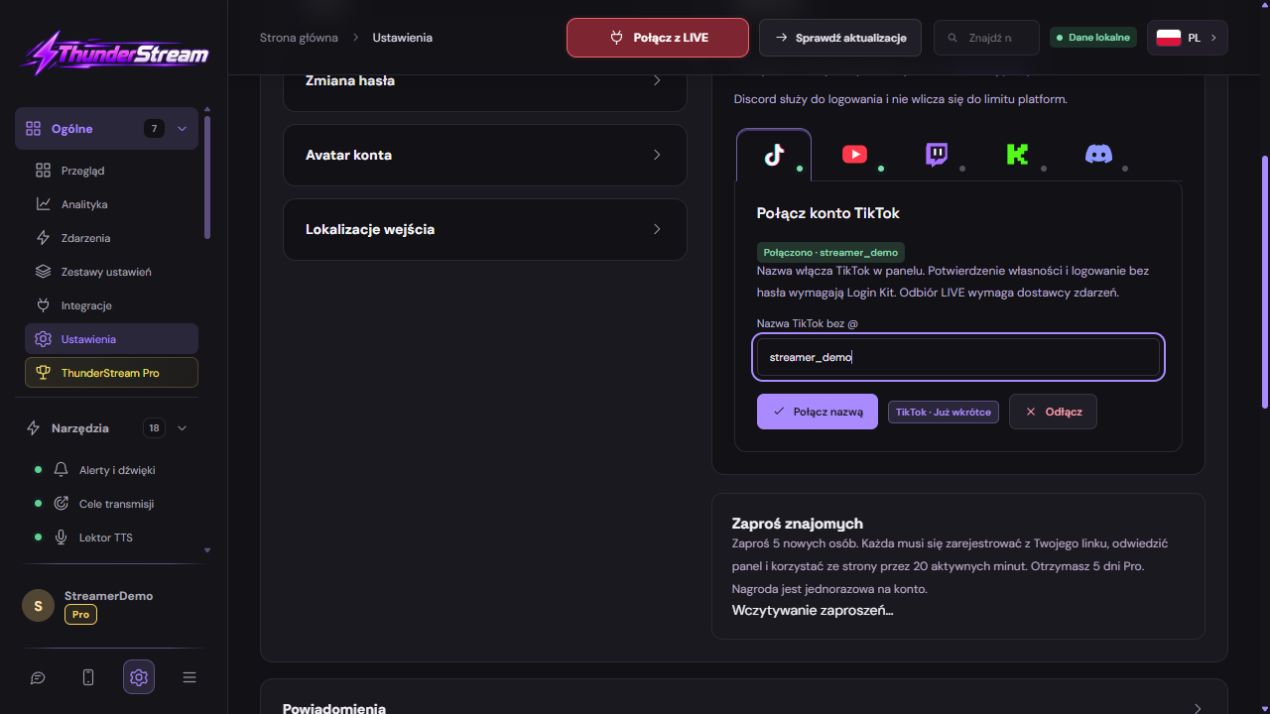
Connect TikTok, Twitch, Kick or YouTube, check chat reception and run TTS and overlays. See the difference between logging in and broadcasting.
Read the guide ↗
Select a service in OBS, connect your account or enter your broadcast key and check the first preview. Three platforms, one structured manual.
Read the guide ↗
A neutral plan for choosing between a broadcast program, an interaction tool and widgets. Check out the features on the same scenario, without ranking the winners.
Read the guide ↗
Check whether your account can go LIVE first. Eligibility and controls vary by account and region. The ordinary TikTok phone camera does not accept an arbitrary overlay URL like an OBS Browser Source.
Read the guide ↗
Music fades while you speak. Audio levels are processed only on this computer. Start the microphone using the button.
Read the guide ↗Your own link, the right resolution and a quick test: add alerts, chat or counter to OBS Studio and TikTok LIVE Studio without capturing the entire panel.
Read the guide ↗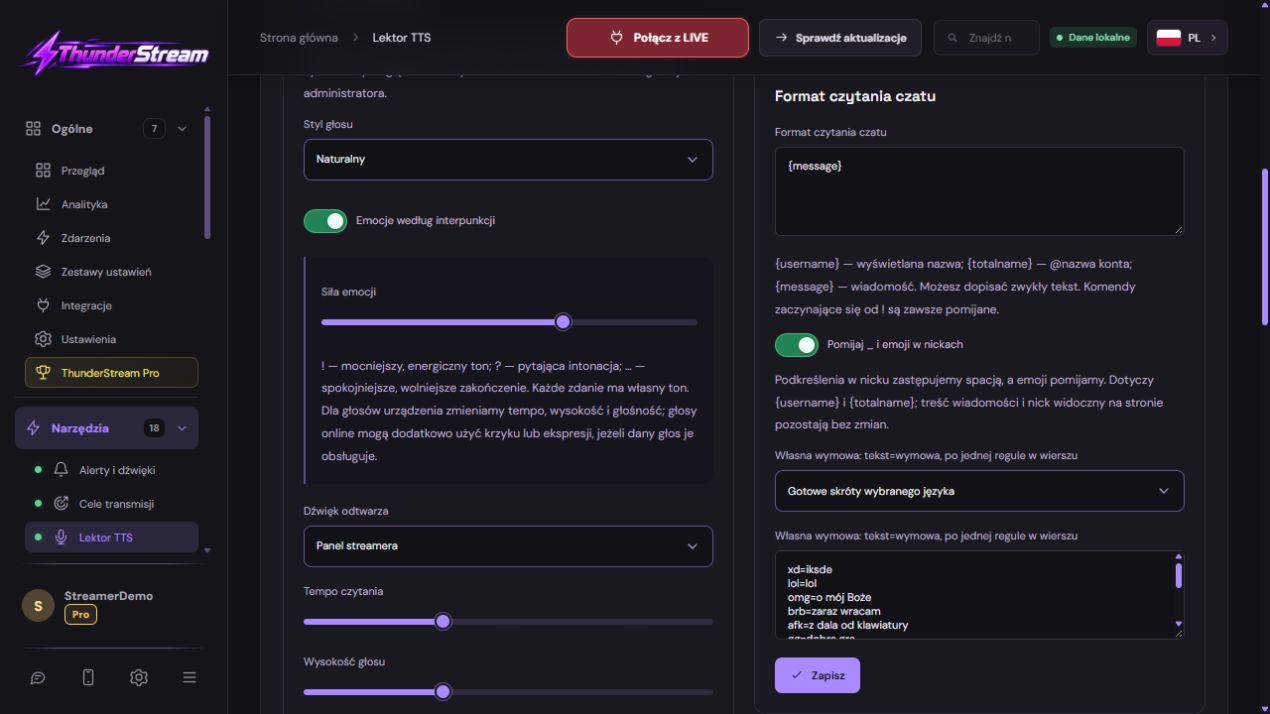
Set Polish voice, select platforms, check filters and output TTS audio to OBS or LIVE Studio. Instructions also for Twitch, YouTube and Kick.
Read the guide ↗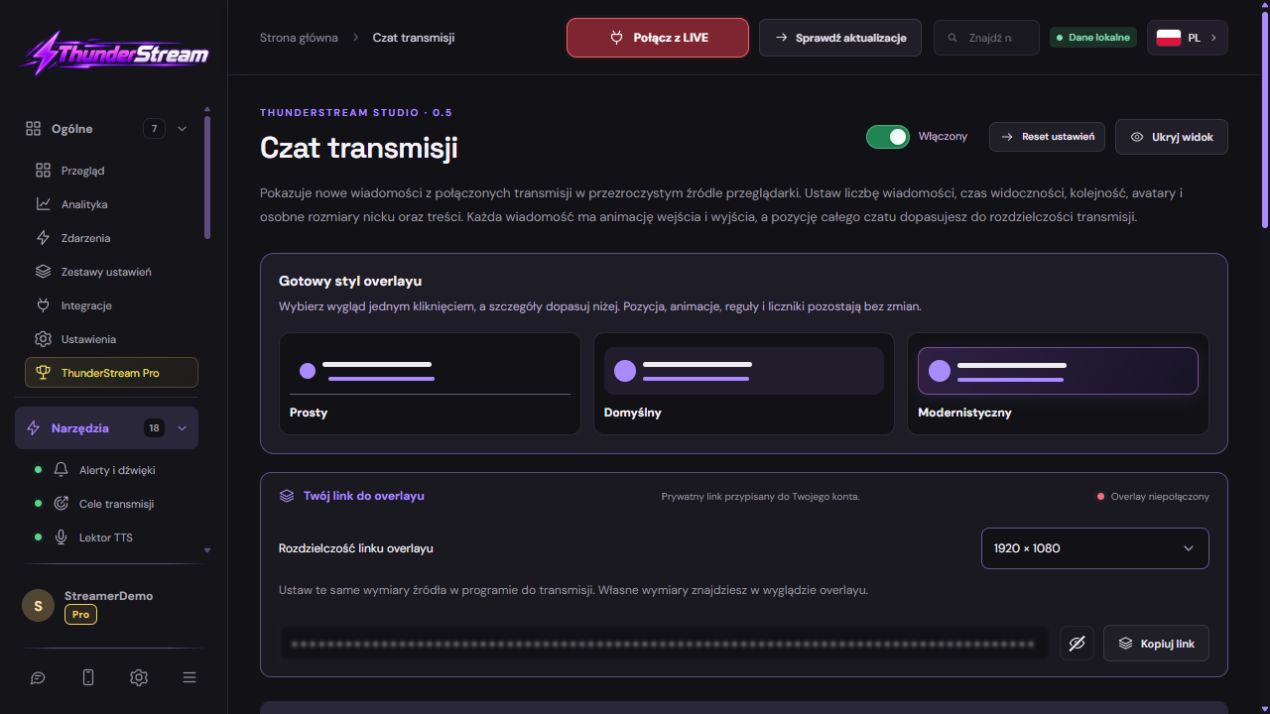
Combine messages in one overlay: platforms, avatars, emojis, colors, moderation and smooth disappearance of older posts.
Read the guide ↗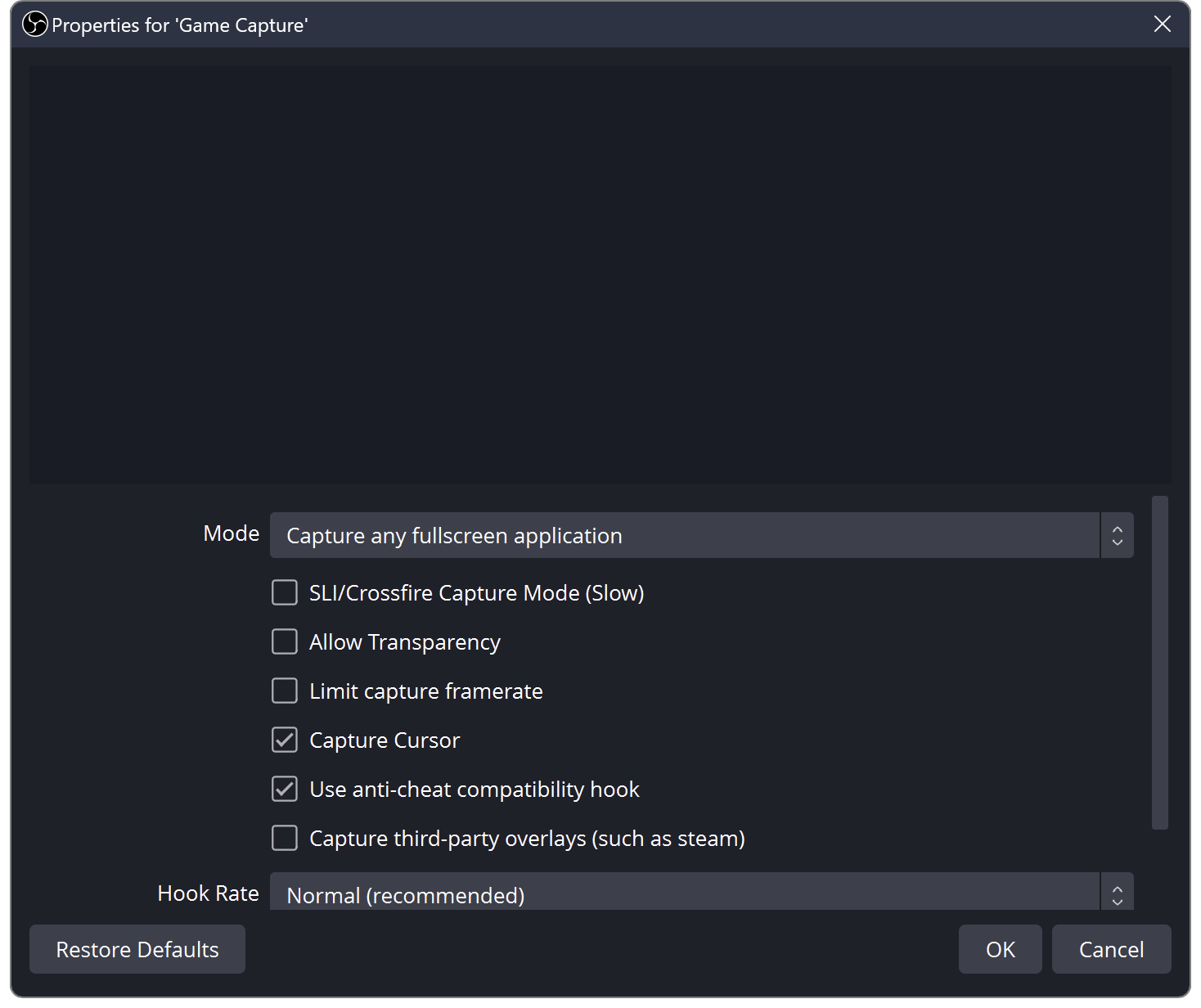
Separate the problem of networking, encoding and rendering. Prepare a repeatable test and check scenes, gameplay, bitrate and previews.
Read the guide ↗Create an action, assign event TikTok, and add the appropriate screen to OBS or LIVE Studio. Separate TikFinity configuration manual.
Read the guide ↗Configure the start value, interactions, and timer source. Check time addition, pause and reset in a separate trial.
Read the guide ↗Select the right target, configure the threshold and appearance, and add its URL to the broadcaster. Instruction also for separate custom purposes.
Read the guide ↗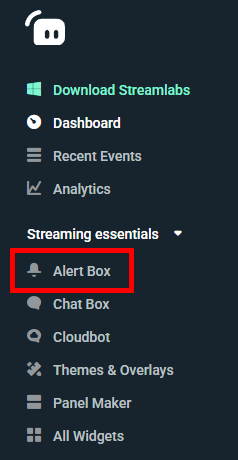
Configure the Alert Box in the Streamlabs panel, select the platform and event variant, and then add the widget to your scene.
Read the guide ↗Add an external alert screen, set the size and check the sound. Link source guide based on the example of a widget supporting TikTok.
Read the guide ↗
Set the goal type, starting value, threshold and reset. Adjust the appearance of the bar and check your progress from the appropriate platform.
Read the guide ↗
Assign sounds in a Windows or Linux program. Set one key or hold the first one and press the second one, check the monitoring and mix.
Read the guide ↗
Select counter platforms, set mesh and source OBS. Distinguish between current audience, viewer minutes, stream time and confirmed activity.
Read the guide ↗
The panel and events are processed on your computer. Overlay links remain on thunderstream.net.
Read the guide ↗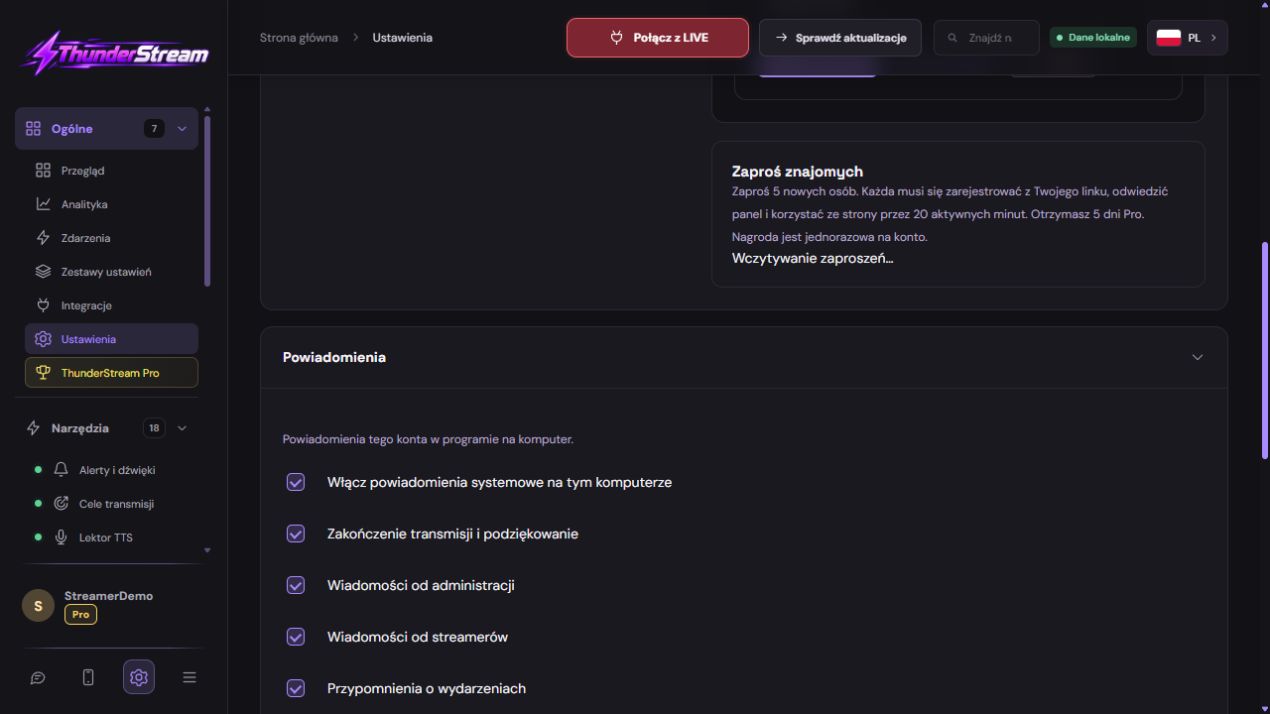
If notifications are blocked, change the permission in your app or browser settings. On iOS, open the app from your Home Screen.
Read the guide ↗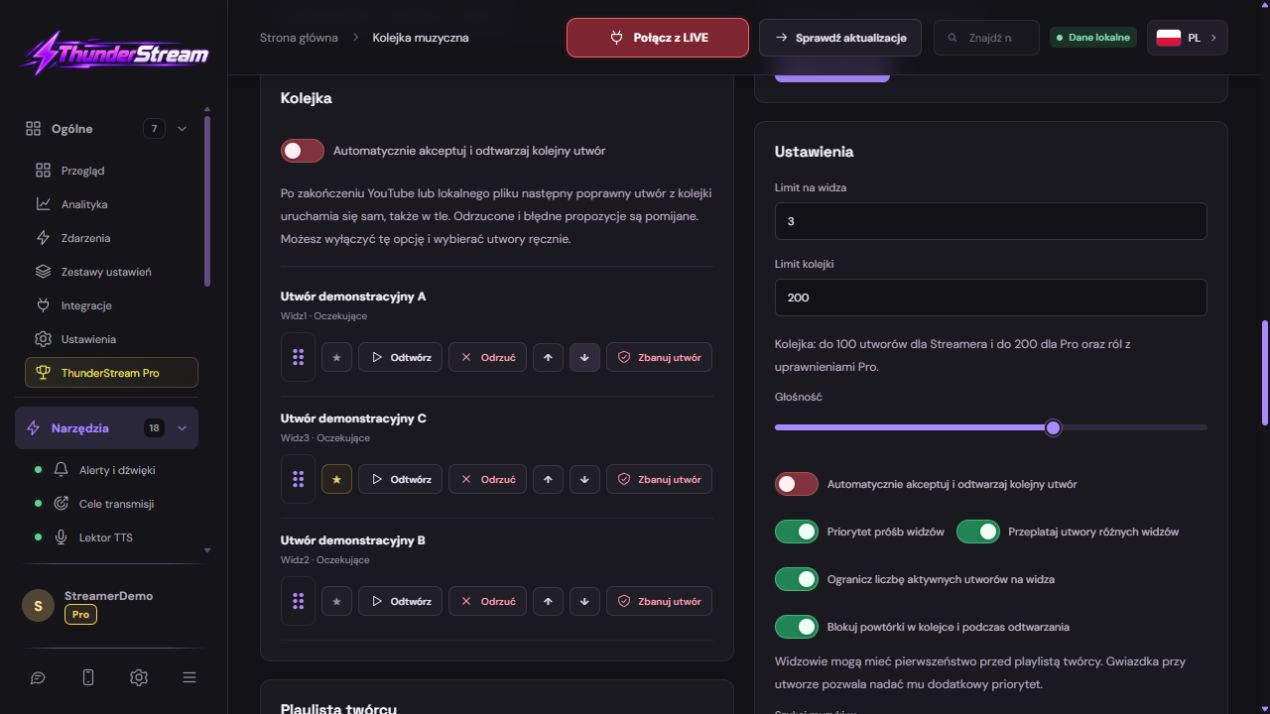
Drag to reorder. Ban a track from the queue or enter its title or link. Further requests for the track will not play.
Read the guide ↗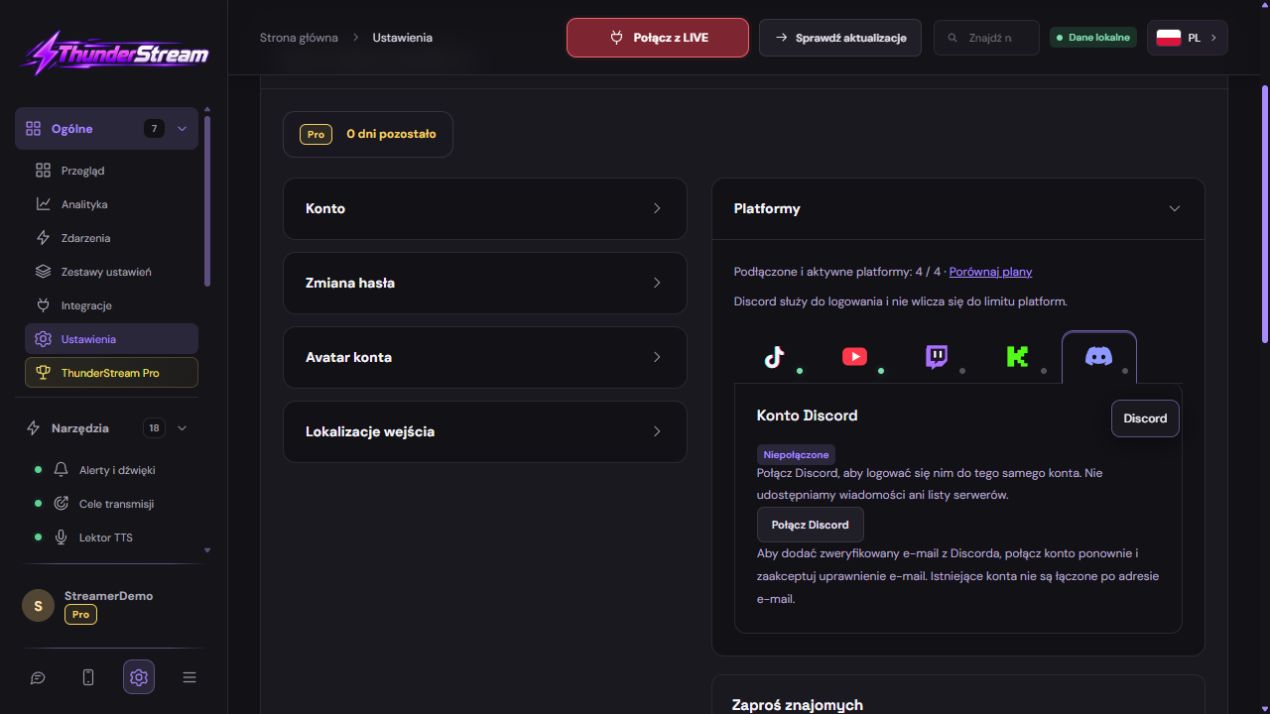
Finish signing in in your browser. The app will connect the account automatically after authorization. Current broadcast across all connected platforms. The log shows each event and its matching alert threshold.
Read the guide ↗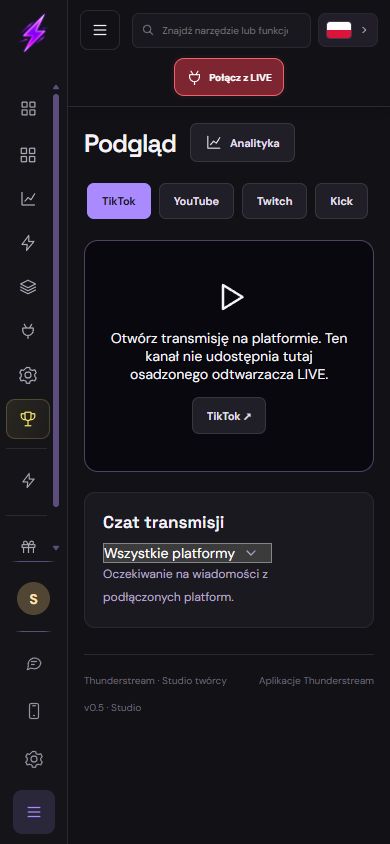
Use the phone as a control panel and monitor, not an automatic video compositor. Hosted overlays still require a compatible broadcasting program. Permissions are optional, and the phone operating system can limit background activity.
Read the guide ↗A linked account is not proof of an active livestream. Use the same profile, verify a real event and then add more tools. The desktop program handles some work locally; accounts, synchronization and hosted overlays still require the server and internet.
Read the guide ↗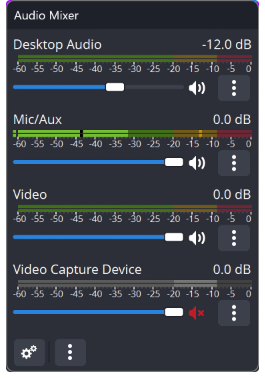
Find where the sound disappears: player, device, mixer or broadcast output. Remove echo and double reading without rebuilding the entire scene.
Read the guide ↗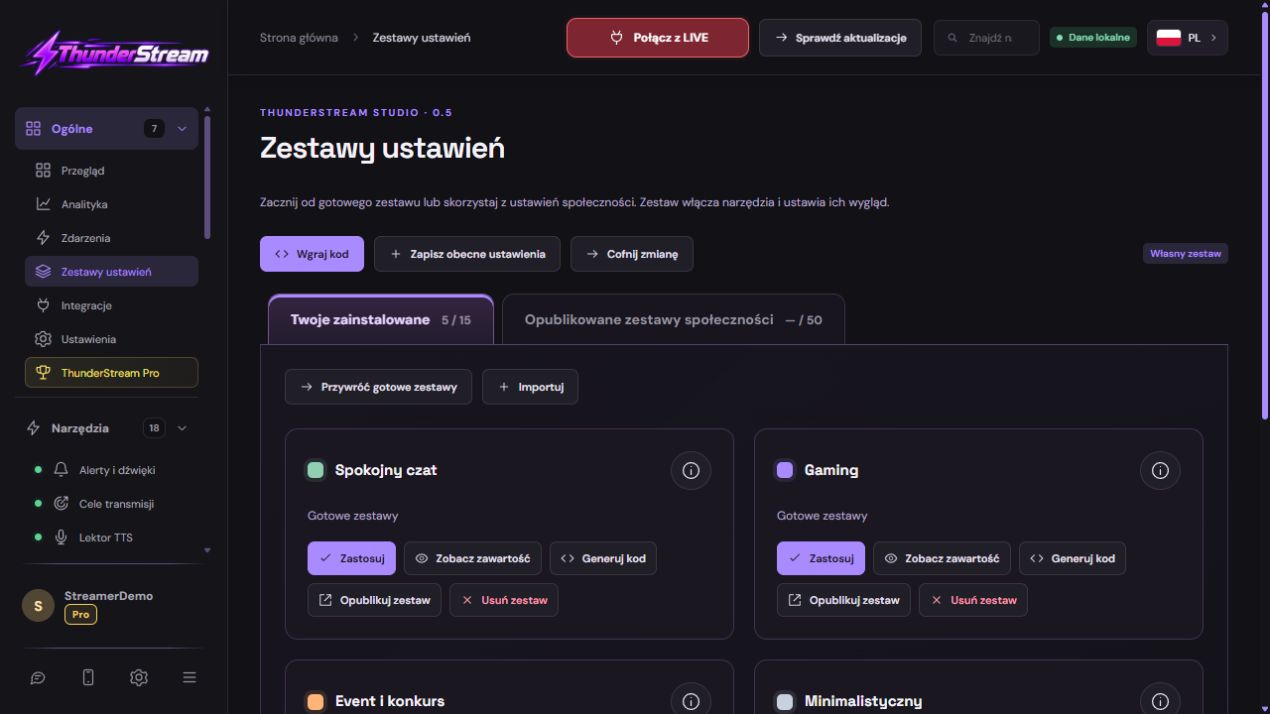
Install the kit, check its contents, match sources, and securely publish your configuration to the community.
Read the guide ↗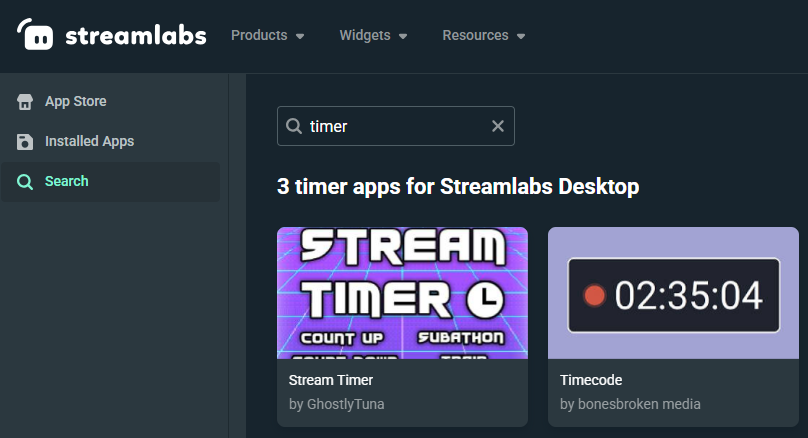
Select a timer app from the App Store or a browser source. Check the mode, access conditions, scene and event responses.
Read the guide ↗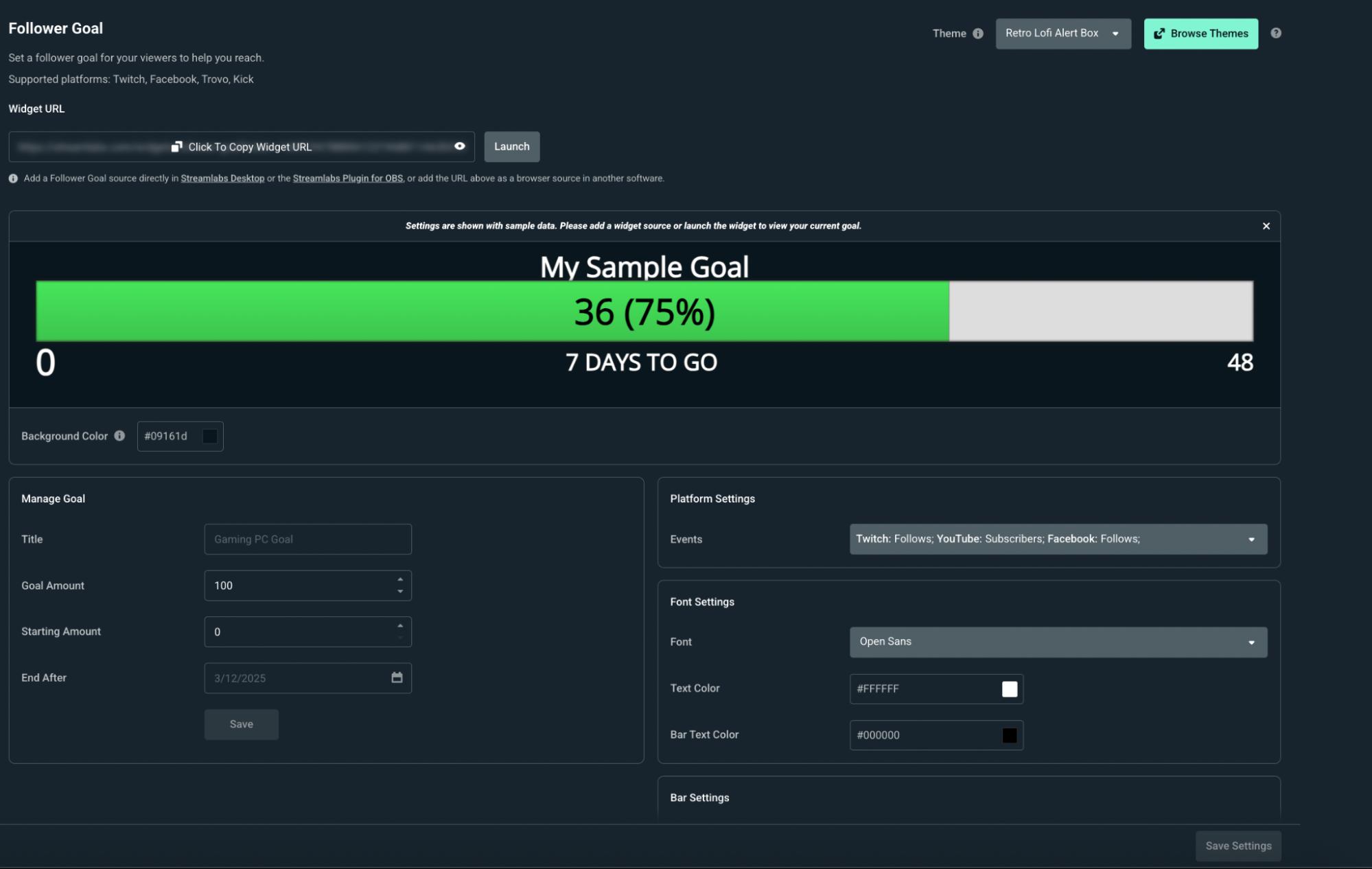
Set a title, start and target. Select platforms and add the bar as a widget or a separate source from Widget URL.
Read the guide ↗Prepare a TikTok target in the vendor, paste its URL in the Source Link and check the value, framing and behavior when the threshold is reached.
Read the guide ↗Check the source, window, layer order and graphics card. Go from a blank preview to an image without randomly changing all the settings.
Read the guide ↗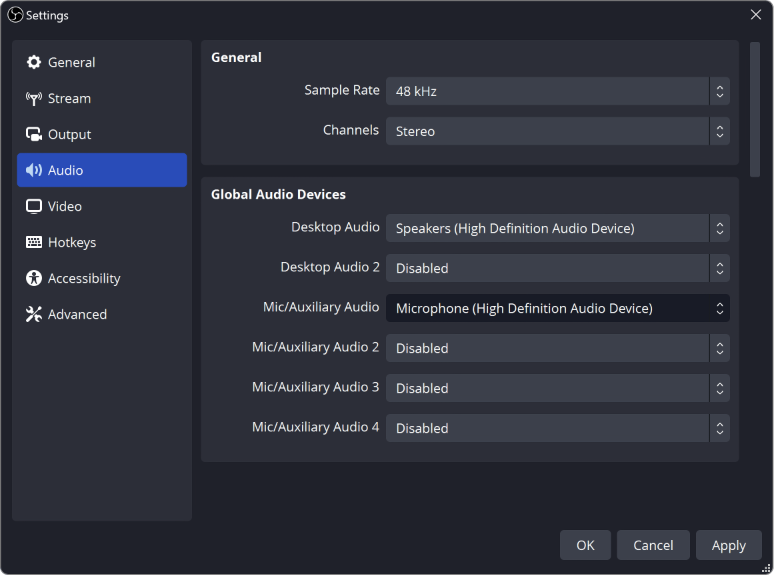
Check the microphone before the filters, set noise suppression, gentle compression and limiter. Compare the voice on short recordings.
Read the guide ↗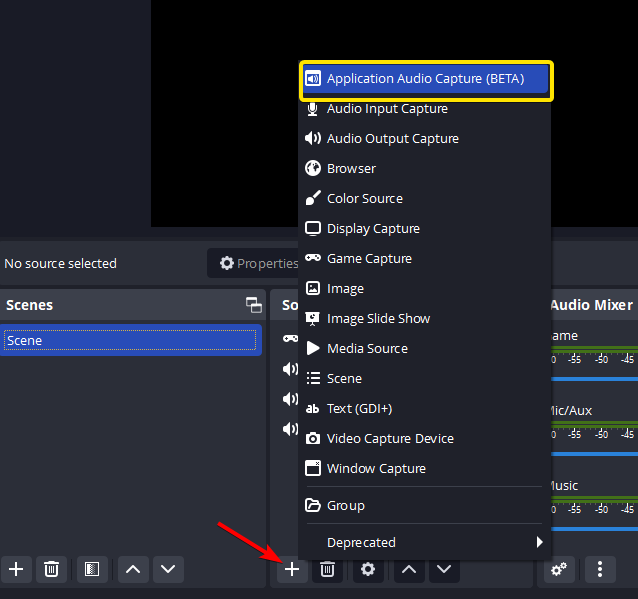
Separate applications in the mixer, avoid double audio and set up a master mix and separate tracks for editing. Learn about the limitations of the Twitch VOD track.
Read the guide ↗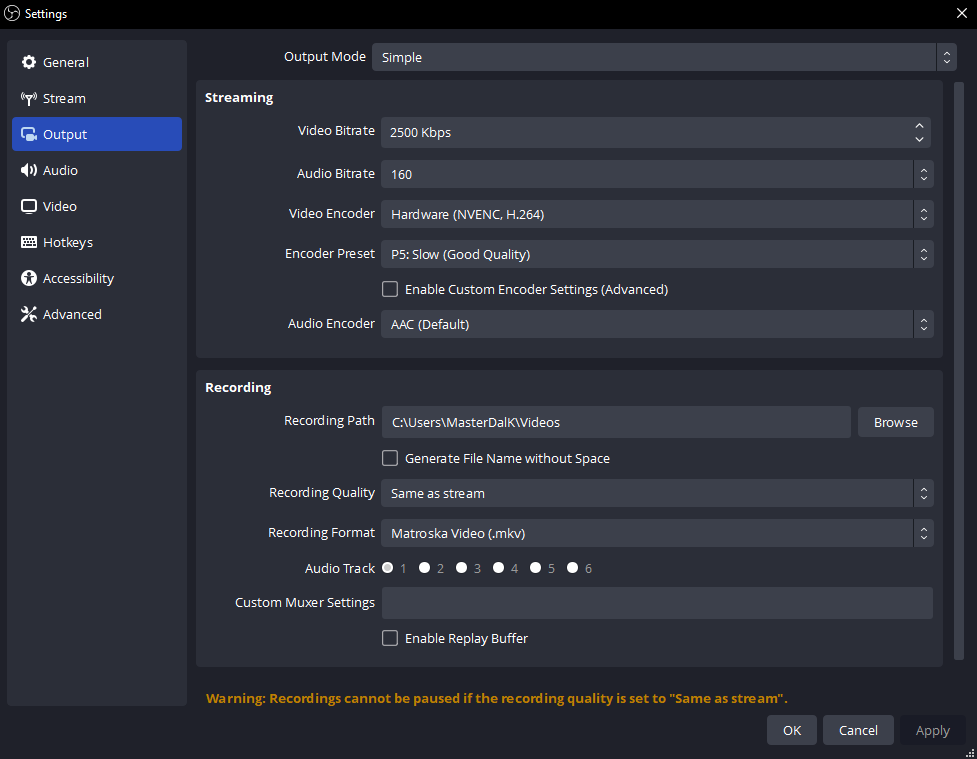
Set a safe recording format, check disk space and save the last seconds with a shortcut. Distinguish between recording, buffer and replay recording.
Read the guide ↗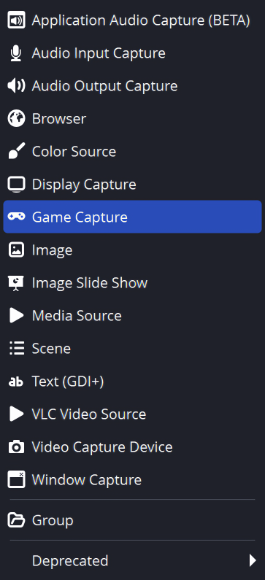
Prepare a vertical image without stretching the game and camera. Customize overlay links, text, and safe spaces for the platform interface.
Read the guide ↗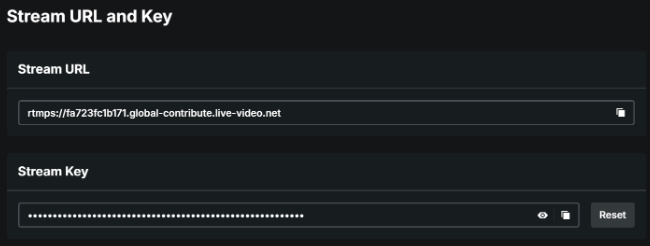
Distinguish between broadcast key, overlay link and platform login. Check your authorization address, secure your account, and have a plan in place once your key is revealed.
Read the guide ↗Export your profile and scene collection, save media files and separate tool settings. Check your copy on a controlled stage.
Read the guide ↗Record a short original sample before the whole episode. Check which formats your editor supports. OBS can remux MKV into MP4 without encoding the video again. Keep the original and listen to the exported file.
Read the guide ↗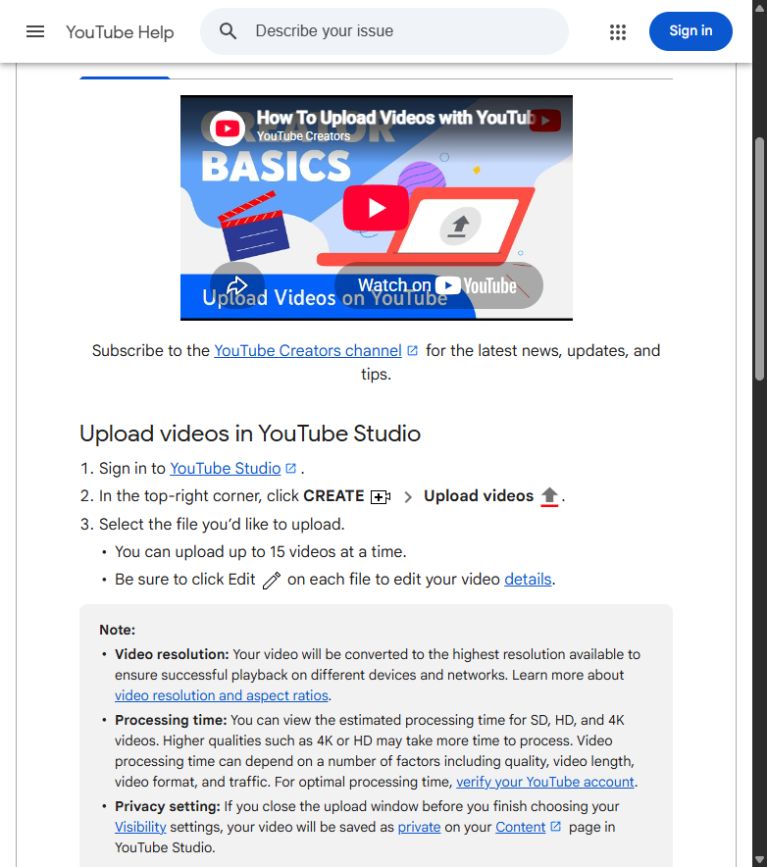
Upload privately first and wait for processing and checks. Correct automatic subtitles. Manual chapters start at 00:00, need at least three ascending timestamps and must each last ten seconds or more. Account feature access also matters.
Read the guide ↗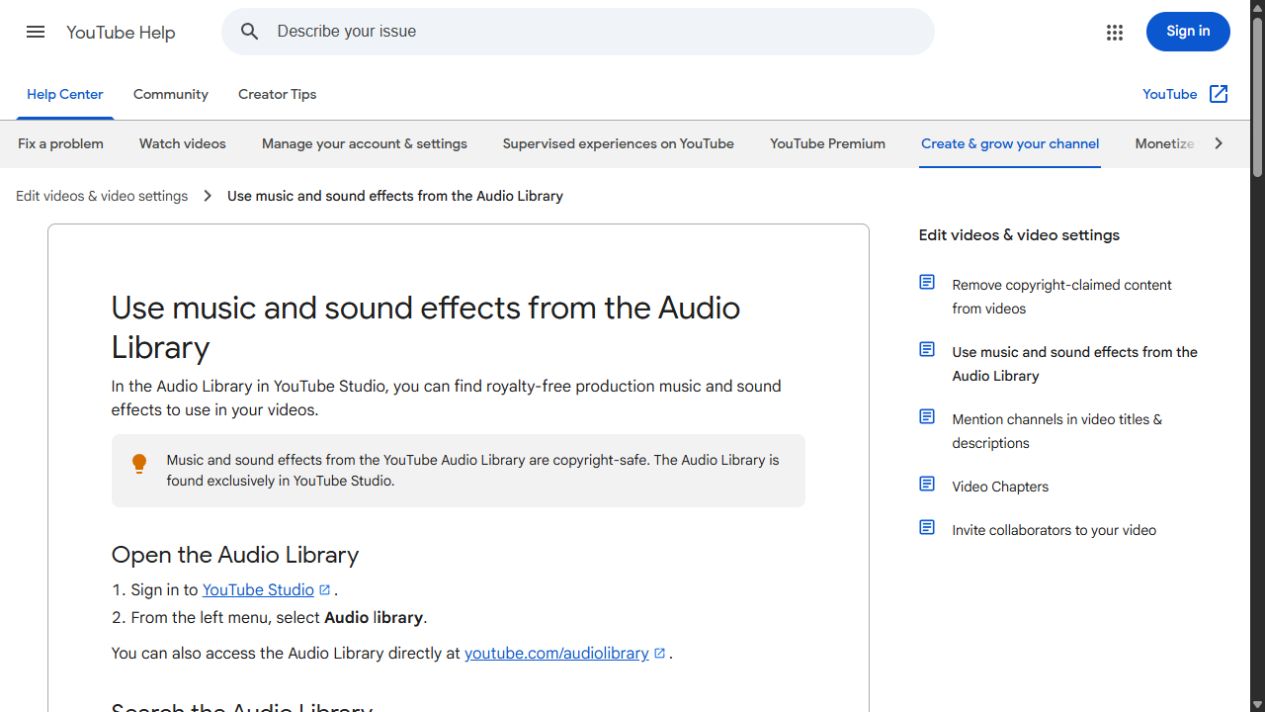
A music-listening subscription does not grant broadcasting or video rights. Check the license for LIVE, archives, Shorts and other destinations. Keep evidence and required credits. Dispute a claim only when you have a genuine basis.
Read the guide ↗
Adjust lighting and framing before buying a new camera. Soft light from the front or side usually makes a face clearer than a bright window behind it. Set focus, exposure and white balance for the scene and review a recording.
Read the guide ↗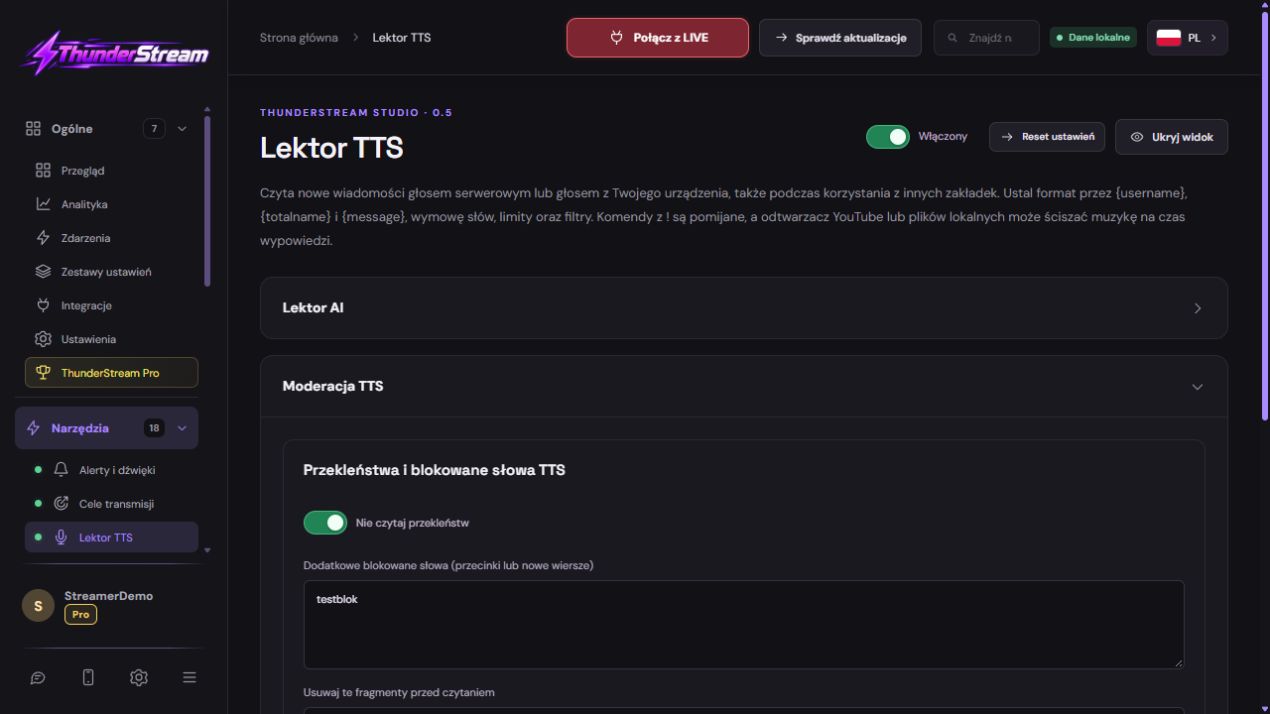
The filter also recognises spaced letters, repeated letters and common character substitutions. It checks the message and nickname before speech. You can add custom words.
Read the guide ↗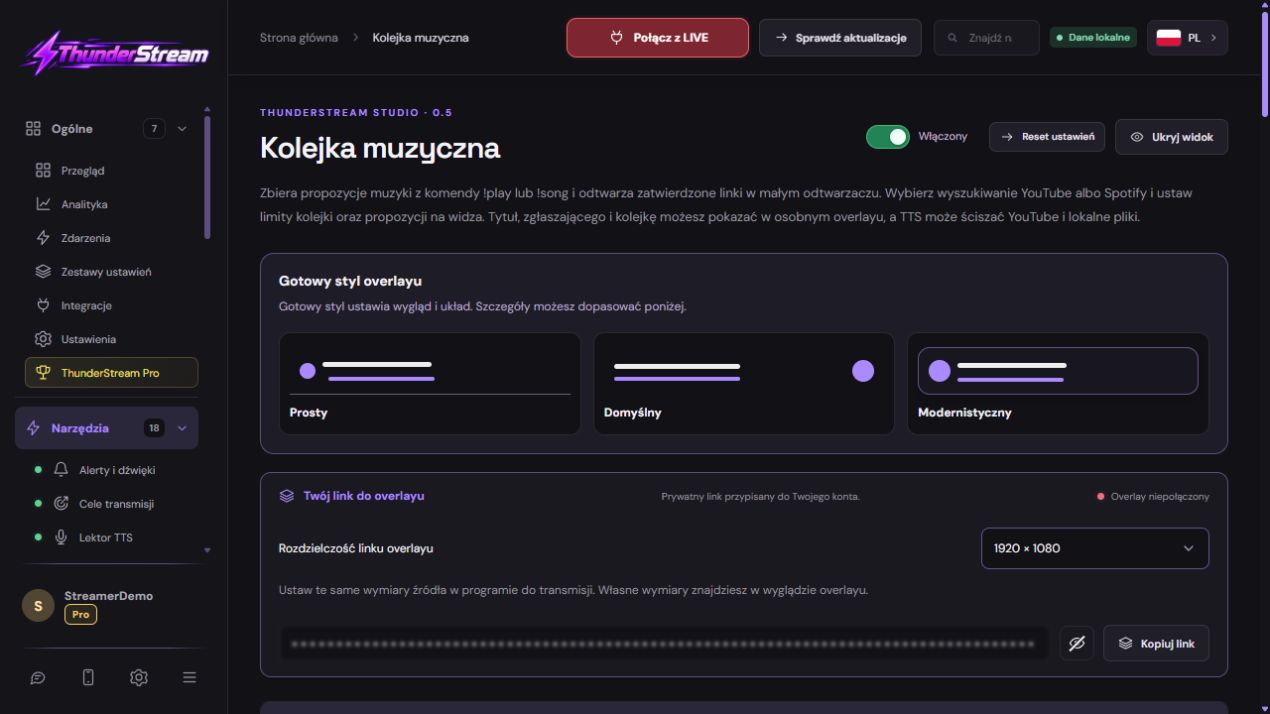
Configure viewer suggestions, order, limits and creator playlist. Check out music search and skipping to the next song.
Read the guide ↗Build the first scene from an empty OBS. Add the game, camera and microphone, check the local recording and only then start broadcasting.
Read the guide ↗Separate network problems from heat and device load. Test in the same location and change one setting at a time. Give an overheating phone a break, leave ventilation clear and keep system protections enabled.
Read the guide ↗
Distinguish network frame loss, rendering lag and encoding lag. Treat 720p at 30 FPS as a test baseline, not a universal platform requirement. Choose an available hardware encoder and leave resources for OBS.
Read the guide ↗
Choose one need of a specific viewer and deliver what the title promises. Cut waiting and empty introductions. Interpret retention alongside traffic source and video length; no script guarantees reach or virality.
Read the guide ↗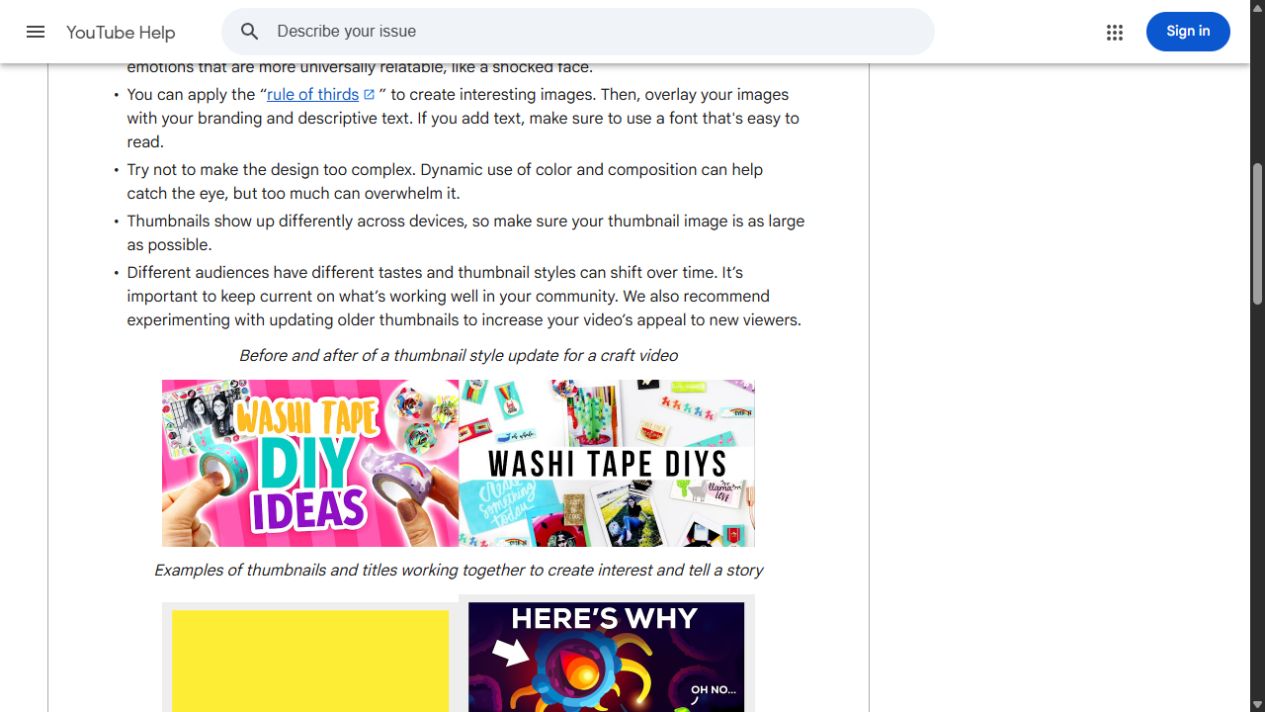
The thumbnail and title must match the actual content. Check readability at phone size. Run A/B tests only when available in Studio; compare CTR with traffic sources, impressions and watch time.
Read the guide ↗
The 20–60 second exercise is not the Shorts limit: eligible vertical or square videos can currently last up to three minutes. A Short over one minute with an active Content ID claim can be blocked worldwide. Check music before publishing.
Read the guide ↗There is no guide matching your search.