

One common goal or separate goals of the platforms?
Decide how you will describe the counter. If it combines activity from different channels, the title should make this clear. Separate bars need distinguishable names and appropriate sources.
Don't confuse new follows, subscriptions to the YouTube channel and paid support. Check the type of events that the widget provides for a given platform. It is the meaning, not the color of the bar, that determines what you count.
A dictionary without difficult abbreviations
| Concept | What does this mean in practice? |
|---|---|
| Scene | Ready-made image layout: e.g. a game with a camera or a break board. The scene you choose determines what you show. |
| Source | One scene component: game, camera, text, audio, or page with overlay. The order of sources determines what covers what. |
| URL | Full web address. Copy it using the button in the panel; do not copy fragments and do not add spaces. |
| Event | New information from the platform, such as a message, observation or gift. The appearance test is not always an actual event. |
| Resolution | The width × height of the area, e.g. 1920 × 1080. This is different than shrinking the source rectangle with the mouse. |
Step by step · 1–4
- Action
Log in to Streamlabs to the platform whose observations you count.
✓ After this step you will seeThe account in the panel matches the broadcast.
- Action
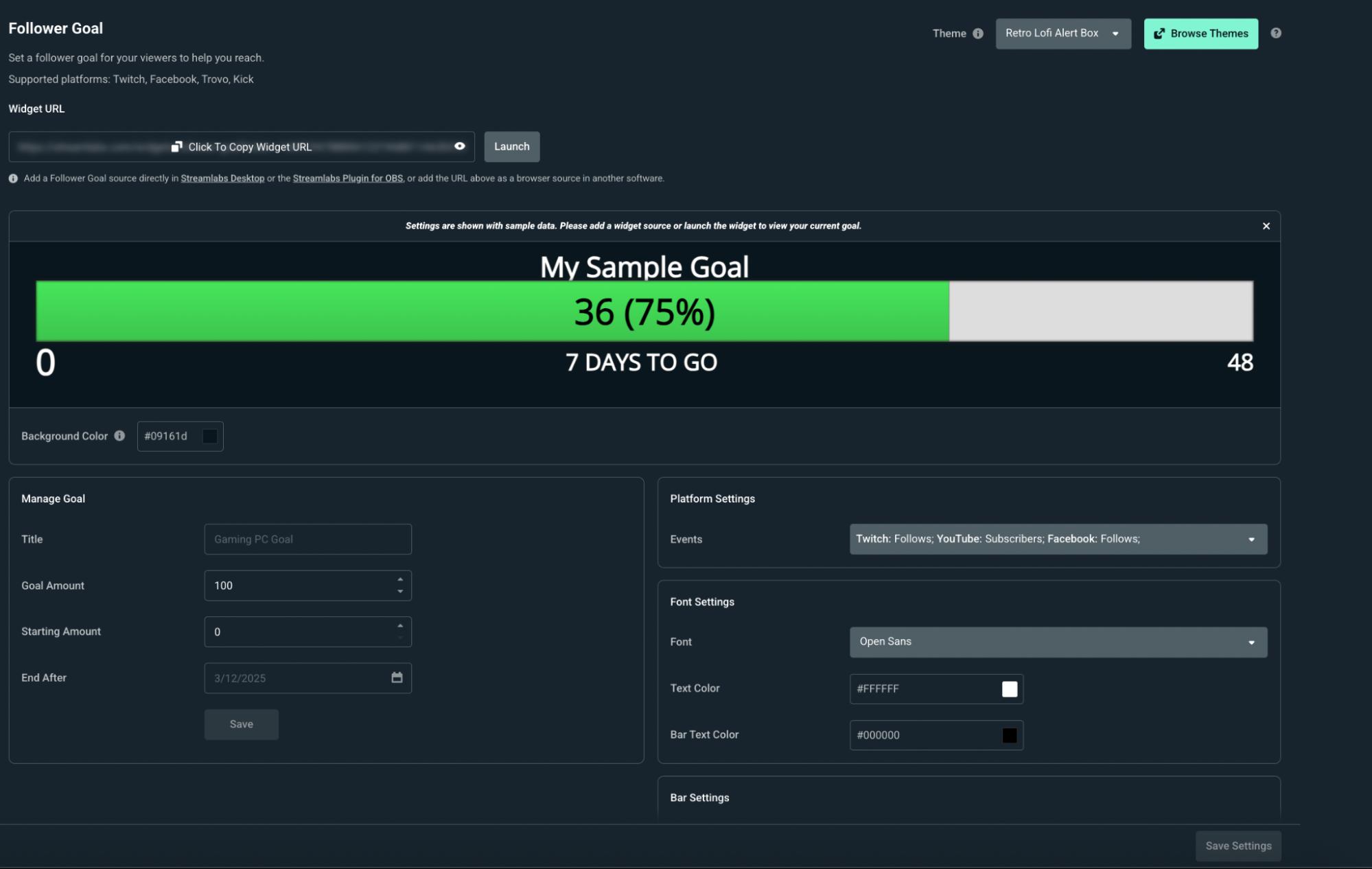
Open All Widgets and Follower Goal.
✓ After this step you will seeYou see the observation target settings.
- Action
In Manage Goal, enter a title, such as Community Goal.
✓ After this step you will seeThe title explains to viewers what you're collecting.
- Action
Set your target amount or number according to the fields in this widget.
✓ After this step you will seeThe goal is greater than the starting value.
 Enlarge the screenshot ↗
Step by step · 5–8
- Action
Check the starting value and counting method.
✓ After this step you will seeYou know whether you are counting new observations or the result from a fixed start.
- Action
Select an end date if the widget requires one.
✓ After this step you will seeThe date is consistent with your plan.
- Action
Launch the saved goal using the Manage Goal button.
✓ After this step you will seeThe panel shows the active target.
- Action
Set the appearance of text, bar and background.
✓ After this step you will seeThe numbers remain legible in the game image.
 Enlarge the screenshot ↗
Step by step · 9–12
- Action
Save your appearance settings.
✓ After this step you will seeThe refreshed preview has the same colors.
- Action
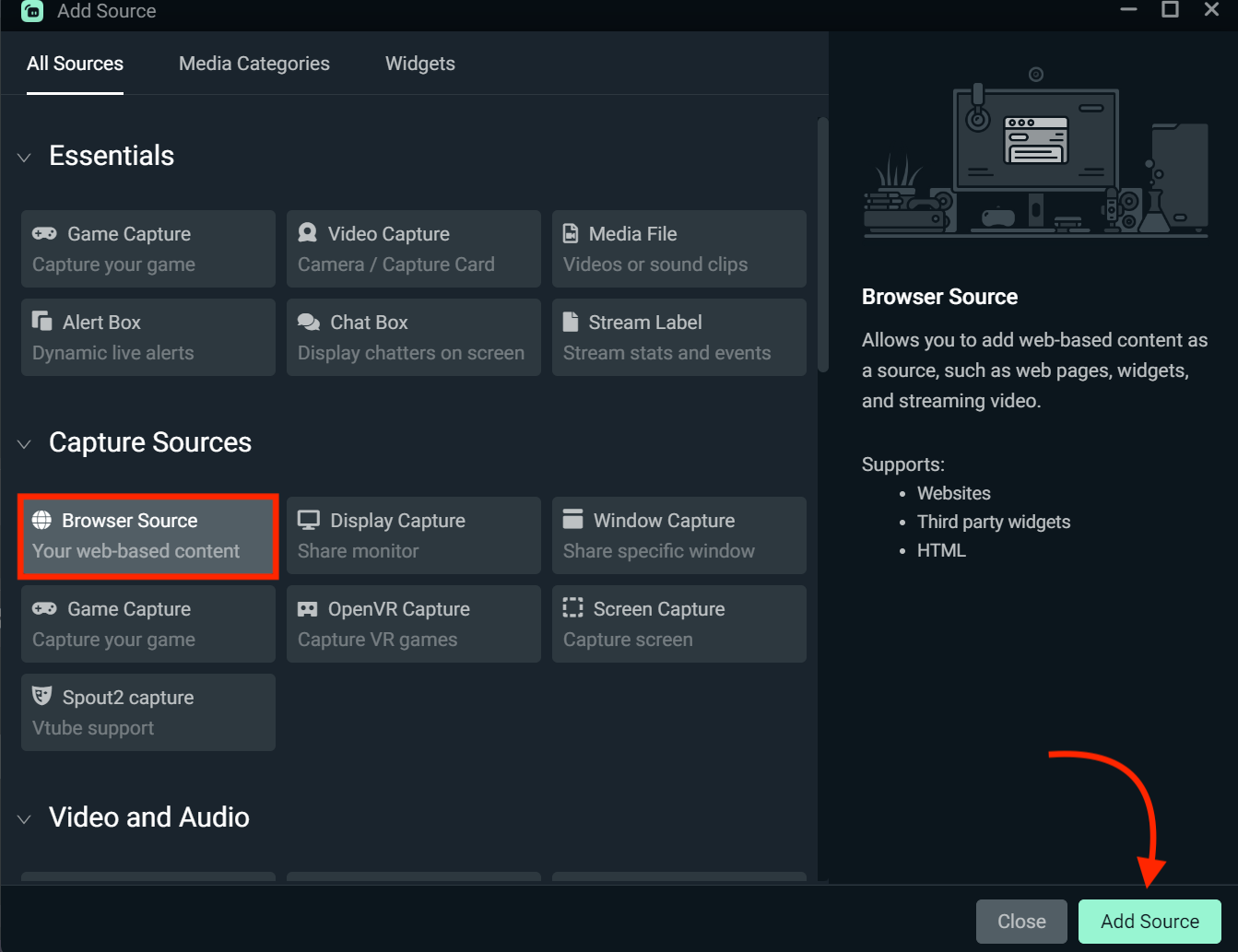
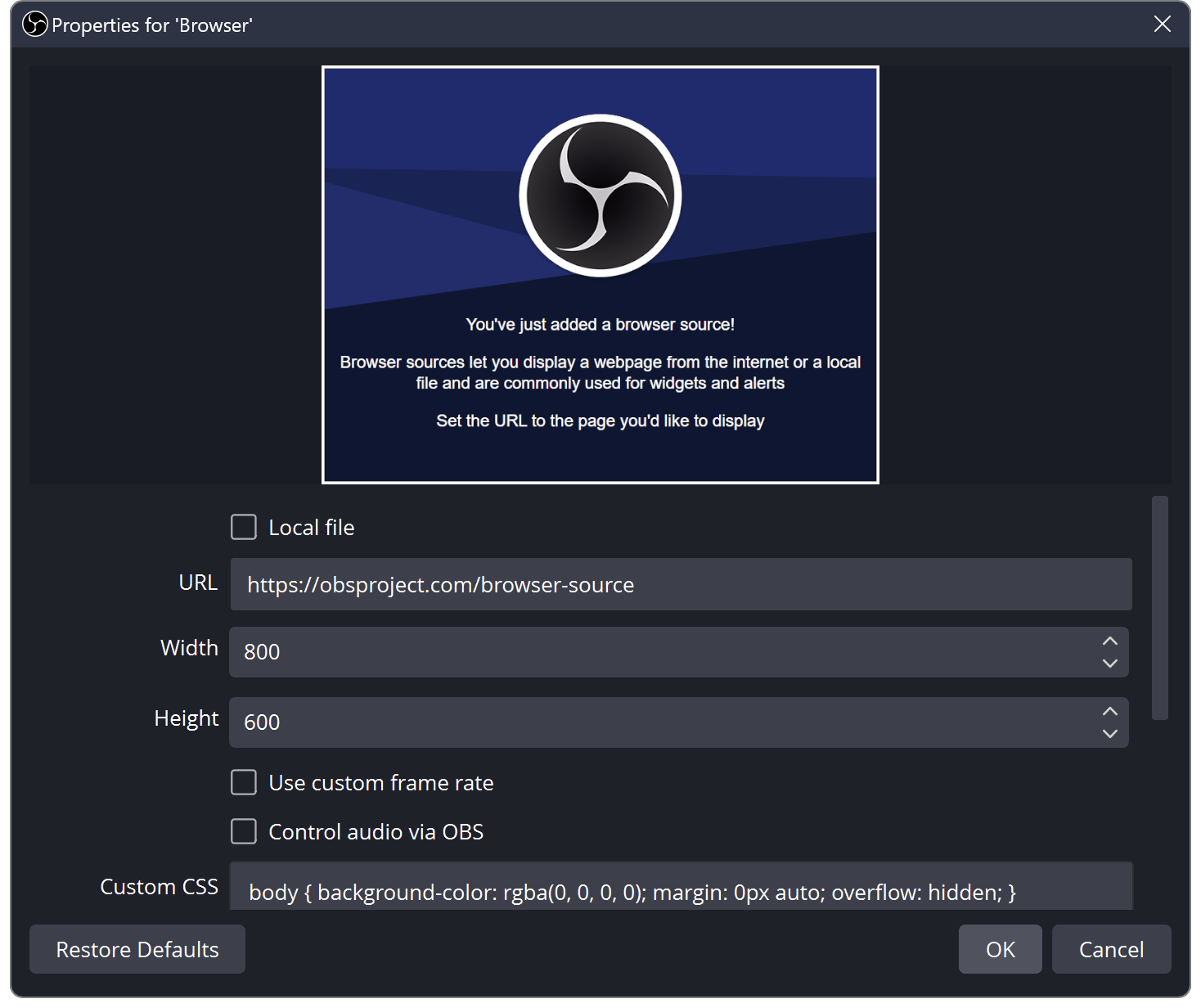
In Streamlabs Desktop add the Follower Goal source or in OBS the Viewer source with its Widget URL.
✓ After this step you will seeThe actual widget appears on the scene.
- Action
Place the bar over the game and check the full width.
✓ After this step you will seeThe beginning and end of the strip are not cut off.
- Action
Check the test and then the new event on LIVE.
✓ After this step you will seeYou distinguish between an attempt at appearance and a real update.
 Enlarge the screenshot ↗
Step by step · 13–14
- Action
For multiple platforms, check accounts and assigned widget themes.
✓ After this step you will seeYou don't randomly combine the results of independent goals.
- Action
Note the values before ending or resetting the target.
✓ After this step you will seeYou can recreate its configuration.
An example you can reproduce
For the 100 new observations challenge, you start from 0 and set a goal of 100. After 25 new observations, the bar should correspond to 25%. Don't enter 100 as the start and 100 as the goal, because you will show completion from the beginning.
Enter the parameters in the panel
After saving, go back to the values and check if they match your intention. Setting the example starting point in the instructions may result in the bar being partially filled right away.
- In the Streamlabs panel, open All Widgets and select Follower Goal.
- Complete the title, target value, start point and end date according to the widget fields.
- In your platform selection, identify events that will drive your goal forward.
- Adjust the appearance and use Save Settings.
Check the meaning of the values with a simple example
Prepare a test with a small threshold to see the behavior of an almost full bar. Don't treat the artificial preview as evidence of real observations. A separate valid event check is needed to check the integration.
| Determination | Which should be clear |
|---|---|
| The beginning | What number does the target start from? |
| Threshold | What number means you have achieved your goal. |
| Platforms | Which events are included. |
| Period | How long you intend to pursue a given goal. |
Widget in Streamlabs Desktop or address to another program
When setting up different themes for different platforms, copy the widget address of the appropriate theme. Merely duplicating a source with the same address does not create a different purpose. Check the description of current capabilities in the Streamlabs documentation.
- In Streamlabs Desktop, add the Follower Goal source from the widget list and check its settings.
- If you are using another program, copy the Widget URL and add the browser source.
- Name the source platform and target type.
- Adjust the position and make sure the entire title and numbers fit in the frame.
Clear bar without overloading the scene
Start with one font and two contrasting colors. Check the blank part, fill and text in both areas. The bar may look correct at 10% but become unreadable when filled with a light color.
Try it out in a small preview. If the viewer cannot read the values without magnification, increase key digits or simplify the captions. Save space for a longer title and more numbers.
When the goal does not increase or shows a different result
Do not directly compare each value to the total profile health without checking the counter definition. If you make a major configuration change, keep your previous settings so you can get back to a working bar.
- Check selected channels and event types.
- Compare the starting point and threshold with the goal description.
- Check the active theme and source address.
- Record the event time and before and after, then compare the panel with the same overlay.
What do you see on the screen and how to fix it
Fix one thing at a time and try the same thing again. If you change several options at the same time, it will be difficult to determine what solved the problem. Don't delete a working source or entire configuration just because one widget isn't responding.
If you still need help, write down the program name and version, platform, approximate time of trial, expected result, and what actually happened. Attach a dump without passwords, keys and full private links. This description is much more useful than just the "not working" message.
| Symptom | Check first | Do it |
|---|---|---|
| The goal appears to be completed immediately | The start is equal to or greater than the target | Compare both values in Manage Goal. |
| The result is for a different platform | Another account association or Theme Widget | Check which channel the widget receives data from. |
| The test changes the appearance but not the score of the account | The test does not confirm real observation | Check out the new event during LIVE. |
| The old goal is still on the scene | You pasted the URL of another widget or theme | Compare the source address with the current Follower Goal. |
Last attempt before use on LIVE
- Save the changes using the button assigned to the edited function. If there are separate forms, check each changed part separately.
- Open the settings again and compare the most important values. Simply moving the slider does not always mean a permanent save.
- Check the result outside the editor itself: on the target scene, in the recording, or in the reopened configuration.
- If the function uses the platform, separately acknowledge the new handled event during the active LIVE. Don't expect the appearance test to confirm account authorization.
- Save the working values and make a copy before the next major change. Next time you start up, start with a quick check.
Before you go live
- The starting point and threshold have their intended meaning.
- Relevant platforms and events are identified.
- The source uses the appropriate widget or theme.
- The bar remains legible even close to the target.
- Reopened settings retain the saved values.
- A single attempt is confirmed on the target output.
Frequently asked questions
Can I show a separate goal for each platform?
Check the variant with separate themes and their widget addresses in the documentation. Each source must point to the correct configuration.
Is Follower Goal the same as Sub Goal?
NO. The name and selected events of a widget determine its purpose. Check whether it's follows or paid subscriptions.
Does the preview show the actual result?
The preview can use sample data. Please confirm the actual progress separately after saving and connecting the channel.
What should I do if my screen looks different than the photo?
Check the program name, version and selected feature. The dump is real, but it's from a specific edition and language. Search for a described field by its task. If the option is not available, check the current official support and availability in your account.