

Save the countdown rules before setup
Determine whether the timer indicates the length of the entire broadcast, a specific round or challenge. This affects the starting point and the moment of reset. Name the scene and source so that the subathon clock is not confused with the break timer.
Write an example result: after one event, the clock should increase by a specified number of seconds. For the first test, set a short time and one interaction. This makes it easier to spot an unintended multiplier.
A dictionary without difficult abbreviations
| Concept | What does this mean in practice? |
|---|---|
| Scene | Ready-made image layout: e.g. a game with a camera or a break board. The scene you choose determines what you show. |
| Source | One scene component: game, camera, text, audio, or page with overlay. The order of sources determines what covers what. |
| URL | Full web address. Copy it using the button in the panel; do not copy fragments and do not add spaces. |
| Event | New information from the platform, such as a message, observation or gift. The appearance test is not always an actual event. |
| Resolution | The width × height of the area, e.g. 1920 × 1080. This is different than shrinking the source rectangle with the mouse. |
Step by step · 1–4
- Action
Check the connection of TikFinity to the correct LIVE in Setup.
✓ After this step you will seeThe correct channel is received.
- Action
Open the timer section or countdown tool available in your version.
✓ After this step you will seeThe time is visible, not the settings of another widget.
- Action
Stop the timer for setup.
✓ After this step you will seeThe numbers do not change as you type.
- Action
Set the example to 10 minutes and seconds to 0.
✓ After this step you will seeThe preview shows 10:00, not 00:10.
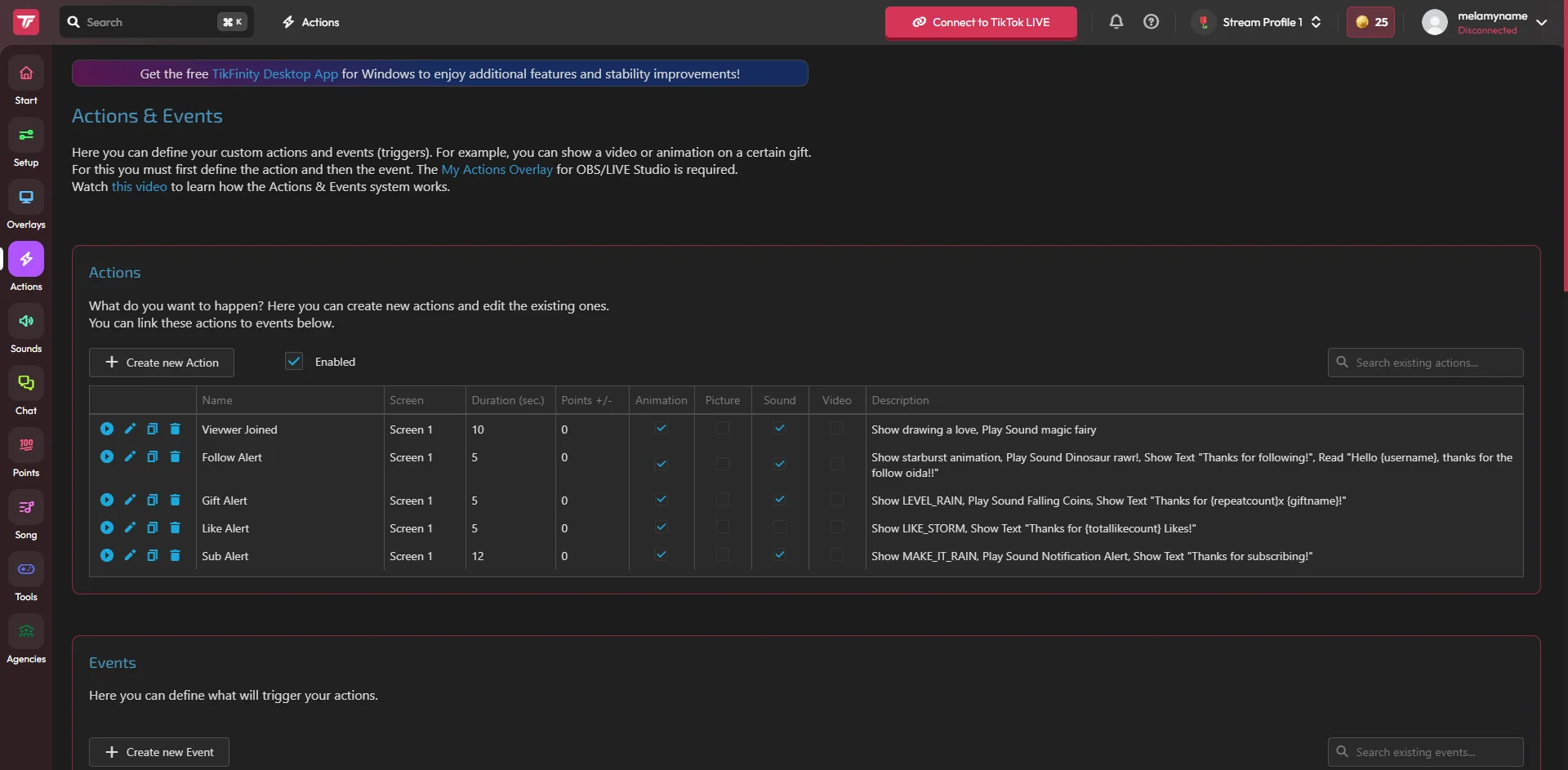 Enlarge the screenshot ↗
Step by step · 5–8
- Action
Specify whether the time should decrease or increase if the tool provides such a choice.
✓ After this step you will seeThe mode suits your purpose.
- Action
Note the start time and check the start button.
✓ After this step you will seeYou know how to start and stop the countdown.
- Action
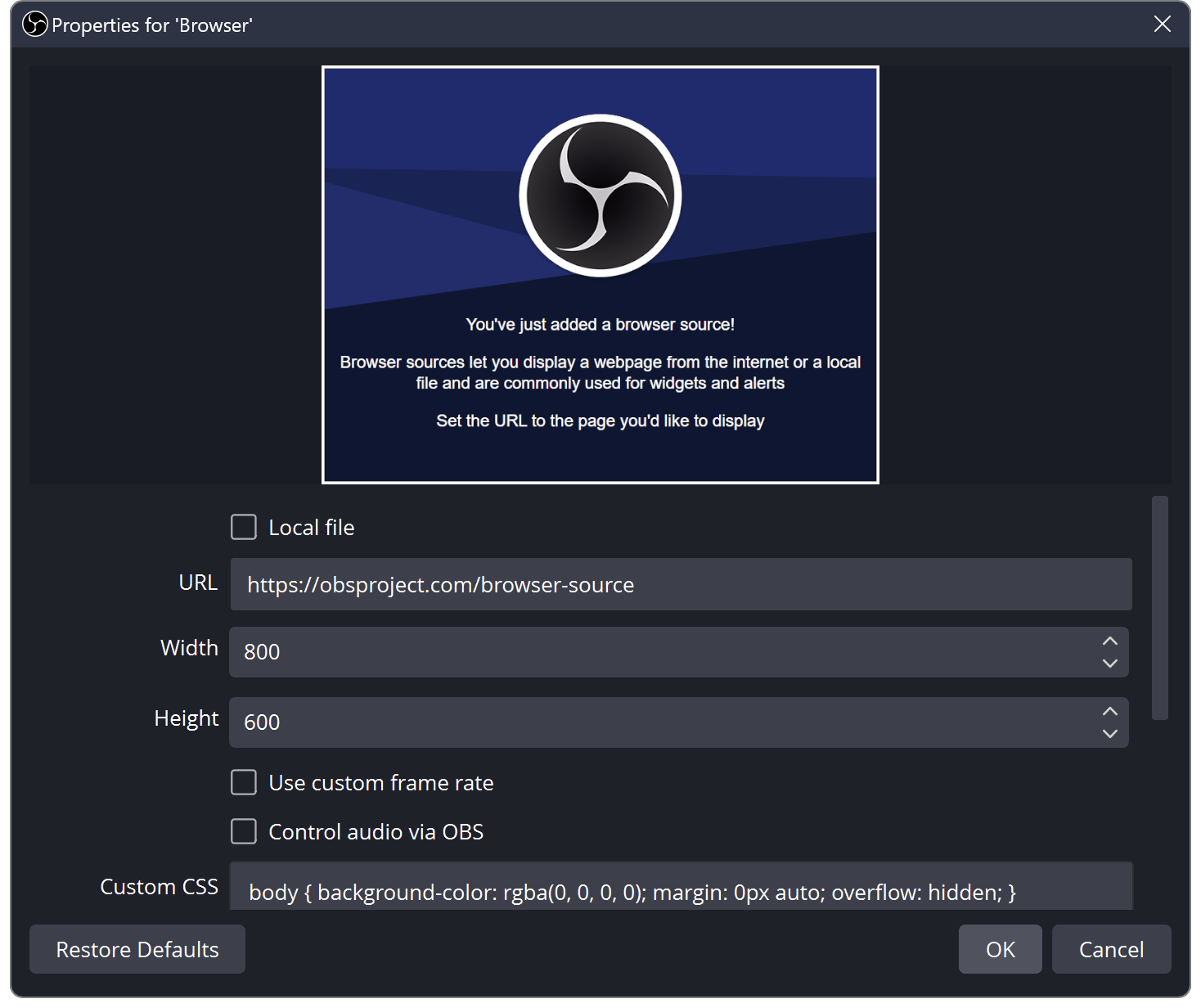
Copy the address of the screen containing the timer.
✓ After this step you will seeThe address comes from the timer widget, not the entire page.
- Action
Add source Browser or Link above the game.
✓ After this step you will seeThe time is visible in the broadcast program.
 Enlarge the screenshot ↗
Step by step · 9–12
- Action
Check available actions for adding time in your current plan.
✓ After this step you will seeYou don't assume that each version provides identical actions.
- Action
If adding time is supported, set one rule: 1 event unit equals 30 seconds.
✓ After this step you will seeYou can calculate the expected result of the trial.
- Action
Assign the rule to exactly one event.
✓ After this step you will seeThe same event does not go to several copies of the rule.
- Action
Save and check a single test.
✓ After this step you will see10:00 becomes approximately 10:30, taking into account the passage of time.
 Enlarge the screenshot ↗
Step by step · 13–14
- Action
Check the behavior at 00:00.
✓ After this step you will seeYou know whether the timer will stop or trigger an additional action.
- Action
Start a short recording and check the scene change.
✓ After this step you will seeThe timer does not go back to the beginning by itself after switching the view.
An example you can reproduce
Perform the test with the countdown stopped, if the program allows. Start 10:00 + one addition of 30 seconds = 10:30. If you see 11:00, check the duplicate rule. If your version doesn't have an add time action, don't replace it with a random action - check the manufacturer's description of the function.
Set the start and values of the interaction
The current interface provides converters, among others: for coins and selected interactions. Don't automatically equate the number of coins with the number of gifts. Compare the received event with the entity signed next to the field.
- Open Timer in TikFinity Utilities and check the Default Start Value field.
- Set the start of the countdown.
- Select one available interaction and enter the number of seconds. A positive value extends and a negative value shortens the countdown.
- Check the available multiplier and leave it in a consciously selected state.
An example that is easy to check
The example is not a suggested subathon price list. Match the values to your own format. Also write down the maximum planned length of the event and how it will end so viewers know what to expect.
| Trial setting | Expected behavior |
|---|---|
| Short starting time | You can see that the counter is actually counting down. |
| One interaction → 5 seconds | A single correct attempt produces a recognizable gain. |
| Negative conversion factor | Time decreases only when this option is consciously chosen. |
| Multiplier | The result also corresponds to this setting. |
Start, pause, resume and reset
Check interaction behavior during pause separately. Don't assume that pausing necessarily turns off every event response. What matters is what you actually set and confirmed in your version.
- Start the timer and watch the next few seconds change.
- Pause it and see if it retains the expected value.
- Resume the countdown and compare the panel with the overlay.
- Perform a Reset in a trial before LIVE and see what state is restored.
View overlay and final reaction
Add the timer address to the browser source in the broadcast program. Check the entire width of the digits, also for long time. Use the correct timer address, not a link to another action screen.
If you are setting up a timer action, test it on a short countdown. Observe the moment of zero and the state after the reaction is completed. The mere fact that the clock is running does not confirm the correct final action.
When the result grows differently than you expect
Test a single rule. Several parallel reactions to a gift can make it difficult to calculate the increase. Before reporting an error, check the trial without additional automation and compare the panel with the same source on stage.
- Check the entity for a given interaction.
- Compare the sign of the value and the state of the multiplier.
- Check whether the same timer is not changed by an additional action.
- Record the situation before and after the event and its time.
What do you see on the screen and how to fix it
Fix one thing at a time and try the same thing again. If you change several options at the same time, it will be difficult to determine what solved the problem. Don't delete a working source or entire configuration just because one widget isn't responding.
If you still need help, write down the program name and version, platform, approximate time of trial, expected result, and what actually happened. Attach a dump without passwords, keys and full private links. This description is much more useful than just the "not working" message.
| Symptom | Check first | Do it |
|---|---|---|
| There is no option to add time | Different plan or version of the tool | Check the current TikFinity offer and supported stocks. |
| Time returns to the beginning | The source refreshes when the scene changes | Check the options for activating the source and using the same widget. |
| I add twice too much | Multiple rules or confusing units | Leave one rule and test one unit. |
| After zero, the screen is blank | This widget behavior or source not visible | Test the countdown ending before broadcasting. |
Last attempt before use on LIVE
- Save the changes using the button assigned to the edited function. If there are separate forms, check each changed part separately.
- Open the settings again and compare the most important values. Simply moving the slider does not always mean a permanent save.
- Check the result outside the editor itself: on the target scene, in the recording, or in the reopened configuration.
- If the function uses the platform, separately acknowledge the new handled event during the active LIVE. Don't expect the appearance test to confirm account authorization.
- Save the working values and make a copy before the next major change. Next time you start up, start with a quick check.
Before you go live
- The units and sign of the values are understandable.
- The multiplier is set consciously.
- The clock lights passed the test.
- The overlay and final reaction have been checked.
- Reopened settings retain the saved values.
- A single attempt is confirmed on the target output.
Frequently asked questions
Is a negative value an error?
He may consciously shorten the countdown. Check the sign and the intended direction of the reaction.
Are timer and countdown goal the same thing?
Don't treat the timer as counting down the missing interactions towards your goal. Compare the description of the selected tool.
Why didn't the end result show up?
Check the assigned action, corresponding screen and full sequence on a short test.
What should I do if my screen looks different than the photo?
Check the program name, version and selected feature. The dump is real, but it's from a specific edition and language. Search for a described field by its task. If the option is not available, check the current official support and availability in your account.