

Select a duration or target time
In the Timer tool, select the appropriate mode. Duration means a countdown of the specified length. The target time is used to count down to the indicated moment in accordance with the panel settings. Also check your device's time settings.
Set a few minutes and a reasonable maximum for the test. A long test counted in hours makes it difficult to quickly notice the error. Check Start, Pause, Resume and Reset separately; reset can restore the starting point and progress of the rules.
A dictionary without difficult abbreviations
| Concept | What does this mean in practice? |
|---|---|
| Scene | Ready-made image layout: e.g. a game with a camera or a break board. The scene you choose determines what you show. |
| Source | One scene component: game, camera, text, audio, or page with overlay. The order of sources determines what covers what. |
| URL | Full web address. Copy it using the button in the panel; do not copy fragments and do not add spaces. |
| Event | New information from the platform, such as a message, observation or gift. The appearance test is not always an actual event. |
| Resolution | The width × height of the area, e.g. 1920 × 1080. This is different than shrinking the source rectangle with the mouse. |
Step by step · 1–4
- Action
Open Timer and subathon and enable the tool.
✓ After this step you will seeYou see the clock and its configuration.
- Action
Select a duration or target time.
✓ After this step you will seeYou know whether you set 30 minutes or an end date.
- Action
To test, enter 0 hours, 30 minutes and 0 seconds.
✓ After this step you will seeThe start means 00:30:00, not 30 seconds.
- Action
Save the start and check the fields again.
✓ After this step you will seeThe value is retained.
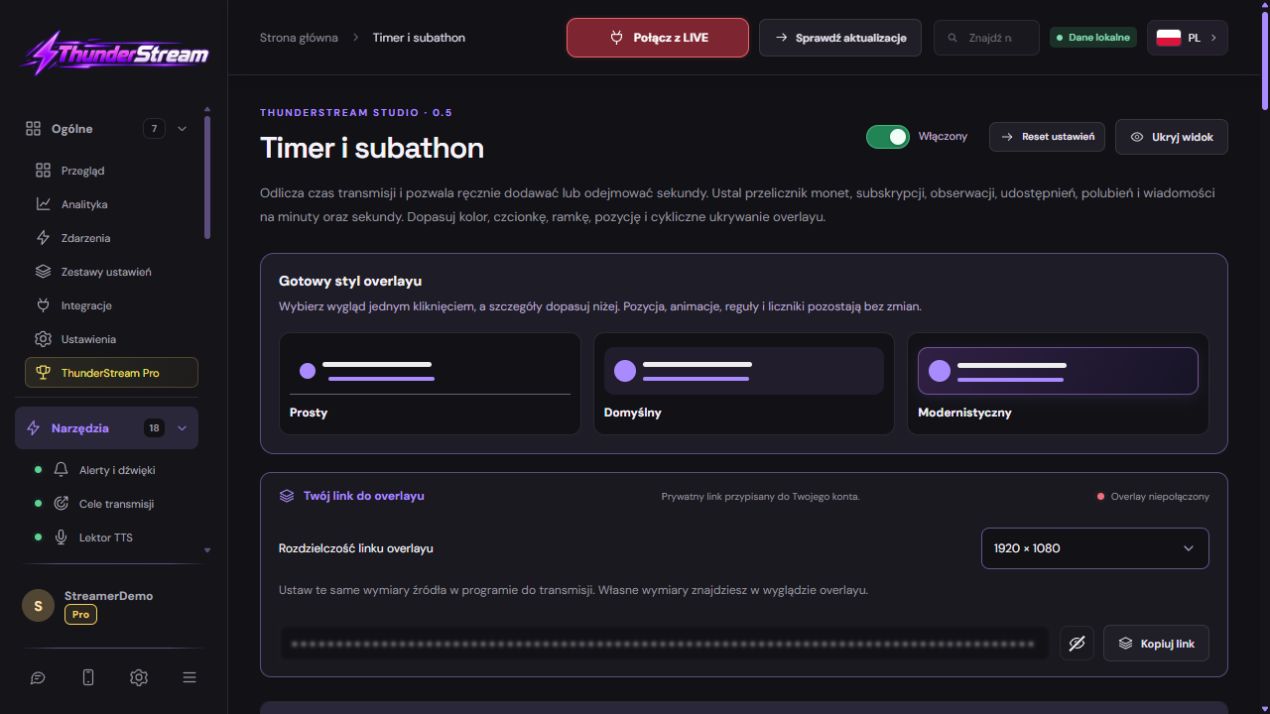 Enlarge the screenshot ↗
Step by step · 5–8
- Action
Expand one event used.
✓ After this step you will seeYou don't run all the rules during the first diagnosis.
- Action
Set a simple conversion factor, e.g. 1 unit = 10 seconds.
✓ After this step you will seeIt's easy to calculate the result manually.
- Action
Check the unit: coins, pieces, bits, kicks or points.
✓ After this step you will seeYou're not comparing different values for the same gift.
- Action
Enable the rule and use its Save button.
✓ After this step you will seeThe condition remains active upon return.
Step by step · 9–12
- Action
Set a maximum time and end behavior if needed.
✓ After this step you will seeViewers know the rules for extensions.
- Action
Start the timer and then stop it with a pause to attempt the bill.
✓ After this step you will seeYou can compare the result without further seconds passing.
- Action
Trigger an event with a known number of units.
✓ After this step you will seeThe increment agrees with the saved conversion factor.
- Action
Repeat separate trials of the platforms used.
✓ After this step you will seeEach type of support has its own confirmation.
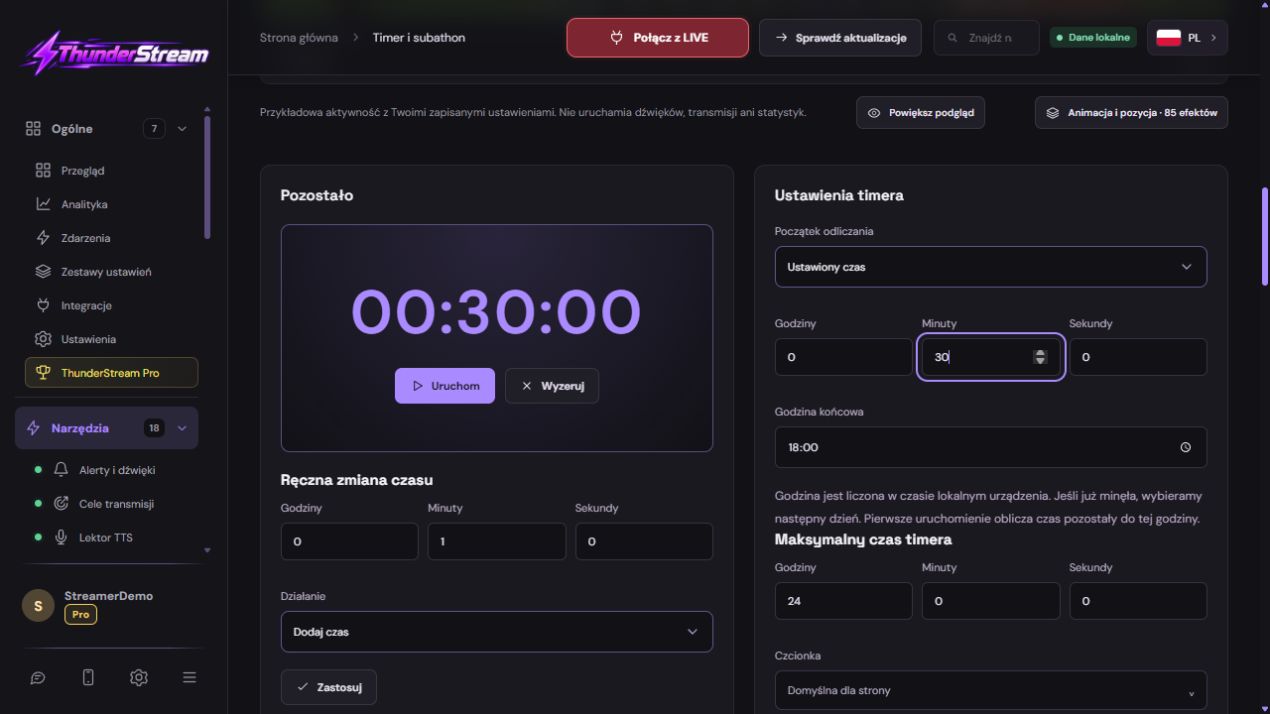 Enlarge the screenshot ↗
Step by step · 13–14
- Action
Set the numbers to be readable and add a link to the scene.
✓ After this step you will seeThe dimensions of the source correspond to the saved overlay.
- Action
Resume the countdown and make a recording.
✓ After this step you will seeTime flows coherently, without confusing several copies of the source.
An example you can reproduce
Stop the clock at 00:10:00. With the 1 coin = 10 seconds rule, a 3 coin event gives 00:10:30. During the active countdown, the result may be a few seconds lower. First, distinguish the passage of time from an incorrect conversion rate.
Rule: how many events give how much time?
- Find the row that corresponds to the platform and interaction.
- Enable the rule and specify the number of units after which the change occurs.
- Set the minutes and seconds and the direction: addition or subtraction.
- Save this rule. Don't assume that saving another part of the form will replace saving the line you are editing.
| Configuration example | Result to be checked |
|---|---|
| 10 units → 30 seconds | 20 units should correspond to two such servings. |
| 5 coins → 15 seconds | 20 coins corresponds to one minute if the event has these units. |
| 1 observation → 10 seconds | Also check protection against repeating the same action. |
| Subtraction rule | Make sure you consciously choose the opposite direction. |
Coins, Bits, Kicks and events YouTube
Don't treat all support names as one currency. Select the type available on a given platform and check what value a specific event receives. The value rule and the number of subscriptions gifted rule may respond differently.
On Twitch, look out for Bits and gifted subs; on Kick on Kicksy and corresponding subscription gifts. On YouTube, distribute gifts, Super Chat, Super Sticker and donated support according to the list in the panel. Don't assume automatic conversion of the monetary amount into TikTok coins.
Time for channel points
The comment itself containing the number of points does not constitute confirmation of the reward. The interaction must come from a supported platform event. Write down the name of the reward being tested and the result of the trial so as not to confuse it with another rule.
- Prepare your reward on a supported platform and check the required connection and permissions.
- In the Timer, select the point reward redemption rule.
- If you want to respond to one specific reward, set its filter according to the field description.
- Do one test execution and check that it adds time only once and to the correct clock.
Maximum, pause and security
Set an upper time limit before starting the game. Check whether interactions should change time during pause. This decision must be communicated to the viewers, otherwise their expectations may differ from the settings.
Review protection against repeated follows and shares. Don't disable security just to have the test from one account run over time multiple times. Select valid, distinguishable events for comparison.
Appearance and full test in the scene
The constant countdown should be rated on a single clock. Two independent preview copies or confusing an old link with the current setting can make diagnosis difficult. First, compare the correct panel to the correct source.
- Choose the timer style, number font, colors and possible gradient.
- Check the information about the added time and the increment sound if you want to show them.
- Copy the timer link to OBS or LIVE Studio. Set a compatible area and location.
- Record countdown, time addition, pause and end. Check the final message TTS if enabled.
What do you see on the screen and how to fix it
Fix one thing at a time and try the same thing again. If you change several options at the same time, it will be difficult to determine what solved the problem. Don't delete a working source or entire configuration just because one widget isn't responding.
If you still need help, write down the program name and version, platform, approximate time of trial, expected result, and what actually happened. Attach a dump without passwords, keys and full private links. This description is much more useful than just the "not working" message.
| Symptom | Check first | Do it |
|---|---|---|
| Adds another time. | Confusion of coins and pieces or several rules. | Compare event data and condition entity. |
| After a pause, he starts over. | Clicked reset instead of resume. | Check the button caption before trying. |
| It's a different time on stage. | Another link, old source or multiple copies. | Compare account and URL without resetting ongoing LIVE. |
| Points do not add time. | No reward event or filter not matched. | Please check the platform and rule for this reward. |
Last attempt before use on LIVE
- Save the changes using the button assigned to the edited function. If there are separate forms, check each changed part separately.
- Open the settings again and compare the most important values. Simply moving the slider does not always mean a permanent save.
- Check the result outside the editor itself: on the target scene, in the recording, or in the reopened configuration.
- If the function uses the platform, separately acknowledge the new handled event during the active LIVE. Don't expect the appearance test to confirm account authorization.
- Save the working values and make a copy before the next major change. Next time you start up, start with a quick check.
Before you go live
- The clock starts, pauses, resumes and resets correctly.
- Each platform you use has its own proven rule.
- Units are not confused with currency or number of pieces.
- The maximum and the behavior during the pause are set consciously.
- Reopened settings retain the saved values.
- A single attempt is confirmed on the target output.
Frequently asked questions
Does 100 Bits automatically mean 100 TikTok Coins?
NO. Set a separate conversion factor for the type of support and check the data of the received event.
Why doesn't the time increase when the countdown is turned off?
Check the setting for counting during pause, enabling a specific rule and receiving an event.
Does the appearance test alone prove correct time calculation?
NO. The presentation test and the actual event test different steps. Confirm both before broadcasting.
What should I do if my screen looks different than the photo?
Check the program name, version and selected feature. The dump is real, but it's from a specific edition and language. Search for a described field by its task. If the option is not available, check the current official support and availability in your account.