

A dictionary without difficult abbreviations
| Concept | What does this mean in practice? |
|---|---|
| Broadcast key | A private value that allows the program to broadcast to the channel. It is not an overlay link and must not be shown publicly. |
| OAuth | Connecting the application to your account by consent on the platform's website. The scope of permissions depends on what the application asks for. |
| URL | Full web address. Copy it using the button in the panel; do not copy fragments and do not add spaces. |
| Source | One scene component: game, camera, text, audio, or page with overlay. The order of sources determines what covers what. |
| Event | New information from the platform, such as a message, observation or gift. The appearance test is not always an actual event. |
Step by step · 1–4
- Action
Write down what you're trying to connect: sending an image, receiving events, or displaying an overlay.
✓ After this step you will seeYou recognize three different tasks.
- Action
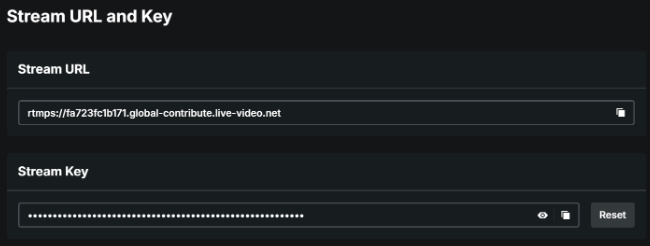
To send an image, open the platform's broadcast settings.
✓ After this step you will seeThis is where your account link or stream key is located.
- Action
If OBS offers official account linking, please use it according to the platform's instructions.
✓ After this step you will seeLogin takes place on the provider's domain.
- Action
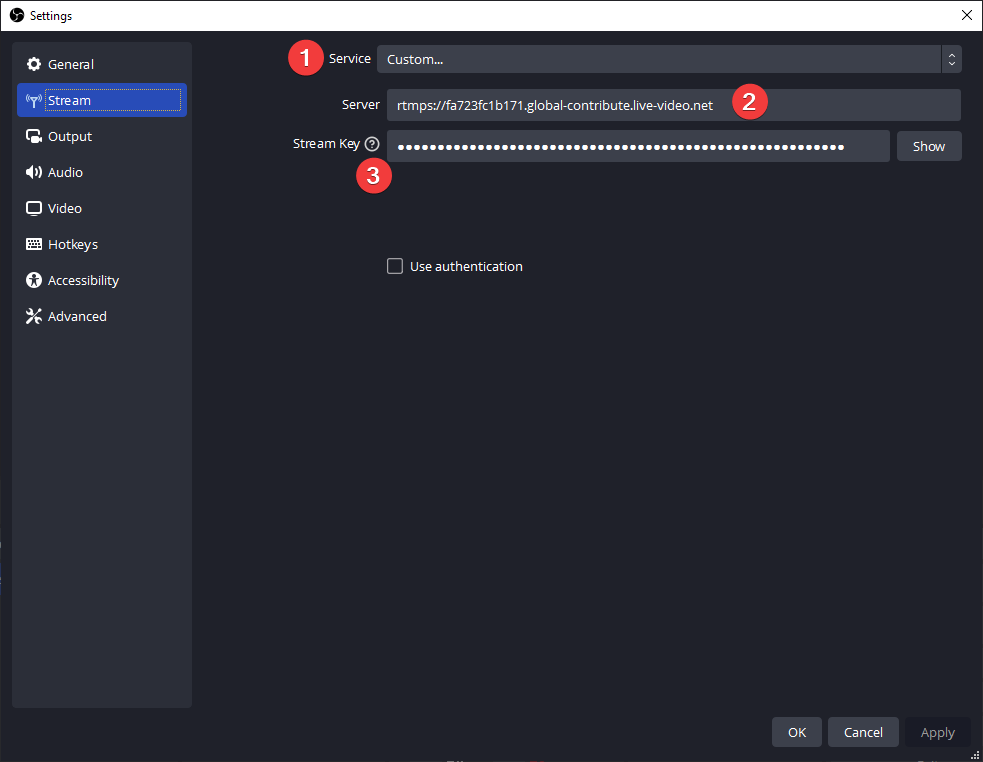
For manual configuration, copy the server URL and key into separate fields.
✓ After this step you will seeYou don't paste the entire address into the key field.
 Enlarge the screenshot ↗
Step by step · 5–8
- Action
Copy its Widget URL or link overlay to the overlay.
✓ After this step you will seeThis is the source address of the Browser, not the broadcast key.
- Action
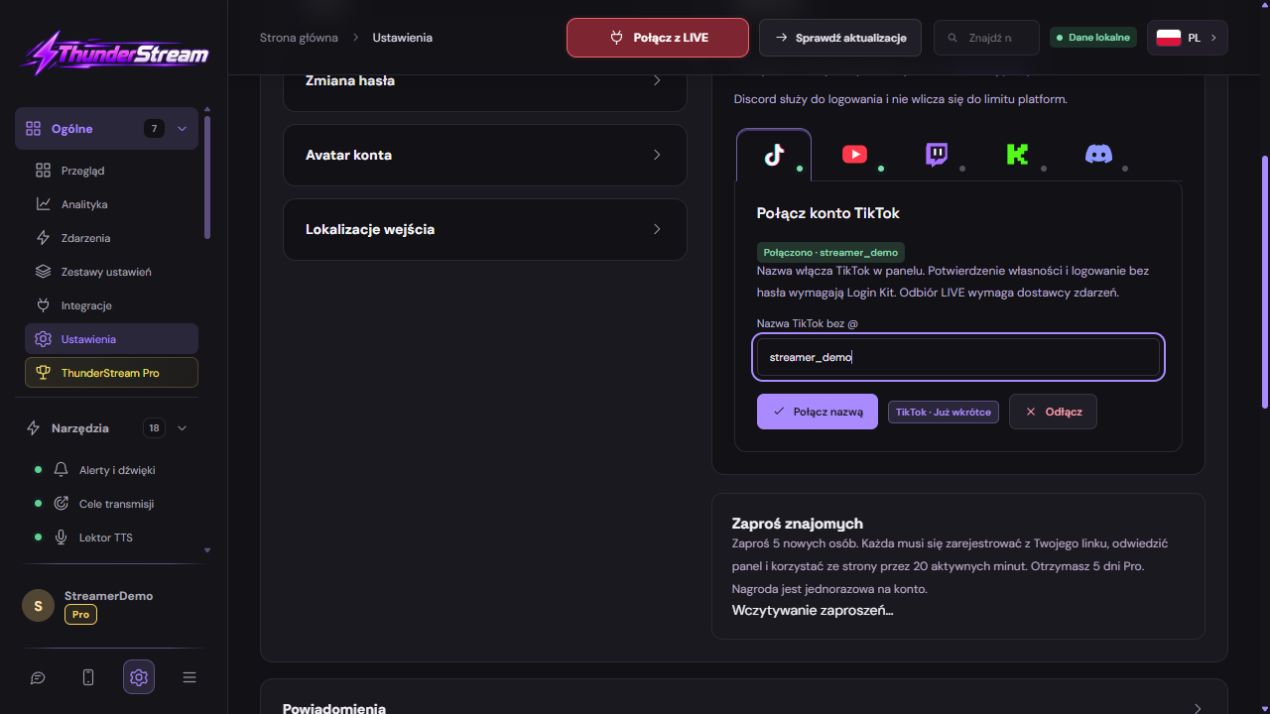
To receive events, use the account connection in the tool panel.
✓ After this step you will seeYou don't enter your platform password in a random form.
- Action
Before allowing OAuth, check the domain of the login page and the name of the application.
✓ After this step you will seeYou know who you're giving access to.
- Action
Read the requested permissions and accept only after understanding the purpose.
✓ After this step you will seeYou know what data or activities are covered by the consent.
 Enlarge the screenshot ↗
Step by step · 9–12
- Action
When you return, check the name and avatar of the connected account.
✓ After this step you will seeYou haven't linked another person's browser profile.
- Action
Enable two-step verification on the platform and write down your emergency codes in a safe place.
✓ After this step you will seeThe password itself is not sufficient for simple login.
- Action
Don't post a dump with your key, app secret, or full private link.
✓ After this step you will seePublic material does not reveal access.
- Action
If the key was visible, reset it in the platform panel.
✓ After this step you will seeThe old key is no longer used for new connections according to platform rules.
 Enlarge the screenshot ↗
Step by step · 13–15
- Action
Enter the new key in the transmitter and perform a controlled test.
✓ After this step you will seeBroadcasting uses the current key.
- Action
If you have disclosed access to the app, check and revoke its consent in the platform settings.
✓ After this step you will seeUnnecessary integration loses permissions.
- Action
Record the date of change and the places where the configuration needs to be changed.
✓ After this step you will seeYou don't leave your old key in the other computer.
OAuth is not a broadcast key
OAuth gives the application specific permissions after logging in to the platform website. The transmission key is used by the encoder to send the image. Connecting an account in the tool does not automatically mean that OBS has started broadcasting, and launching OBS does not guarantee reception of the chat in another application.
In the event of a redirect_uri error, do not try to change the user's password. The application operator must compare the exact redirection address with the one saved in the development panel: domain, path and parameters. The user should start a new attempt with the connect button, and not refresh the old address with the code.
What to do after data disclosure
Delete the public material containing the key, but treat it as disclosed even if it quickly disappears. Change or revoke the relevant secret at its issuer. In the case of password, change your password, check your sessions and use additional account security. It is not enough to obliterate copy that has already been distributed.
Changing the key may affect active broadcasting and saved configurations. If LIVE is in progress, schedule a controlled handover according to platform capabilities. Make a note of which devices and programs used the old value so you don't have to revert to it the next time you use it.
An example you can reproduce
The server URL is like the delivery address, and the stream key is like a private authorization to broadcast to your channel. The overlay link is used to download graphics for the scene. None of them need to be pasted into the viewer's comment. The application client ID is not the same as the client secret.
What do you see on the screen and how to fix it
Fix one thing at a time and try the same thing again. If you change several options at the same time, it will be difficult to determine what solved the problem. Don't delete a working source or entire configuration just because one widget isn't responding.
If you still need help, write down the program name and version, platform, approximate time of trial, expected result, and what actually happened. Attach a dump without passwords, keys and full private links. This description is much more useful than just the "not working" message.
| Symptom | Check first | Do it |
|---|---|---|
| Invalid redirect_uri | Application address not matching | Report the exact domain and path without access codes to the operator. |
| Invalid state or expired session | Old attempt or lost session | Start a new trial from the dashboard on the correct domain. |
| OBS does not transmit key after reset | The program uses the old value | Enter the new key in the appropriate service. |
| Another account has been linked | The browser had a different platform session | Disconnect the incorrect association and select the correct profile. |
| Someone knows my overlay link | The address became public | Check if the link can be renewed and mention it in the sources. |
Last attempt before use on LIVE
- Save the changes using the button assigned to the edited function. If there are separate forms, check each changed part separately.
- Open the settings again and compare the most important values. Simply moving the slider does not always mean a permanent save.
- Check the result outside the editor itself: on the target scene, in the recording, or in the reopened configuration.
- If the function uses the platform, separately acknowledge the new handled event during the active LIVE. Don't expect the appearance test to confirm account authorization.
- Save the working values and make a copy before the next major change. Next time you start up, start with a quick check.
Before you go live
- You know what the fields and units you use mean.
- The most important values were saved and checked again.
- The attempt was graded on the finished output, not just in the editor.
- The image is clear and each sound plays only once.
- Working configuration and safe copy preserved.
Frequently asked questions
Invalid redirect_uri – what to do?
Application address not matching. Report the exact domain and path without access codes to the operator.
Invalid state or expired session - what to do?
Old attempt or lost session. Start a new trial from the dashboard on the correct domain.
OBS does not transmit the key after reset - what to do?
The program uses the old value. Enter the new key in the appropriate service.
Another account has been linked - what should I do?
The browser had a different platform session. Disconnect the incorrect association and select the correct profile.