

First, check the account and the type of reaction
Write down whether you need just a short audio or also an image and text. A simple signal and a complex action do not have to be configured in the same place. This way you don't create two independent reactions by accident.
Open your TikFinity account and compare your saved @nick with your actual profile. Use a new event during a running transmission to confirm receipt. Test appearance and real connection are separate steps.
A dictionary without difficult abbreviations
| Concept | What does this mean in practice? |
|---|---|
| Scene | Ready-made image layout: e.g. a game with a camera or a break board. The scene you choose determines what you show. |
| Source | One scene component: game, camera, text, audio, or page with overlay. The order of sources determines what covers what. |
| URL | Full web address. Copy it using the button in the panel; do not copy fragments and do not add spaces. |
| Event | New information from the platform, such as a message, observation or gift. The appearance test is not always an actual event. |
| Resolution | The width × height of the area, e.g. 1920 × 1080. This is different than shrinking the source rectangle with the mouse. |
Step by step · 1–4
- Action
Open TikFinity and the Setup section.
✓ After this step you will seeAccount connection settings are visible.
- Action
Check the nickname TikTok without a typo and connect the actual ongoing LIVE.
✓ After this step you will seeThe connection status applies to your broadcast.
- Action
Open Actions & Events.
✓ After this step you will seeYou see room for action and events.
- Action
Add an action and name it Observation Test.
✓ After this step you will seeThe name distinguishes the effect from the condition that triggers it.
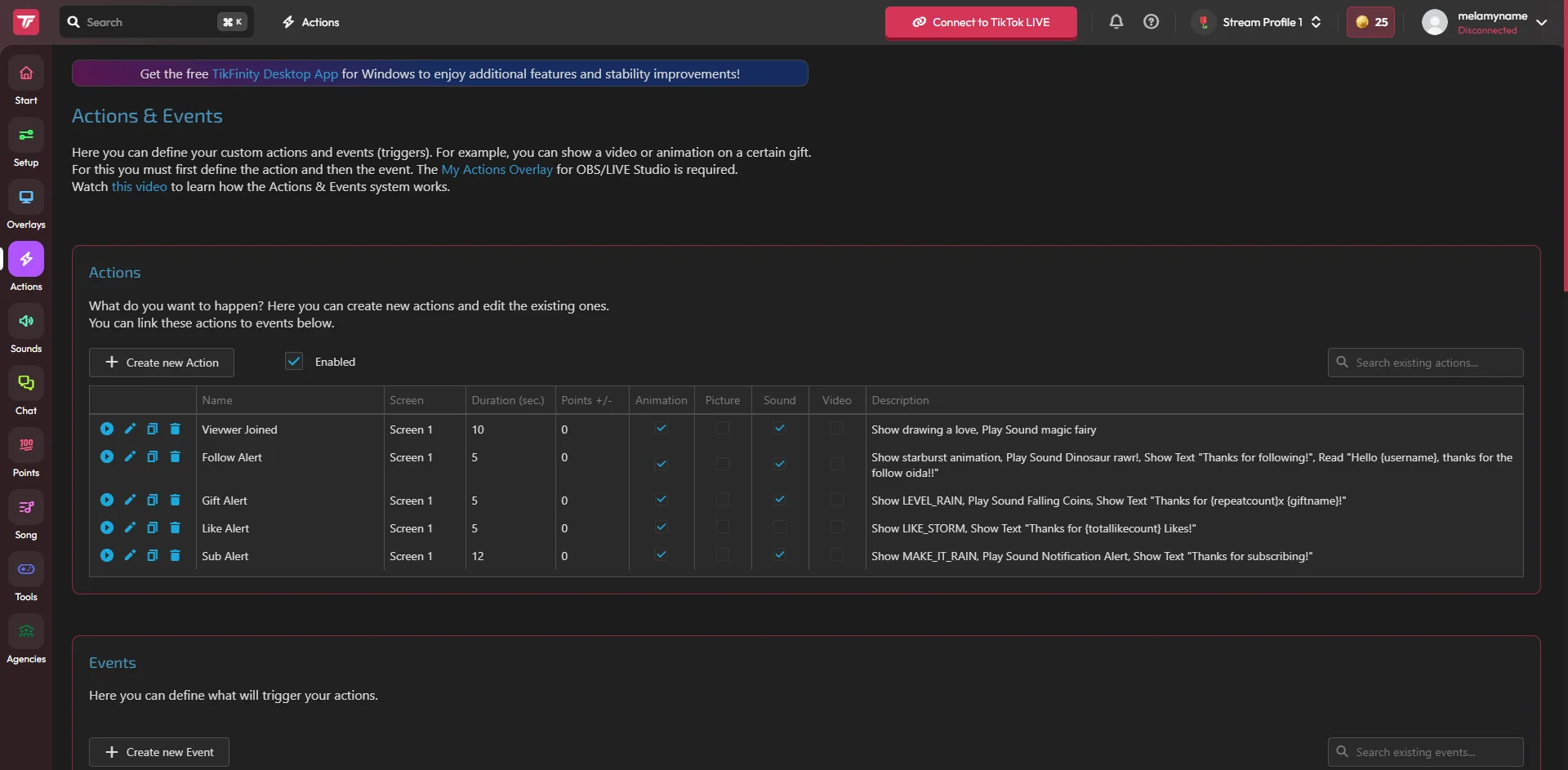 Enlarge the screenshot ↗
Step by step · 5–8
- Action
In an action, select one image or short sound.
✓ After this step you will seeYou have simple material for your first attempt.
- Action
Set readable text and short display time.
✓ After this step you will seeThe effect will not occupy the screen for long.
- Action
Select the overlay screen where you want the action to appear.
✓ After this step you will seeThe noted screen number corresponds to the action configuration.
- Action
Save the action and run its available test.
✓ After this step you will seeYou check the appearance itself before adding the condition.
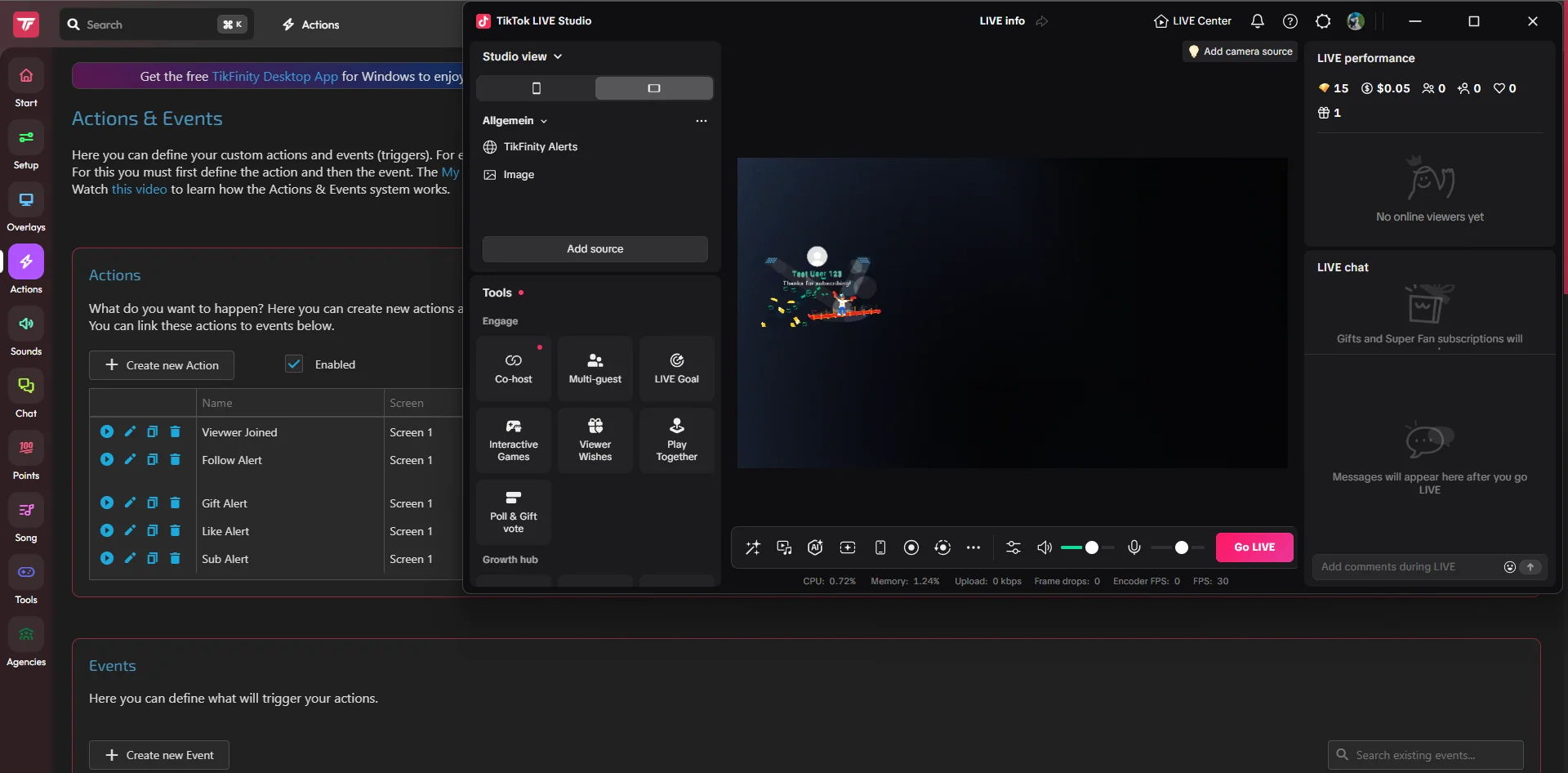 Enlarge the screenshot ↗
Step by step · 9–12
- Action
Add an event for a new observation and assign a saved action.
✓ After this step you will seeThe event indicates an Observation Test, not another action.
- Action
Save the event.
✓ After this step you will seeAfter reopening, the assignment remains.
- Action
Copy the URL of the appropriate Overlay Screen.
✓ After this step you will seeThe screen number matches the action.
- Action
In OBS add Browser and in supported LIVE Studio add Link source.
✓ After this step you will seeThe program has a separate online source.
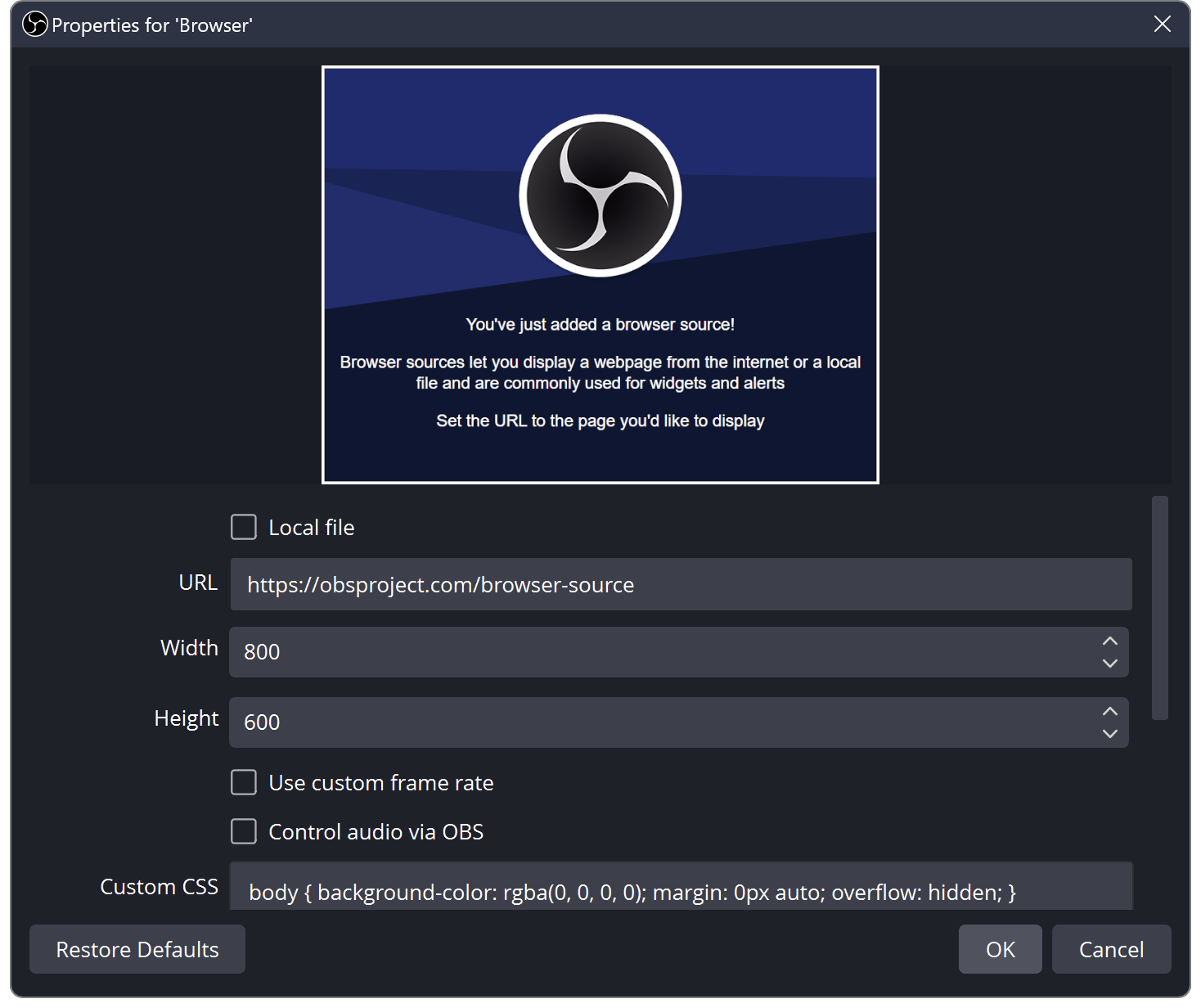 Enlarge the screenshot ↗
Step by step · 13–15
- Action
Paste the address, adjust the dimensions and place the source above the game.
✓ After this step you will seeThe alert is not obscured by image capture.
- Action
Run the test and record several seconds.
✓ After this step you will seeIn the recording, you see and hear one reaction.
- Action
During real LIVE, check for a new handled event.
✓ After this step you will seeYou confirm receipt of data, not just a share test.
An example you can reproduce
An action answers the question "what will we show?", an event answers the question "when?". Example: The Observation Test action shows an image for 5 seconds, and a new observation event indicates this action. The screen number is the same in the action and in the copied source.
Build an action and then an event
Start with one trigger. Once it works, only then create variants for other gifts or tiers. The action name should say what it shows and the event name should say when it is fired.
- Open Actions & Events. Prepare an action with the selected image, text or sound.
- Give it a name that describes the reaction, e.g. "Short follow".
- Add an event corresponding to the interaction and assign the prepared action.
- Check which overlay screen the effect should go to and save the configuration.
Sound Alerts and full alert are different paths
TikFinity has a Sound Alerts section for assigning sounds to events. When building a full action, sound can also be part of Actions & Events. Choose consciously one method for the event you are testing.
If the same gift triggers a signal in both places, listening can be confusing. Test one short file and then note whether you hear one response. Leave the required panel or application running according to the recovery method.
Add the correct screen to the scene
Don't publish the full address of your widget. When changing the screen assigned to an action, also check the source in the broadcast program. Correct action on another screen will not appear in the source you are viewing.
- In the overlay screen settings, copy the address of the screen to which the action is assigned.
- Add it as a Browser source in OBS or Link in a supported LIVE Studio.
- Name the source with a number or screen purpose to distinguish it from others later.
- Check the position and size on the final scene.
Comparative trial of three events
Don't send multiple paid gifts just to set up text margin. First, use available action tests or a simulator. The actual event is then used to confirm the integration, not every visual fix.
Also check the longer nickname and the longer audio file. These are conditions that often reveal overlaps that are unnoticeable in a brief example.
| Test | What to pay attention to |
|---|---|
| New follower | The right nickname and a single reaction. |
| One specific gift | The right event type and the right material. |
| Gift series | Principles of repetition and readability of a longer sequence. |
When the action is running in the panel but not on the stream
When making a diagnosis, write down the name of the action, the event and the time of the test. If you use multiple program sessions, make sure which one is responsible for playback. Don't rebuild your entire setup before comparing these basic components.
- Check the event assignment and screen number.
- Compare the copied URL with the source in the scene and its visibility.
- Check TikFinity audio capture or sources separately.
- Make a recording after the correction and only then expand the rule.
What do you see on the screen and how to fix it
Fix one thing at a time and try the same thing again. If you change several options at the same time, it will be difficult to determine what solved the problem. Don't delete a working source or entire configuration just because one widget isn't responding.
If you still need help, write down the program name and version, platform, approximate time of trial, expected result, and what actually happened. Attach a dump without passwords, keys and full private links. This description is much more useful than just the "not working" message.
| Symptom | Check first | Do it |
|---|---|---|
| The test is on a different screen | The action has a different Overlay Screen | Compare the number assigned to the action with the source address. |
| The sound plays twice | Sound Alerts and Actions & Events respond simultaneously | To test, leave one method for a given event. |
| The graphics work, the sound doesn't | Incorrect audio path | Check the mixer and a short local recording. |
| A series of gifts triggers many effects | The rule responds to subsequent elements of the series | Check the repeat and end of set settings in the current version. |
| The new observation does not trigger the effect | There is no active reception of LIVE or incorrect assignment | Check Setup and logged event. |
Last attempt before use on LIVE
- Save the changes using the button assigned to the edited function. If there are separate forms, check each changed part separately.
- Open the settings again and compare the most important values. Simply moving the slider does not always mean a permanent save.
- Check the result outside the editor itself: on the target scene, in the recording, or in the reopened configuration.
- If the function uses the platform, separately acknowledge the new handled event during the active LIVE. Don't expect the appearance test to confirm account authorization.
- Save the working values and make a copy before the next major change. Next time you start up, start with a quick check.
Before you go live
- Setup indicates the correct channel.
- The event is assigned an appropriate action.
- The source uses the appropriate screen.
- The recording is confirmed by a single image and sound.
- Reopened settings retain the saved values.
- A single attempt is confirmed on the target output.
Frequently asked questions
Does the sound itself require extensive action?
Sound Alerts is also available for simple reactions. Choose the method that suits your need and avoid accidental duplication.
Why do I see a test but no reaction to LIVE?
Check the actual connection, event condition and action assignment. The image test does not check the entire data path.
Where to find current limits?
In your account settings and current plan description TikFinity. Don't base your configuration on an old dump or an outdated number of rules.
What should I do if my screen looks different than the photo?
Check the program name, version and selected feature. The dump is real, but it's from a specific edition and language. Search for a described field by its task. If the option is not available, check the current official support and availability in your account.