

Prepare before you start
The panel and events are processed on your computer. Overlay links remain on thunderstream.net.
Do not publish passwords, private keys or full overlay links.
Make a short test before LIVE.
Step by step · 1–4
- Action
Open: Log in.
✓ After this step you will seeLog in
- Action
Select: Log in.
✓ After this step you will seeCurrent broadcast across all connected platforms. The log shows each event and its matching alert threshold.
- Action
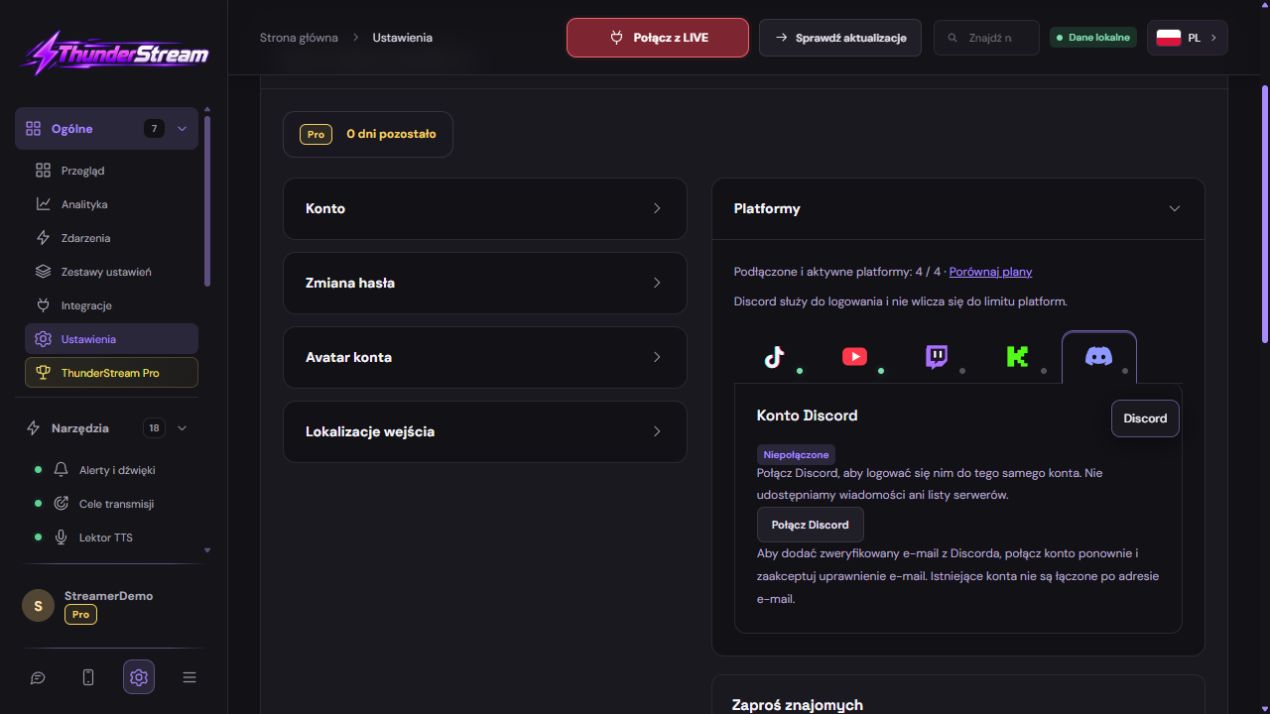
Click: Discord.
✓ After this step you will seeFinish signing in in your browser. The app will connect the account automatically after authorization.
- Action
Check: discord.com.
✓ After this step you will seeFinish signing in in your browser. The app will connect the account automatically after authorization.
 Enlarge the screenshot ↗
Step by step · 5–8
- Action
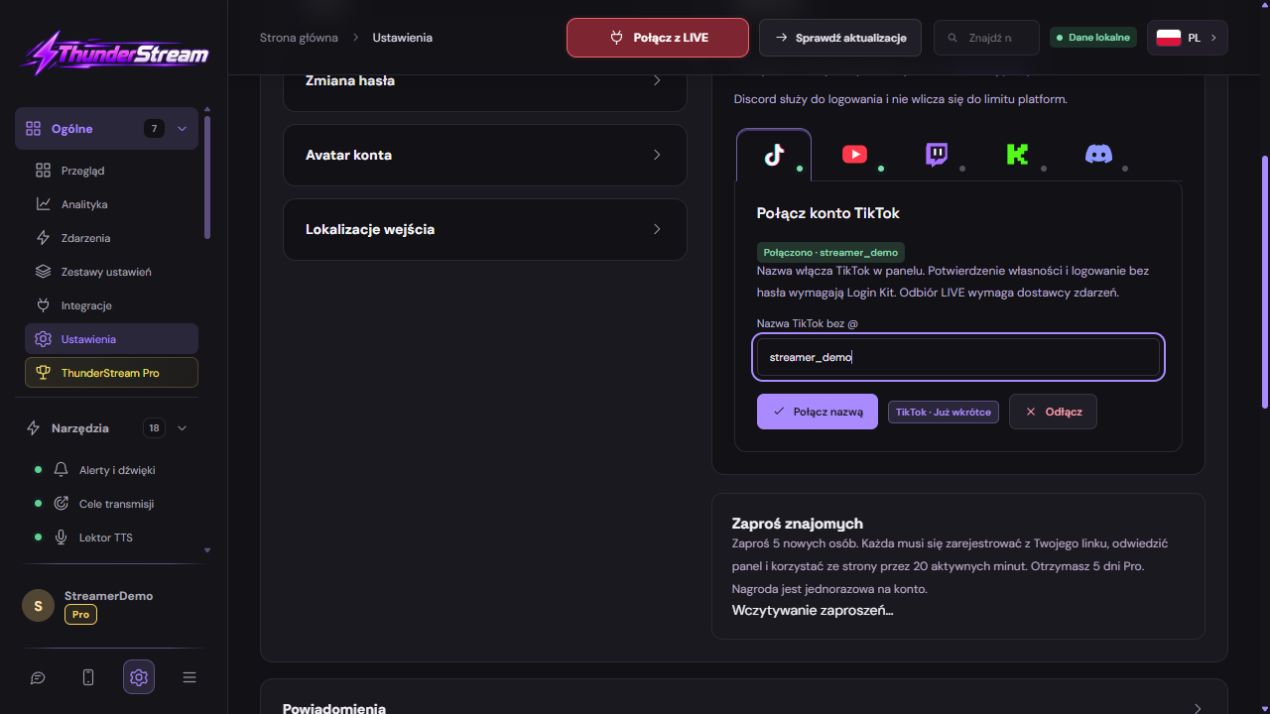
Select: Discord.
✓ After this step you will seeAccount
- Action
Check: Discord.
✓ After this step you will seeFinish signing in in your browser. The app will connect the account automatically after authorization.
- Action
Click: Discord.
✓ After this step you will seeFinish signing in in your browser. The app will connect the account automatically after authorization.
- Action
Open: Thunderstream.
✓ After this step you will seeConnected
 Enlarge the screenshot ↗
Step by step · 9–12
- Action
Check: Account.
✓ After this step you will seeConnected
- Action
Check: Account.
✓ After this step you will seeCurrent broadcast across all connected platforms. The log shows each event and its matching alert threshold.
- Action
Open: Log in.
✓ After this step you will seeFinish signing in in your browser. The app will connect the account automatically after authorization.
- Action
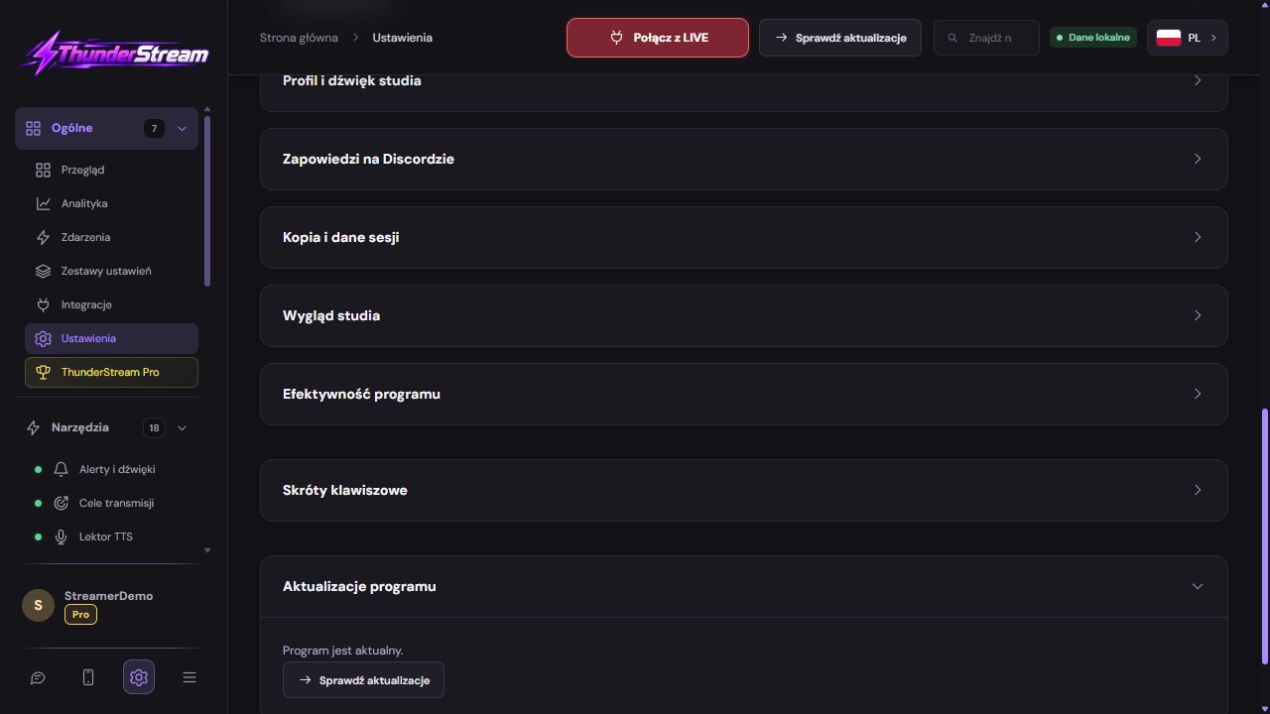
Open: Settings.
✓ After this step you will seePlatform
 Enlarge the screenshot ↗
Step by step · 13–15
- Action
Select: Discord.
✓ After this step you will seeFinish signing in in your browser. The app will connect the account automatically after authorization.
- Action
Check: Discord.
✓ After this step you will seeConnected
- Action
Check: The operation failed..
✓ After this step you will seeWaiting for the network · saved data remains available
Platform
Finish signing in in your browser. The app will connect the account automatically after authorization.
Current broadcast across all connected platforms. The log shows each event and its matching alert threshold.
Do not publish passwords, private keys or full overlay links.
Step-by-step authorization and return to the correct account
If you see an authorization return error, start a new attempt from a live Thunderstream.net site and note the exact message. Redirect or application configuration error report to administration - regular user cannot fix it by setting up their own development application.
An example you can reproduce
Finish signing in in your browser. The app will connect the account automatically after authorization.
Do not publish passwords, private keys or full overlay links.
Compare the result with the screenshot. If it differs, check the troubleshooting section.
What do you see on the screen and how to fix it
| Symptom | Check first | Do it |
|---|---|---|
| Invalid redirect_uri | Application address not matching | Report the exact domain and path without access codes to the operator. |
| Invalid state or expired session | Old attempt or lost session | Start a new trial from the dashboard on the correct domain. |
| OBS does not transmit key after reset | The program uses the old value | Enter the new key in the appropriate service. |
| Another account has been linked | The browser had a different platform session | Disconnect the incorrect association and select the correct profile. |
| Someone knows my overlay link | The address became public | Check if the link can be renewed and mention it in the sources. |
Last attempt before use on LIVE
Save in this form and reopen the settings.
Compare the result with the screenshot. If it differs, check the troubleshooting section.
Do not publish passwords, private keys or full overlay links.
- Save the changes using the button assigned to the edited function. If there are separate forms, check each changed part separately.
- Open the settings again and compare the most important values. Simply moving the slider does not always mean a permanent save.
- Check the result outside the editor itself: on the target scene, in the recording, or in the reopened configuration.
- If the function uses the platform, separately acknowledge the new handled event during the active LIVE. Don't expect the appearance test to confirm account authorization.
- Save the working values and make a copy before the next major change. Next time you start up, start with a quick check.
Before you go live
- Save in this form and reopen the settings.
- Make a short test before LIVE.
- Compare the result with the screenshot. If it differs, check the troubleshooting section.
- Do not publish passwords, private keys or full overlay links.
Frequently asked questions
Invalid redirect_uri?
Application address not matching. Report the exact domain and path without access codes to the operator.
Invalid state or expired session?
Old attempt or lost session. Start a new trial from the dashboard on the correct domain.
OBS does not transmit key after reset?
The program uses the old value. Enter the new key in the appropriate service.
Another account has been linked?
The browser had a different platform session. Disconnect the incorrect association and select the correct profile.