

Prepare before you start
The panel and events are processed on your computer. Overlay links remain on thunderstream.net.
Do not publish passwords, private keys or full overlay links.
Make a short test before LIVE.
Step by step · 1–4
- Action
Open: Settings.
✓ After this step you will seeSettings
- Action
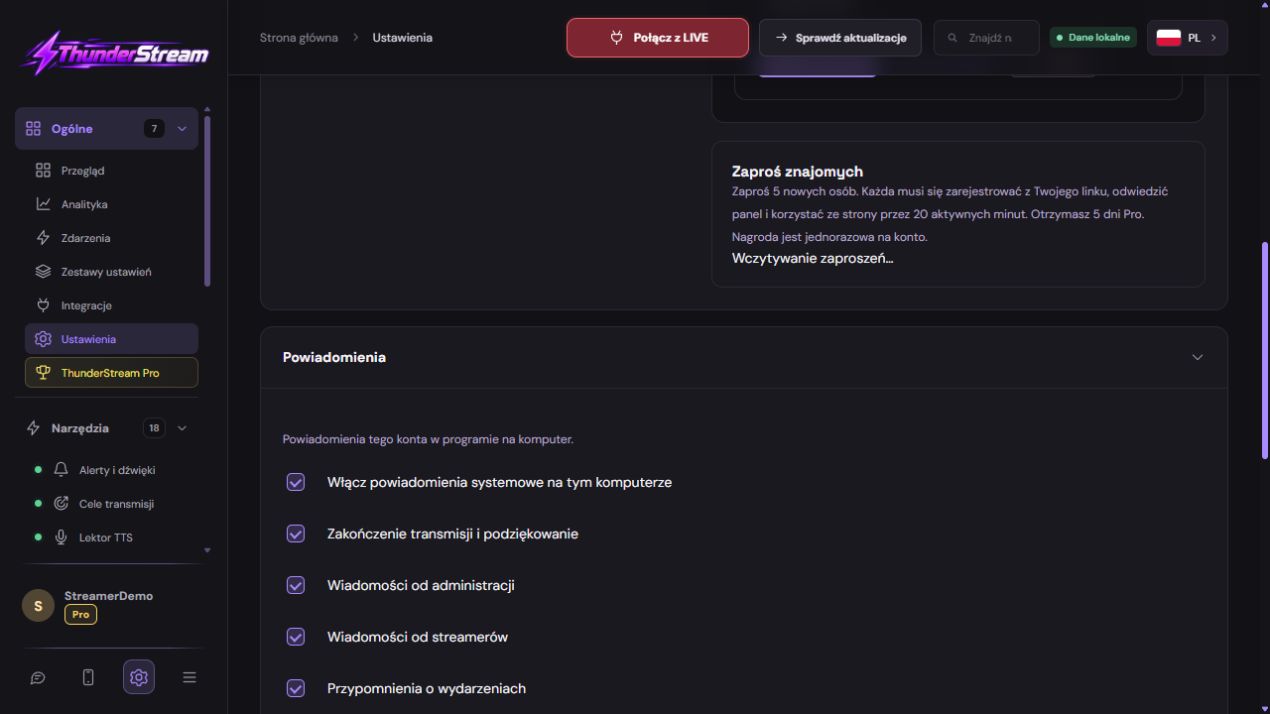
Open: Enable notifications.
✓ After this step you will seeIf notifications are blocked, change the permission in your app or browser settings. On iOS, open the app from your Home Screen.
- Action
Check: Enable notifications.
✓ After this step you will seeInstallation and permissions are optional. You can use the studio without them.
- Action
Select: Enable notifications.
✓ After this step you will seeIf notifications are blocked, change the permission in your app or browser settings. On iOS, open the app from your Home Screen.
 Enlarge the screenshot ↗
Step by step · 5–8
- Action
Select: Contact support.
✓ After this step you will seeIf notifications are blocked, change the permission in your app or browser settings. On iOS, open the app from your Home Screen.
- Action
Select: The operation failed..
✓ After this step you will seeIf notifications are blocked, change the permission in your app or browser settings. On iOS, open the app from your Home Screen.
- Action
Save in this form and reopen the settings. Save
✓ After this step you will seeChanges saved.
- Action
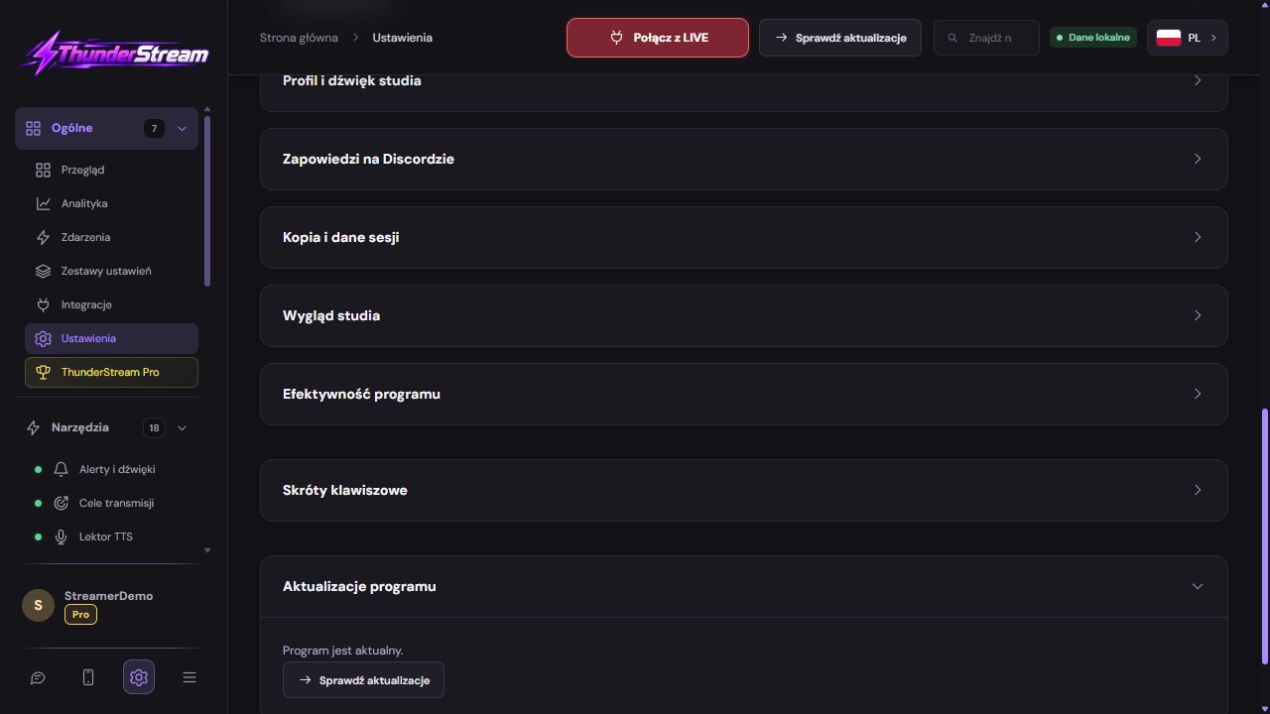
Open: Thunderstream applications.
✓ After this step you will seeiPhone / iPad: Safari → Share → Add to Home Screen. Android: browser menu → Install app.
 Enlarge the screenshot ↗
Step by step · 9–12
- Action
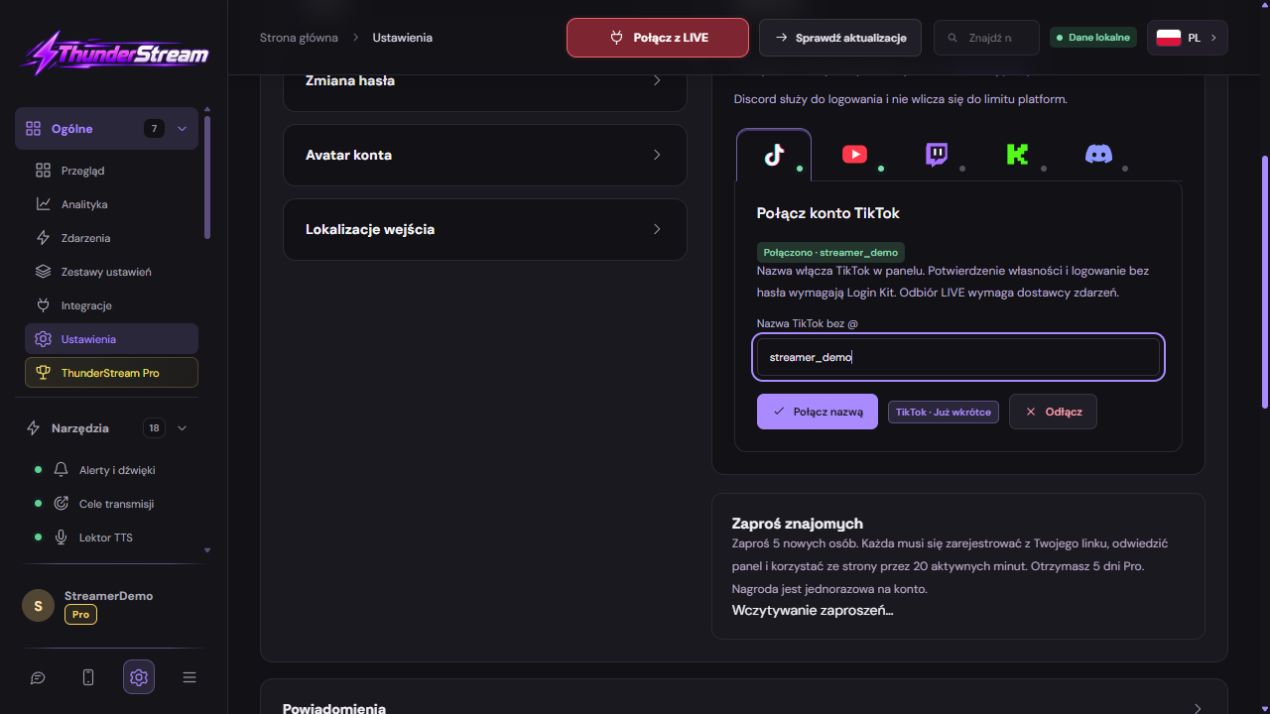
Click: Enable notifications.
✓ After this step you will seeNotifications enabled
- Action
Check: Enable notifications.
✓ After this step you will seeI have checked the background settings
- Action
Open: Events.
✓ After this step you will seeEvents
- Action
Select: Events.
✓ After this step you will seeIf notifications are blocked, change the permission in your app or browser settings. On iOS, open the app from your Home Screen.
 Enlarge the screenshot ↗
Step by step · 13–15
- Action
Check: Events.
✓ After this step you will seeCurrent broadcast across all connected platforms. The log shows each event and its matching alert threshold.
- Action
Make a short test before LIVE. Enable notifications
✓ After this step you will seeIf notifications are blocked, change the permission in your app or browser settings. On iOS, open the app from your Home Screen.
- Action
Check: Text to speech.
✓ After this step you will seeCurrent broadcast across all connected platforms. The log shows each event and its matching alert threshold.
Enable notifications
If notifications are blocked, change the permission in your app or browser settings. On iOS, open the app from your Home Screen.
Installation and permissions are optional. You can use the studio without them.
I have checked the background settings
Audio and double reading
Choose one place to actually play the speech. If you use a readout in a panel or program, capture this sound for transmission. If you have selected a chat overlay, please check the correct source and its audio track.
Don't run a second independent copy of the voiceover in another tab just to see the preview. The phone can remain silent while the computer reads. Dual audio can also result from capturing the same program with a separate source and desktop audio simultaneously.
An example you can reproduce
If notifications are blocked, change the permission in your app or browser settings. On iOS, open the app from your Home Screen.
Current broadcast across all connected platforms. The log shows each event and its matching alert threshold.
What do you see on the screen and how to fix it
| Symptom | Check first | Do it |
|---|---|---|
| The tester works, the comments do not. | No reception or filter. | Compare the new chat and log entry TTS. |
| It has been read, but the recording is silent. | No proper audio track. | Observe the OBS meter during a new test. |
| There are two voices. | Multiple players or duplicate captures. | Leave one read location and one audio path. |
| The narrator reads old conversations. | Too long a queue for the pace. | Check the age of posts, text length and queue limit. |
Last attempt before use on LIVE
Save in this form and reopen the settings.
Compare the result with the screenshot. If it differs, check the troubleshooting section.
Do not publish passwords, private keys or full overlay links.
- Save the changes using the button assigned to the edited function. If there are separate forms, check each changed part separately.
- Open the settings again and compare the most important values. Simply moving the slider does not always mean a permanent save.
- Check the result outside the editor itself: on the target scene, in the recording, or in the reopened configuration.
- If the function uses the platform, separately acknowledge the new handled event during the active LIVE. Don't expect the appearance test to confirm account authorization.
- Save the working values and make a copy before the next major change. Next time you start up, start with a quick check.
Before you go live
- Save in this form and reopen the settings.
- Make a short test before LIVE.
- Compare the result with the screenshot. If it differs, check the troubleshooting section.
- Do not publish passwords, private keys or full overlay links.
Frequently asked questions
The tester works, the comments do not.?
No reception or filter.. Compare the new chat and log entry TTS.
It has been read, but the recording is silent.?
No proper audio track.. Observe the OBS meter during a new test.
There are two voices.?
Multiple players or duplicate captures.. Leave one read location and one audio path.
The narrator reads old conversations.?
Too long a queue for the pace.. Check the age of posts, text length and queue limit.