

A dictionary without difficult abbreviations
| Concept | What does this mean in practice? |
|---|---|
| Viewer minutes | Total audience over time: 10 viewers for 3 minutes gives approximately 30 minutes of viewers. This is not the length of the transmission. |
| Event | New information from the platform, such as a message, observation or gift. The appearance test is not always an actual event. |
| Threshold | The value at which the rule responds. 250 likes and 250 coins mean different conditions. |
| Source | One scene component: game, camera, text, audio, or page with overlay. The order of sources determines what covers what. |
| Resolution | The width × height of the area, e.g. 1920 × 1080. This is different than shrinking the source rectangle with the mouse. |
Step by step · 1–4
- Action
Connect in the account settings of the platform whose data you want to receive.
✓ After this step you will seeYou see your accounts and their status.
- Action
Launch LIVE on the platform and check the connection on the panel.
✓ After this step you will seeAccount linking is not confused with an ongoing stream.
- Action
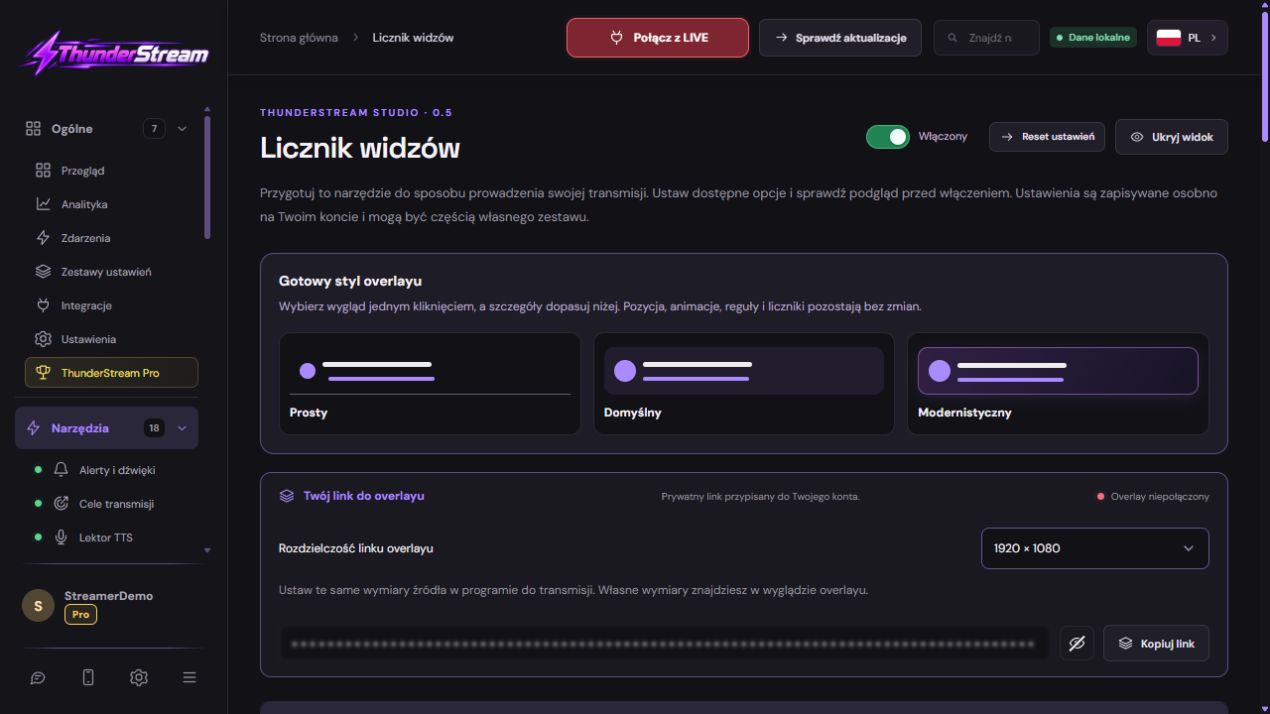
Open Viewer Counter in Tools.
✓ After this step you will seeIts configuration and preview are visible.
- Action
Select the platforms that should be included in the total.
✓ After this step you will seeYou don't assume that every connected platform needs to be shown.
 Enlarge the screenshot ↗
Step by step · 5–8
- Action
Select the eye icon page and optionally your own supported image.
✓ After this step you will seeThe preview matches your layout.
- Action
Set resolution, position and readable text.
✓ After this step you will seeThe counter is located in the overlay area.
- Action
Save your changes and copy the counter link.
✓ After this step you will seeThe source will receive the saved settings.
- Action
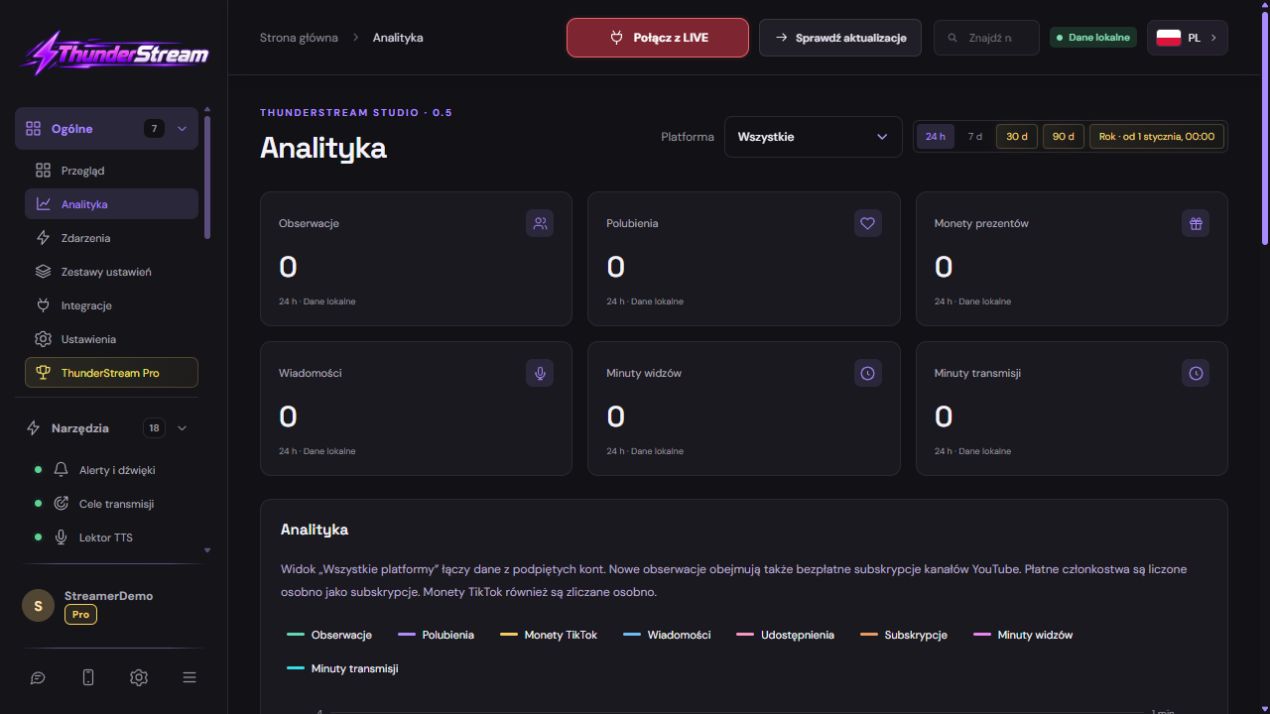
Add in OBS a source Viewer with identical dimensions.
✓ After this step you will seeThe counter is visible in the appropriate place.
 Enlarge the screenshot ↗
Step by step · 9–12
- Action
During LIVE, compare the result with the platform panels after the update time.
✓ After this step you will seeYou don't evaluate data by a single second.
- Action
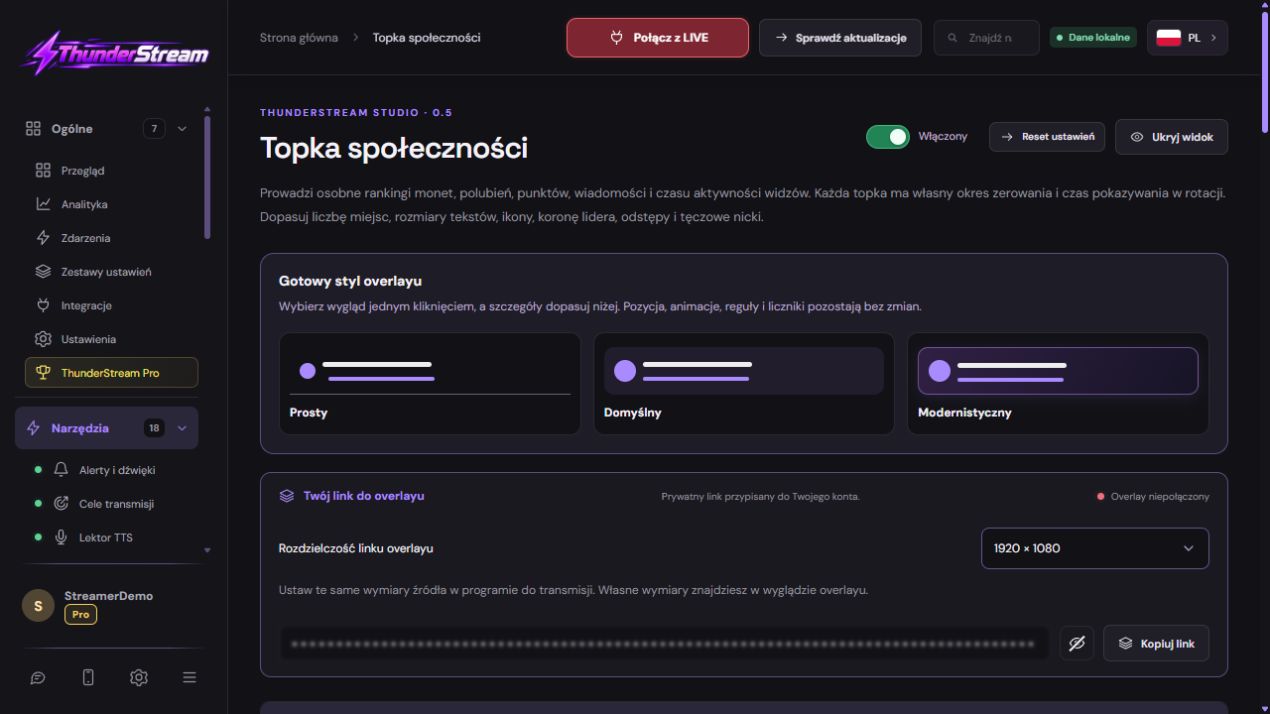
Open Analytics and select a time range.
✓ After this step you will seeYou know which period the chart covers.
- Action
Check the platform filter and leave the combined source or sum of them available.
✓ After this step you will seeYou are comparing the same set of platforms.
- Action
In the legend, check the unit of the line: likes, coins, messages, follows or time.
✓ After this step you will seeYou are not confusing different values.
 Enlarge the screenshot ↗
Step by step · 13–16
- Action
In the Viewer Archive, select the sorting and story scope.
✓ After this step you will seeThe names and results are ordered as needed.
- Action
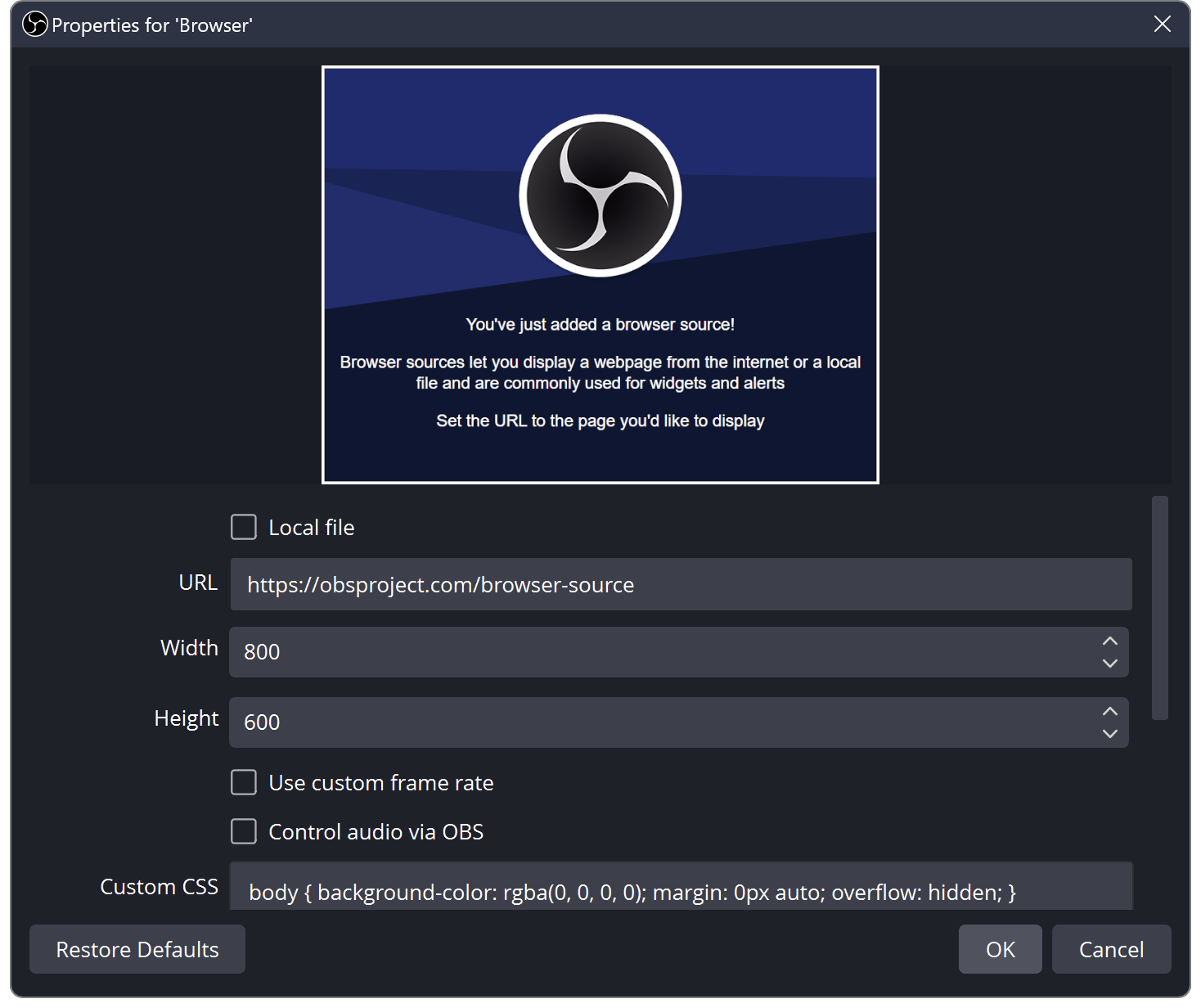
Check the metrics, period and reset options in the Community Top.
✓ After this step you will seeYou know why top and archive may have different results.
- Action
If you are adding Bits, Kicks or supported paid events YouTube, check whether the conversion is enabled.
✓ After this step you will seeThe common top is not confused with the cash balance.
- Action
If there is a discrepancy, write down the time, platform, period and meter name.
✓ After this step you will seeA report allows you to reproduce a specific problem.
 Enlarge the screenshot ↗
The current audience is not a list of all viewers
The counter shows data available from selected platforms. The provider may update them with a delay, and temporary unavailability does not mean an actual audience of zero. Linking your account name alone may not provide all data that requires authorization or active reception.
Viewer minutes sums up your audience over time. Transmission time measures the length of transmission. Confirmed activity for a specific user is based on available events; without platform information, it does not confirm each person's silent viewing time. Don't treat these metrics as a single result.
The same range is the condition for a fair comparison
When comparing the chart and the top, set the same period, time zone, platform and metric. Stream Ranking and 365 Day History may intentionally show different totals. Resetting a goal or ranking rotation does not necessarily delete archived analytics data.
Adding paid events from various platforms to a common top helps to organize interactions. It is not an accounting conversion of payouts and does not mean that Bits, Kicks and Coin have the same monetary value. Clearly name your own metric and check for a single event.
An example you can reproduce
100 viewers for 2 minutes gives approximately 200 minutes of viewers, and LIVE itself lasted 2 minutes. They are different units. The sum of 20 viewers on one platform and 10 on the other gives 30 viewers according to the platform counters, but does not prove 30 different people: one person can watch in two places.
What do you see on the screen and how to fix it
Fix one thing at a time and try the same thing again. If you change several options at the same time, it will be difficult to determine what solved the problem. Don't delete a working source or entire configuration just because one widget isn't responding.
If you still need help, write down the program name and version, platform, approximate time of trial, expected result, and what actually happened. Attach a dump without passwords, keys and full private links. This description is much more useful than just the "not working" message.
| Symptom | Check first | Do it |
|---|---|---|
| The platform has no audience in the counter | No data, source disabled or inactive LIVE | Check connection, selections and data update. |
| The total differs from unique viewers | The same person can watch multiple platforms | Treat the result as a sum of counters, not a deduplicated number of people. |
| Topka has different coins than the chart | A different period or conversion factor for paid events | Compare the same filters and options. |
| The minutes look too long | Confusing viewer minutes with time LIVE | Check the unit and calculation example. |
| There is no silent viewer nickname in the archive | The platform did not provide this person's event | Do not assume a complete attendance list. |
| Source OBS is empty | Size, visibility or lack of active data | Check dimensions, tool and test before LIVE. |
Last attempt before use on LIVE
- Save the changes using the button assigned to the edited function. If there are separate forms, check each changed part separately.
- Open the settings again and compare the most important values. Simply moving the slider does not always mean a permanent save.
- Check the result outside the editor itself: on the target scene, in the recording, or in the reopened configuration.
- If the function uses the platform, separately acknowledge the new handled event during the active LIVE. Don't expect the appearance test to confirm account authorization.
- Save the working values and make a copy before the next major change. Next time you start up, start with a quick check.
Before you go live
- You know what the fields and units you use mean.
- The most important values were saved and checked again.
- The attempt was graded on the finished output, not just in the editor.
- The image is clear and each sound plays only once.
- Working configuration and safe copy preserved.
Frequently asked questions
The platform has no audience in the counter - what to do?
No data, source disabled or inactive LIVE. Check connection, selections and data update.
Total is different from unique viewers - what should I do?
The same person can watch multiple platforms. Treat the result as a sum of counters, not a deduplicated number of people.
Topka has different coins than the chart - what to do?
A different period or conversion factor for paid events. Compare the same filters and options.
The minutes look too long - what should I do?
Confusing viewer minutes with time LIVE. Check the unit and calculation example.