

A dictionary without difficult abbreviations
| Concept | What does this mean in practice? |
|---|---|
| FPS | The number of image frames per second. More frames require appropriate performance and transmission settings. |
| Bitrate | The amount of image or audio data sent over time. Too high a value relative to the link may result in dropped frames. |
| Source | One scene component: game, camera, text, audio, or page with overlay. The order of sources determines what covers what. |
| Scene | Ready-made image layout: e.g. a game with a camera or a break board. The scene you choose determines what you show. |
| Resolution | The width × height of the area, e.g. 1920 × 1080. This is different than shrinking the source rectangle with the mouse. |
Step by step · 1–4
- Action
Stop the public attempt if you accidentally show a private desktop.
✓ After this step you will seeYou can diagnose the image without exposing other windows.
- Action
Select the scene where the problem occurs.
✓ After this step you will seeYou are looking at the right set of sources.
- Action
Check the eye icon next to the problematic source.
✓ After this step you will seeThe source is visible.
- Action
Hide opaque sources above it for a while.
✓ After this step you will seeYou know if the image was just obscured.
 Enlarge the screenshot ↗
Step by step · 5–8
- Action
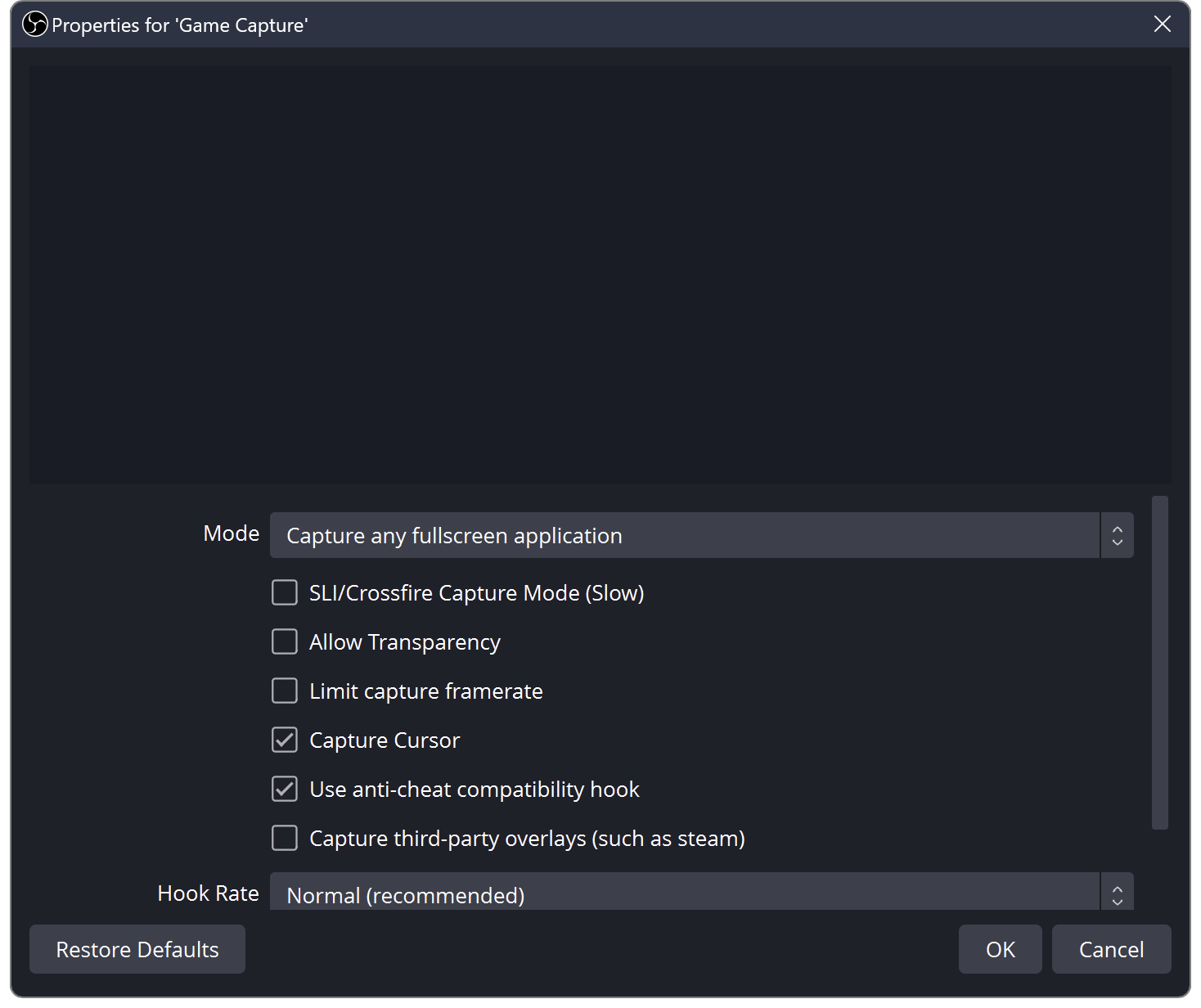
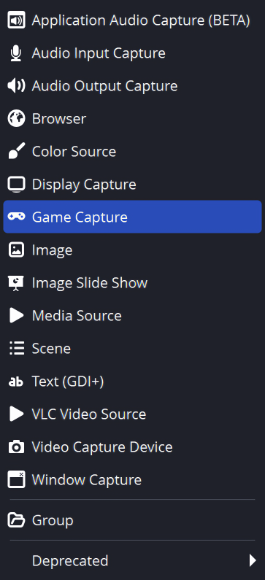
Select the source and open its properties.
✓ After this step you will seeYou are checking the actual capture, not the settings of the entire OBS.
- Action
Run the target game or program before selecting the window.
✓ After this step you will seeThe correct item may appear in the list.
- Action
In game capture, select the appropriate window and confirm.
✓ After this step you will seeThe source indicates the running game, not the outdated process name.
- Action
Back to the game for a moment; some games do not draw the image when minimized.
✓ After this step you will seeYou can tell the difference between a frozen image and no capture.
 Enlarge the screenshot ↗
Step by step · 9–12
- Action
Check the source transform and match it to the screen.
✓ After this step you will seeThe source is not outside the scene area.
- Action
On a dual-card laptop, check the system's graphics settings to see which GPU the game and the OBS are using.
✓ After this step you will seeYou can select compatible devices according to the OBS documentation.
- Action
If the program requires administrator privileges, check the OBS recommendations for this application.
✓ After this step you will seeYou don't change permissions randomly for each program.
- Action
If your game doesn't work with Game Capture, check Window Capture.
✓ After this step you will seeYou have an alternative method for a specific window.
 Enlarge the screenshot ↗
Step by step · 13–16
- Action
Treat screen capture as a conscious choice and remove private content from your monitor.
✓ After this step you will seeYou know it shows the entire area, not just the game.
- Action
Test disable additional overlays or capture programs, one at a time.
✓ After this step you will seeYou can point to a specific conflict.
- Action
Make a recording after each successful change.
✓ After this step you will seeYou confirm the image in the finished file.
- Action
Restore needed sources and lock their location.
✓ After this step you will seeYou keep the repaired scene.
First, recognize the scope of the problem
If the OBS preview has an image but viewers see black, the capture is probably working. Check the output scene, studio mode and platform side preview. If only one game is black, start with its source and Game Capture compatibility.
Browsers, players and applications with protected content may limit capture. Not every black rectangle can be repaired with the OBS option. Don't bypass content protection; check whether the material can be shown.
Choose a method that matches the content
Game capture is designed for gaming. Window capture selects a specific program. Screen capture covers the entire monitor and may reveal notifications. The methods also differ in behavior when the window is minimized.
Don't keep several overlapping sources of the same game as accidental security. Once you find a method that works, disable unnecessary copies. This reduces confusion in the layers and facilitates later diagnosis.
An example you can reproduce
The preview is black, but when you hide the full-screen "Be Right Back" image, the game appears. It's not a graphics card failure: the background was laying over the game. You repair the source order instead of reinstalling OBS. If only one window is black, do not rebuild all scenes.
What do you see on the screen and how to fix it
Fix one thing at a time and try the same thing again. If you change several options at the same time, it will be difficult to determine what solved the problem. Don't delete a working source or entire configuration just because one widget isn't responding.
If you still need help, write down the program name and version, platform, approximate time of trial, expected result, and what actually happened. Attach a dump without passwords, keys and full private links. This description is much more useful than just the "not working" message.
| Symptom | Check first | Do it |
|---|---|---|
| The game is only invisible after Alt+Tab | The game stops drawing after losing activity | Check active play and available frameless window mode. |
| The source has a red outline outside the scene | Incorrect position or framing | Reset the correct transform and match the source. |
| Only a different method works on a laptop | Different GPU or capture method | Use OBS recommendations for your system and specific method. |
| Everything is covered in black | Layer above the source | Hide top sources one by one and correct their order. |
| The video is black, the rest of the window works | Protected content or application restriction | Check the documentation and select allowed material. |
| After changing the game name, the source does not work | He points to an old window | Select the current process again in the properties. |
Last attempt before use on LIVE
- Save the changes using the button assigned to the edited function. If there are separate forms, check each changed part separately.
- Open the settings again and compare the most important values. Simply moving the slider does not always mean a permanent save.
- Check the result outside the editor itself: on the target scene, in the recording, or in the reopened configuration.
- If the function uses the platform, separately acknowledge the new handled event during the active LIVE. Don't expect the appearance test to confirm account authorization.
- Save the working values and make a copy before the next major change. Next time you start up, start with a quick check.
Before you go live
- You know what the fields and units you use mean.
- The most important values were saved and checked again.
- The attempt was graded on the finished output, not just in the editor.
- The image is clear and each sound plays only once.
- Working configuration and safe copy preserved.
Frequently asked questions
The game is only visible after Alt+Tab - what to do?
The game stops drawing after losing activity. Check active play and available frameless window mode.
The source has a red outline outside the scene - what to do?
Incorrect position or framing. Reset the correct transform and match the source.
Only a different method works on my laptop - what should I do?
Different GPU or capture method. Use OBS recommendations for your system and specific method.
Everything is black - what to do?
Layer above the source. Hide top sources one by one and correct their order.