

A dictionary without difficult abbreviations
| Concept | What does this mean in practice? |
|---|---|
| Mixer | List of audio tracks with meters and sliders. Helps determine which app or device is actually making the sound. |
| Audio track | Selected set of sounds saved or sent to output. A file may contain several tracks that play separately. |
| Source | One scene component: game, camera, text, audio, or page with overlay. The order of sources determines what covers what. |
| Event | New information from the platform, such as a message, observation or gift. The appearance test is not always an actual event. |
| URL | Full web address. Copy it using the button in the panel; do not copy fragments and do not add spaces. |
Step by step · 1–4
- Action
Record your current configuration and note which source captures the entire desktop.
✓ After this step you will seeYou have a reference point before changing the routing.
- Action
Check the system and version of OBS; Application audio capture requires support for this feature.
✓ After this step you will seeYou are not looking for an option that is not available on your system.
- Action
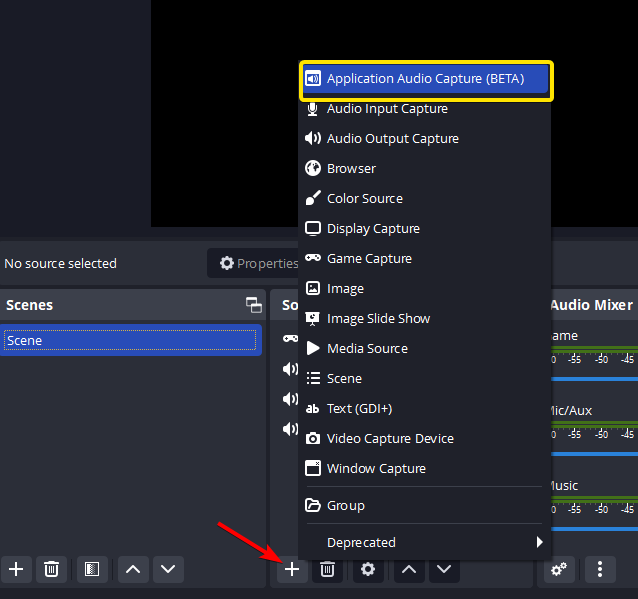
On supported Windows, add the Application Audio Capture source.
✓ After this step you will seeYou choose a specific program instead of the entire desktop.
- Action
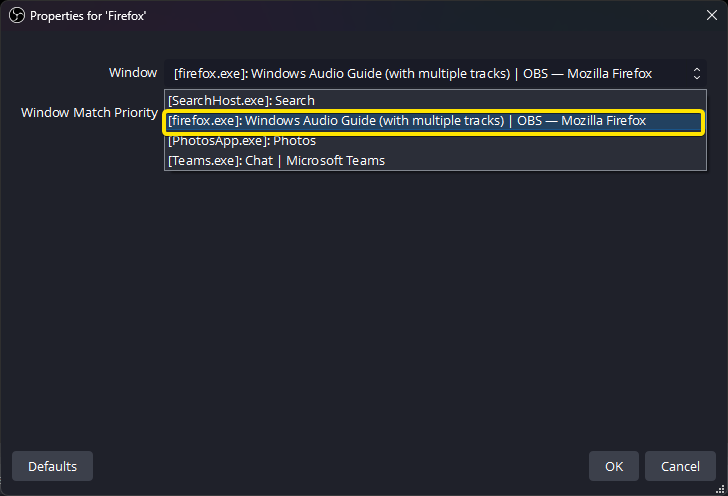
Run the game and point to its window in the source properties.
✓ After this step you will seeThe meter reacts to the game.
 Enlarge the screenshot ↗
 Enlarge the screenshot ↗
Step by step · 5–8
- Action
Add Discord in the same way if you want to regulate the conversation separately.
✓ After this step you will seeConversation has its own slider.
- Action
Add a music player app or Thunderstream as a separate source.
✓ After this step you will seeMusic has an independent track.
- Action
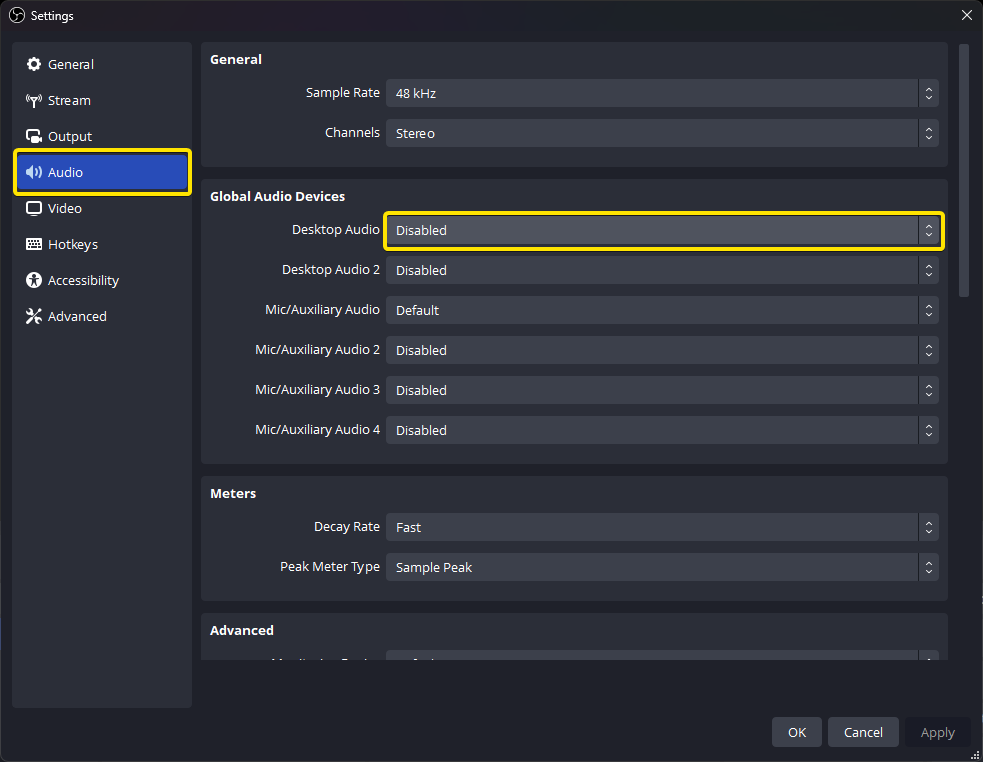
Disable global desktop capture if you capture the same applications separately.
✓ After this step you will seeYou can't record one sound in two ways.
- Action
Check to see if Game Capture or Window Capture is already capturing audio of the same game.
✓ After this step you will seeNo further copy is made.
 Enlarge the screenshot ↗
Step by step · 9–12
- Action
Play the game, conversation and music in sequence while observing the meters.
✓ After this step you will seeEach attempt moves you on the right track.
- Action
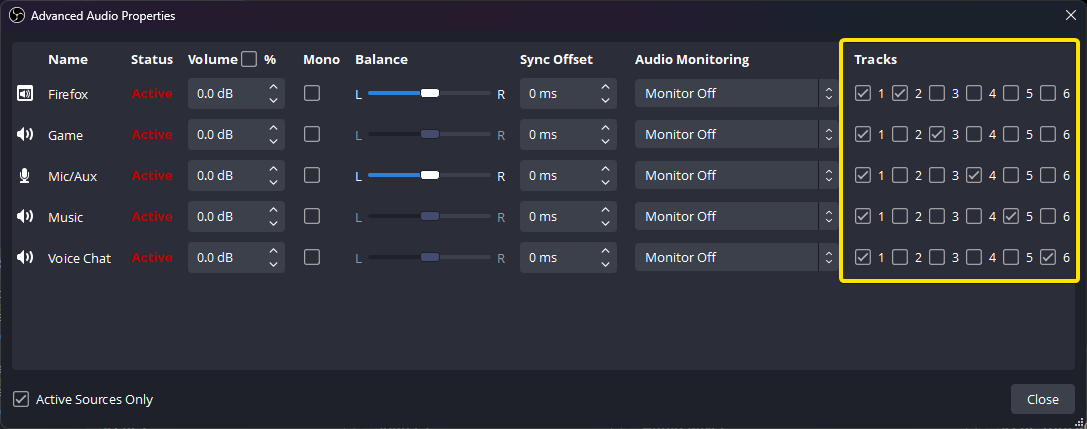
Open Advanced Sound Properties.
✓ After this step you will seePath assignments are visible.
- Action
Assign all needed sources to track 1 as a common mix.
✓ After this step you will seeA regular player will hear the full recording.
- Action
For example, also assign microphone to track 2, game to track 3, and talk to track 4.
✓ After this step you will seeSeparate materials are created for later assembly.
 Enlarge the screenshot ↗
Step by step · 13–16
- Action
In the advanced recording output, select the tracks you use and the format that supports them.
✓ After this step you will seeOBS will actually save the selected channels.
- Action
Record a short rehearsal with sounds triggered one at a time.
✓ After this step you will seeYou can verify the assignments.
- Action
In the player or editor, switch tracks; don't assume they're all playing at the same time.
✓ After this step you will seeYou check the mix and isolated sources separately.
- Action
If you set Twitch VOD Track, assign the LIVE output and archive consciously according to the documentation.
✓ After this step you will seeYou know which sources go into the platform recording.
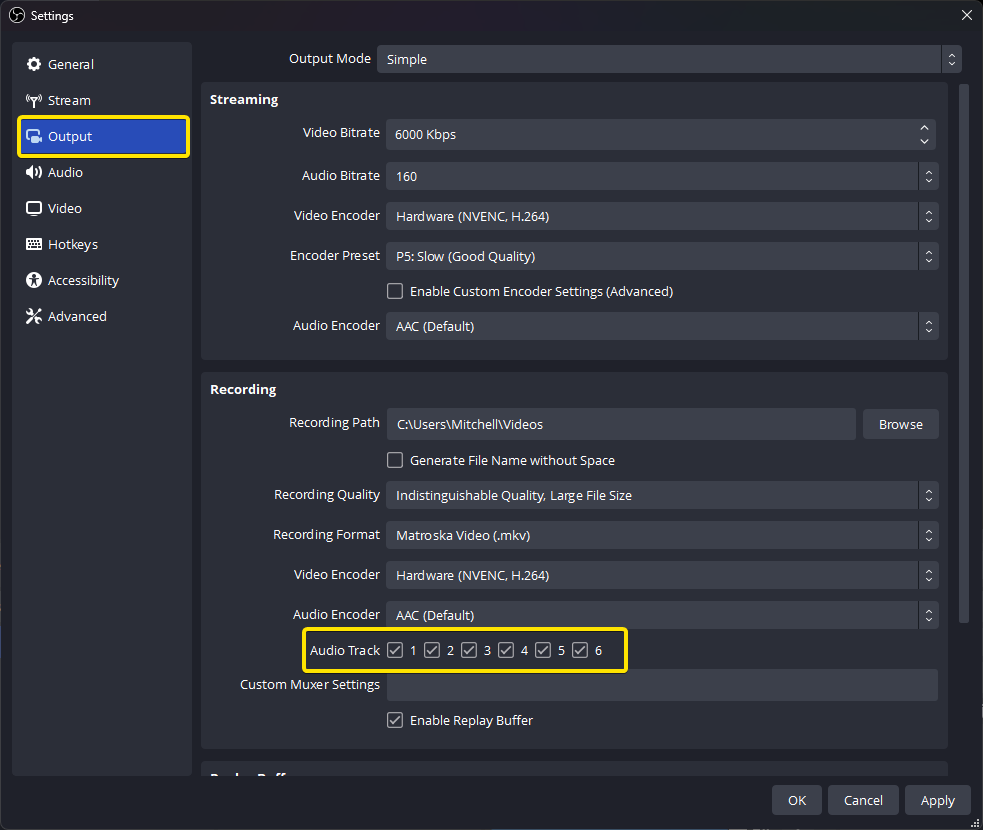 Enlarge the screenshot ↗
The most common cause of an echo is two paths of the same sound
When Desktop Audio collects everything from your device, and you also add the game separately, the game may end up in the mix twice. Similarly, if your game capture already contains audio and you add another application source. Always check one sound and meters at a time.
The app audio capture described here is for supported Windows and OBS. In Linux, the separation method depends on the audio system used and the sources available. Do not copy a Windows manual if such a source is not available in your program.
VOD track and music rights
The separate Twitch VOD track technically allows you to decide what goes into the archive, but it does not give you a license to play the music publicly. Content can still be heard on LIVE and the platform's rules apply regardless of recording settings.
After changing tracks, check both your own file and your stream output settings. Recording and broadcasting settings can use different tracks. Name your sources clearly: Game, Voice, Talk and Music so you can easily spot the mistake.
An example you can reproduce
Example division: track 1 = microphone + game + conversation; 2 = microphone only; 3 = game only; 4 = conversation only. A regular player can only play one selected track. If you only hear a voice on track 2, that's the expected result, not the rest of the recordings.
What do you see on the screen and how to fix it
Fix one thing at a time and try the same thing again. If you change several options at the same time, it will be difficult to determine what solved the problem. Don't delete a working source or entire configuration just because one widget isn't responding.
If you still need help, write down the program name and version, platform, approximate time of trial, expected result, and what actually happened. Attach a dump without passwords, keys and full private links. This description is much more useful than just the "not working" message.
| Symptom | Check first | Do it |
|---|---|---|
| The sound is double | Desktop Audio and a separate source collect the same thing | Disable one of the capture paths. |
| There is no audio source for the app | The system or version does not support the feature | Check the requirements of the official OBS manual. |
| The file only has voice | An isolated track is played | Switch the player to the mix from track 1. |
| There are no separate tracks in editing | They are not marked in the recording output | Check the format and track selection, then record a new attempt. |
| The music returns to the microphone | Loudspeakers or monitoring | Use headphones and remove the listening loop. |
| After closing the window, the source is silent | The selected application has stopped working | Leave the correct program running. |
Last attempt before use on LIVE
- Save the changes using the button assigned to the edited function. If there are separate forms, check each changed part separately.
- Open the settings again and compare the most important values. Simply moving the slider does not always mean a permanent save.
- Check the result outside the editor itself: on the target scene, in the recording, or in the reopened configuration.
- If the function uses the platform, separately acknowledge the new handled event during the active LIVE. Don't expect the appearance test to confirm account authorization.
- Save the working values and make a copy before the next major change. Next time you start up, start with a quick check.
Before you go live
- You know what the fields and units you use mean.
- The most important values were saved and checked again.
- The attempt was graded on the finished output, not just in the editor.
- The image is clear and each sound plays only once.
- Working configuration and safe copy preserved.
Frequently asked questions
The sound is double - what should I do?
Desktop Audio and a separate source collect the same thing. Disable one of the capture paths.
There is no app audio source - what to do?
The system or version does not support the feature. Check the requirements of the official OBS manual.
The file only has voice - what to do?
An isolated track is played. Switch the player to the mix from track 1.
There are no separate paths in editing - what to do?
They are not marked in the recording output. Check the format and track selection, then record a new attempt.