

Separate program roles
OBS, LIVE Studio, Streamlabs, and the interaction tools may combine some of these roles, but are not identical workflows. Record where the alert is generated, where the voice is played and which program is sending the image.
| Role | What are you checking? |
|---|---|
| Broadcast program | Scenes, image, sound, encoding and sending to the platform. |
| Interaction tool | Reception of comments and events and reactions to them. |
| Widget or overlay | A specific visible element: an alert, timer, or goal. |
| Helper application | Listening, shortcuts, moderation and control during the broadcast. |
A dictionary without difficult abbreviations
| Concept | What does this mean in practice? |
|---|---|
| Scene | Ready-made image layout: e.g. a game with a camera or a break board. The scene you choose determines what you show. |
| Source | One scene component: game, camera, text, audio, or page with overlay. The order of sources determines what covers what. |
| URL | Full web address. Copy it using the button in the panel; do not copy fragments and do not add spaces. |
| Event | New information from the platform, such as a message, observation or gift. The appearance test is not always an actual event. |
| Resolution | The width × height of the area, e.g. 1920 × 1080. This is different than shrinking the source rectangle with the mouse. |
Step by step · 1–4
- Action
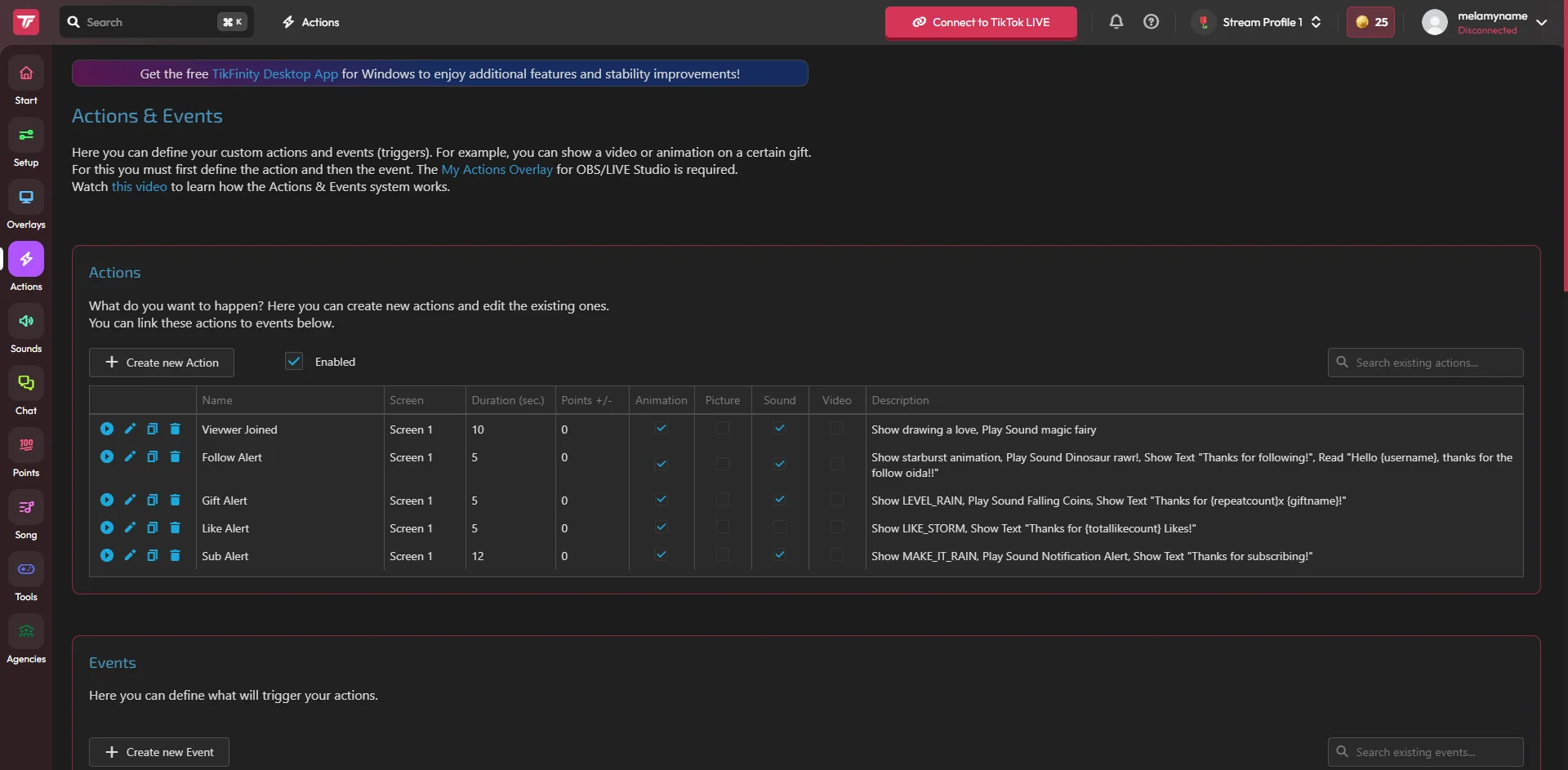
Make a note of the platform you are actually broadcasting on and the program sending the image.
✓ After this step you will seeYou know whether you are configuring TikTok LIVE Studio, OBS or Streamlabs Desktop.
- Action
Write down one need, such as a gift alert, chat reading, or timer.
✓ After this step you will seeYou have a single, testable goal instead of a list of a dozen features.
- Action
Open the official website of the selected tool from the source list of this guide.
✓ After this step you will seeThe address matches the manufacturer's domain.
- Action
Check supported platforms and LIVE account requirements.
✓ After this step you will seeYou don't assume that Twitch support also means TikTok gift support.
 Enlarge the screenshot ↗
Step by step · 5–8
- Action
Check if the feature is included in your plan and if it requires a desktop app.
✓ After this step you will seeYou know what needs to stay running while you're streaming.
- Action
Connect the correct account and compare the nickname with the public profile.
✓ After this step you will seeYou're seeing the actual creator, not a similarly named person.
- Action
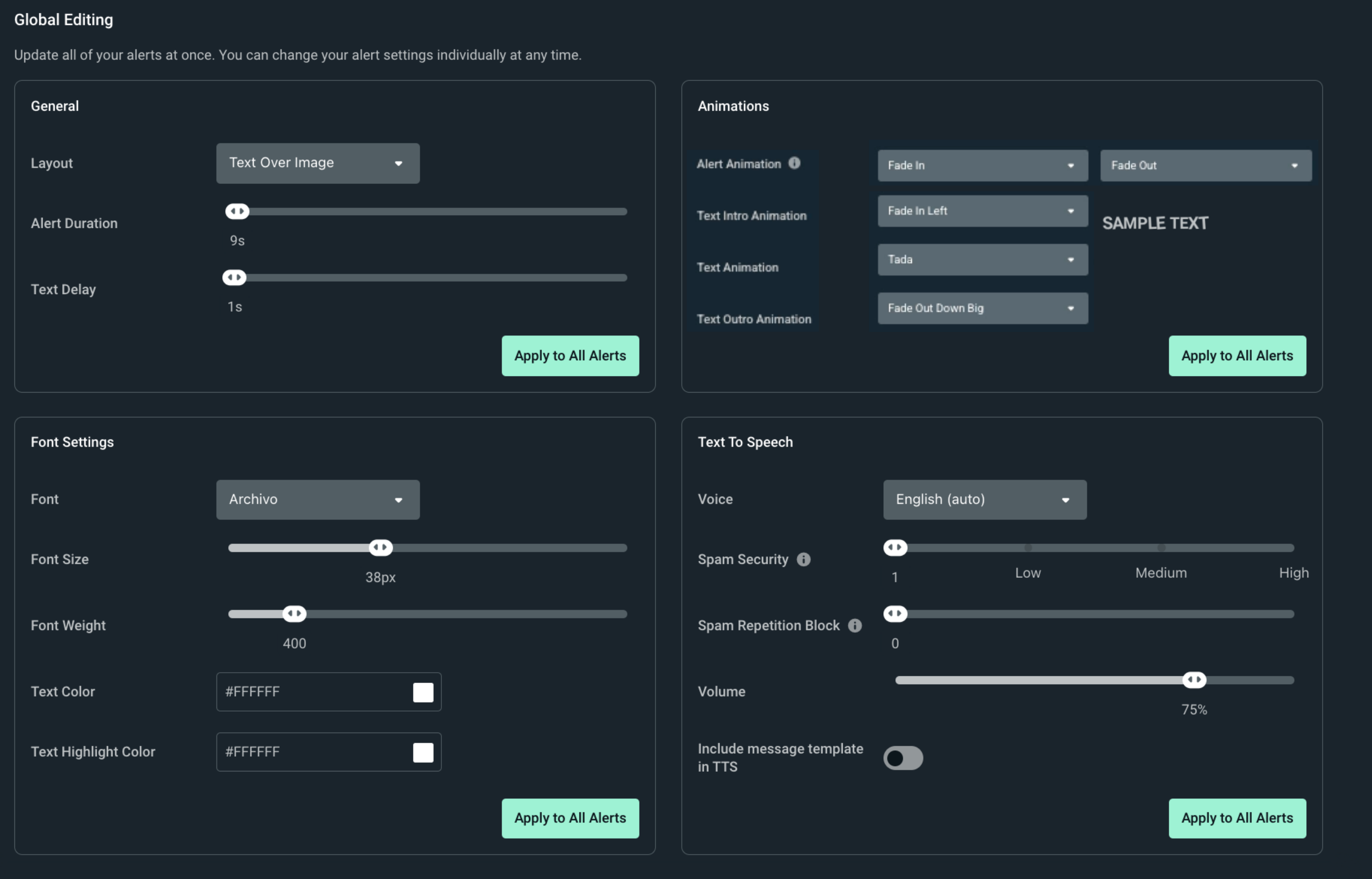
Add just one alert or widget.
✓ After this step you will seeYou have a small setup that is easy to check.
- Action
Copy the address of this widget and add it as a Browser or Link source.
✓ After this step you will seeThe settings panel is not visible on the stage.
 Enlarge the screenshot ↗
Step by step · 9–12
- Action
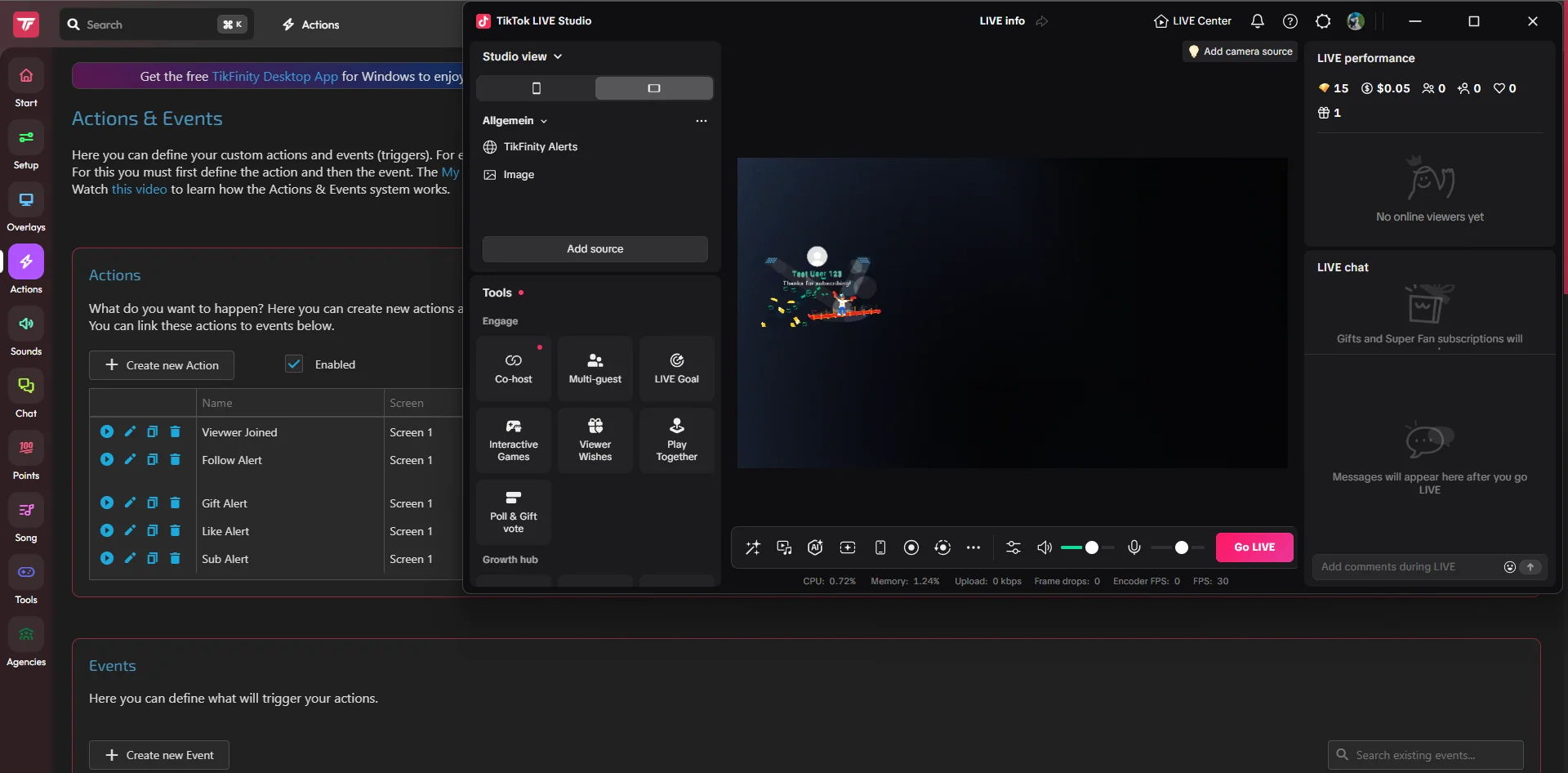
Check the picture and sound test on a local recording.
✓ After this step you will seeYou confirm the result as the recipient will see it.
- Action
During the real LIVE, check for one new free event if supported.
✓ After this step you will seeYou also confirm the data path from the platform.
- Action
Write down the program name, plan, source and method of audio playback.
✓ After this step you will seeYou can recreate the working layout the next time you stream.
- Action
Only now add additional features one at a time.
✓ After this step you will seeAfter each change, you know what its result was.
 Enlarge the screenshot ↗
An example you can reproduce
Example: you just want a reaction to a new observation. First, run one reaction and one source. Add music, chat reading and timer only after recording a successful attempt. You don't have to buy several tools to check the basic flow.
Prepare your own list of requirements
This way you're comparing the same scenario, not the number of menu items. A tool with an extensive library may require a different way of working than a simple ready-made widget. It's a matter of adapting to a specific transmission.
- List the platforms used and distinguish between transmitting an image and receiving a chat.
- Select the required features, e.g. Polish TTS, a specific type of gifts or a timer for points.
- Check your operating system, device and audio capture method.
- Separate what you need today from features you just want to try someday.
Perform the same test in each configuration
Don't judge one configuration based only on its default appearance and another after many hours of customization. Keep a comparable number of sources and a similar level of effects. Keep score without awarding automatic victory to one brand.
- Check that the correct account is connected and the new comment is received.
- Run a single alert test with a nickname, value and sound.
- Add an overlay to your scene and check long text and vertical format.
- Record a fragment with a microphone and reading. Note echo, no sound, or queue that is too long.
Check current limits and additional costs
Open your current account settings, price list and description of the add-on you are using. Pay attention to the number of rules, platforms, resources and conditions for reproducing external services. The availability of a widget in the gallery does not always mean access to all its options.
Compare the cost of the set of features you actually need. Include add-ons if your chosen configuration requires them. Don't base your decision on the old price in the screenshot or a feature that has been discontinued.
Where can I find instructions for a specific program?
For alerts, timers and goals, you will find separate software guides in this library. The TikFinity instruction remains the TikFinity instruction; the article about Streamlabs describes its widgets, and the article about LIVE Studio shows the embedding of the corresponding source.
Also check the manufacturer's documentation and option names in your version. The publisher's website is the right place to confirm availability, roadmap and interface changes. Our descriptions are intended to help you get the job done and do not promise that all tools will have the same capabilities.
Changing the configuration without losing the working LIVE
You can stay with the current program, combine several tools or change one widget. A good comparison gives you a basis for your own decision, it does not require removing everything that already works.
- Keep your previous settings and sources.
- Prepare your new setup in a separate scene or on a quiet test date.
- Check a single sound track and turn off duplicate responses.
- Switch the set used only after confirming the image, sound and event reception.
What do you see on the screen and how to fix it
Fix one thing at a time and try the same thing again. If you change several options at the same time, it will be difficult to determine what solved the problem. Don't delete a working source or entire configuration just because one widget isn't responding.
If you still need help, write down the program name and version, platform, approximate time of trial, expected result, and what actually happened. Attach a dump without passwords, keys and full private links. This description is much more useful than just the "not working" message.
| Symptom | Check first | Do it |
|---|---|---|
| The test works, but not LIVE | The test runs only the widget itself | Check your account, active stream and supported event type. |
| Two reactions are heard | Two tools handle the same event | Leave one trigger and one sound source for testing. |
| There is no option indicated | Another version or plan | Check the current documentation and terms for your product. |
| After closing the program, everything goes silent | The program supported reception or playback | Leave the required application running; the source alone may not be enough. |
Last attempt before use on LIVE
- Save the changes using the button assigned to the edited function. If there are separate forms, check each changed part separately.
- Open the settings again and compare the most important values. Simply moving the slider does not always mean a permanent save.
- Check the result outside the editor itself: on the target scene, in the recording, or in the reopened configuration.
- If the function uses the platform, separately acknowledge the new handled event during the active LIVE. Don't expect the appearance test to confirm account authorization.
- Save the working values and make a copy before the next major change. Next time you start up, start with a quick check.
Before you go live
- The same real-world scenario was compared.
- Official documentation and current plan were checked.
- It is known which program generates and captures audio.
- The possibility of returning to the previous layout has been retained.
- Reopened settings retain the saved values.
- A single attempt is confirmed on the target output.
Frequently asked questions
Does this guide point to one best program?
NO. It helps you check the requirements and a comparable work scenario, taking into account your own platforms and devices.
Is it possible to connect the broadcaster to a separate alerting tool?
This configuration is checked in stages: event generator, source on stage and sound. Use methods supported by selected programs.
Will the features and limits provided stay the same forever?
Programs are being developed. Before choosing, check the current feature description, plan and manufacturer's documentation.
What should I do if my screen looks different than the photo?
Check the program name, version and selected feature. The dump is real, but it's from a specific edition and language. Search for a described field by its task. If the option is not available, check the current official support and availability in your account.