

Check the channel and active theme
In the Streamlabs panel, make sure you are working with the correct account and active widget theme. For multiple platforms, check each connected service separately. A similar avatar is not sufficient confirmation of the channel.
Write down the name of the theme and the events you are testing. This will make it easier to determine whether a later change applies to this alert. Leave one simple setup for your first try.
A dictionary without difficult abbreviations
| Concept | What does this mean in practice? |
|---|---|
| Scene | Ready-made image layout: e.g. a game with a camera or a break board. The scene you choose determines what you show. |
| Source | One scene component: game, camera, text, audio, or page with overlay. The order of sources determines what covers what. |
| URL | Full web address. Copy it using the button in the panel; do not copy fragments and do not add spaces. |
| Event | New information from the platform, such as a message, observation or gift. The appearance test is not always an actual event. |
| Resolution | The width × height of the area, e.g. 1920 × 1080. This is different than shrinking the source rectangle with the mouse. |
Step by step · 1–4
- Action
Log in to Streamlabs with the account of the platform you want to broadcast on.
✓ After this step you will seeThe profile and channel are compatible with your LIVE.
- Action
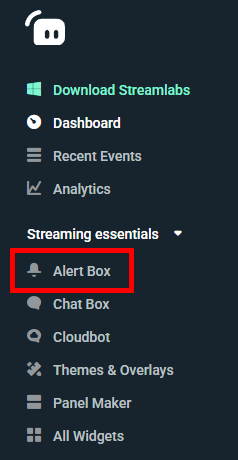
In the panel, open Streaming Essentials and then Alert Box; the name can be translated.
✓ After this step you will seeAlert settings are visible.
- Action
Select the right platform and event type.
✓ After this step you will seeYou are editing, for example, the Twitch observation, not a subscription to another platform.
- Action
Enable the selected alert type.
✓ After this step you will seeThe event is not disabled by a global switch.
 Enlarge the screenshot ↗
Step by step · 5–8
- Action
Select an image from the available library or your own file.
✓ After this step you will seeThe preview shows your material.
- Action
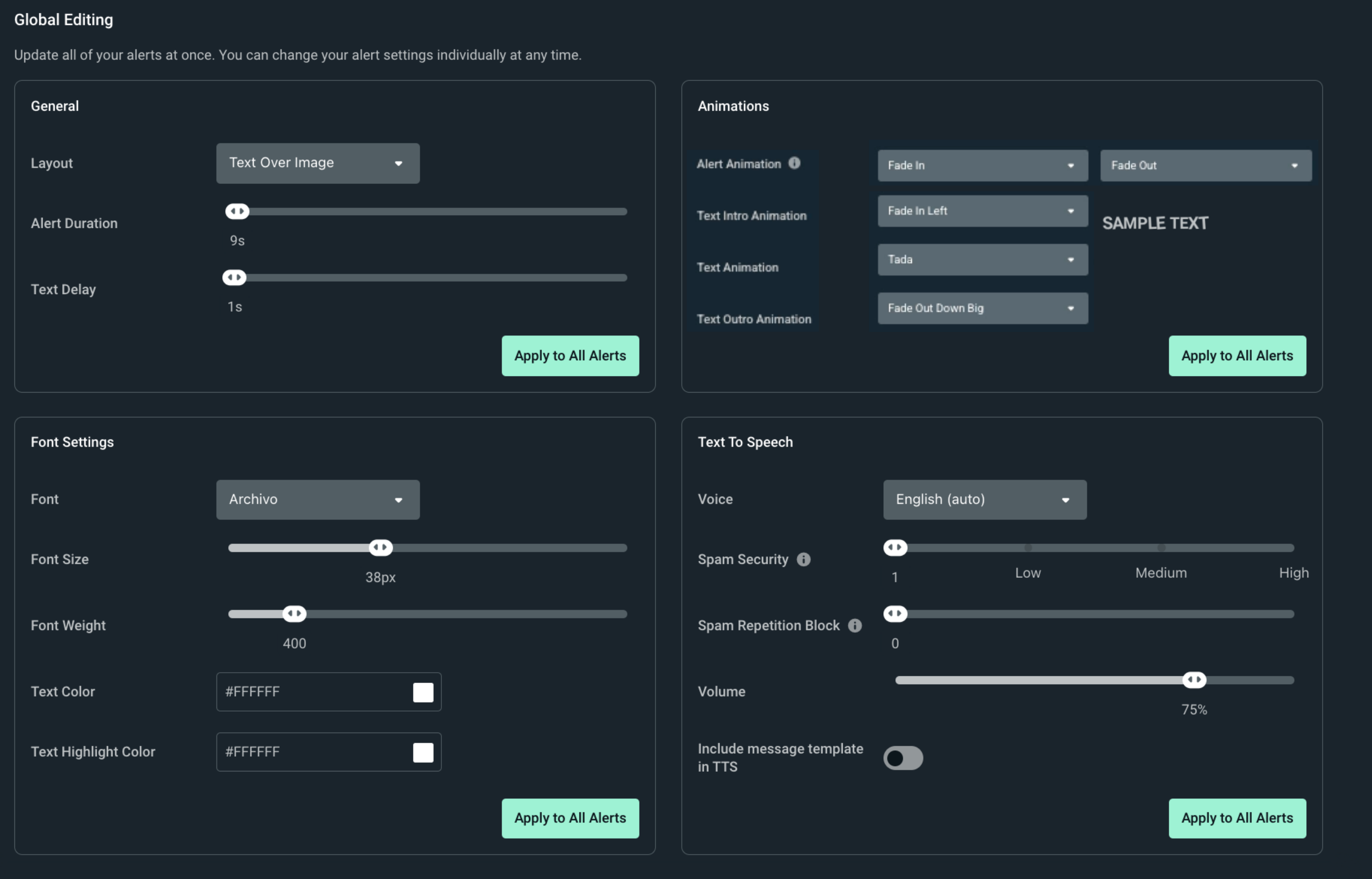
Choose a short sound and start at a moderate volume.
✓ After this step you will seeListening does not drown out the voice.
- Action
Set up your text using the fields and variables described in this editor.
✓ After this step you will seeYou don't copy tags from another tool.
- Action
Set the display time longer than the short entrance animation.
✓ After this step you will seeYou can read the message.
 Enlarge the screenshot ↗
Step by step · 9–12
- Action
Click Save Settings or the corresponding save.
✓ After this step you will seeThe changes remain when you reopen the settings.
- Action
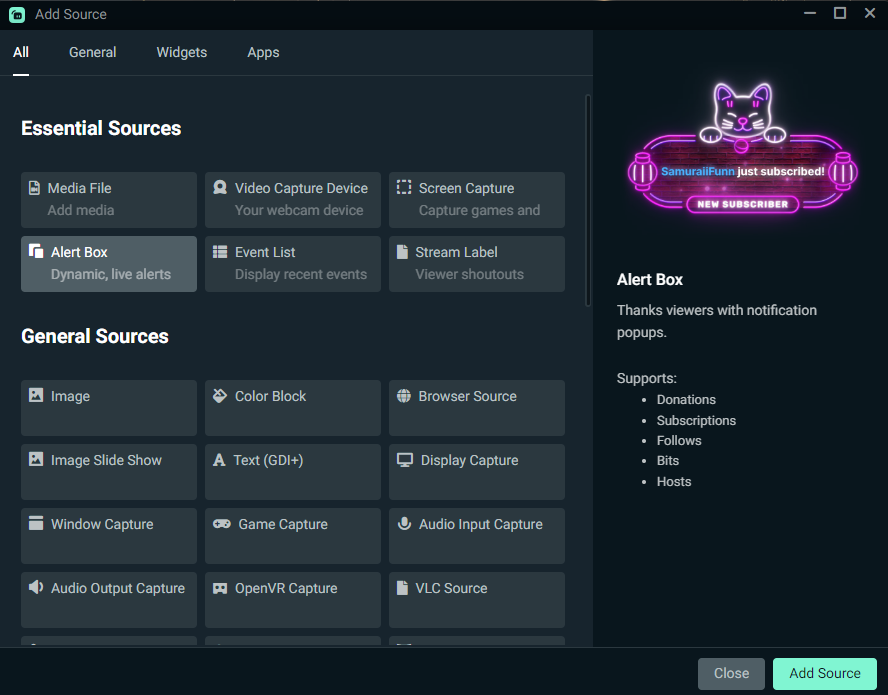
In Streamlabs Desktop add the native Alert Box source or in OBS add the Browser with URL Widget source.
✓ After this step you will seeOne display method is selected.
- Action
Place the source over the game and adjust the size.
✓ After this step you will seeThe test is not obscured by the game image.
- Action
Run a test for a specific event.
✓ After this step you will seeYou see the right type of reaction.
 Enlarge the screenshot ↗
Step by step · 13–14
- Action
Check the recording with audio and turn off LIVE Preview after the rehearsal, if active.
✓ After this step you will seeTests don't constantly appear in the background.
- Action
Check out the new event during the real broadcast.
✓ After this step you will seeYou confirm platform integration.
An example you can reproduce
At first, set only a new observation. Select a single image, 5 seconds and one sound, save and then run the observation test. If the subscription test looks different, it's not a write error: you're editing different event types.
Platform, event, text and material
Alert variants may respond to additional conditions. If a different graphic appears than expected, also check the variants and active theme. Do not remove all material before confirming which variant actually worked.
- Open the Alert Box and select the platform and event type in its settings.
- Turn on the alert you need and set the image or video and sound.
- Check the message template and dynamic fields, such as viewer name.
- Adjust the display time and save your settings.
Evaluate the entire sequence, not just the first frame
In the preview, check the beginning, body and end of the alert. A longer nickname, more digits, and a short audio file reveal different issues than the default example.
When setting image and text positions, first select a simple layout. Move items one at a time and keep a margin at the edge. Otherwise, it's hard to tell the difference between a cropped source and a misalignment of the text itself.
Add a widget to your broadcast program
If you consciously separate platforms or event types, check the filtering appropriate to the type of source used. The widget address filter and global event enablement can play different roles. Don't assume that changing one filter will switch every copy of the widget.
- In Streamlabs Desktop you can add the Alert Box source from the widget list.
- Using another program, copy the Widget URL from the Alert Box and add it as a browser source.
- Name the source as a theme or platform to distinguish it from the rest.
- Set the size and position, then invoke the test.
Sound test and single path to the viewer
Run one test while listening to the public broadcast on mute. Play the recording after the rehearsal is completed. If audio appears twice, check the number of sources and the capture of system audio and widget.
| Check | Purpose |
|---|---|
| Listening in the panel | Confirmation of correct material. |
| Meter in the program | Capture confirmation. |
| Recording the scene | Confirmation of output with image. |
| One copy of the alert | Elimination of echoes and duplicate reactions. |
When the alert is empty or different than expected
Record the result of each trial. A snapshot of just an empty scene says less than the name of the theme, the type of test, and the point at which the reaction stopped being visible. Restore the previous state if the change did not help.
- Compare the account, theme and selected event type.
- Check if alerts are paused or silenced.
- Check the variants and the correct source URL.
- If you have your own HTML/CSS, compare the sample with the simple default look, keeping a copy of the edit.
What do you see on the screen and how to fix it
Fix one thing at a time and try the same thing again. If you change several options at the same time, it will be difficult to determine what solved the problem. Don't delete a working source or entire configuration just because one widget isn't responding.
If you still need help, write down the program name and version, platform, approximate time of trial, expected result, and what actually happened. Attach a dump without passwords, keys and full private links. This description is much more useful than just the "not working" message.
| Symptom | Check first | Do it |
|---|---|---|
| The test is constantly repeated | LIVE Preview Enabled | End the test preview in the Alert Box panel. |
| Changes disappear | Save Settings was not used or a different type was edited | Save and check the platform and event. |
| Alert twice | Native Alert Box and source with the same URL | Leave one display and audio mode active. |
| No events from only one platform | Different account configuration or Theme Widget | Check out the related platform and widget theme. |
| No sound on the recording | Mixer or track assignment | Check the meter and recording output. |
Last attempt before use on LIVE
- Save the changes using the button assigned to the edited function. If there are separate forms, check each changed part separately.
- Open the settings again and compare the most important values. Simply moving the slider does not always mean a permanent save.
- Check the result outside the editor itself: on the target scene, in the recording, or in the reopened configuration.
- If the function uses the platform, separately acknowledge the new handled event during the active LIVE. Don't expect the appearance test to confirm account authorization.
- Save the working values and make a copy before the next major change. Next time you start up, start with a quick check.
Before you go live
- You have chosen the right platform and theme.
- The material and template are saved.
- The source corresponds to the panel configuration.
- The test can be heard and seen once in the recording.
- Reopened settings retain the saved values.
- A single attempt is confirmed on the target output.
Frequently asked questions
Do I need to use Streamlabs Desktop to show Alert Box?
The widget can also be added via a supported browser address. Check the right way for your program.
Why does the alert variant look different?
Check the active theme, variant conditions and event type.
Do all platforms have identical event types?
Don't assume it. Use the list available with the actual connected platform.
What should I do if my screen looks different than the photo?
Check the program name, version and selected feature. The dump is real, but it's from a specific edition and language. Search for a described field by its task. If the option is not available, check the current official support and availability in your account.