

Prepare before you start
Follow the numbered actions in order and compare your screen or recording with each expected result. Menu names can differ between application versions. Arrows show the order of settings and choices, not a claim that every account offers the same controls.
A dictionary without difficult abbreviations
| Name | After this step you will see |
|---|---|
| Framing | 9:16 → 1080 × 1920 px; 16:9 → 1920 × 1080 px |
| FPS | 30 FPS = 30 × frames / 1 s |
| Mb/s · MB/s | 1 Mb/s = 1000 kb/s; 1 MB/s = 8 Mb/s |
Step by step · 1–4
- Action
Check: Problem → Baseline.
✓ After this step you will seeAfter this step you will see: One change at a time.
- Action
Test: Network → Upload video.
✓ After this step you will seeAfter this step you will see: Network ✓.
- Action
Check: Network → Network · A = B.
✓ After this step you will seeAfter this step you will see: Baseline.
- Action
Select or set: Framing → 720p / 30 FPS.
✓ After this step you will seeAfter this step you will see: Load.
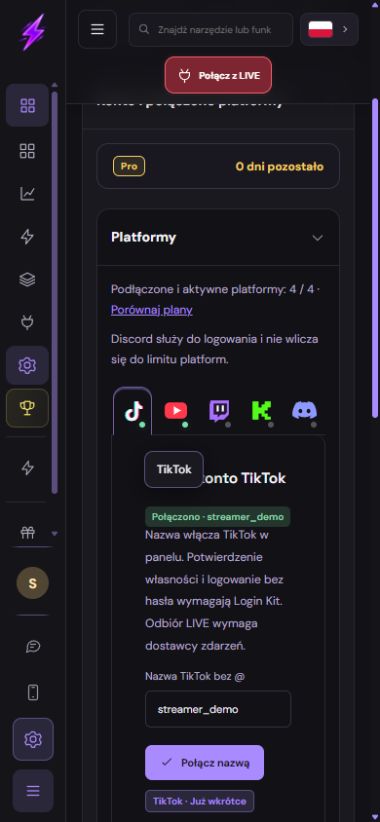 Enlarge the screenshot ↗
Step by step · 5–8
- Action
Close: Control panel · Load → Control panel · ×1.
✓ After this step you will seeAfter this step you will see: Load.
- Action
Check: Temperature → Ventilation.
✓ After this step you will seeAfter this step you will see: Temperature.
- Action
Check: Power → Charger.
✓ After this step you will seeAfter this step you will see: Temperature.
- Action
Select or set: Audio → Headphones.
✓ After this step you will seeAfter this step you will see: Audio ×2 → ×1.
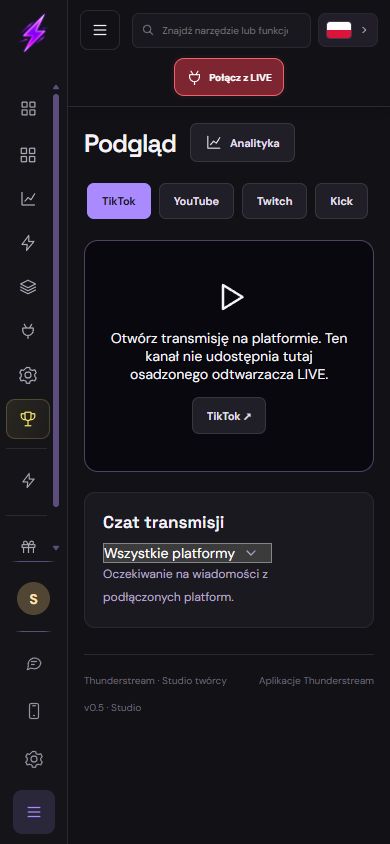 Enlarge the screenshot ↗
Step by step · 9–12
- Action
Test: Preview → 5 min.
✓ After this step you will seeAfter this step you will see: Network ✓.
- Action
Compare: Problem → Viewer output · A / B.
✓ After this step you will seeAfter this step you will see: Viewer output.
- Action
Save: Settings → Baseline.
✓ After this step you will seeAfter this step you will see: Changes saved..
- Action
Check: Results → 15 min.
✓ After this step you will seeAfter this step you will see: Network ✓.
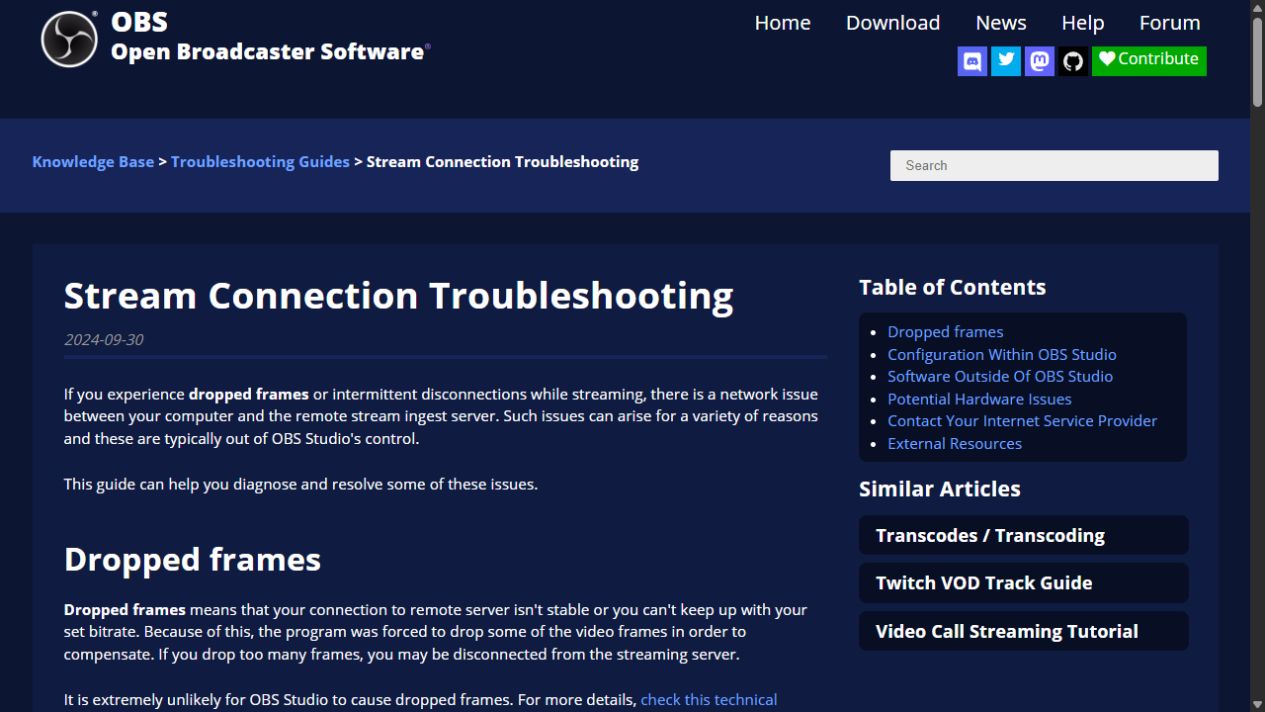 Enlarge the screenshot ↗
Settings · Context
| Action | After this step you will see | Context |
|---|---|---|
| Network | Upload video | Router |
| Temperature | Ventilation | Break |
| Load | 720p / 30 FPS | One change at a time |
| Audio | Headphones | Audio ×2 → ×1 |
Quick setup · Short test
Record whether the phone is hot, whether a local recording also stutters, and whether another device sees the fault. Repeat the test in the same place without downloads or updates. Smooth local footage with a poor live output points toward the connection; a hot device with stuttering local footage points toward load and temperature.
Do not change network, location and resolution simultaneously. Follow the device manufacturer’s cooling guidance and avoid rapid temperature changes. Repeat a longer test after improvement: a smooth opening minute does not prove the entire stream is stable.
- Check: Network → Network · A = B.
- Check: Temperature → Ventilation.
- Test: Preview → 5 min.
- Check: Results → 15 min.
Before you go live
Keep your existing configuration and original source file first. Change one parameter at a time. Check a short recording or the actual viewer output, rather than relying only on the editor. Restore the recorded baseline if the result gets worse.
- One change at a time → Baseline.
- Viewer output → Short test.
- Results → Backup.
Before you go live
- Baseline ✓
- Usage rights ✓
- Viewer output ✓
- Backup ✓
- One change at a time ✓
Frequently asked questions
Prepare before you start?
Account / Source files. Baseline → Backup. Short test → Viewer output. Check: Problem → Baseline.
Stop and check?
After this step you will see: Network ✓. Keep your existing configuration and original source file first. Change one parameter at a time. Check a short recording or the actual viewer output, rather than relying only on the editor. Restore the recorded baseline if the result gets worse.
Context?
Separate network problems from heat and device load. Test in the same location and change one setting at a time. Give an overheating phone a break, leave ventilation clear and keep system protections enabled.