

Before you choose your voice: check the message path
Open the live stream and ask the viewer for a new, regular comment. If the entry is not in Thunderstream, first check the correct account connection. Changing your voice tone will not fix missing chat data.
If you have several platforms, do a separate test on each of them. Please check the platform ID on your entry so that a message from Twitch is not taken as confirmation that YouTube is working. Old history comments do not replace a new test.
A dictionary without difficult abbreviations
| Concept | What does this mean in practice? |
|---|---|
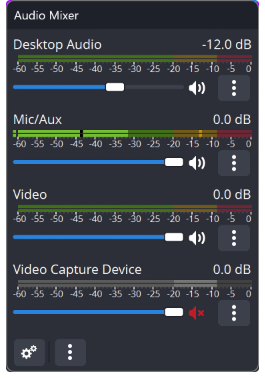
| Mixer | List of audio tracks with meters and sliders. Helps determine which app or device is actually making the sound. |
| Audio track | Selected set of sounds saved or sent to output. A file may contain several tracks that play separately. |
| Source | One scene component: game, camera, text, audio, or page with overlay. The order of sources determines what covers what. |
| Event | New information from the platform, such as a message, observation or gift. The appearance test is not always an actual event. |
| URL | Full web address. Copy it using the button in the panel; do not copy fragments and do not add spaces. |
Step by step · 1–4
- Action
Send a short sentence without a command or an emoji.
✓ After this step you will seeThe new comment is visible in Thunderstream.
- Action
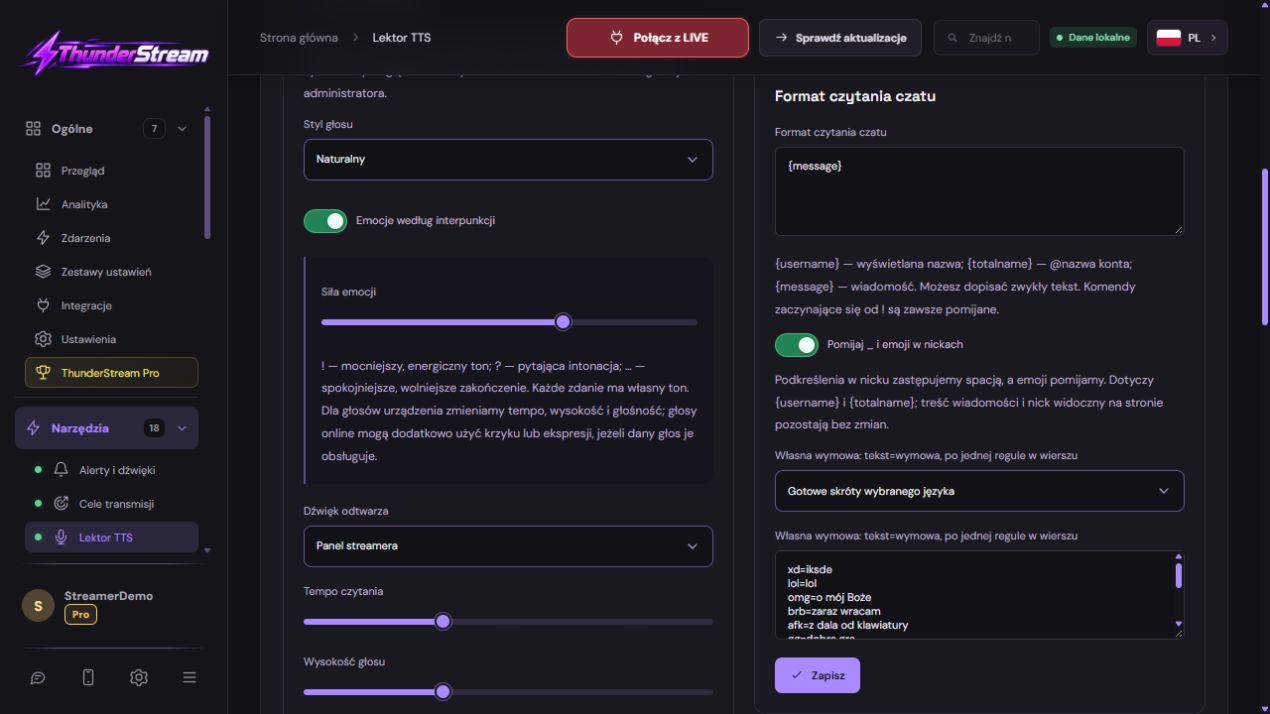
Open Lektor TTS and expand Lektor AI.
✓ After this step you will seeYou see the reading and voice tester settings.
- Action
Turn on reading and select the language, e.g. Polish.
✓ After this step you will seeThe test is for a specific language, not a random voice.
- Action
Select available engine and voice.
✓ After this step you will seeThe list corresponds to the capabilities of the device or configured provider.
 Enlarge the screenshot ↗
Step by step · 5–8
- Action
Start with a slow tempo of around 1× and a moderate volume.
✓ After this step you will seeThe short test is self-explanatory.
- Action
Select playback in panel or chat overlay.
✓ After this step you will seeYou know which place actually emits the speech.
- Action
First, set the template {message}.
✓ After this step you will seeThe content itself is read; then you can add {username}.
- Action
Write down and listen to a short sentence from the tester.
✓ After this step you will seeYou check the voice and playback device.
Step by step · 9–12
- Action
In TTS Moderation, review roles, length, replays and prohibited words.
✓ After this step you will seeYou know what is deliberately left out.
- Action
Check how to ignore symbols in nicknames and emojis.
✓ After this step you will seeUnwanted markings do not interfere with speech.
- Action
Send a new comment and check the TTS log.
✓ After this step you will seeYou see the status of the entry: waiting, reading or skipping.
- Action
Go to another panel tab and submit another comment.
✓ After this step you will seeThe enabled voice-over still supports approved text.
 Enlarge the screenshot ↗
Step by step · 13–14
- Action
Record the test with a microphone.
✓ After this step you will seeThe voice is heard once and does not drown out the conversation.
- Action
Repeat the test separately on each platform.
✓ After this step you will seeThe Twitch read is not the only confirmation for the remaining chats.
An example you can reproduce
"Voice test number one" from the tester checks the synthesis and device. “Chat test number two” with LIVE additionally checks message reception and filters. If the tester is working and the second sentence is not in the log, changing the volume will not fix the input problem.
Turn on the voice-over and set a calm starting point
For your first try, choose a simple sentence, such as "Hi, we're checking the chat reading." This will make it easier to distinguish a configuration error from an intentional omission of an emoji, command or illegal word.
- Open Lektor TTS, turn on the tool and select the reading language. For Polish messages, start with a Polish voice.
- Select an available voice, set a moderate speed and volume, and then run the test. The names and availability of voices depend on the selected synthesis method and device.
- Set a statement template: just a message or a nickname and a message. Check whether the inserted text actually corresponds to what you want to hear.
- Save your settings. After switching the voice, test the short text again with Polish characters and your username.
Filters: readable chat without reading all spam
- In Moderation TTS, view blocked words and settings for skipping unwanted messages.
- Check how to ignore emojis and symbols in nicknames. The underscore in the username does not have to be pronounced.
- Adjust length, replay and eligible viewers limits. Set mild rules first, then tighten them based on real chat.
- Check the comment with the emoji, the repeated entry and the command separately. Compare the result with the settings and reading log.
Queue and delay: Not every message has to wait forever
Reading takes longer than writing a short comment. If there is a lot of text coming in, even a properly functioning voice can lag behind. Reduce the maximum message length and check the queue limit and age limit for posts.
Too large a queue means reading a long-ended conversation. Too small and you may miss part of the message during an intense moment. Match the values to the pace of your community, not how many items fit into the panel.
| Symptom | What to check |
|---|---|
| No entry in the log | LIVE combination and selected platforms. |
| Entry omitted | Filters, viewer permissions, message length and age. |
| The entry has been a long time coming | Reading speed, text length and queue size. |
| It was read in the log, but there was silence on the recording | Audio capture in OBS or LIVE Studio. |
Audio and double reading
Choose one place to actually play the speech. If you use a readout in a panel or program, capture this sound for transmission. If you have selected a chat overlay, please check the correct source and its audio track.
Don't run a second independent copy of the voiceover in another tab just to see the preview. The phone can remain silent while the computer reads. Dual audio can also result from capturing the same program with a separate source and desktop audio simultaneously.
Final test and work outside the TTS tab
- Start a short local recording and submit a new comment from your platform of choice.
- Navigate to another tool in the panel. An enabled voice-over should continue to support permitted messages as long as the panel or program playing it is running.
- Play the recording: the voice should be understandable, audible once and not drown out the microphone.
- If you report a bug, please include the time, platform, and log entry status. Do not send tokens or private overlay links.
What do you see on the screen and how to fix it
Fix one thing at a time and try the same thing again. If you change several options at the same time, it will be difficult to determine what solved the problem. Don't delete a working source or entire configuration just because one widget isn't responding.
If you still need help, write down the program name and version, platform, approximate time of trial, expected result, and what actually happened. Attach a dump without passwords, keys and full private links. This description is much more useful than just the "not working" message.
| Symptom | Check first | Do it |
|---|---|---|
| The tester works, the comments do not. | No reception or filter. | Compare the new chat and log entry TTS. |
| It has been read, but the recording is silent. | No proper audio track. | Observe the OBS meter during a new test. |
| There are two voices. | Multiple players or duplicate captures. | Leave one read location and one audio path. |
| The narrator reads old conversations. | Too long a queue for the pace. | Check the age of posts, text length and queue limit. |
Last attempt before use on LIVE
- Save the changes using the button assigned to the edited function. If there are separate forms, check each changed part separately.
- Open the settings again and compare the most important values. Simply moving the slider does not always mean a permanent save.
- Check the result outside the editor itself: on the target scene, in the recording, or in the reopened configuration.
- If the function uses the platform, separately acknowledge the new handled event during the active LIVE. Don't expect the appearance test to confirm account authorization.
- Save the working values and make a copy before the next major change. Next time you start up, start with a quick check.
Before you go live
- New messages arrive from every platform you use.
- The voice was tested after saving the settings.
- Filters omit exactly what they are supposed to omit.
- The recording is confirmed by a single, clear reading.
- Reopened settings retain the saved values.
- A single attempt is confirmed on the target output.
Frequently asked questions
Will the Polish voice be identical on every computer?
Not always. This depends on the synthesis provider and the voices available on your device. Select a voice from the list currently shown in the panel and check the listening.
Why doesn't TTS read emojis or commands?
This may be due to purposely enabled filters. Check Moderation TTS and the log of a specific message.
Does simply “Read” mean that viewers heard the voice?
It does not confirm the correctness of the entire audio track. Make a recording in the broadcast program and check whether there is sound in it.
What should I do if my screen looks different than the photo?
Check the program name, version and selected feature. The dump is real, but it's from a specific edition and language. Search for a described field by its task. If the option is not available, check the current official support and availability in your account.