

Prepare before you start
The panel and events are processed on your computer. Overlay links remain on thunderstream.net.
Do not publish passwords, private keys or full overlay links.
Make a short test before LIVE.
Step by step · 1–4
- Action
Open: Song requests.
✓ After this step you will seeSong requests
- Action
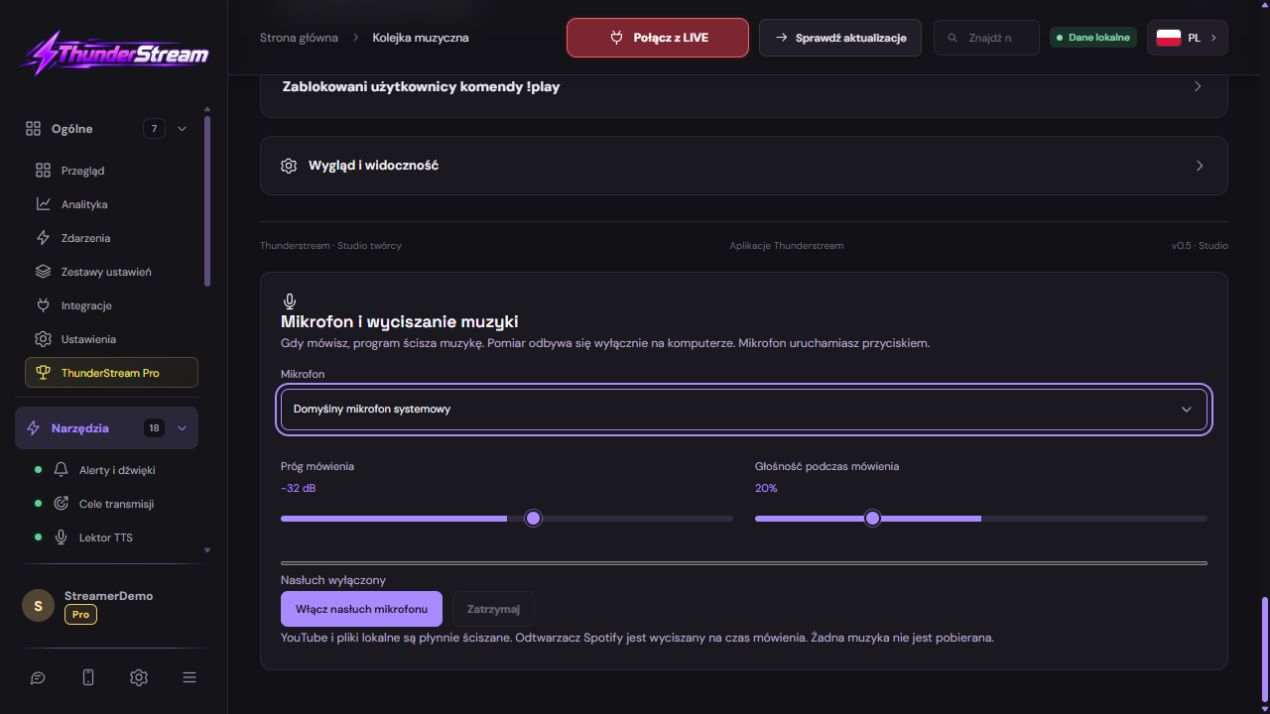
Open: Microphone and music ducking.
✓ After this step you will seeMusic fades while you speak. Audio levels are processed only on this computer. Start the microphone using the button.
- Action
Check: Volume.
✓ After this step you will seeMusic fades while you speak. Audio levels are processed only on this computer. Start the microphone using the button.
- Action
Select: Microphone.
✓ After this step you will seeSystem default microphone
 Enlarge the screenshot ↗
Step by step · 5–8
- Action
Click: Start microphone monitoring.
✓ After this step you will seeMicrophone active · waiting for speech
- Action
Check: Allow microphone access for Thunderstream in system settings, then try again..
✓ After this step you will seeMusic fades while you speak. Audio levels are processed only on this computer. Start the microphone using the button.
- Action
Make a short test before LIVE. Microphone and music ducking
✓ After this step you will seeSpeaking · music ducked
- Action
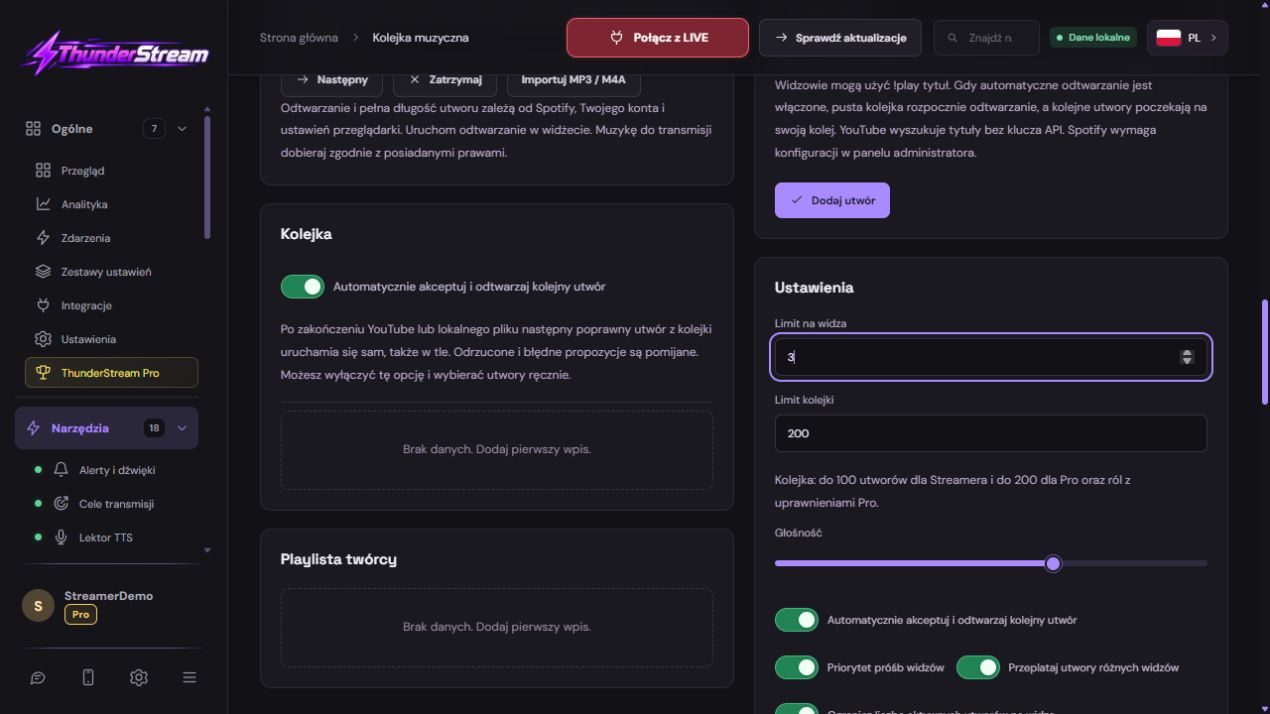
Select: Voice threshold.
✓ After this step you will seeSpeaking · music ducked
 Enlarge the screenshot ↗
Step by step · 9–12
- Action
Check: Voice threshold.
✓ After this step you will seeMicrophone active · waiting for speech
- Action
Select: Volume while speaking.
✓ After this step you will seeYouTube and local audio fade smoothly. Spotify is muted while you speak. Music is never downloaded.
- Action
Make a short test before LIVE. Volume
✓ After this step you will seeMusic fades while you speak. Audio levels are processed only on this computer. Start the microphone using the button.
- Action
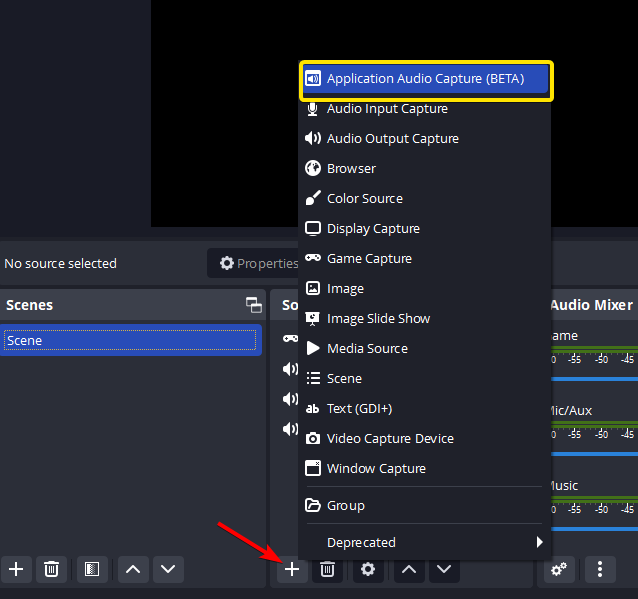
Check: OBS.
✓ After this step you will seeOpen the broadcast on its platform. This channel does not provide an embedded LIVE player here.
 Enlarge the screenshot ↗
Step by step · 13–15
- Action
Make a short test before LIVE. Song requests
✓ After this step you will seeProcessing on your computer
- Action
Click: Stop.
✓ After this step you will seeMonitoring off
- Action
Check: Microphone.
✓ After this step you will seeSystem default microphone
Microphone and music ducking
Music fades while you speak. Audio levels are processed only on this computer. Start the microphone using the button.
YouTube and local audio fade smoothly. Spotify is muted while you speak. Music is never downloaded.
Make a short test before LIVE.
A dictionary without difficult abbreviations
Compare the result with the screenshot. If it differs, check the troubleshooting section.
The panel and events are processed on your computer. Overlay links remain on thunderstream.net.
An example you can reproduce
Music fades while you speak. Audio levels are processed only on this computer. Start the microphone using the button.
Make a short test before LIVE.
Compare the result with the screenshot. If it differs, check the troubleshooting section.
What do you see on the screen and how to fix it
| Symptom | Check first | Do it |
|---|---|---|
| Allow microphone access for Thunderstream in system settings, then try again. | Could not start the microphone. Check the selected input device. | Open: Microphone. Click: Start microphone monitoring |
| The beginnings of words disappear | Gate or damping too strong | Loosen the threshold and compare the raw recording. |
| The voice sounds metallic | Denoising too strong | Reduce the intensity or compare another method. |
| Cracking noise when screaming | Input clipping | Lower the device gain before the filters. |
| The background grows after each sentence | Too much compression or gain | Reduce the filter effect and its output gain. |
| You hear yourself with a delay | Listening returns from the program or LIVE | Disable unnecessary monitoring, leaving the correct output. |
| The meter works, the file is silent | The source does not appear on the recording track | Check Advanced Sound Properties. |
Last attempt before use on LIVE
Save in this form and reopen the settings.
Compare the result with the screenshot. If it differs, check the troubleshooting section.
Do not publish passwords, private keys or full overlay links.
- Save the changes using the button assigned to the edited function. If there are separate forms, check each changed part separately.
- Open the settings again and compare the most important values. Simply moving the slider does not always mean a permanent save.
- Check the result outside the editor itself: on the target scene, in the recording, or in the reopened configuration.
- If the function uses the platform, separately acknowledge the new handled event during the active LIVE. Don't expect the appearance test to confirm account authorization.
- Save the working values and make a copy before the next major change. Next time you start up, start with a quick check.
Before you go live
- Save in this form and reopen the settings.
- Make a short test before LIVE.
- Compare the result with the screenshot. If it differs, check the troubleshooting section.
- Do not publish passwords, private keys or full overlay links.
Frequently asked questions
Allow microphone access for Thunderstream in system settings, then try again.?
Could not start the microphone. Check the selected input device.. Open: Microphone. Click: Start microphone monitoring
The beginnings of words disappear?
Gate or damping too strong. Loosen the threshold and compare the raw recording.
The voice sounds metallic?
Denoising too strong. Reduce the intensity or compare another method.
Cracking noise when screaming?
Input clipping. Lower the device gain before the filters.