

Prepare before you start
Follow the numbered actions in order and compare your screen or recording with each expected result. Menu names can differ between application versions. Arrows show the order of settings and choices, not a claim that every account offers the same controls.
Step by step · 1–4
- Action
Write down: Publishing destinations → LIVE / VOD / Shorts / YouTube.
✓ After this step you will seeAfter this step you will see: Publishing destinations.
- Action
Check: Usage rights → License.
✓ After this step you will seeAfter this step you will see: Publishing destinations.
- Action
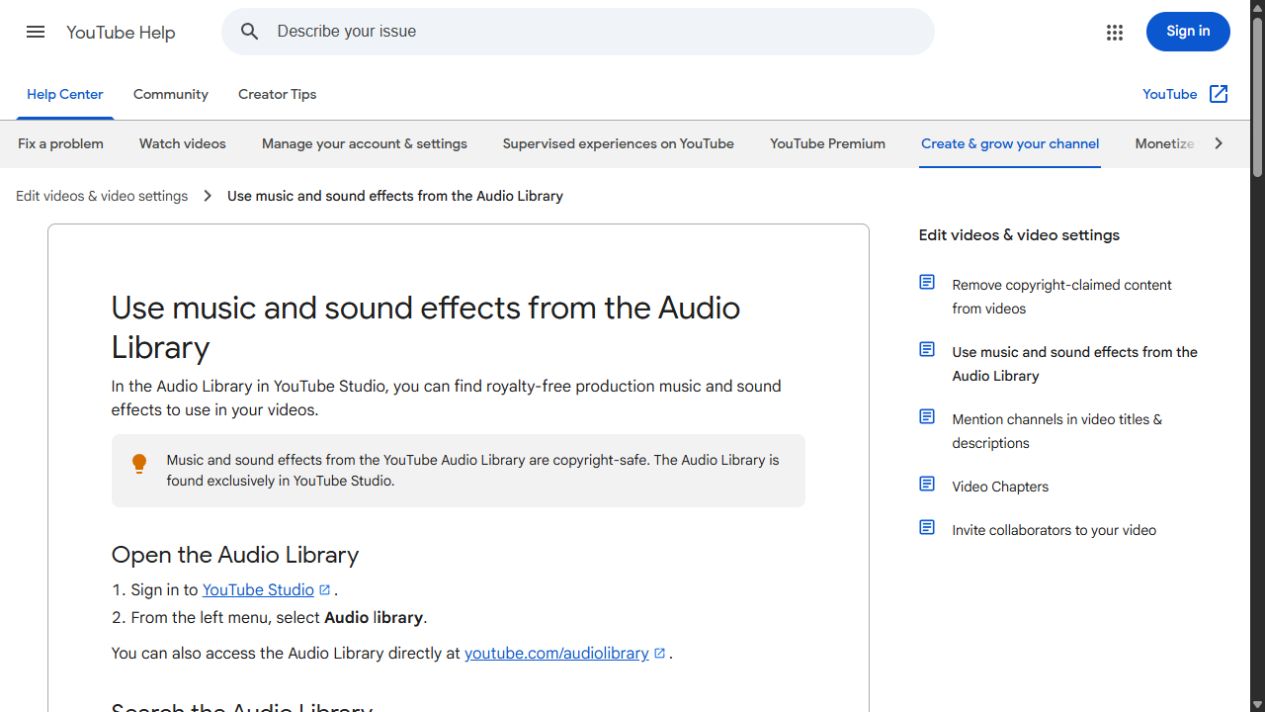
Open: Library → YouTube Studio → Audio Library.
✓ After this step you will seeAfter this step you will see: https://thunderstream.net.
- Action
Select or set: Audio → Music + Usage rights.
✓ After this step you will seeAfter this step you will see: Usage rights.
 Enlarge the screenshot ↗
Step by step · 5–8
- Action
Check: Attribution → Attribution.
✓ After this step you will seeAfter this step you will see: Sources and licenses.
- Action
Save: Documentation → License + YYYY-MM-DD.
✓ After this step you will seeAfter this step you will see: Backup.
- Action
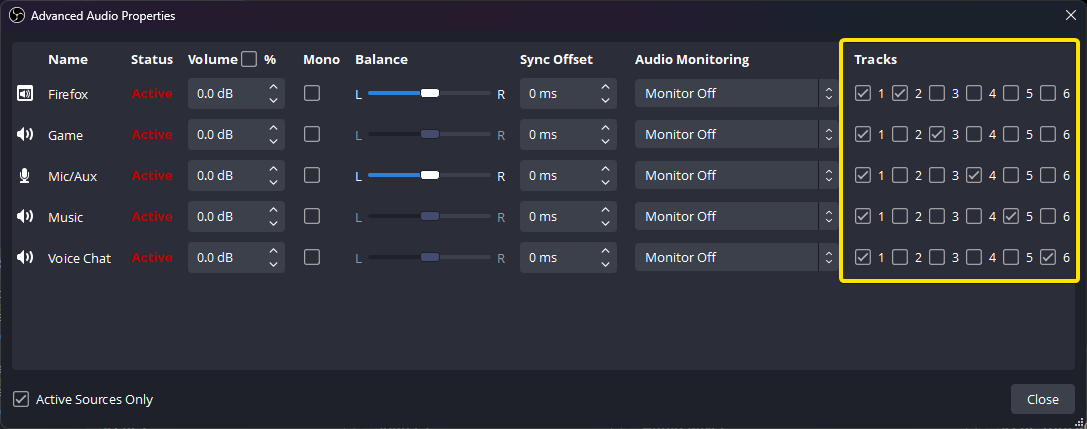
Select or set: Audio → Voice | Music.
✓ After this step you will seeAfter this step you will see: Editing.
- Action
Check: Stream chat → Music → Stream chat → Music.
✓ After this step you will seeAfter this step you will see: Usage rights.
 Enlarge the screenshot ↗
Step by step · 9–12
- Action
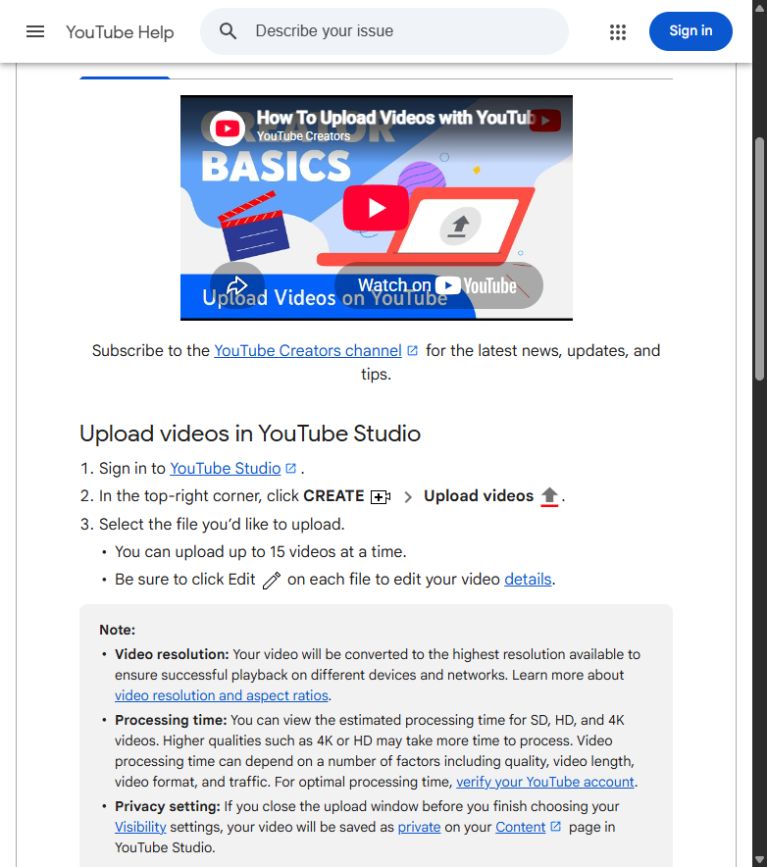
Upload: Visibility → Private.
✓ After this step you will seeAfter this step you will see: Usage rights + File.
- Action
Check: Content ID claim → Content ID → Moment.
✓ After this step you will seeAfter this step you will see: Documentation.
- Action
Edit: Audio → Editing → Audio.
✓ After this step you will seeAfter this step you will see: Usage rights.
- Action
Check: Usage rights → Documentation → Content ID claim.
✓ After this step you will seeAfter this step you will see: Documentation.
 Enlarge the screenshot ↗
Settings · Context
| Action | After this step you will see | Context |
|---|---|---|
| License | Publishing destinations | Documentation |
| Attribution | Attribution | Sources and licenses |
| Content ID claim | Content ID → Moment | Documentation |
| Stream chat → Music | Stream chat → Music | Usage rights |
Quick setup · Short test
For each track, record its title, author, source, date and usage terms. A license might permit a credited YouTube video without confirming LIVE use elsewhere. Do not automatically copy that track into every scene and archive. Include the exact attribution supplied by the license when required.
A viewer request does not transfer rights to you. Separate audio helps remove music from edits but does not authorize its earlier use. For a claim, inspect the specific segment, claimant and your documents before considering a response. Never submit a false declaration automatically.
- Open: Library → YouTube Studio → Audio Library.
- Save: Documentation → License + YYYY-MM-DD.
- Upload: Visibility → Private.
- Check: Usage rights → Documentation → Content ID claim.
Before you go live
Keep your existing configuration and original source file first. Change one parameter at a time. Check a short recording or the actual viewer output, rather than relying only on the editor. Restore the recorded baseline if the result gets worse.
- One change at a time → Baseline.
- Viewer output → Short test.
- Results → Backup.
Before you go live
- Baseline ✓
- Usage rights ✓
- Viewer output ✓
- Backup ✓
- One change at a time ✓
Frequently asked questions
Prepare before you start?
Account / Source files. Baseline → Backup. Short test → Viewer output. Write down: Publishing destinations → LIVE / VOD / Shorts / YouTube.
Stop and check?
After this step you will see: Documentation. Keep your existing configuration and original source file first. Change one parameter at a time. Check a short recording or the actual viewer output, rather than relying only on the editor. Restore the recorded baseline if the result gets worse.
Context?
A music-listening subscription does not grant broadcasting or video rights. Check the license for LIVE, archives, Shorts and other destinations. Keep evidence and required credits. Dispute a claim only when you have a genuine basis.