

New events or total account balance?
Decide whether you're showing activity during the current stream, a value from a different time period, or a starting point you've entered. The title of the bar should make this clear, e.g. "New Observations Today."
Don't directly compare your new event count goal with the total number of followers on your platform profile. The difference does not have to be a mistake. Check the selected data type, the start of counting and when the reset occurs.
A dictionary without difficult abbreviations
| Concept | What does this mean in practice? |
|---|---|
| Scene | Ready-made image layout: e.g. a game with a camera or a break board. The scene you choose determines what you show. |
| Source | One scene component: game, camera, text, audio, or page with overlay. The order of sources determines what covers what. |
| URL | Full web address. Copy it using the button in the panel; do not copy fragments and do not add spaces. |
| Event | New information from the platform, such as a message, observation or gift. The appearance test is not always an actual event. |
| Resolution | The width × height of the area, e.g. 1920 × 1080. This is different than shrinking the source rectangle with the mouse. |
Step by step · 1–4
- Action
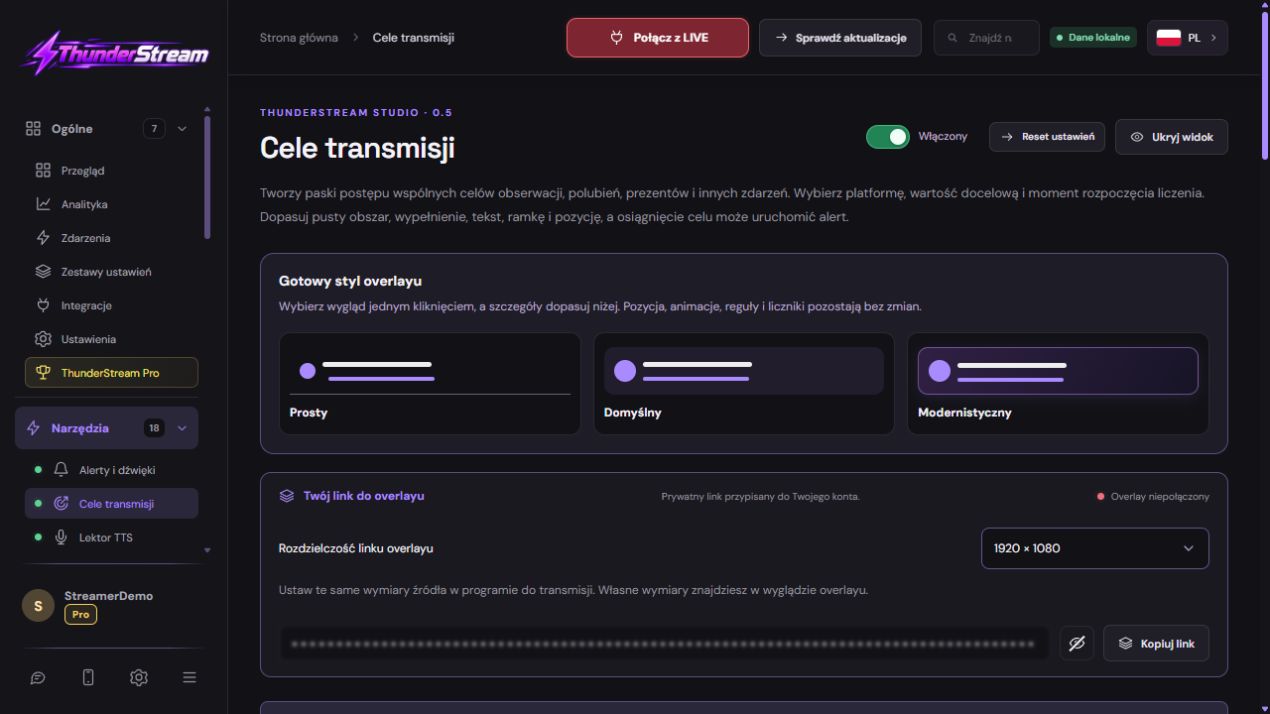
Open Broadcast Goals and enable the tool.
✓ After this step you will seeGoals configuration is available.
- Action
Add a goal or edit one selected goal.
✓ After this step you will seeYou don't change another round by mistake.
- Action
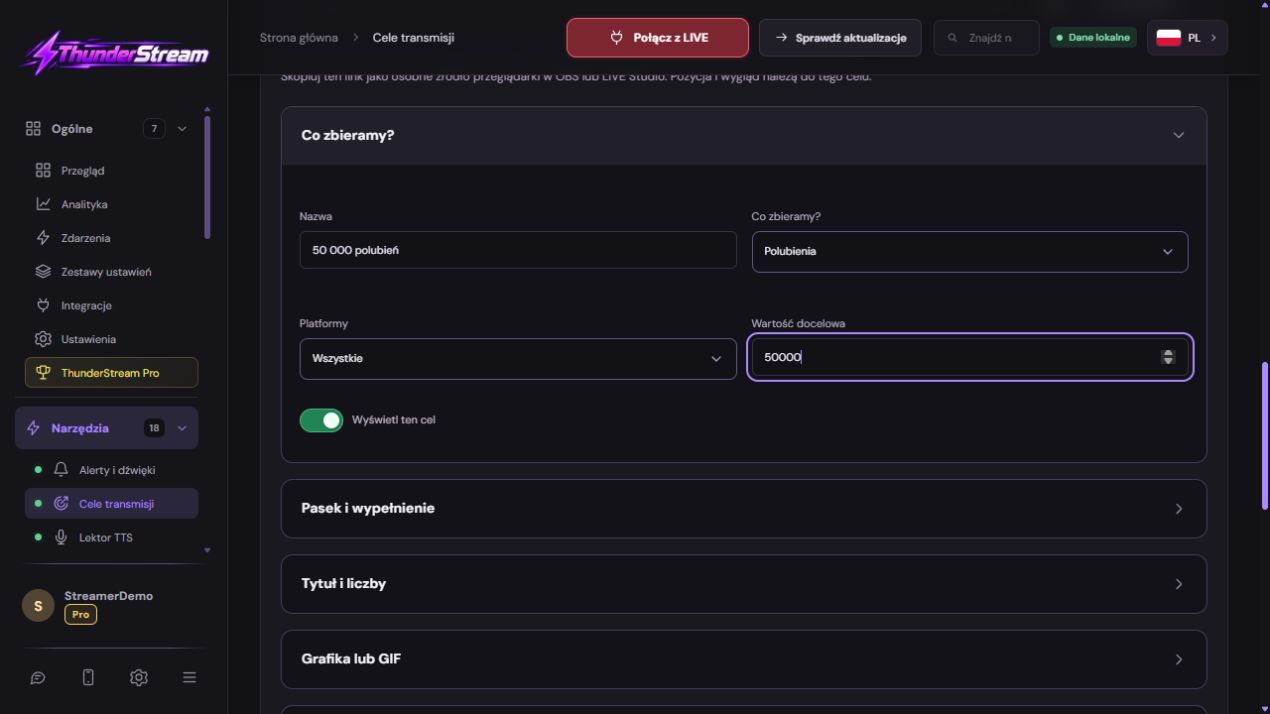
Give it a name, e.g. 30 new observations.
✓ After this step you will seeThe viewer immediately understands the unit of progress.
- Action
Select type: follows, likes or other available event.
✓ After this step you will seeThe type is not confused with the total account balance.
 Enlarge the screenshot ↗
Step by step · 5–8
- Action
Select the appropriate platform or available scope.
✓ After this step you will seeProgress comes from an intentional source.
- Action
Enter the target value, e.g. 30.
✓ After this step you will seeA full bar means 30 units, not 30 percent.
- Action
Check the start and reset rules.
✓ After this step you will seeYou know, since you collect the result.
- Action
Choose the text style and contrast.
✓ After this step you will seeThe numbers are legible in light and dark images.
Step by step · 9–12
- Action
Check the font, long title and 100% score.
✓ After this step you will seeThe items fall within the source area.
- Action
Save and reopen the same target.
✓ After this step you will seeThe type, name and threshold are retained.
- Action
Before LIVE, run the appearance test.
✓ After this step you will seeThe simulation confirms the position, not the true state of events.
- Action
Add a target link to OBS or LIVE Studio.
✓ After this step you will seeThe bar is visible on the correct scene.
 Enlarge the screenshot ↗
Step by step · 13–14
- Action
Check out the new real event.
✓ After this step you will seeProgress increases by a set unit.
- Action
Check the response when the threshold is reached.
✓ After this step you will seeYou know if the target stays full, resets, or triggers an action.
An example you can reproduce
A goal of 30 new observations starts from scratch. After 3 new observations you expect 3 / 30 and 10%. The number of all channel followers should not automatically fill the round defined in this way. Start, unit and threshold are separate settings.
Add a goal and name it specifically
Avoid several almost identical goals called "New Goal". The name "Twitch Observations - Today's LIVE" helps you choose the right link later and not confuse the bar with another platform.
- Open Broadcast Goals and select an existing goal, or add a separate one if you need another bar.
- Select a type, such as observations, and select the platform or scope available in the configuration.
- Enter the target value and starting point consistent with what you want to show.
- Save and then check the name and values when you reopen the settings.
Example: 30 new observations
Use appearance simulation for your test and then confirm a single real event. Changing the number in the example does not mean that the platform has provided that many new observations. Separate these two checks.
| Stage | Expected appearance |
|---|---|
| Start: 0 / 30 | A blank or initial bar consistent with the style. |
| Five valid new events | 5/30, about 16.7% progress. |
| Reached 30 | Full bar and selected response when threshold is reached. |
| Another broadcast | Value according to the set reset policy or manual start. |
Style, colors and clear text
A narrow bar may look elegant on a large monitor but be illegible on a phone. Judge the size after reducing the entire scene to a realistic view for the viewer. Don't place the most important numbers right at the edge of the frame.
- Choose a ready-made style as a starting point.
- Set the title, values, percentage and additional signatures that are actually needed.
- Adjust the font, stripe thickness and colors. With a gradient, check the contrast of the text in both parts of it.
- Check the longer title on light and dark backgrounds and in a vertical scene arrangement.
Reset and reaction to achieving the goal
Specify before LIVE whether the target should be continued, reset manually, or reset according to an available rule. Don't accidentally erase the current result when changing the color itself.
If reaching a threshold triggers an animation, alert, or other response, check the entire sequence: the value increases, the goal is reached, and the state after the effect ends. Pay attention to whether the reaction should be performed once or in subsequent rounds.
Source on the scene and diagnosis of incompatible values
Different platforms may provide follows, channel subscriptions, and paid endorsements differently. Choose a definition consistent with the list in the tool, rather than considering all of these activities as the same type of support.
- Copy the link of a specific target, not a random preview or another bar's link.
- Add it to your browser source or Link and enter matching dimensions.
- Compare the panel with the overlay after saving. Then check the event from your chosen platform.
- If the result does not match, note the start, period, platform and time of the attempt. Change one parameter at a time.
What do you see on the screen and how to fix it
Fix one thing at a time and try the same thing again. If you change several options at the same time, it will be difficult to determine what solved the problem. Don't delete a working source or entire configuration just because one widget isn't responding.
If you still need help, write down the program name and version, platform, approximate time of trial, expected result, and what actually happened. Attach a dump without passwords, keys and full private links. This description is much more useful than just the "not working" message.
| Symptom | Check first | Do it |
|---|---|---|
| The bar is immediately full. | A different origin or value type. | Compare counter type, threshold and starting point. |
| Follow does not increase your score. | No event or different platform. | First check the receiving log. |
| The name goes beyond the bar. | Font too large or title too long. | Shorten the title and check it on your phone. |
| After the scene changes, there is a different goal. | Another URL pasted. | Compare the link of the exact target you selected. |
Last attempt before use on LIVE
- Save the changes using the button assigned to the edited function. If there are separate forms, check each changed part separately.
- Open the settings again and compare the most important values. Simply moving the slider does not always mean a permanent save.
- Check the result outside the editor itself: on the target scene, in the recording, or in the reopened configuration.
- If the function uses the platform, separately acknowledge the new handled event during the active LIVE. Don't expect the appearance test to confirm account authorization.
- Save the working values and make a copy before the next major change. Next time you start up, start with a quick check.
Before you go live
- The title corresponds to the meaning of the counter.
- The starting point and destination are saved.
- Reset and threshold response have been checked.
- The source shows the same purpose and correct platform.
- Reopened settings retain the saved values.
- A single attempt is confirmed on the target output.
Frequently asked questions
Should the number in the bar always equal the number of followers in the profile?
NO. The bar can count new events from the specified moment. First, check the goal definition and starting value.
Can I view multiple goals?
Please use the available separate goals and their appropriate links, taking into account your account limits. Give them distinguishable names.
Why has the appearance changed but not the counter?
Appearance and data source are separate settings. Check the target type, platform and reception of the new event.
What should I do if my screen looks different than the photo?
Check the program name, version and selected feature. The dump is real, but it's from a specific edition and language. Search for a described field by its task. If the option is not available, check the current official support and availability in your account.