

Prepare before you start
Follow the numbered actions in order and compare your screen or recording with each expected result. Menu names can differ between application versions. Arrows show the order of settings and choices, not a claim that every account offers the same controls.
A dictionary without difficult abbreviations
| Name | After this step you will see |
|---|---|
| Framing | 9:16 → 1080 × 1920 px; 16:9 → 1920 × 1080 px |
| FPS | 30 FPS = 30 × frames / 1 s |
| Mb/s · MB/s | 1 Mb/s = 1000 kb/s; 1 MB/s = 8 Mb/s |
Step by step · 1–4
- Action
Open: Thunderstream applications → https://thunderstream.net/applications.
✓ After this step you will seeAfter this step you will see: Phone application.
- Action
Check: Account → Thunderstream → Account.
✓ After this step you will seeAfter this step you will see: Thunderstream → Account.
- Action
Select or set: Platform → TikTok / Twitch / YouTube / Kick.
✓ After this step you will seeAfter this step you will see: Account → Platform.
- Action
Open: Preview → Current preview.
✓ After this step you will seeAfter this step you will see: Connected.
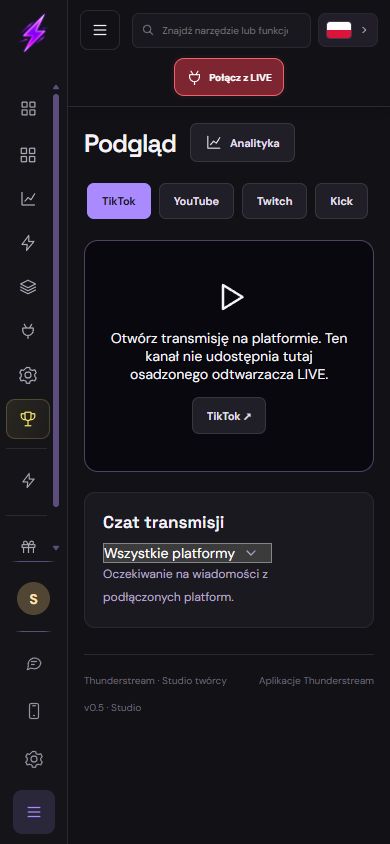 Enlarge the screenshot ↗
Step by step · 5–8
- Action
Check: Network → Network ✓.
✓ After this step you will seeAfter this step you will see: Connected.
- Action
Select or set: Stream chat → Platform ✓.
✓ After this step you will seeAfter this step you will see: Readability.
- Action
Open: Analytics → Statistics.
✓ After this step you will seeAfter this step you will see: Statistics ✓.
- Action
Select or set: Enable notifications → Installation and permissions are optional. You can use the studio without them..
✓ After this step you will seeAfter this step you will see: Permissions.
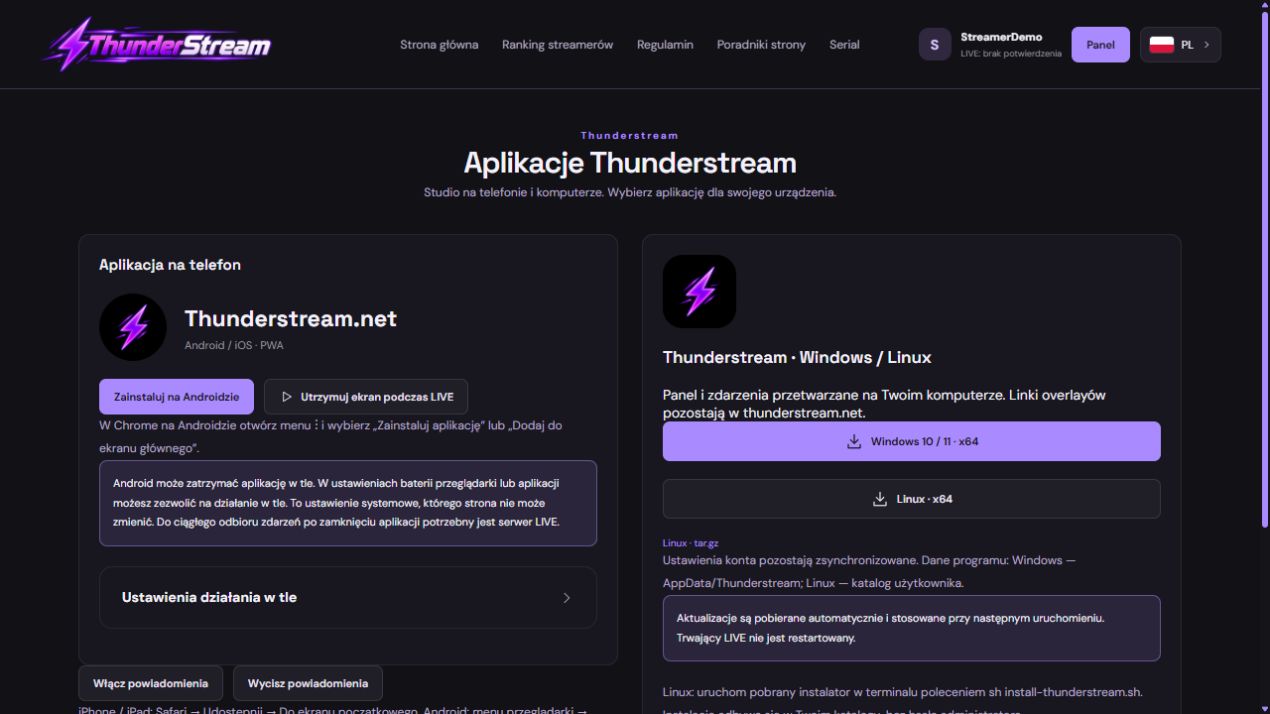 Enlarge the screenshot ↗
Step by step · 9–12
- Action
Check: Text to speech → 1 × Audio.
✓ After this step you will seeAfter this step you will see: Audio ×2 → ×1.
- Action
Check: Overlays → thunderstream.net.
✓ After this step you will seeAfter this step you will see: OBS / LIVE Studio → Overlays.
- Action
Test: Preview → Short test.
✓ After this step you will seeAfter this step you will see: Statistics ✓.
- Action
Save: Settings → Thunderstream → Account.
✓ After this step you will seeAfter this step you will see: Changes saved..
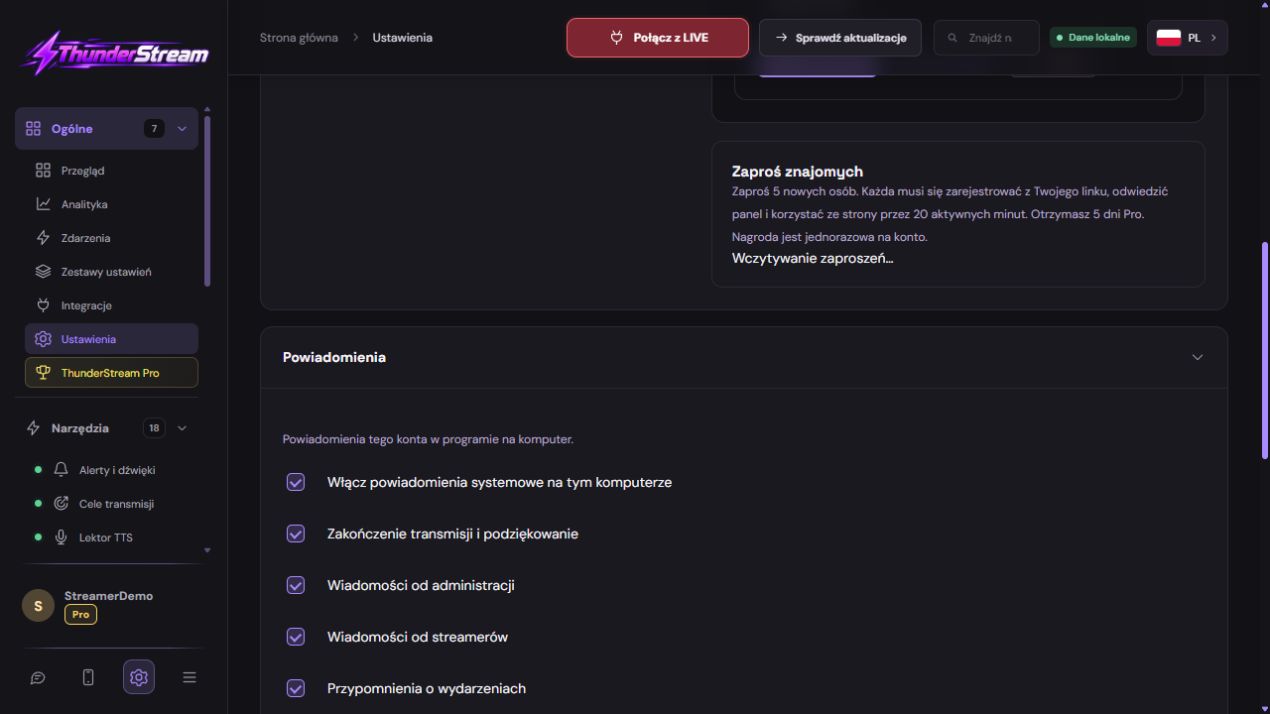 Enlarge the screenshot ↗
Settings · Context
| Action | After this step you will see | Context |
|---|---|---|
| Phone application | Android / iOS | Control panel |
| Overlays | OBS / LIVE Studio | OBS / LIVE Studio → Overlays |
| Text to speech | 1 × Audio | Audio ×2 → ×1 |
| Permissions | Installation and permissions are optional. You can use the studio without them. | Settings |
Quick setup · Short test
Two-device exercise: let the computer broadcast and handle audio while the phone monitors chat and statistics. Sign into the same Thunderstream profile. Choose a platform in the phone preview and choose all connected sources or one chat source. Do not start another independent TTS reader merely to test the connection.
A phone acting as the TikTok camera may suspend its browser when switching apps. That differs from using a separate monitoring device. PWA installation and optional permissions do not guarantee operation with a locked screen. Graphics still belong in a compatible broadcasting program.
- Select or set: Platform → TikTok / Twitch / YouTube / Kick.
- Select or set: Stream chat → Platform ✓.
- Check: Text to speech → 1 × Audio.
- Save: Settings → Thunderstream → Account.
Before you go live
Keep your existing configuration and original source file first. Change one parameter at a time. Check a short recording or the actual viewer output, rather than relying only on the editor. Restore the recorded baseline if the result gets worse.
- One change at a time → Baseline.
- Viewer output → Short test.
- Results → Backup.
Before you go live
- Baseline ✓
- Usage rights ✓
- Viewer output ✓
- Backup ✓
- One change at a time ✓
Frequently asked questions
Prepare before you start?
Account / Source files. Baseline → Backup. Short test → Viewer output. Open: Thunderstream applications → https://thunderstream.net/applications.
Stop and check?
After this step you will see: Changes saved.. Keep your existing configuration and original source file first. Change one parameter at a time. Check a short recording or the actual viewer output, rather than relying only on the editor. Restore the recorded baseline if the result gets worse.
Context?
Use the phone as a control panel and monitor, not an automatic video compositor. Hosted overlays still require a compatible broadcasting program. Permissions are optional, and the phone operating system can limit background activity.