

Separate the alert generator and source on the scene
The "gift triggers reaction" rule is set in the tool that receives the events. LIVE Studio shows ready result by online source. Changing the source position does not change the rule condition.
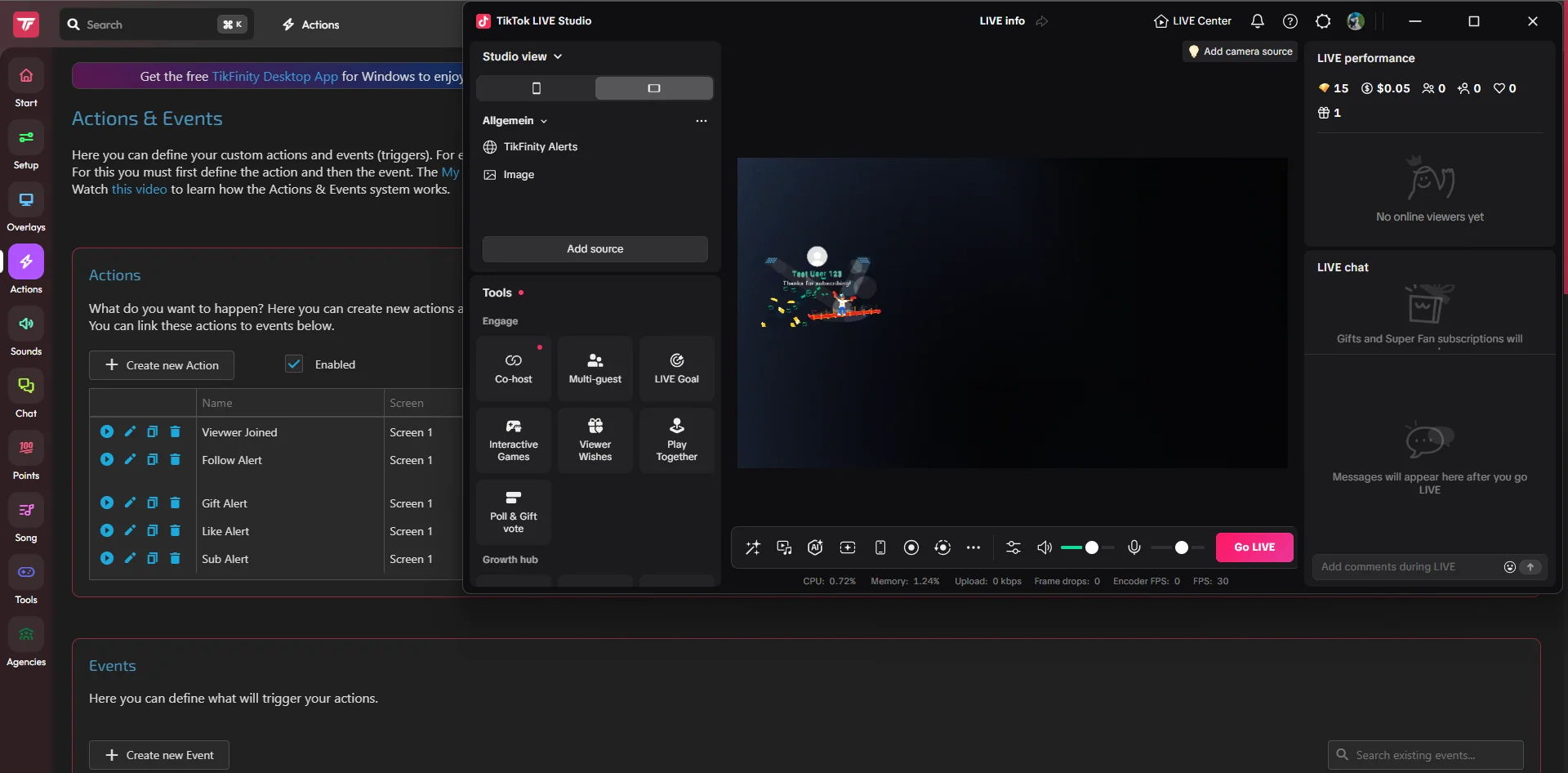
Check the capabilities of your own version of LIVE Studio. Menu names and available sources may vary. You are looking for a source with a URL field, not capturing the entire private panel.
A dictionary without difficult abbreviations
| Concept | What does this mean in practice? |
|---|---|
| Scene | Ready-made image layout: e.g. a game with a camera or a break board. The scene you choose determines what you show. |
| Source | One scene component: game, camera, text, audio, or page with overlay. The order of sources determines what covers what. |
| URL | Full web address. Copy it using the button in the panel; do not copy fragments and do not add spaces. |
| Event | New information from the platform, such as a message, observation or gift. The appearance test is not always an actual event. |
| Resolution | The width × height of the area, e.g. 1920 × 1080. This is different than shrinking the source rectangle with the mouse. |
Step by step · 1–4
- Action
Open the current TikTok LIVE Studio and log in to the correct account.
✓ After this step you will seeYou see your profile and available scenes.
- Action
Select the scene whose image you are actually sending.
✓ After this step you will seeThe changes will be displayed correctly.
- Action
Check the widgets and alerts available in your version.
✓ After this step you will seeYou know what features the LIVE Studio itself provides.
- Action
If you are using the built-in alert, add the appropriate widget from the sources menu.
✓ After this step you will seeYou are editing a program feature, not a third party website.
 Enlarge the screenshot ↗
Step by step · 5–8
- Action
Set the event, material and time according to the available editor.
✓ After this step you will seeThe preview shows the selected reaction type.
- Action
Save and perform the available test.
✓ After this step you will seeYou see the result before the real event.
- Action
If you use a third-party provider, connect the correct channel with them first.
✓ After this step you will seeThe provider can receive your LIVE events.
- Action
Create one rule and copy its overlay screen or widget link.
✓ After this step you will seeYou have an overlay address, not a configuration address.
Step by step · 9–12
- Action
In LIVE Studio, add Link source if available in your version.
✓ After this step you will seeThe Internet address field opens.
- Action
Paste the address and adjust the resolution and position.
✓ After this step you will seeThe source covers the entire alert area.
- Action
Position the source over the game and camera if you want the effect to cover them.
✓ After this step you will seeThe alert is not covered by another layer.
- Action
Check one sound in a short recording.
✓ After this step you will seeYou hear a single response from the right track.
 Enlarge the screenshot ↗
Step by step · 13–14
- Action
Check the new supported event on LIVE.
✓ After this step you will seeAppearance test and actual reception confirmed separately.
- Action
Disable a second alert responding to the same event if it duplicates the effect.
✓ After this step you will seeThe viewer does not receive two independent messages.
An example you can reproduce
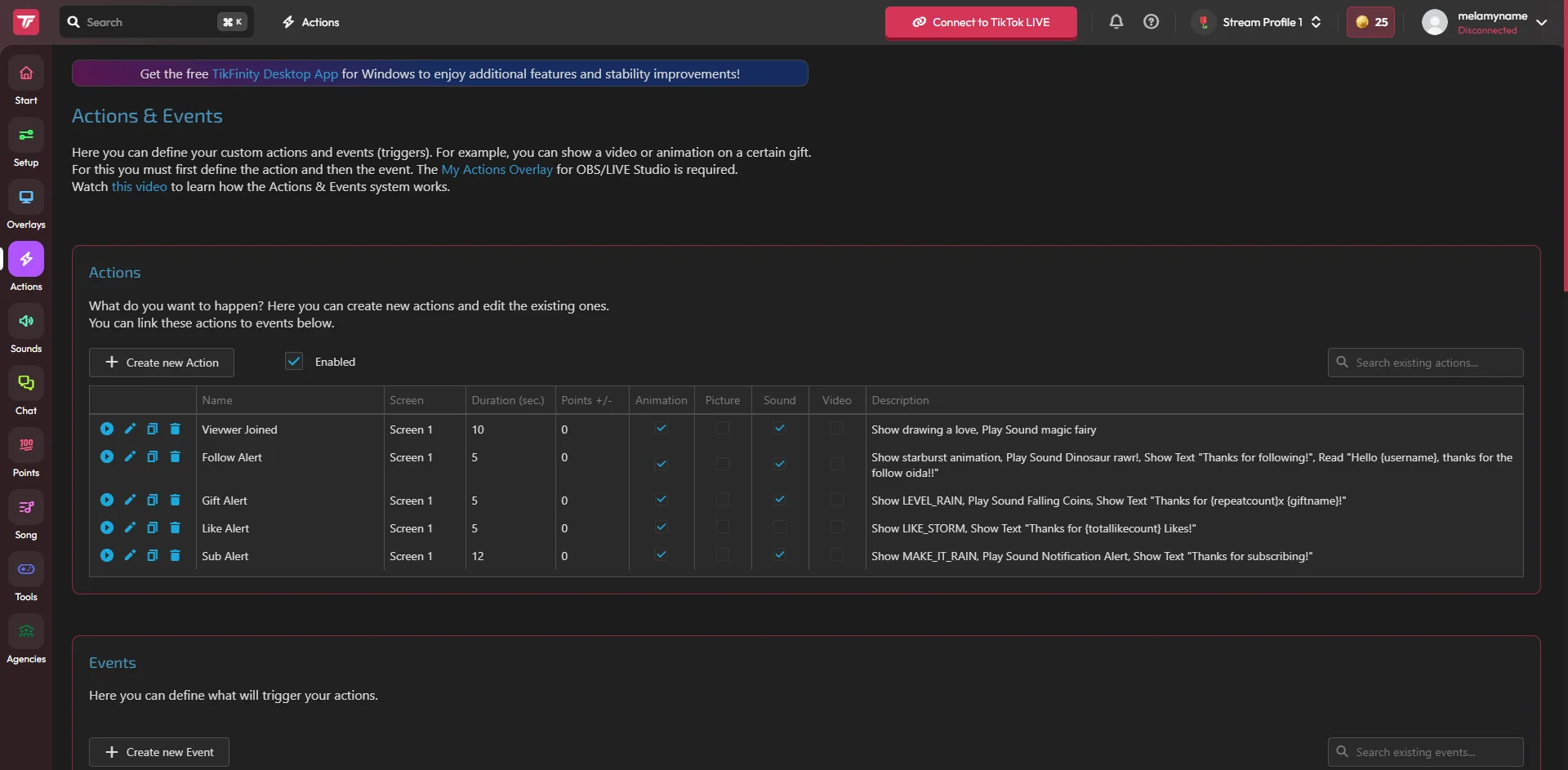
If you use TikFinity, the image shows the Link source, but you set the event condition in TikFinity. Shifting the source in LIVE Studio does not change this condition. When a program version does not have a Link, check for updates and official help instead of publicly capturing a panel with private data.
Prepare one working widget
Do not use the address of the settings page or general gallery. You need your own link to display the overlay. It doesn't have to show a fixed image: the alert can be blank until there is a test or new event.
- Log in to a provider that supports the TikTok events you need, such as TikFinity.
- Connect the correct channel and create one simple reaction.
- Use the test in the supplier panel and confirm the graphics and text.
- Copy the address of the widget screen where this reaction goes.
Add Source Link in LIVE Studio
If Source Link is not available on your version or account, please check official support and available updates. Don't assume that any other option with a similar icon will do the same job.
- Select the correct scene and open adding source.
- Select Link or the corresponding web address display option.
- Paste the entire copied URL and set the dimensions according to the widget requirements.
- Give it a clear name, such as "Alerts - Gift Screen," and confirm the source.
Layers, proportions and safe margin
Place the overlay over the game or any background that might obscure it. Check the entire source area, as a single alert may appear in a different part than the small image in the preview.
Don't repair cut text by accidentally stretching the entire widget. First compare the width and height of the source, then the position of the internal alert at the provider. Maintain a margin at the edges of the vertical frame.
The image can come from Link and the audio from the application
Sound one short signal and observe the correct meter. Confirm the result on the recording. The fact that you see a GIF does not mean that you are correctly receiving audio from a separate program.
| Playback location | What to check |
|---|---|
| The widget itself | Audio source options and LIVE Studio mixer. |
| Separate application or card | Available audio capture of this app or device. |
| Two copies of the sound | Duplication of source or capture. |
Test the entire reaction and the most common mistakes
Check the presentation part and event reception separately. If the test works on stage, but the real reaction does not come, start with the channel and conditions at the supplier. If the test is not visible, first check the source in LIVE Studio.
- Call the test at the supplier and observe the selected scene.
- Check the long nickname, reaction length and the end of the animation.
- Confirm the actual connection when LIVE starts.
- If there is a problem, compare the URL, visibility, layer and dimensions before changing the rule.
What do you see on the screen and how to fix it
Fix one thing at a time and try the same thing again. If you change several options at the same time, it will be difficult to determine what solved the problem. Don't delete a working source or entire configuration just because one widget isn't responding.
If you still need help, write down the program name and version, platform, approximate time of trial, expected result, and what actually happened. Attach a dump without passwords, keys and full private links. This description is much more useful than just the "not working" message.
| Symptom | Check first | Do it |
|---|---|---|
| There is no Link or option provided | Program version or availability on your account | Check for updates and the official help center. |
| You see the settings page | Panel address pasted | Copy the URL of the widget itself. |
| The alert has a double effect | Built-in and external effects are active | Select one response for the event you are testing. |
| No test visible | Hidden source, wrong screen or size | Check visibility, order and address. |
Last attempt before use on LIVE
- Save the changes using the button assigned to the edited function. If there are separate forms, check each changed part separately.
- Open the settings again and compare the most important values. Simply moving the slider does not always mean a permanent save.
- Check the result outside the editor itself: on the target scene, in the recording, or in the reopened configuration.
- If the function uses the platform, separately acknowledge the new handled event during the active LIVE. Don't expect the appearance test to confirm account authorization.
- Save the working values and make a copy before the next major change. Next time you start up, start with a quick check.
Before you go live
- The widget has been tested at the supplier.
- The address of the screen, not the panel, was pasted in Link.
- Dimensions and layers are correct.
- The recording contains a single image and sound.
- Reopened settings retain the saved values.
- A single attempt is confirmed on the target output.
Frequently asked questions
Does the Link source choose which gift will trigger an alert?
NO. You set the reaction conditions in the widget delivery tool. The source shows his result.
Why is the screen blank before the test?
Some alerts are only visible during a reaction. Use the vendor test and check the correct source address.
Do I need to show the alert settings window?
Use the widget address for the image. Don't capture a private panel just because it shows a preview.
What should I do if my screen looks different than the photo?
Check the program name, version and selected feature. The dump is real, but it's from a specific edition and language. Search for a described field by its task. If the option is not available, check the current official support and availability in your account.