

Log into the correct Thunderstream account
Open Thunderstream.net and log in using the regular method or the configured Discord login. If you already have a setup account, connect Discord to that account - don't create a second account just to change your login method.
Discord is used for logging in and does not take up space in the streaming platform limit. You configure the transmission reception separately for TikToka, YouTube, Twitcha and Kicka. After changes to your profile, keep the required password confirmation.
A dictionary without difficult abbreviations
| Concept | What does this mean in practice? |
|---|---|
| Scene | Ready-made image layout: e.g. a game with a camera or a break board. The scene you choose determines what you show. |
| Source | One scene component: game, camera, text, audio, or page with overlay. The order of sources determines what covers what. |
| URL | Full web address. Copy it using the button in the panel; do not copy fragments and do not add spaces. |
| Event | New information from the platform, such as a message, observation or gift. The appearance test is not always an actual event. |
| Resolution | The width × height of the area, e.g. 1920 × 1080. This is different than shrinking the source rectangle with the mouse. |
Step by step · 1–4
- Action
Log in to https://Thunderstream.net/ with your account.
✓ After this step you will seeIn the menu you see the correct profile Thunderstream.
- Action
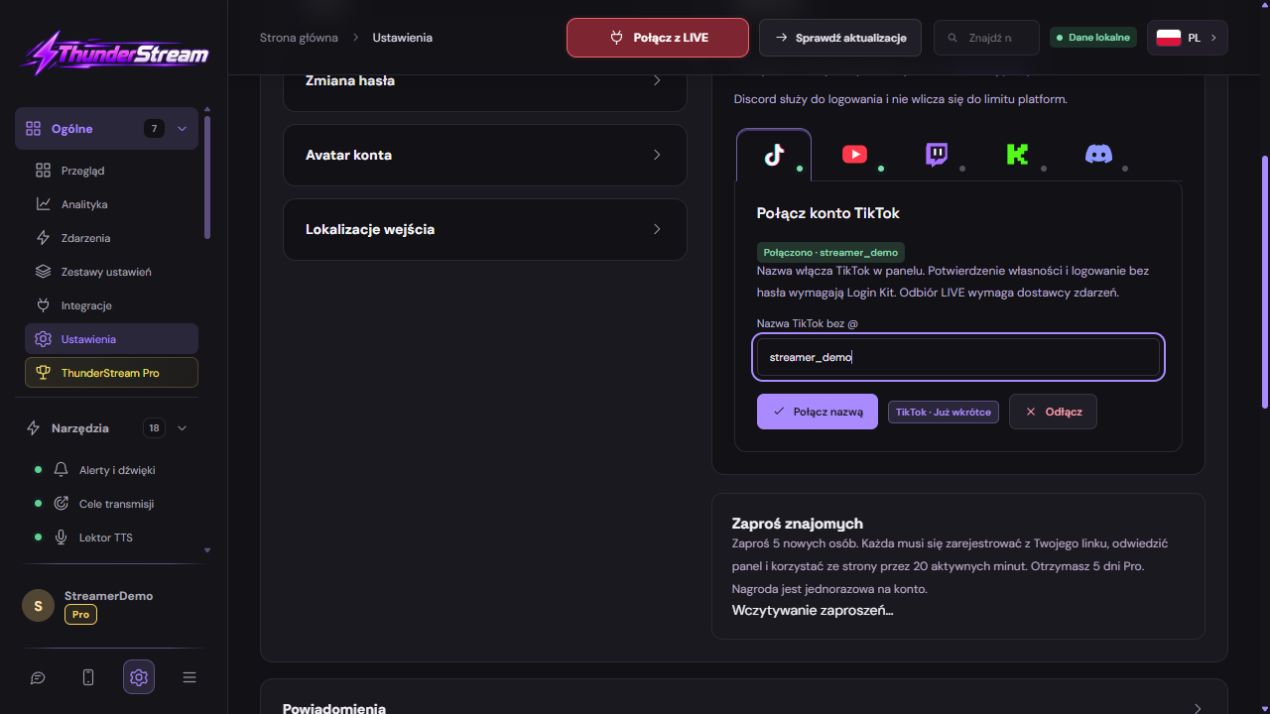
Open Settings, then Account & Connected Platforms.
✓ After this step you will seeUnder the Platform heading there are website logos.
- Action
Click on the logo of the platform you are using.
✓ After this step you will seeThe form under the icons changes; just clicking doesn't do anything.
- Action
For TikTok, enter the username without @ and confirm.
✓ After this step you will seeThe saved channel corresponds to your profile address, not a fancy name.
 Enlarge the screenshot ↗
Step by step · 5–8
- Action
For Twitch or Kick, select an available connection method in the panel.
✓ After this step you will seeAfter authorization, the website of the given platform opens.
- Action
On the consent page, check your logged in channel before committing.
✓ After this step you will seeYou are linking your account, not a second browser session.
- Action
Once approved, return to Thunderstream and check the status.
✓ After this step you will seeThe actual tab shows the saved channel and connection status.
- Action
YouTube connect to the appropriate channel, also under the brand account.
✓ After this step you will seeThe name and address correspond to the channel you are broadcasting from.
Step by step · 9–12
- Action
Treat Discord as an additional login to the same account.
✓ After this step you will seeIt is not a source of LIVE and does not consume the limit of broadcasting platforms.
- Action
Start the transmission via OBS or LIVE Studio.
✓ After this step you will seeThe public channel player receives your scene.
- Action
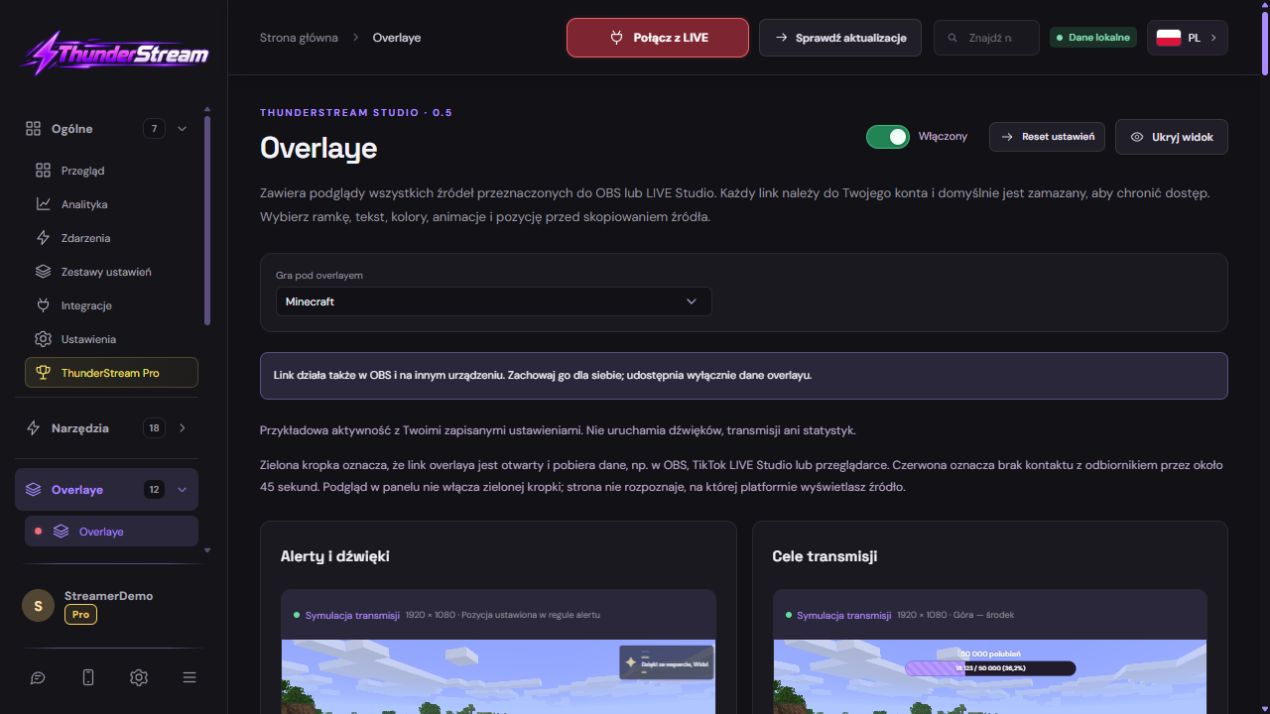
In Thunderstream, click Connect to LIVE and wait for the result.
✓ After this step you will seeThe panel tries to receive active channel events.
- Action
Submit a new comment, e.g. Attempt Twitch 123.
✓ After this step you will seeThe entry arrives marked with the appropriate platform.
 Enlarge the screenshot ↗
Step by step · 13–16
- Action
Enable one tool, such as Broadcast Chat, and save.
✓ After this step you will seeNew approved entries appear in its preview.
- Action
Add the tool link to the broadcast program.
✓ After this step you will seeThe same event can be seen on stage, without capturing settings.
- Action
Repeat the new message separately on each platform you use.
✓ After this step you will seeYou have confirmation of all connections, not just the first one.
- Action
After LIVE, save the settings and disconnect the reception.
✓ After this step you will seeThe configuration remains until the next transmission.
An example you can reproduce
Separate three confirmations: a saved channel in settings, a working LIVE player on the platform, and a new comment received by Thunderstream. Only the third one confirms the path of data to tools. Merely connecting the account does not start broadcasting the image.
Three connections that are worth distinguishing
Image sending may work but chat reading may not work - then you check the Thunderstream integration. The chat in the panel may also be working but not visible on the stage - then you check the source of the overlay. This distinction allows you to repair one stage without disconnecting the entire transmission.
The broadcast key does not replace chat authorization. To simply connect an account in Thunderstream, you do not enter the OBS key or the development application secret.
| What do you connect | What is it for? | This is how you'll know it's working |
|---|---|---|
| OBS or LIVE Studio → platform | Uploading video and audio to your channel. | The actual broadcast preview appears on the platform. |
| Platform → Thunderstream | Delivering chat and events to tools. | New messages or events appear in the dashboard. |
| Thunderstream → overlay source | View alerts, chat and other overlays. | The overlay test can be seen on the broadcast stage. |
Open Settings and Platforms
You don't need to connect all services. Be selective about the ones you use and include your plan's active platform limit. An additional Discord account does not increase the number of broadcasts received.
- In the panel, select Settings and expand the account and connected platforms section.
- Click on the logo of your chosen platform. Its own connection panel will open under the logo.
- Make sure you link the account you actually intend to run LIVE on. A similar nickname or a different brand account on YouTube is a common cause of confusion.
- Save or confirm the connection and check the status on a given platform.
TikTok, Twitch, Kick and YouTube - what to check
TikTok: Enter the public username as described in the field in the panel. Do not enter the password TikToka in the name field. Before attempting to receive LIVE, make sure that the transmission is actually ongoing and available to the recipient.
Twitch and Kick: select the connection method available in the panel. After authorization, the website of the appropriate platform will open. Log in with the correct account, accept the necessary access and return to Thunderstream. Simply writing a name does not constitute authorization for functions requiring permissions.
YouTube: Check that the correct channel is selected, including when your Google account manages multiple channels or a brand account. If the panel asks you to select a specific broadcast or link LIVE, select the current material, not the previous recording.
Step-by-step authorization and return to the correct account
If you see an authorization return error, start a new attempt from a live Thunderstream.net site and note the exact message. Redirect or application configuration error report to administration - regular user cannot fix it by setting up their own development application.
- Open the connection from Settings → Platforms in Thunderstream. Don't go back to the old authorization link saved in your browser history.
- On the platform website, check the name of the logged in user. If it's a different account, please switch it before confirming. For YouTube, also pay attention to the selected channel.
- Read the access screen and confirm the required permissions. Wait for return to Thunderstream; simply closing the platform tab does not end the connection.
- In a desktop program, logging in may open your default browser. If the system asks you to open Thunderstream after committing, return to the running program.
- When you return, check the status under the correct logo. Do not perform multiple simultaneous authorizations on several cards, as this makes it difficult to recognize the current attempt.
Start transmitting, then connect reception
Start broadcasting the image in OBS, LIVE Studio or your selected broadcasting tool. Then click Connect to LIVE in Thunderstream. If you see Link Account, go back to your platform settings first - your dashboard doesn't have the right streaming account for you yet.
Information that an account is not transmitting does not necessarily mean there is a failure. Please wait until the platform shows LIVE as active and try again. Don't click multiple times quickly: this may disrupt a connection attempt that is already in progress.
First configuration: chat, TTS, alert and top
A ready-made set of settings may speed up the start, but after uploading it, check the enabled tools and perform tests. Each creator has a different stage layout, voice, sound output and broadcast method.
- In the broadcast chat, select the platforms whose messages you want to see. Start with one where you can write a new test message.
- In the TTS voice-over, select the voice, volume and allowed platforms. Check moderation: ignoring emojis, commands, repetitions or blocked words may intentionally stop a particular post from being read.
- Enable one rule in alerts. Set the event type, threshold, graphics, sound and content. Save your changes and then run the test for that particular rule.
- In the top, select the type of ranking and period. No participants may mean an empty overlay; test and actual events separately.
- In your music queue, enable command acceptance and autoplay if you want to use them. Check the volume and whether program audio is being captured to the LIVE.
Check one message and one tool
- Request a new, short message in the chat of your chosen platform. Watch to see if it appears in the panel.
- Turn on the TTS and make sure the correct platforms and audio output are selected. Failure to read commands or filter spam may be intentional.
- Add a production overlay link to your streaming program according to the separate guide.
- Turn on subsequent tools one by one. Thanks to this, you immediately know at what stage the difficulty occurred.
Check each platform separately
When broadcasting on several sites, perform one new chat test from each platform. The message from Twitch does not confirm receipt of YouTube, even if both accounts are saved in the settings. Pay attention to the platform designation next to the entry.
Viewer counts and some statistics may arrive at a different frequency than chat. Don't compare them down to the second with the platform counter. Check your chosen platform and give your new connection time to update for the first time.
You can watch the preview and statistics on your phone. Once your computer supports TTS, your phone will remain silent. Don't run additional reading just because you can also see the messages on the other device.
Exit LIVE and save the settings for next time
- End the broadcast on the platform and stop sending the image in the broadcast program. Check both pages, especially if the platform has a separate end button.
- Terminate the LIVE connection on Thunderstream if it is still active. You don't have to delete connected accounts or delete tool configurations.
- Before next transmission, please check the correct channel, audio output and current LIVE. After changing the key in the platform panel, correct it in the broadcasting program.
When the connection is still missing
Check your account name, stream visibility and authorization status for a specific platform. If another service is working, don't disconnect it just to try again on the one that isn't working.
Please include your platform, trial time and the help code shown in the message with your request. Describe whether the entire call, chat, audio or overlay image is missing. Do not include passwords, tokens or broadcast key.
What do you see on the screen and how to fix it
Fix one thing at a time and try the same thing again. If you change several options at the same time, it will be difficult to determine what solved the problem. Don't delete a working source or entire configuration just because one widget isn't responding.
If you still need help, write down the program name and version, platform, approximate time of trial, expected result, and what actually happened. Attach a dump without passwords, keys and full private links. This description is much more useful than just the "not working" message.
| Symptom | Check first | Do it |
|---|---|---|
| You can see Connect account. | No transmitting platform or only Discord connected. | Add TikTok, YouTube, Twitch or Kick in settings. |
| The account is not eligible. | No active LIVE detected for the indicated channel. | First, check the public player and channel name. |
| I'm going back to another account. | The browser had a different platform session. | Please check your login on the consent page before reconnecting. |
| One platform is silent. | Its authorization or receipt is not complete. | Test a new comment only from this site. |
Last attempt before use on LIVE
- Save the changes using the button assigned to the edited function. If there are separate forms, check each changed part separately.
- Open the settings again and compare the most important values. Simply moving the slider does not always mean a permanent save.
- Check the result outside the editor itself: on the target scene, in the recording, or in the reopened configuration.
- If the function uses the platform, separately acknowledge the new handled event during the active LIVE. Don't expect the appearance test to confirm account authorization.
- Save the working values and make a copy before the next major change. Next time you start up, start with a quick check.
Before you go live
- The same account in settings and on active broadcast.
- Approved authorization where needed.
- The new message appears in the panel.
- TTS has audio output selected; overlay has its own link.
- Each platform used was checked with a separate new message.
- Changes to rules and settings were saved before running the test.
- Reopened settings retain the saved values.
- A single attempt is confirmed on the target output.
Frequently asked questions
Does the connection to Thunderstream start broadcasting?
NO. You run the image in the broadcast program and on the selected platform. Thunderstream supports broadcast-related utilities and events.
Why doesn't the phone read TTS when the computer is running?
The phone may intentionally remain silent while the computer is doing the reading. This prevents the same message from being read twice.
Will changing the tab stop the tools?
Enabled tools work in the background of the panel or program. However, do not close the process that is playing the sound; the operation of the mobile application also depends on system limitations.
Is Discord the fifth platform to receive LIVE?
NO. Discord is an additional method of logging into your account. Broadcast reception includes supported streaming platforms, and Discord does not take up space on their quota.
The chat works in the panel, but it is not available on LIVE. What to check?
Go to the instructions for adding an overlay. Check its own link, enabled tool, compatible dimensions and source visibility above the game. Reauthorizing your account usually does not resolve the incorrect source entry.
What should I do if my screen looks different than the photo?
Check the program name, version and selected feature. The dump is real, but it's from a specific edition and language. Search for a described field by its task. If the option is not available, check the current official support and availability in your account.