

Decide where the clock comes from
The regular pre-launch countdown and the gift-responsive counter have different requirements. In the first case, time control is enough. In the second, the timer provider must handle the corresponding events from your LIVE.
Check that you are getting the address of the meter itself. The page with management buttons is not automatically the address to the source. Use the embedding method specified by the author of the selected widget.
A dictionary without difficult abbreviations
| Concept | What does this mean in practice? |
|---|---|
| Scene | Ready-made image layout: e.g. a game with a camera or a break board. The scene you choose determines what you show. |
| Source | One scene component: game, camera, text, audio, or page with overlay. The order of sources determines what covers what. |
| URL | Full web address. Copy it using the button in the panel; do not copy fragments and do not add spaces. |
| Event | New information from the platform, such as a message, observation or gift. The appearance test is not always an actual event. |
| Resolution | The width × height of the area, e.g. 1920 × 1080. This is different than shrinking the source rectangle with the mouse. |
Step by step · 1–4
- Action
In LIVE Studio, select the target scene.
✓ After this step you will seeIt is her image that will be sent.
- Action
Open add source and check available time widgets.
✓ After this step you will seeYou know whether you will use a built-in or external function.
- Action
If the version has a countdown, add this widget and open the settings.
✓ After this step you will seeTime fields are visible.
- Action
Enter 2 minutes and 0 seconds as a test.
✓ After this step you will seeThe preview shows 02:00.
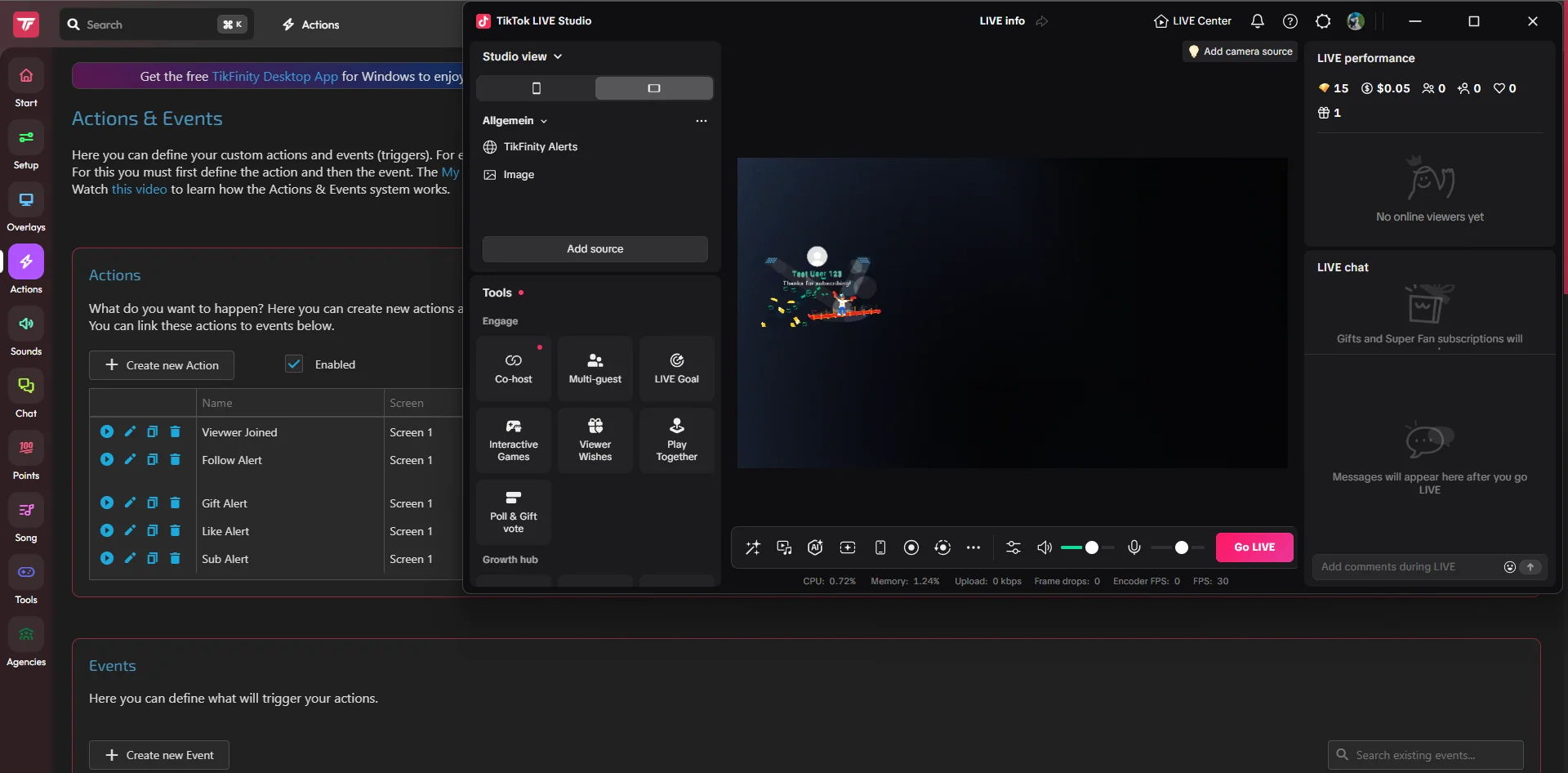 Enlarge the screenshot ↗
Step by step · 5–8
- Action
Choose a legible color and size of digits.
✓ After this step you will seeThe time can also be read from the phone.
- Action
Start, stop and reset the countdown.
✓ After this step you will seeYou know the effects of every button before LIVE.
- Action
If you need an external timer, please set it up with your supplier.
✓ After this step you will seeThe starting time is recorded in his panel.
- Action
Copy the address of the timer widget itself.
✓ After this step you will seeYou do not copy the login address or settings.
Step by step · 9–12
- Action
Add a Link source if your LIVE Studio version supports it.
✓ After this step you will seeYou can paste the web address.
- Action
Paste the URL and keep the source proportions consistent.
✓ After this step you will seeThe digits are not flattened.
- Action
Move the timer over the game image and block accidental movement if the program allows it.
✓ After this step you will seeThe timer remains in the selected location.
- Action
Check the scene change and return to the timer.
✓ After this step you will seeThe countdown doesn't start over again without intending to.
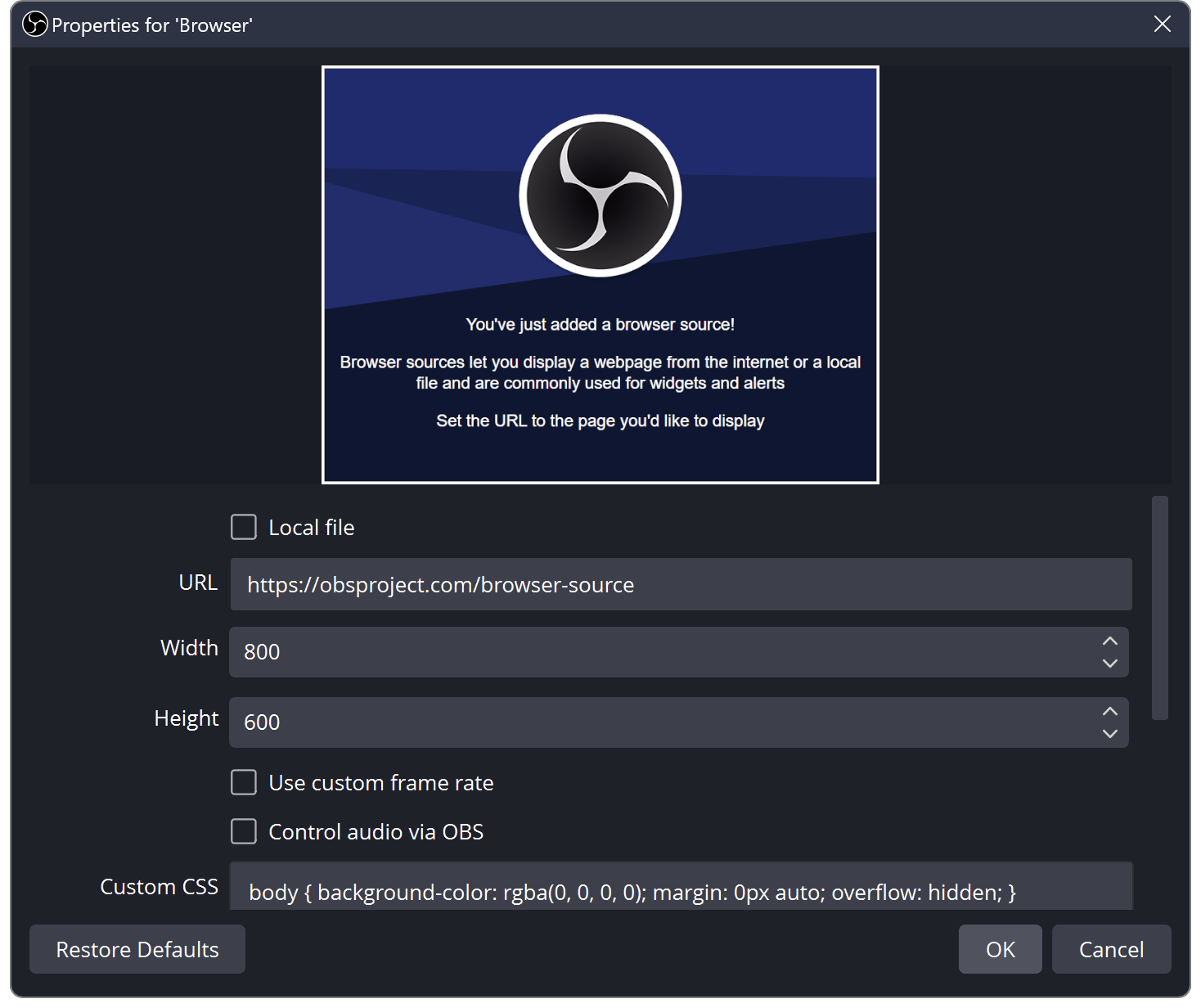 Enlarge the screenshot ↗
Step by step · 13–14
- Action
Test to zero.
✓ After this step you will seeYou know whether time disappears, stops or has an effect.
- Action
If you want to add time for gifts, set it up separately with the provider that handles such events.
✓ After this step you will seeYou don't equate a regular countdown with an automatic subathon.
An example you can reproduce
A simple "be back in a moment" screen might use the constants 02:00. The adding seconds challenge additionally requires an event rule. First start the regular timer and only then check the addition of one time unit.
Prepare an off-stage test
For the TikFinity variant, the correct configuration includes the Timer and its interaction units. Don't confuse it with a goal that counts down missing observations. The name "countdown" can refer to a variety of things, so check the description.
- Set a short start time in the timer panel.
- Start, pause, and resume the counter if these options exist.
- Check the reset and the status after completion.
- If you want the timer to respond to interactions, test one rule.
Create a source in LIVE Studio
The source dimension describes the drawing area of the widget. Dragging it with the mouse on the stage does not change the countdown rules. If the numbers are cut off, compare the area with the timer recommendations before changing the appearance.
- Open the appropriate scene and add the Link source if available.
- Paste the timer address and set the recommended area.
- Name the source, e.g. "Round Timer", instead of leaving several identical names.
- Place the counter in a visible place without covering the camera or important game elements.
Long hours, short time and a small screen
Choose a simple starting point. If you use a glow or intense gradient, also check the thin parts of the numbers. An effect that looks good in a static preview may make it difficult to read the time quickly.
| Test | What to evaluate |
|---|---|
| A few minutes | Do the seconds change smoothly and legibly. |
| Time with hours | Can more characters fit? |
| Light and dark background | Contrast of numbers and borders. |
| Phone view | Can the result be read without magnification? |
Scene change and reload
Check what happens when you go to another scene and come back. If the widget reloads, it may retain its state or restart the countdown, depending on its logic. Establish expected behavior before LIVE.
Don't create multiple independent counters if they are all supposed to show one clock. Name the control panel and sources so that it is clear what you are observing.
Trying to extend time
Source Link alone does not turn gifts into seconds. If you can see the countdown but the time is not increasing, check the connection and the rule in the timer tool. If the panel grows and the source shows a different clock, compare its address.
- Save the state before a single interaction.
- Check if the event has reached the timer provider.
- Compare the rule, unit and possible multiplier.
- Compare the panel result with the same source in LIVE Studio.
What do you see on the screen and how to fix it
Fix one thing at a time and try the same thing again. If you change several options at the same time, it will be difficult to determine what solved the problem. Don't delete a working source or entire configuration just because one widget isn't responding.
If you still need help, write down the program name and version, platform, approximate time of trial, expected result, and what actually happened. Attach a dump without passwords, keys and full private links. This description is much more useful than just the "not working" message.
| Symptom | Check first | Do it |
|---|---|---|
| You don't see the timer in the menu | Different version or access to widgets | Check the current LIVE Studio help and available external link. |
| The time is different when you return | The widget has been restarted | Check the reset and source activation options. |
| Gifts don't change time | Lack of time addition integration | Use a tool that explicitly handles this event. |
| The numbers are too small | The preview was only evaluated on the monitor | Enlarge the text and check from a distance and on your phone. |
Last attempt before use on LIVE
- Save the changes using the button assigned to the edited function. If there are separate forms, check each changed part separately.
- Open the settings again and compare the most important values. Simply moving the slider does not always mean a permanent save.
- Check the result outside the editor itself: on the target scene, in the recording, or in the reopened configuration.
- If the function uses the platform, separately acknowledge the new handled event during the active LIVE. Don't expect the appearance test to confirm account authorization.
- Save the working values and make a copy before the next major change. Next time you start up, start with a quick check.
Before you go live
- The correct counter type has been selected.
- The control works at the supplier.
- The source shows the same timer.
- Scene change and time increment have been checked.
- Reopened settings retain the saved values.
- A single attempt is confirmed on the target output.
Frequently asked questions
Does every internet clock respond to gifts?
NO. Clearly supported integration and a time changing rule are needed.
Where to set the number of seconds per gift?
In the tool that handles the timer and receives events, not in the Link field itself.
Why does the counter go back to the beginning?
Check the behavior of the widget after reloading, the source address and independent copies of the counter.
What should I do if my screen looks different than the photo?
Check the program name, version and selected feature. The dump is real, but it's from a specific edition and language. Search for a described field by its task. If the option is not available, check the current official support and availability in your account.