

Prepare before you start
The panel and events are processed on your computer. Overlay links remain on thunderstream.net.
Do not publish passwords, private keys or full overlay links.
Make a short test before LIVE.
Step by step · 1–4
- Action
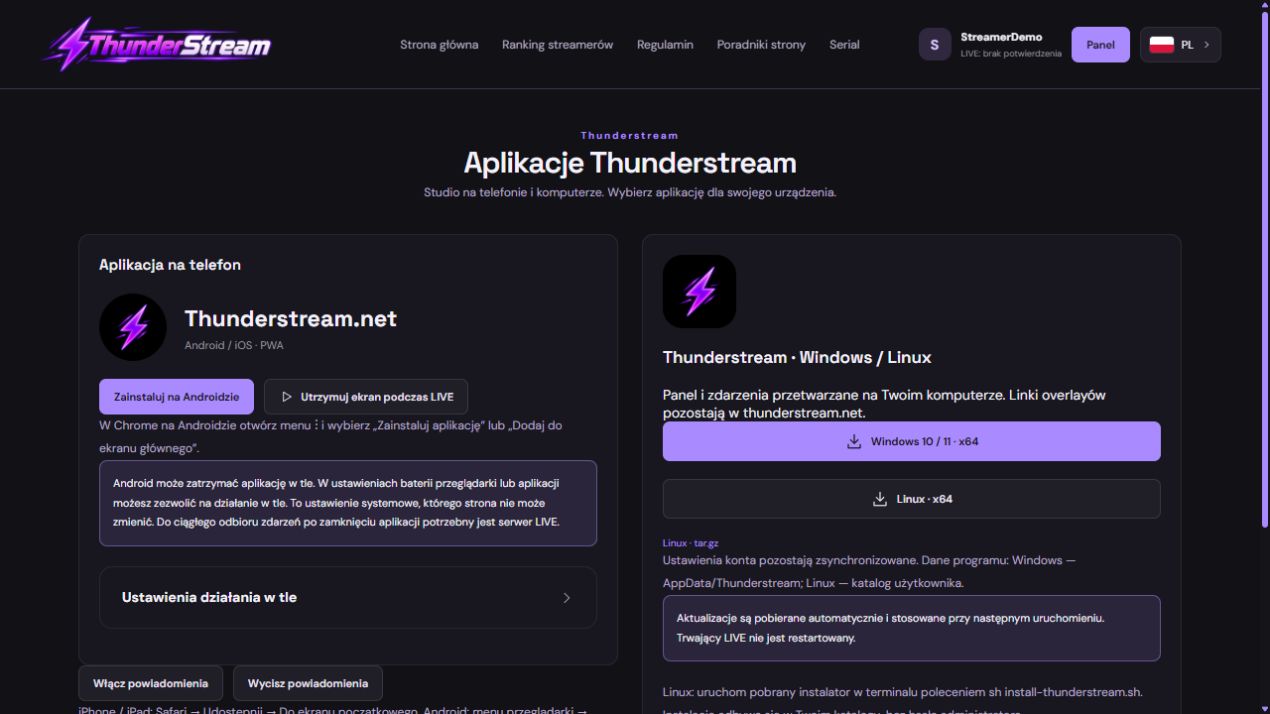
Open: Thunderstream applications.
✓ After this step you will seeThunderstream applications
- Action
Select: Windows / Linux.
✓ After this step you will seeThe panel and events are processed on your computer. Overlay links remain on thunderstream.net.
- Action
Check: thunderstream.net.
✓ After this step you will seeAccount settings stay synchronised. Application data: Windows — AppData/Thunderstream; Linux — your user directory.
- Action
Check: Windows 10 / 11 · x64. Updates download automatically and apply on the next launch. An active LIVE is not restarted.
✓ After this step you will seeUpdates download automatically and apply on the next launch. An active LIVE is not restarted.
 Enlarge the screenshot ↗
Step by step · 5–8
- Action
Check: Linux · x64. Updates download automatically and apply on the next launch. An active LIVE is not restarted.
✓ After this step you will seeLinux: run the downloaded installer in a terminal with sh install-thunderstream.sh. It installs in your user directory without an administrator password.
- Action
Open: Log in.
✓ After this step you will seeLog in
- Action
Check: Account.
✓ After this step you will seeCurrent broadcast across all connected platforms. The log shows each event and its matching alert threshold.
- Action
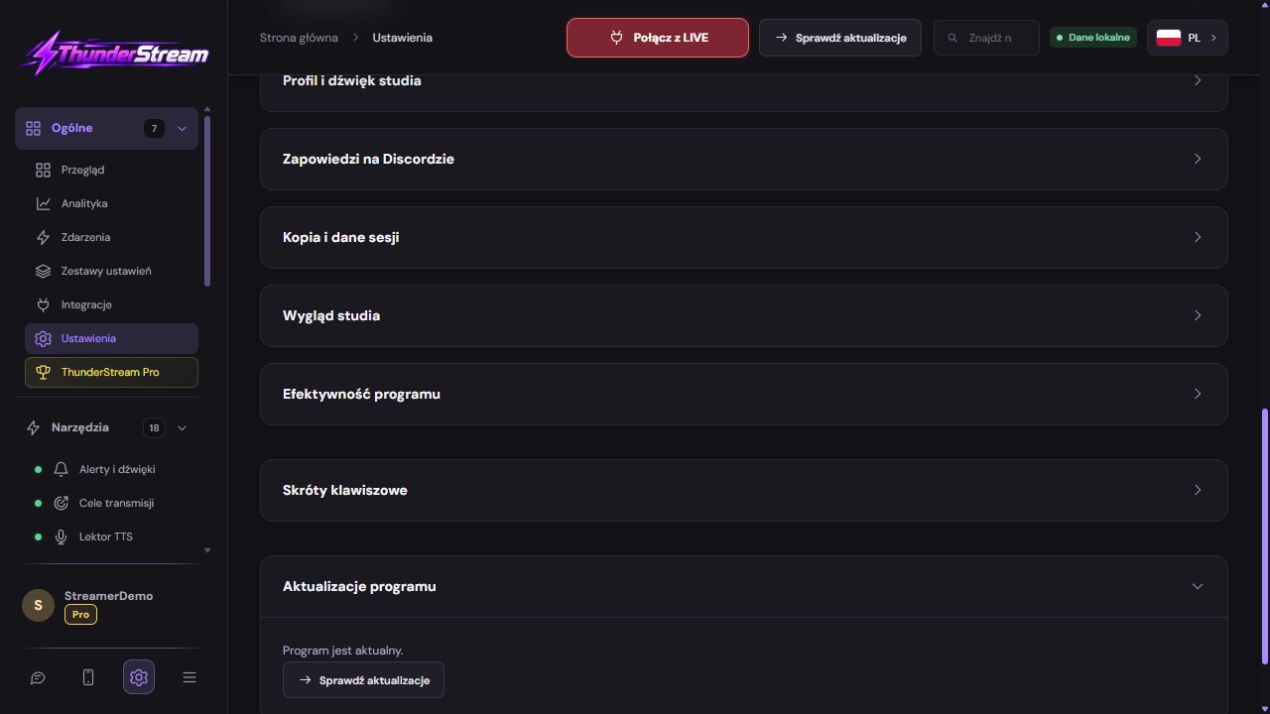
Open: Settings.
✓ After this step you will seeSettings
 Enlarge the screenshot ↗
Step by step · 9–12
- Action
Open: Program updates.
✓ After this step you will seeCheck for updates
- Action
Click: Check for updates.
✓ After this step you will seeThe program is up to date.
- Action
Click: Update.
✓ After this step you will seeSave changes before updating.
- Action
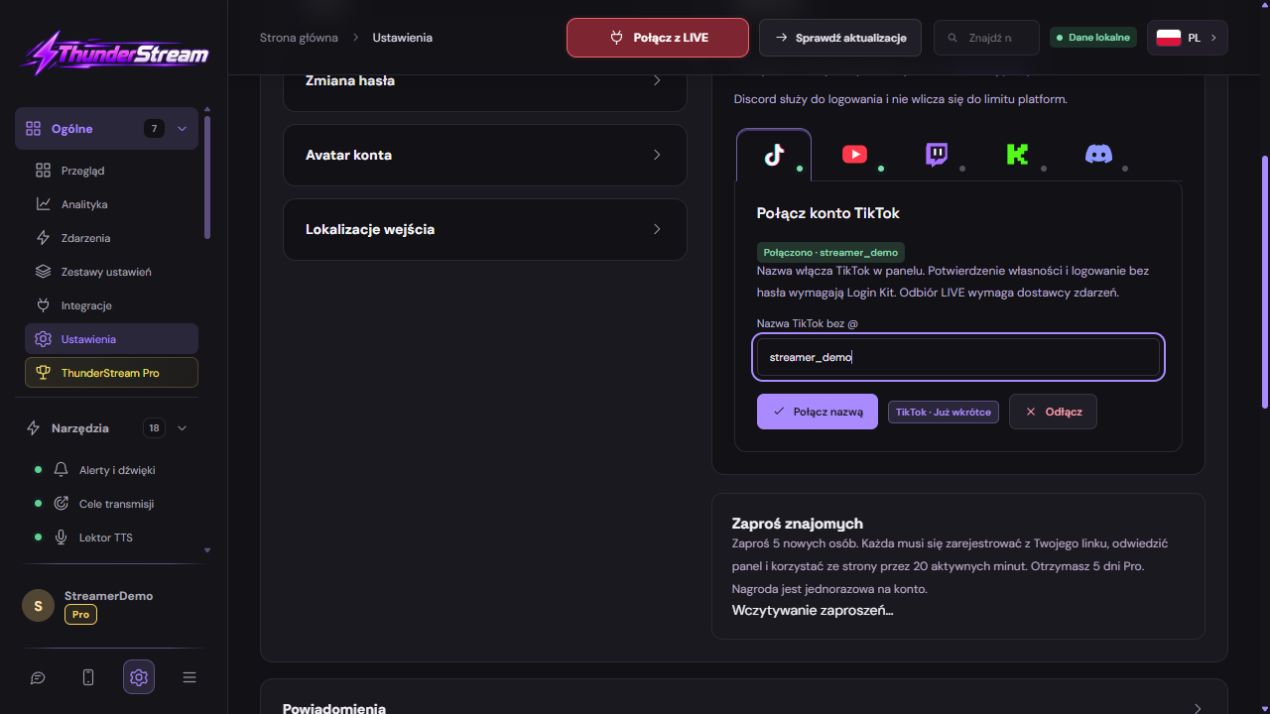
Check: Account.
✓ After this step you will seeConnected
 Enlarge the screenshot ↗
Step by step · 13–15
- Action
Open: Program performance.
✓ After this step you will seeRAM budget
- Action
Make a short test before LIVE. Listen to sample
✓ After this step you will seeProcessing on your computer
- Action
Check: Overlays.
✓ After this step you will seeThe panel and events are processed on your computer. Overlay links remain on thunderstream.net.
Program updates
Account settings stay synchronised. Application data: Windows — AppData/Thunderstream; Linux — your user directory.
Updates download automatically and apply on the next launch. An active LIVE is not restarted.
Linux: run the downloaded installer in a terminal with sh install-thunderstream.sh. It installs in your user directory without an administrator password.
Three connections that are worth distinguishing
Image sending may work but chat reading may not work - then you check the Thunderstream integration. The chat in the panel may also be working but not visible on the stage - then you check the source of the overlay. This distinction allows you to repair one stage without disconnecting the entire transmission.
The broadcast key does not replace chat authorization. To simply connect an account in Thunderstream, you do not enter the OBS key or the development application secret.
An example you can reproduce
Updates download automatically and apply on the next launch. An active LIVE is not restarted.
Save in this form and reopen the settings.
Make a short test before LIVE.
What do you see on the screen and how to fix it
| Symptom | Check first | Do it |
|---|---|---|
| There is no tool on the website | The function is intended for a program | Open the desktop application and the correct version. |
| The shortcut types text instead of playing | Active form field | Finish editing and check the shortcut in normal view. |
| The sound can only be heard in my home | No capture on OBS | Check the application track and local recording. |
| The effect is twofold | Multiple sound paths or repeated assignment | Leave one entry and one track for trial. |
| After Pro expires, some entries do not work | Limit exceeded | Check the markings and number of active mounts. |
| Material from the Internet does not work | Address unavailable or unsupported | Listen again and select the working file. |
Last attempt before use on LIVE
Save in this form and reopen the settings.
Compare the result with the screenshot. If it differs, check the troubleshooting section.
Do not publish passwords, private keys or full overlay links.
- Save the changes using the button assigned to the edited function. If there are separate forms, check each changed part separately.
- Open the settings again and compare the most important values. Simply moving the slider does not always mean a permanent save.
- Check the result outside the editor itself: on the target scene, in the recording, or in the reopened configuration.
- If the function uses the platform, separately acknowledge the new handled event during the active LIVE. Don't expect the appearance test to confirm account authorization.
- Save the working values and make a copy before the next major change. Next time you start up, start with a quick check.
Before you go live
- Save in this form and reopen the settings.
- Make a short test before LIVE.
- Compare the result with the screenshot. If it differs, check the troubleshooting section.
- Do not publish passwords, private keys or full overlay links.
Frequently asked questions
There is no tool on the website?
The function is intended for a program. Open the desktop application and the correct version.
The shortcut types text instead of playing?
Active form field. Finish editing and check the shortcut in normal view.
The sound can only be heard in my home?
No capture on OBS. Check the application track and local recording.
The effect is twofold?
Multiple sound paths or repeated assignment. Leave one entry and one track for trial.