

First, name the symptom
Record the exact message or write down the name of the rising counter in your statistics. Overall CPU utilization percentage alone does not explain all problems. This way you won't have to fix the internet by changing the overlay color.
| Symptom | What to compare |
|---|---|
| Uneven play and preview | Computer load and game settings. |
| Good preview, coding problem | Encoder stats and local recording. |
| Good recording, LIVE loses data | Platform sending and receiving stability. |
| Only some viewers have this problem | Playback quality, network and recipient devices. |
A dictionary without difficult abbreviations
| Concept | What does this mean in practice? |
|---|---|
| FPS | The number of image frames per second. More frames require appropriate performance and transmission settings. |
| Bitrate | The amount of image or audio data sent over time. Too high a value relative to the link may result in dropped frames. |
| Source | One scene component: game, camera, text, audio, or page with overlay. The order of sources determines what covers what. |
| Scene | Ready-made image layout: e.g. a game with a camera or a break board. The scene you choose determines what you show. |
| Resolution | The width × height of the area, e.g. 1920 × 1080. This is different than shrinking the source rectangle with the mouse. |
Step by step · 1–4
- Action
Note whether the preview, file, or just the viewer player is stuttering.
✓ After this step you will seeYou know at what stage to look for the problem.
- Action
Open Statistics in the view or panels menu, depending on the version.
✓ After this step you will seeYou see separate types of dropped frames.
- Action
Choose a repeatable minute of movement in the game.
✓ After this step you will seeSubsequent trials have a similar load.
- Action
Make a local recording without streaming.
✓ After this step you will seeYou separate your computer from the Internet.
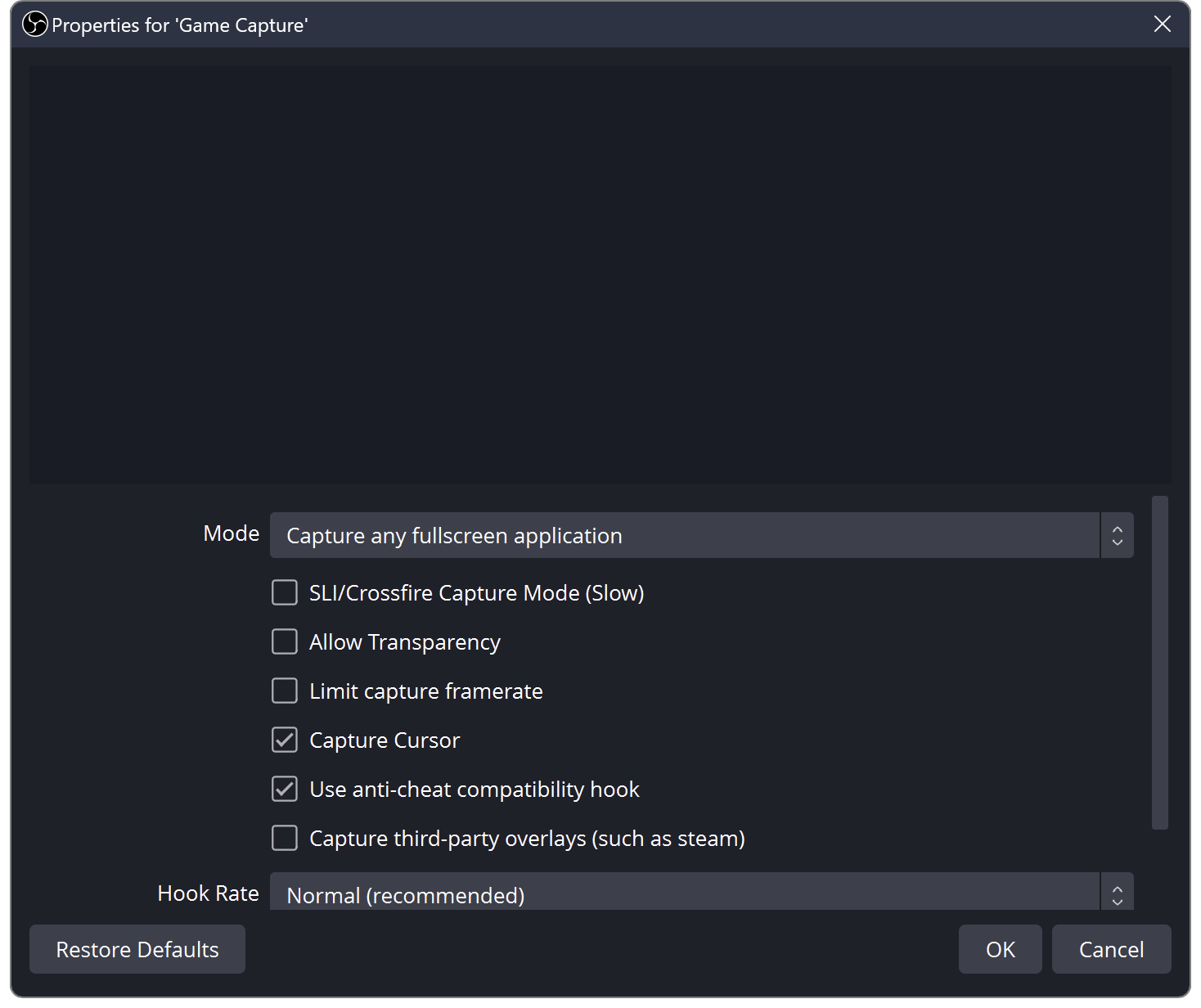 Enlarge the screenshot ↗
Step by step · 5–8
- Action
Check the render delay counter.
✓ After this step you will seeYou recognize the problem of putting together a scene.
- Action
Limit the game's FPS and repeat the same attempt.
✓ After this step you will seeYou can evaluate the impact of GPU headroom.
- Action
In the scene copy, turn off unnecessary heavy sources.
✓ After this step you will seeYou check the effect of image composition without destroying the original.
- Action
Check the separate encoding delay counter.
✓ After this step you will seeYou are not confusing an encoder with a network connection.
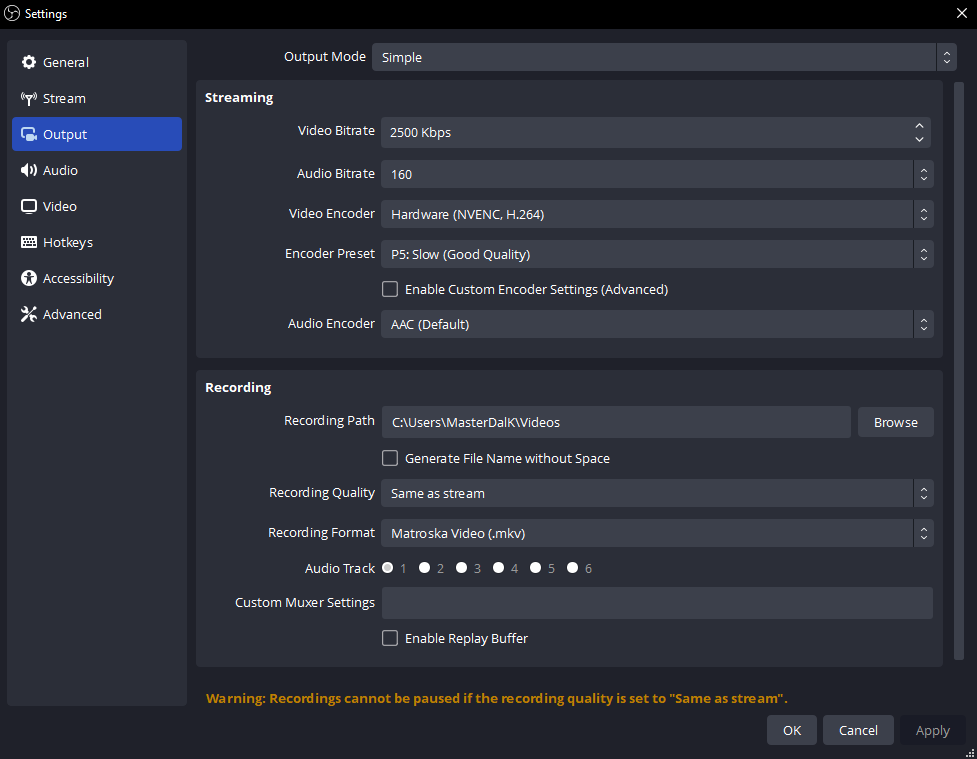 Enlarge the screenshot ↗
Step by step · 9–12
- Action
Test an available less demanding preset or hardware encoder.
✓ After this step you will seeYou are comparing the result of one change.
- Action
For network losses, check upload utilization.
✓ After this step you will seeDownload speed does not replace upload measurement.
- Action
Stop large upload and compare wired connection if available.
✓ After this step you will seeDo you know if the local network matters?
- Action
Test a lower bitrate compatible with your platform.
✓ After this step you will seeYou check the stability of a constant data stream.
 Enlarge the screenshot ↗
Step by step · 13–14
- Action
Compare the second receiving device.
✓ After this step you will seeOne viewer's failure is not considered everyone's failure.
- Action
Record the result and only then change the next thing.
✓ After this step you will seeCan you point out what actually helped?
An example you can reproduce
Attempt A: 60 seconds of the same game with no FPS limit. Attempt B: Identical scene, but limited game FPS. The drop in dropped render frames suggests improved GPU headroom. This test in itself says nothing about changing the quality of the Internet.
Build a short, repeatable test
Keep a copy of your scene collection or profile before a major change. Trying on a quiet desktop will not reproduce a demanding game, many animations and noisy chat. The test should resemble how you actually drive the LIVE.
- Set up a scene with the same image, microphone and movement fragment.
- Try it for a few minutes and save your resolution, frame rate and encoding settings.
- Select one suspicious item and disable it for another try.
- Compare statistics and recording. If there is no improvement, restore the previous state before testing the next hypothesis.
When there are not enough resources for rendering
Check if the game is not using all the available power of the graphics card. Reducing the game's frame rate or simplifying a scene can leave room for the broadcast image to be composed.
Review the number of sources, filters and open views. For regular still graphics, use the appropriate image source. Keep the features you need and actually remove the copies you don't need instead of randomly hiding things.
When the encoder can't keep up
Don't blindly copy a profile from a more powerful computer. Settings that suit one game, scene, and card may not work for a different workload. A repeatable trial result is more important than the maximum number in the settings.
- Check the encoding messages and available hardware or software encoder.
- Compare the sample at a lower output resolution or fewer frames.
- Leave the rest of the parameters unchanged to know what made the improvement.
- Once the image is stabilized, increase the requirements gradually and also check the quality of the motion.
When the problem is with sending
Sending a broadcast requires a stable upload to the platform's server. The result of downloading files from the Internet is not the same measurement. Check parallel uploads from other apps and devices.
Compare the bitrate with the recommendations of your chosen service and stable connection bandwidth. Changing the server or a controlled trial of a different platform can help distinguish a particular route's problem. Do not perform such switches in the middle of a valid LIVE without preparation.
Overlays, TTS and music during the test
Check the tools one by one: first the base scene, then chat, alert, music and other effects. Several independent copies of the same source can unnecessarily add load and complicate the sound.
Adjust the overlay area consciously to its configuration. Reducing the source at the expense of cutting elements is not a successful optimization. If you're using a desktop app, check its resource settings, but don't allocate all your system memory to it.
What do you see on the screen and how to fix it
Fix one thing at a time and try the same thing again. If you change several options at the same time, it will be difficult to determine what solved the problem. Don't delete a working source or entire configuration just because one widget isn't responding.
If you still need help, write down the program name and version, platform, approximate time of trial, expected result, and what actually happened. Attach a dump without passwords, keys and full private links. This description is much more useful than just the "not working" message.
| Symptom | Check first | Do it |
|---|---|---|
| Preview and file get stuck. | Possible scene or encoder overload. | Check both counters and the simpler scene. |
| The file works, network losses increase. | Sending or routing problem. | Compare upload, cable and bitrate. |
| Only one viewer buffers. | Possibly its link or player. | Check the second device and different quality. |
| Lower quality doesn't help. | You are changing a parameter unrelated to the cause. | Return to the indicated frame loss type. |
Last attempt before use on LIVE
- Save the changes using the button assigned to the edited function. If there are separate forms, check each changed part separately.
- Open the settings again and compare the most important values. Simply moving the slider does not always mean a permanent save.
- Check the result outside the editor itself: on the target scene, in the recording, or in the reopened configuration.
- If the function uses the platform, separately acknowledge the new handled event during the active LIVE. Don't expect the appearance test to confirm account authorization.
- Save the working values and make a copy before the next major change. Next time you start up, start with a quick check.
Before you go live
- A type of increasing error counter has been identified.
- Local test and transmission were compared.
- Each change has a saved result and can be undone.
- The final test includes real tools and image movement.
- Reopened settings retain the saved values.
- A single attempt is confirmed on the target output.
Frequently asked questions
Does a higher bitrate always improve transmission?
NO. It must match the quality, platform and upload stability. A setting that is too demanding may make transmitting or receiving difficult.
Does a large RAM reserve rule out overload?
NO. The limitation may be a different resource, encoding or network. Check specific statistics and recording behavior.
Why is local recording good but LIVE stutters?
Check the platform's sending, receiving and playback at the viewer's end. Local Score doesn't explore all the way online.
What should I do if my screen looks different than the photo?
Check the program name, version and selected feature. The dump is real, but it's from a specific edition and language. Search for a described field by its task. If the option is not available, check the current official support and availability in your account.