

Decide what exactly will trigger the alert
A follow, a like, and a gift are different events. Prepare a separate, readable rule name for each. This will prevent "250 likes" from being confused with a gift worth 250 coins.
To start with, enable just one rule. Confirm receipt of LIVE and select TikTok as the platform. Only after a successful attempt, add additional conditions or audience restrictions.
A dictionary without difficult abbreviations
| Concept | What does this mean in practice? |
|---|---|
| Scene | Ready-made image layout: e.g. a game with a camera or a break board. The scene you choose determines what you show. |
| Source | One scene component: game, camera, text, audio, or page with overlay. The order of sources determines what covers what. |
| URL | Full web address. Copy it using the button in the panel; do not copy fragments and do not add spaces. |
| Event | New information from the platform, such as a message, observation or gift. The appearance test is not always an actual event. |
| Resolution | The width × height of the area, e.g. 1920 × 1080. This is different than shrinking the source rectangle with the mouse. |
Step by step · 1–4
- Action
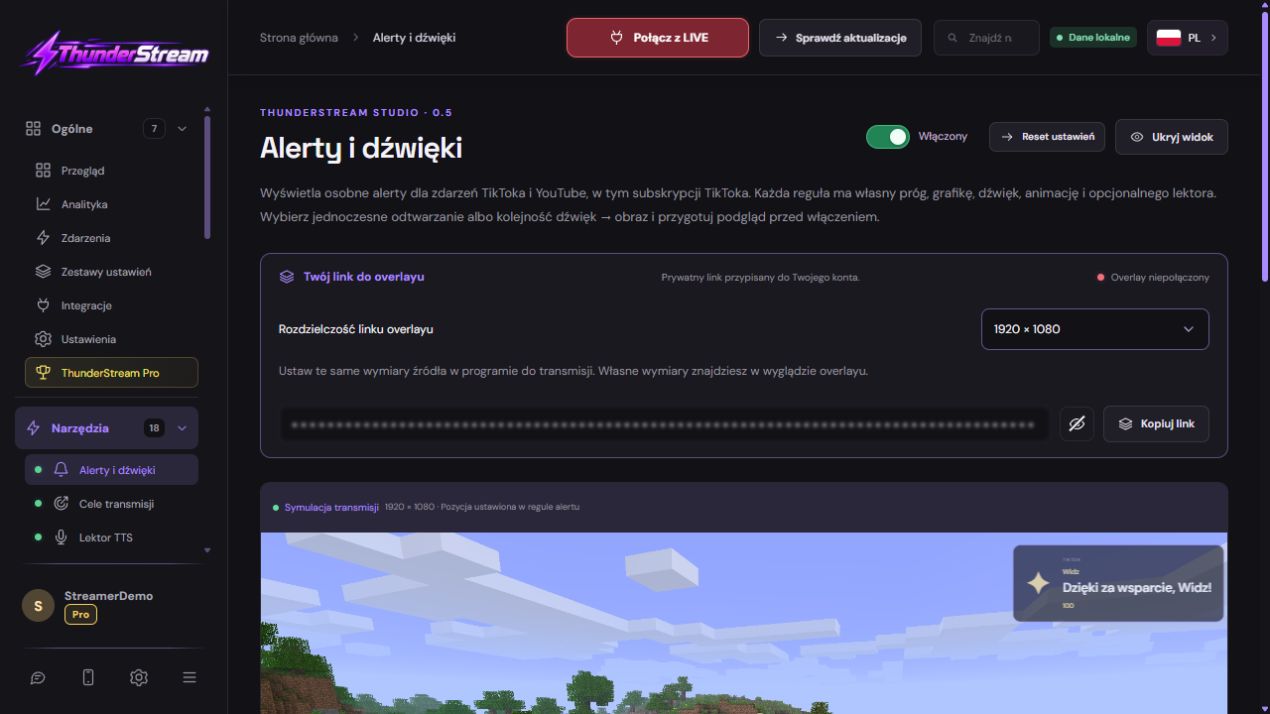
Open Alerts & Sounds, then select TikTok.
✓ After this step you will seeYou edit the rules of the appropriate platform.
- Action
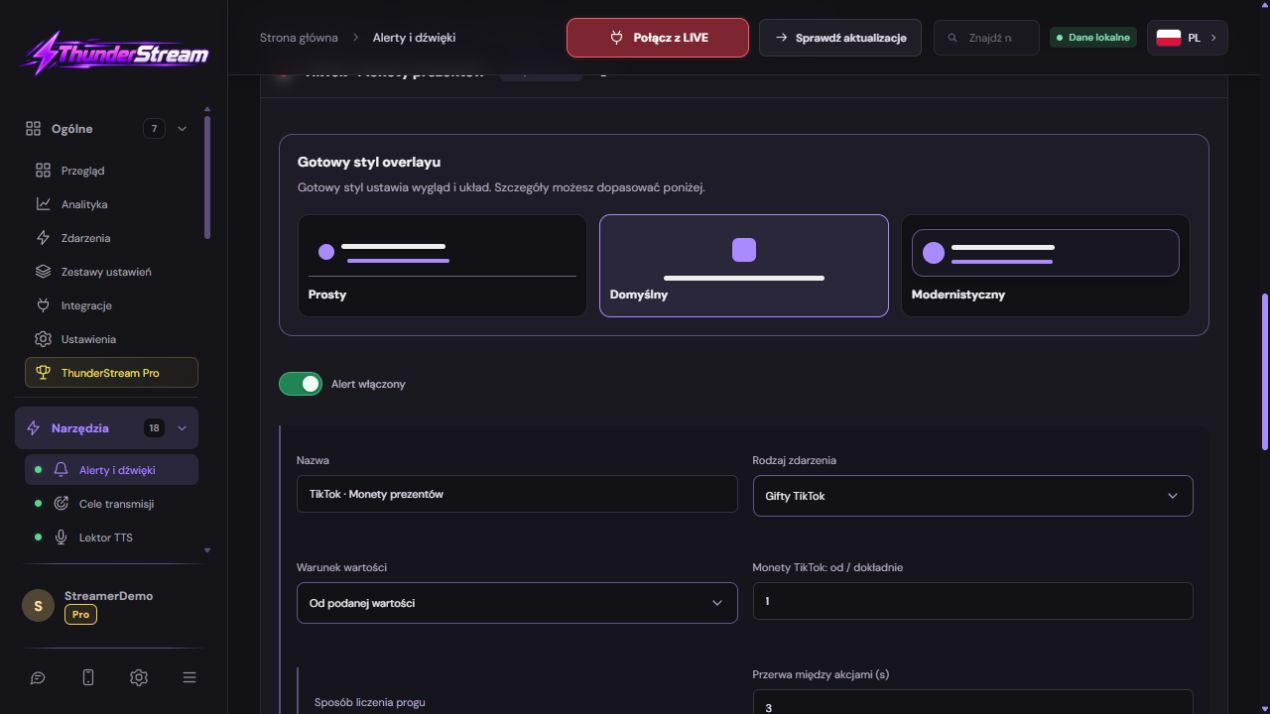
Add a rule and give it a clear name.
✓ After this step you will seeYou will be able to distinguish it from other reactions on the list.
- Action
Select an event: follow, like or gift.
✓ After this step you will seeThe form uses the correct condition type.
- Action
Set a threshold, e.g. 250 likes, and how to add it up.
✓ After this step you will seeYou know whether you are comparing a single event or a sum.
 Enlarge the screenshot ↗
Step by step · 5–8
- Action
For gifts, select a specific gift or coin condition.
✓ After this step you will seeThe number of pieces is not confused with the value of the gift.
- Action
Use the available tags in the text: {user}, {gift}, {count}, {amount}.
✓ After this step you will seeThe test substitutes data instead of a permanent nickname.
- Action
Enable showing nickname and quantity if needed.
✓ After this step you will seeThe switch does not hide data despite a good template.
- Action
Select a graphic or native image of the gift.
✓ After this step you will seeYou see the selected item in the rule.
 Enlarge the screenshot ↗
Step by step · 9–12
- Action
Select a sound from the stock or Free Selection and listen.
✓ After this step you will seeYou know its length and volume.
- Action
Confirm the material and check the current sound at the field.
✓ After this step you will seeSearching alone is not a substitute for selection.
- Action
Open the animation and position of that particular rule.
✓ After this step you will seeYou set X, Y, size and three animation phases.
- Action
Click Save in the rule you are editing.
✓ After this step you will seeThe rule retains the values and completes editing.
 Enlarge the screenshot ↗
Step by step · 13–15
- Action
Open it again and check the threshold and sound.
✓ After this step you will seeYou confirm the entry, not the appearance of the form itself.
- Action
Before LIVE, run this rule test and recording.
✓ After this step you will seeThe nickname is readable and the sound is heard once.
- Action
On a real event, check the rule match in the log.
✓ After this step you will seeThe appearance test is separate from the LIVE reception test.
An example you can reproduce
Enter a threshold of 250, save, and then reopen the same named rule. The value should still be 250. Only then check the animation with the Test button. A real comment does not trigger the likes rule.
Threshold and example with likes
The graphics test confirms the appearance, but does not prove that the platform delivered 250 real likes. Separate the presentation test from testing the condition on real events. After editing, don't rely solely on the value that remains in the form field.
- Add or expand alert for likes.
- Enter your desired threshold, e.g. 250, in the field corresponding to the display condition.
- Check how to count and repeat this rule. A one-time goal and an alert triggered after successive bursts of activity serve different purposes.
- Click Save, check the saved value again, and only then perform the test.
Gift, number of pieces and number of coins
In a series of giveaways, the platform can provide updates on the ongoing combination. Check post-set behavior and rep setup rather than adding the same escalating message multiple times.
Use available dynamic fields from the editor in your content. Don't hard-code your test nickname or coin count if you want it to change for each event. Also make sure that these parts of the text are not hidden from the appearance of the alert.
| Information | How to interpret it |
|---|---|
| Type of gift | E.g. rose; decides which rule the event fits into. |
| Number of pieces | The Three Roses Series is not three different viewers. |
| Coin value | The event value used in the selected conditions. |
| Sender's nickname | The person you are thanking; also check the visibility of this part of the text. |
Graphics and sound: selection, listening and recording
The visibility of a file in the selection window is not the same as recording an alert. After changing the material, perform a test of the saved configuration and final recording to check the audio capture as well.
- Open the graphics or sound selection. Use the Magazine or Free Select available in the window.
- View the graphic and listen to the audio before assigning. Pay attention to the length of the material and the volume.
- If you are using the default gift image, verify that the correct image is provided by the event.
- Save the entire rule. Reopen the audio selection and confirm that the selected material is still assigned.
Position and animation for this specific alert
Open the animation and position configuration for a given rule. Set X, Y, Scale, In, Stay and Out and the speed of effects. The position of the container and the animation of the element itself should not be judged solely by a still image.
First, preview your draft changes. Then save and use the test saved settings in the overlay source. Check the long nickname, more coins and the entire sequence until the exit is completed.
Adjust the volume and check your alert queue
Expand your configuration in stages. Separate rules for unique gifts and calmer alerts for frequent events make broadcasting easier, but each new rule should pass its own test.
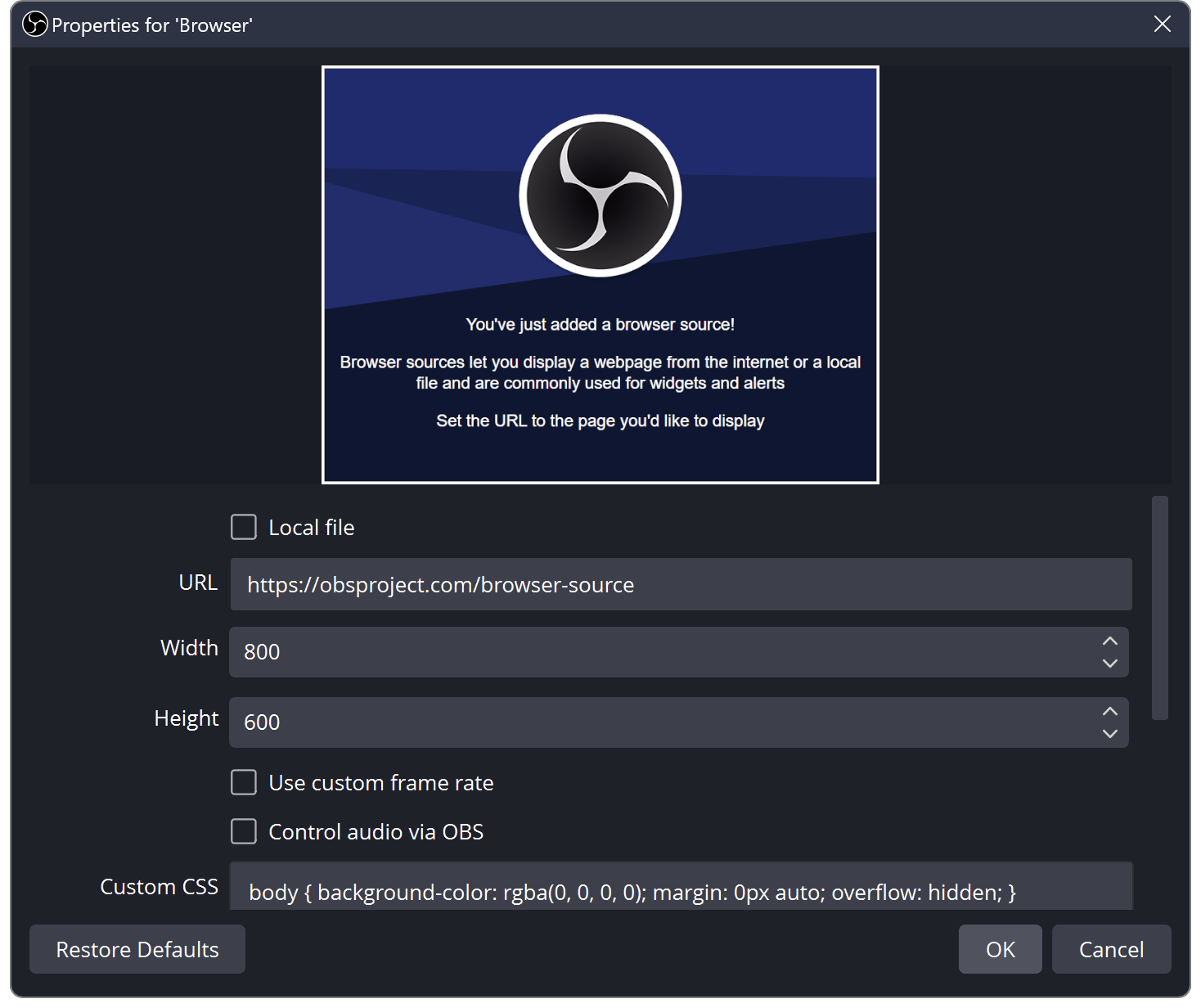
- Add a production alert link to the scene and set the correct source dimensions.
- Run several tests spaced apart. Alerts should be clear and end according to the selected configuration.
- If you use mute music or pause TTS during the alert, check that the level returns to normal when finished.
- Record a short fragment. Confirm the nickname, image, value and single sound.
What do you see on the screen and how to fix it
Fix one thing at a time and try the same thing again. If you change several options at the same time, it will be difficult to determine what solved the problem. Don't delete a working source or entire configuration just because one widget isn't responding.
If you still need help, write down the program name and version, platform, approximate time of trial, expected result, and what actually happened. Attach a dump without passwords, keys and full private links. This description is much more useful than just the "not working" message.
| Symptom | Check first | Do it |
|---|---|---|
| The threshold returned to its previous value. | This rule has not been written down. | Check the name, save it and reopen it. |
| There is no nickname or quantity. | Visibility disabled or markers missing. | Compare switches and {user}, {count}, {amount}. |
| Sound doesn't play. | Material or audio track not approved. | Listen to the file, then check the recording and recording. |
| The reaction is different than I expect. | Rules overlap. | Check their thresholds and detail on one event. |
Last attempt before use on LIVE
- Save the changes using the button assigned to the edited function. If there are separate forms, check each changed part separately.
- Open the settings again and compare the most important values. Simply moving the slider does not always mean a permanent save.
- Check the result outside the editor itself: on the target scene, in the recording, or in the reopened configuration.
- If the function uses the platform, separately acknowledge the new handled event during the active LIVE. Don't expect the appearance test to confirm account authorization.
- Save the working values and make a copy before the next major change. Next time you start up, start with a quick check.
Before you go live
- The event type and threshold correspond to the rule name.
- The sound is saved and has been listened to.
- The nickname and value are not permanent or hidden.
- The test of the written rule can be seen and heard on the recording.
- Reopened settings retain the saved values.
- A single attempt is confirmed on the target output.
Frequently asked questions
Does one alert need to control the appearance of all the others?
NO. Configure and test individual rules, especially their position, animation and materials.
What to do if the alert shows a gift without a nickname?
Check dynamic text fields, the option to hide your nickname, and event data. Perform a new test after saving.
Why shouldn't the three roses be counted again with every message?
Updates of the same series may have incremental value. Check the final count and how the combination is handled, rather than re-adding the previous state.
What should I do if my screen looks different than the photo?
Check the program name, version and selected feature. The dump is real, but it's from a specific edition and language. Search for a described field by its task. If the option is not available, check the current official support and availability in your account.