

Prepare before you start
The panel and events are processed on your computer. Overlay links remain on thunderstream.net.
Do not publish passwords, private keys or full overlay links.
Make a short test before LIVE.
Step by step · 1–4
- Action
Open: Text to speech.
✓ After this step you will seeTTS moderation
- Action
Check: Do not read profanity.
✓ After this step you will seeThe filter also recognises spaced letters, repeated letters and common character substitutions. It checks the message and nickname before speech. You can add custom words.
- Action
Click: Do not read profanity.
✓ After this step you will seeThe filter also recognises spaced letters, repeated letters and common character substitutions. It checks the message and nickname before speech. You can add custom words.
- Action
Open: Extra blocked words (commas or new lines).
✓ After this step you will seeThe filter also recognises spaced letters, repeated letters and common character substitutions. It checks the message and nickname before speech. You can add custom words.
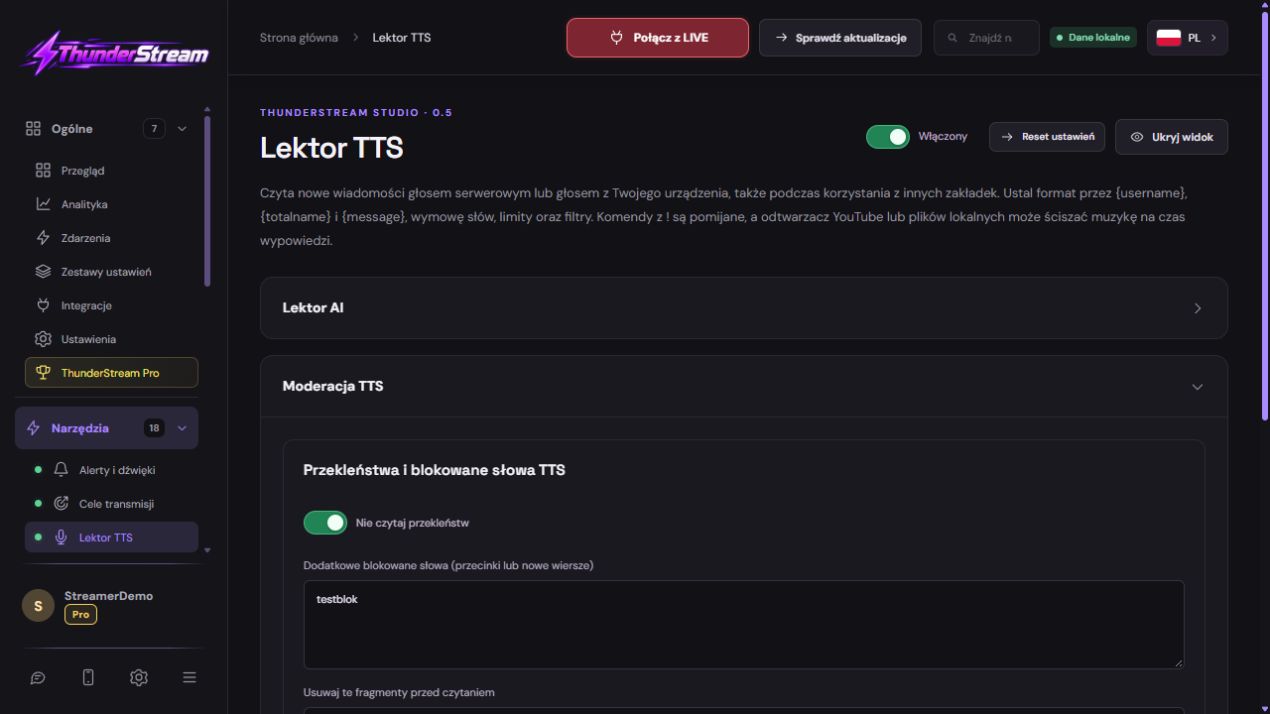 Enlarge the screenshot ↗
Step by step · 5–8
- Action
Enter: testblok.
✓ After this step you will seeExtra blocked words (commas or new lines)
- Action
Save in this form and reopen the settings. Save
✓ After this step you will seeChanges saved.
- Action
Make a short test before LIVE. Listen to sample
✓ After this step you will seeListen to sample
- Action
Enter: testblok.
✓ After this step you will seeDo not read profanity
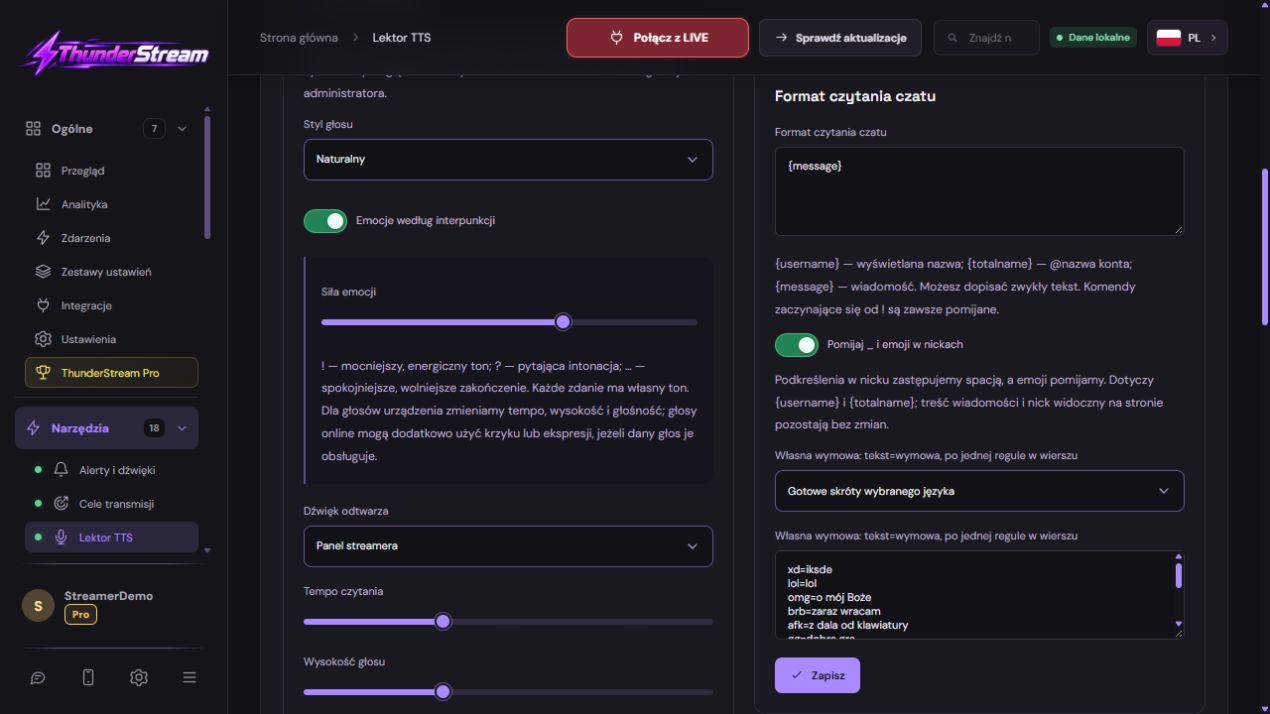 Enlarge the screenshot ↗
Step by step · 9–12
- Action
Enter: t e s t b l o k.
✓ After this step you will seeDo not read profanity
- Action
Enter: teeestblok.
✓ After this step you will seeDo not read profanity
- Action
Make a short test before LIVE. Listen to sample
✓ After this step you will seeThe filter also recognises spaced letters, repeated letters and common character substitutions. It checks the message and nickname before speech. You can add custom words.
- Action
Save in this form and reopen the settings. Extra blocked words (commas or new lines)
✓ After this step you will seeChanges saved.
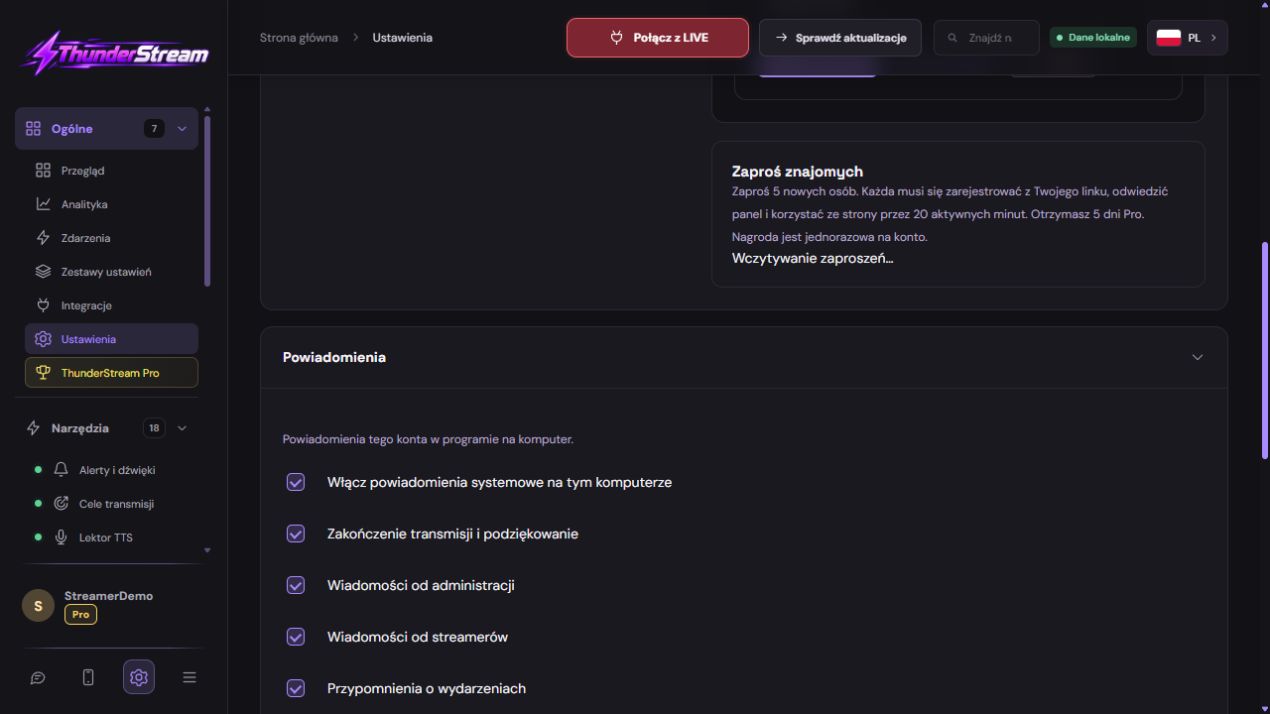 Enlarge the screenshot ↗
Step by step · 13–15
- Action
Check: Platform.
✓ After this step you will seeConnected
- Action
Open: Program updates.
✓ After this step you will seeThe program is up to date.
- Action
Check: Text to speech.
✓ After this step you will seeCurrent broadcast across all connected platforms. The log shows each event and its matching alert threshold.
TTS moderation
The filter also recognises spaced letters, repeated letters and common character substitutions. It checks the message and nickname before speech. You can add custom words.
Use testblok as a harmless test word.
Do not publish passwords, private keys or full overlay links.
Queue and delay: Not every message has to wait forever
Reading takes longer than writing a short comment. If there is a lot of text coming in, even a properly functioning voice can lag behind. Reduce the maximum message length and check the queue limit and age limit for posts.
Too large a queue means reading a long-ended conversation. Too small and you may miss part of the message during an intense moment. Match the values to the pace of your community, not how many items fit into the panel.
An example you can reproduce
Use testblok as a harmless test word. testblok → t e s t b l o k → teeestblok.
Compare the result with the screenshot. If it differs, check the troubleshooting section.
What do you see on the screen and how to fix it
| Symptom | Check first | Do it |
|---|---|---|
| The tester works, the comments do not. | No reception or filter. | Compare the new chat and log entry TTS. |
| It has been read, but the recording is silent. | No proper audio track. | Observe the OBS meter during a new test. |
| There are two voices. | Multiple players or duplicate captures. | Leave one read location and one audio path. |
| The narrator reads old conversations. | Too long a queue for the pace. | Check the age of posts, text length and queue limit. |
Last attempt before use on LIVE
Save in this form and reopen the settings.
Compare the result with the screenshot. If it differs, check the troubleshooting section.
Do not publish passwords, private keys or full overlay links.
- Save the changes using the button assigned to the edited function. If there are separate forms, check each changed part separately.
- Open the settings again and compare the most important values. Simply moving the slider does not always mean a permanent save.
- Check the result outside the editor itself: on the target scene, in the recording, or in the reopened configuration.
- If the function uses the platform, separately acknowledge the new handled event during the active LIVE. Don't expect the appearance test to confirm account authorization.
- Save the working values and make a copy before the next major change. Next time you start up, start with a quick check.
Before you go live
- Save in this form and reopen the settings.
- Make a short test before LIVE.
- Compare the result with the screenshot. If it differs, check the troubleshooting section.
- Do not publish passwords, private keys or full overlay links.
Frequently asked questions
The tester works, the comments do not.?
No reception or filter.. Compare the new chat and log entry TTS.
It has been read, but the recording is silent.?
No proper audio track.. Observe the OBS meter during a new test.
There are two voices.?
Multiple players or duplicate captures.. Leave one read location and one audio path.
The narrator reads old conversations.?
Too long a queue for the pace.. Check the age of posts, text length and queue limit.