

Determine where the sound is produced
The alert graphics may come from an overlay, and the sound from a separate panel or program. In other configurations, both elements are recreated by the browser source. Name the actual playback location first, rather than adding all possible sources.
Close or silence unnecessary copies of the test. Leave one player and prepare a short, moderately loud signal. This will let you see which meter is responding and whether the problem is with the entire audio or just one tool.
A dictionary without difficult abbreviations
| Concept | What does this mean in practice? |
|---|---|
| Mixer | List of audio tracks with meters and sliders. Helps determine which app or device is actually making the sound. |
| Audio track | Selected set of sounds saved or sent to output. A file may contain several tracks that play separately. |
| Source | One scene component: game, camera, text, audio, or page with overlay. The order of sources determines what covers what. |
| Event | New information from the platform, such as a message, observation or gift. The appearance test is not always an actual event. |
| URL | Full web address. Copy it using the button in the panel; do not copy fragments and do not add spaces. |
Step by step · 1–4
- Action
Leave one TTS test or alert and stop the music for a while.
✓ After this step you will seeYou are not confusing several playing sources.
- Action
Check the listening in the playback program itself.
✓ After this step you will seeYou know if sound is produced at all.
- Action
Check the card mute and application mixer in the system.
✓ After this step you will seeThe program is not muted separately.
- Action
Check the output: headphones, speakers or HDMI.
✓ After this step you will seeYou listen to the device that receives the signal.
 Enlarge the screenshot ↗
Step by step · 5–8
- Action
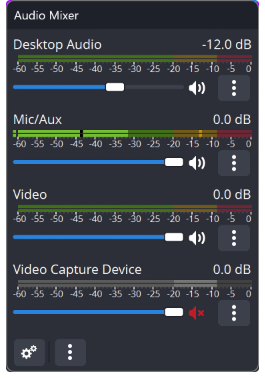
Observe the OBS mixer during a single trial.
✓ After this step you will seeA specific strip responds, not a random source.
- Action
If the bar is standing, fix the app or device you are capturing.
✓ After this step you will seeOBS receives local program sound.
- Action
Check the mute on this source.
✓ After this step you will seeThe meter is not just a visual confirmation of the signal.
- Action
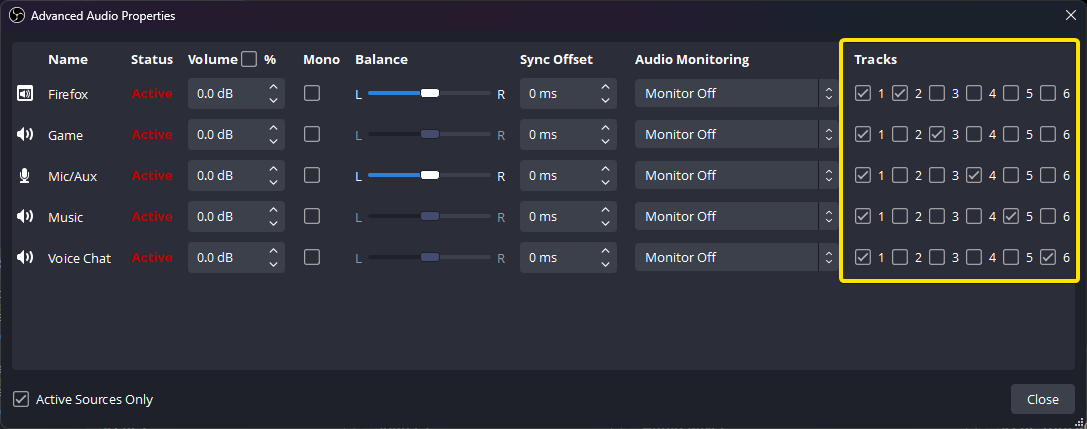
Check advanced properties and transmission path.
✓ After this step you will seeThe source goes to the output, not just to listening.
 Enlarge the screenshot ↗
Step by step · 9–12
- Action
Record 20 seconds and play the file.
✓ After this step you will seeYou confirm the complete audio track.
- Action
On the echo, mute the public player of your own LIVE.
✓ After this step you will seeStream doesn't fall back to desktop capture.
- Action
Verify that the application is not captured separately and by the desktop at the same time.
✓ After this step you will seeYou recognize two ways of the same sound.
- Action
Check the second tab, phone and chat overlay.
✓ After this step you will seeOnly the intended playback destination TTS works.
 Enlarge the screenshot ↗
Step by step · 13–14
- Action
In LIVE Studio, check the corresponding audio source independently of Link.
✓ After this step you will seeThe visible overlay image does not replace the audio track.
- Action
Restore music and record conversation with microphone.
✓ After this step you will seeSpeech, TTS and effects remain understandable.
An example you can reproduce
The voice is heard in the headphones, but the OBS meter is standing: you are checking the capture of a program or device. The meter responds but the recording is silent: you check mutes and tracks. The TTS voice changer is not the first fix for either of these cases.
Check the application and system device
- Confirm that the sound has indeed been assigned to the alert and saved. A visible listen button alone does not prove that the rule uses this file.
- Check the app volume and selected headphones or speakers. When you connect a new device, the system may have changed the default output.
- If your browser panel blocks autoplay, use its test or sound button.
- Check a regular file or a test voice in the same program. If you don't hear it either, start with your device and app settings.
OBS: from meter to transmission path
Check the mixer when running the test. If no correct meter responds, the OBS is probably not picking up the sound. If the meter responds, check the mute, level, and assignment to the track used by the broadcast.
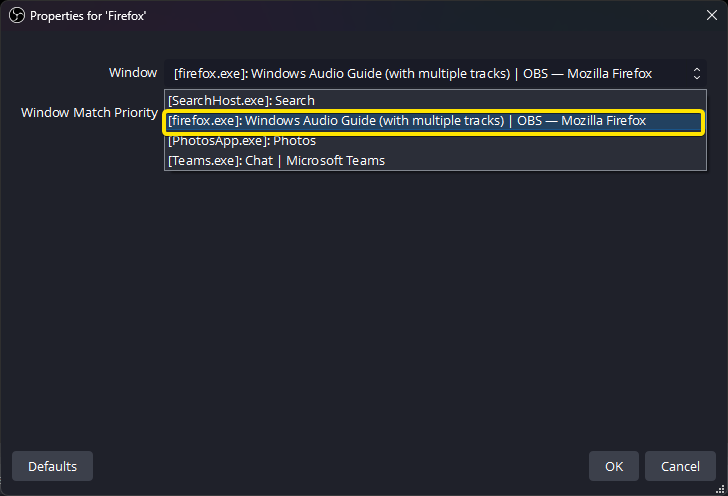
For browser sources, review the OBS audio control options. For audio from a separate program, select app capture or the appropriate system device. OBS versions may present monitor and output differently; focus on the purpose of the setting, not just the position of the button.
| Test result | Your next step |
|---|---|
| The application is silent | File, voice, play lock and output device. |
| The application is playing, the mixer does not respond | Capture source and selected device or window. |
| The mixer reacts, the recording is silent | Mute and output path of recording or transmission. |
| The recording contains two copies | Duplicate capture or second player. |
LIVE Studio: check the selected source, not the image itself
Adding a Link source may provide an overlay image, but the audio may still come from a program running alongside it. Don't show an entire private panel on stage just to get audio. Select the capture method available in your version of the program.
- Run the test in an application or source that supports the alert.
- In LIVE Studio, check the mixer and available audio capture settings.
- Make sure you are pointing to the correct program or device and not a similarly named inactive window.
- Record a short fragment or perform a controlled listening of your own broadcast on a second device.
Echoing and reading twice
Two copies can be created before the mixer: two cards with a reader, a panel and a separate reading overlay or a second device. They can also arise in the capture itself, e.g. when the same program goes to a separate source and to the desktop audio.
Disable individual tracks and repeat the same test. If, after muting one source, the correct single voice remains, you have a specific clue. Listening to a public broadcast in a browser can additionally revert to the microphone or system audio.
The music stops when you speak and returns after a pause
If you are using auto mute, select the correct microphone and check the response to normal speech. Setting the threshold too sensitive may treat the fan or keyboard as continuous speech.
In Thunderstream, check the microphone detection in the music queue part. In the OBS, a similar goal can be achieved with a compressor filter with an appropriate control source. Use one consciously selected method and check the volume returns after you stop speaking.
What do you see on the screen and how to fix it
Fix one thing at a time and try the same thing again. If you change several options at the same time, it will be difficult to determine what solved the problem. Don't delete a working source or entire configuration just because one widget isn't responding.
If you still need help, write down the program name and version, platform, approximate time of trial, expected result, and what actually happened. Attach a dump without passwords, keys and full private links. This description is much more useful than just the "not working" message.
| Symptom | Check first | Do it |
|---|---|---|
| It plays locally, the meter is on. | Bad input source for OBS. | Fix the captured app or device. |
| The meter works, the recording is silent. | Silence or none on the path. | Check the audio properties and the new control file. |
| The sound is twice. | Two capture paths or two players. | Disable one recognized copy. |
| After connecting the monitor, there is silence. | The system has changed the output device. | Select the correct headphones and source again. |
Last attempt before use on LIVE
- Save the changes using the button assigned to the edited function. If there are separate forms, check each changed part separately.
- Open the settings again and compare the most important values. Simply moving the slider does not always mean a permanent save.
- Check the result outside the editor itself: on the target scene, in the recording, or in the reopened configuration.
- If the function uses the platform, separately acknowledge the new handled event during the active LIVE. Don't expect the appearance test to confirm account authorization.
- Save the working values and make a copy before the next major change. Next time you start up, start with a quick check.
Before you go live
- You know which program or widget is playing the audio.
- The correct meter responds and the source is not muted.
- The test is included in the recording once.
- When you turn the volume down, the music returns to the saved level.
- Reopened settings retain the saved values.
- A single attempt is confirmed on the target output.
Frequently asked questions
Do I have to remove and add all sources?
Don't start by rebuilding the stage. Test one sound path first and change one element at a time.
Why did the sound disappear after changing headphones?
Verify that the program and capture source are still using the same device. The system default output may have changed.
Is a test inside the panel enough?
Confirms playback here. Only the recording or reception control confirms the further path to the viewers.
What should I do if my screen looks different than the photo?
Check the program name, version and selected feature. The dump is real, but it's from a specific edition and language. Search for a described field by its task. If the option is not available, check the current official support and availability in your account.