

Choose the right type of goal
In the TikFinity gallery, select a goal that matches your follows, likes, or other available activity. Check the signature instead of choosing a belt based solely on appearance.
Determine whether these are new events during transmission or a different value. The title "New Followers During LIVE" is easier to read than a generic "Follow" if the counter doesn't show your entire profile status.
A dictionary without difficult abbreviations
| Concept | What does this mean in practice? |
|---|---|
| Scene | Ready-made image layout: e.g. a game with a camera or a break board. The scene you choose determines what you show. |
| Source | One scene component: game, camera, text, audio, or page with overlay. The order of sources determines what covers what. |
| URL | Full web address. Copy it using the button in the panel; do not copy fragments and do not add spaces. |
| Event | New information from the platform, such as a message, observation or gift. The appearance test is not always an actual event. |
| Resolution | The width × height of the area, e.g. 1920 × 1080. This is different than shrinking the source rectangle with the mouse. |
Step by step · 1–4
- Action
Note whether you're counting follows from this stream or the total account count.
✓ After this step you will seeYou won't confuse two different results.
- Action
Check the correct account in Setup TikFinity.
✓ After this step you will seeYou receive your channel events.
- Action
Open Goals and select the observation goal available in the program version.
✓ After this step you will seeYou edit follows, not gifts or likes.
- Action
Enter a title, e.g. New Community.
✓ After this step you will seeThe recipient understands the meaning of the strip.
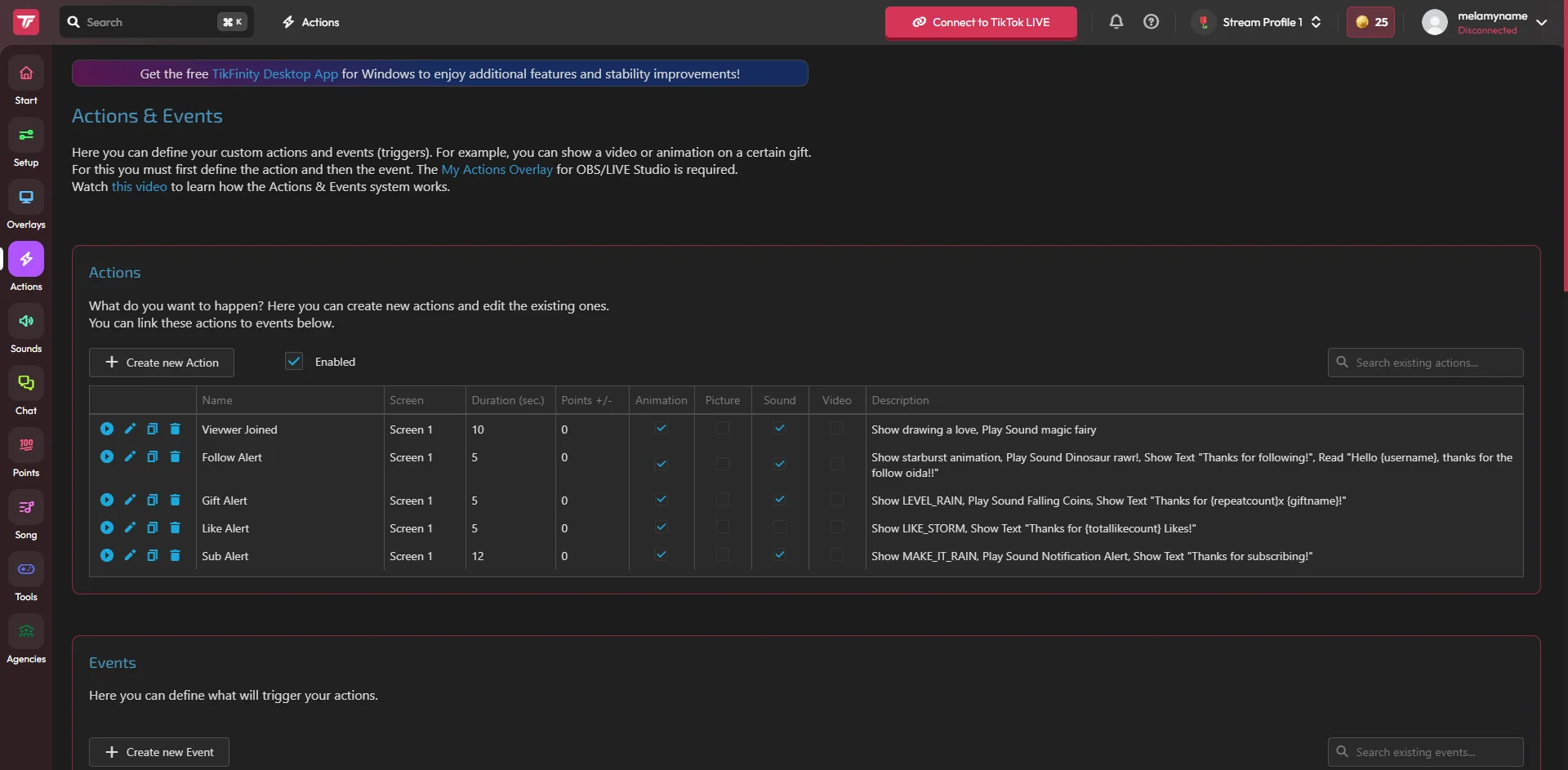 Enlarge the screenshot ↗
Step by step · 5–8
- Action
Enter the initial value consistent with the counting method.
✓ After this step you will seeYou don't treat zero as the actual result of your entire account.
- Action
Set a target value, e.g. 50.
✓ After this step you will seeA goal has a finite threshold.
- Action
Choose text and fill colors with strong contrast.
✓ After this step you will seeThe numbers can be read on light and dark backgrounds.
- Action
Check if the percentage and unit match your numbers.
✓ After this step you will seeExample 10 out of 50 gives 20%.
Step by step · 9–12
- Action
Save and reopen the settings.
✓ After this step you will seeThe purpose and values have not changed after saving.
- Action
Copy the link of this widget.
✓ After this step you will seeYou are not copying the address of the settings page.
- Action
Add a source in OBS or LIVE Studio and set the correct dimensions.
✓ After this step you will seeYou can see the entire bar and title.
- Action
Check out the appearance test without buying gifts.
✓ After this step you will seeYou can improve margins without payable events.
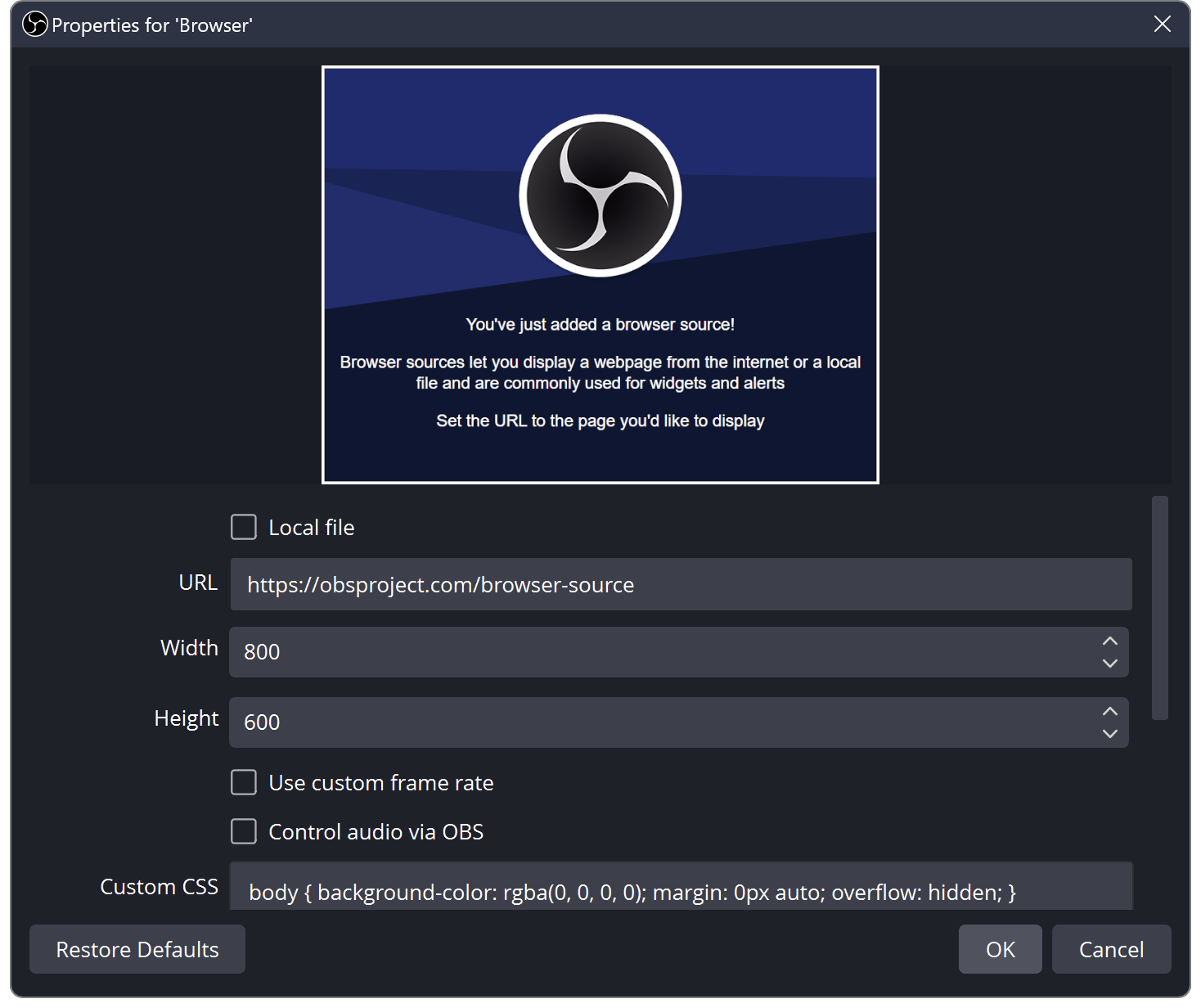 Enlarge the screenshot ↗
Step by step · 13–14
- Action
Check out one new sighting during LIVE.
✓ After this step you will seeYou confirm that the result receives the correct data.
- Action
Record when you manually zero a target or start a new edit.
✓ After this step you will seeThe next day you won't delete the result by accident.
An example you can reproduce
If the goal is 50 new observations since the start of the challenge, the start is 0. After 10 confirmed new observations, you show 10/50, or 20%. If the goal is total account score, you need the correct seed value or a function to get that value - that's a separate setup.
Threshold, title and appearance
Check the availability of styles and options in your account. If an item is marked with a required plan, confirm the conditions before setting up the entire scene. Don't base instructions on an old number of appearance variants.
- Enter the target value and title of the selected target.
- Check the behavior options after reaching the threshold and possible action.
- Use Customize or Settings to adjust the appearance available in your version.
- Do the Test before adding further details.
The bar should be legible also on a small screen
Choose a short title and contrasting colors. View empty, partially filled and full bars. The text may be readable on an empty part and disappear when it is filled with a lighter color.
Prepare a test with a score close to your target, e.g. 9 out of 10. A change in the number of digits and a longer title will quickly show whether the source is being trimmed. Set the size in a way that preserves proportions.
Standard Goal and Custom Goal
Custom goals can be driven by Actions & Events. With this variant, check the Control Custom Goal action and the assigned event. This is a separate step from setting the color and the target value itself.
Write a simple example, e.g. one selected reaction increases the value by one. Only after a successful attempt, add more complex rules.
| Genus | What are you checking? |
|---|---|
| Standard target | The activity type indicated by the bar name. |
| Custom Goal | An action that changes the value and the event that triggers that action. |
| Target counting down the missing value | The meaning of values and how to reach the threshold. |
Add the URL of the correct target
Keep the private widget address to yourself. If you change the target type, make sure the scene does not still use the previous address. Several similar sources may look the same despite reading different data.
- Use Copy URL on the selected target.
- In OBS add the Browser source and in the supported LIVE Studio add the Link source.
- Name the source with the target type and check the entire bar in the frame.
- Run the Test and compare the actual event during the connected LIVE.
Check reset and threshold reached
Confirm available reset and on-reach settings before transmitting. A custom action-driven goal may have a different logic than a simple observation bar.
Rehearse the entire round: start, increment, threshold, and reuse. Record the expected state at the beginning of the next LIVE. Do not reset the score when changing the appearance itself if you want to keep it.
What do you see on the screen and how to fix it
Fix one thing at a time and try the same thing again. If you change several options at the same time, it will be difficult to determine what solved the problem. Don't delete a working source or entire configuration just because one widget isn't responding.
If you still need help, write down the program name and version, platform, approximate time of trial, expected result, and what actually happened. Attach a dump without passwords, keys and full private links. This description is much more useful than just the "not working" message.
| Symptom | Check first | Do it |
|---|---|---|
| The percentage doesn't match | Faulty start or different unit | Compare the beginning, goal and method of counting. |
| The goal stands after the test | The appearance test is not a new observation | Check for a new event on the active LIVE. |
| The belt is cut | Incorrect dimensions or framing | Compare the resolution of the widget and the source. |
| The result disappears the next day | Reset or re-created target | Check the score keeping rules before the next broadcast. |
Last attempt before use on LIVE
- Save the changes using the button assigned to the edited function. If there are separate forms, check each changed part separately.
- Open the settings again and compare the most important values. Simply moving the slider does not always mean a permanent save.
- Check the result outside the editor itself: on the target scene, in the recording, or in the reopened configuration.
- If the function uses the platform, separately acknowledge the new handled event during the active LIVE. Don't expect the appearance test to confirm account authorization.
- Save the working values and make a copy before the next major change. Next time you start up, start with a quick check.
Before you go live
- The correct target type has been selected.
- The title corresponds to the meaning of the counter.
- You checked your own URL and the view on your phone.
- Reset and action after reaching the goal are tested.
- Reopened settings retain the saved values.
- A single attempt is confirmed on the target output.
Frequently asked questions
Does the follow target need to show the entire profile status?
Check the definition and counting start of the selected tool. The new event counter may show a different value than the profile.
Why isn't Custom Goal growing?
Check the action that changes this target, the triggering event, and the connection to LIVE.
Does the test replace launching the broadcast?
The test helps check your appearance. Actual activity reception requires proper connection to a working LIVE.
What should I do if my screen looks different than the photo?
Check the program name, version and selected feature. The dump is real, but it's from a specific edition and language. Search for a described field by its task. If the option is not available, check the current official support and availability in your account.