

A dictionary without difficult abbreviations
| Concept | What does this mean in practice? |
|---|---|
| Mixer | List of audio tracks with meters and sliders. Helps determine which app or device is actually making the sound. |
| Audio track | Selected set of sounds saved or sent to output. A file may contain several tracks that play separately. |
| Source | One scene component: game, camera, text, audio, or page with overlay. The order of sources determines what covers what. |
| Event | New information from the platform, such as a message, observation or gift. The appearance test is not always an actual event. |
| URL | Full web address. Copy it using the button in the panel; do not copy fragments and do not add spaces. |
Step by step · 1–4
- Action
Run the Thunderstream program on your computer and log in to your account.
✓ After this step you will seeYou are using a program, not just a website in a browser.
- Action
Open Live Edit in the program tools.
✓ After this step you will seeYou see a list of sound and key assignments.
- Action
Start with one entry.
✓ After this step you will seeThe first test doesn't mix with a few shortcuts.
- Action
Open the audio selection and go to the stock or available online selection.
✓ After this step you will seeYou can listen to the material before assigning it.
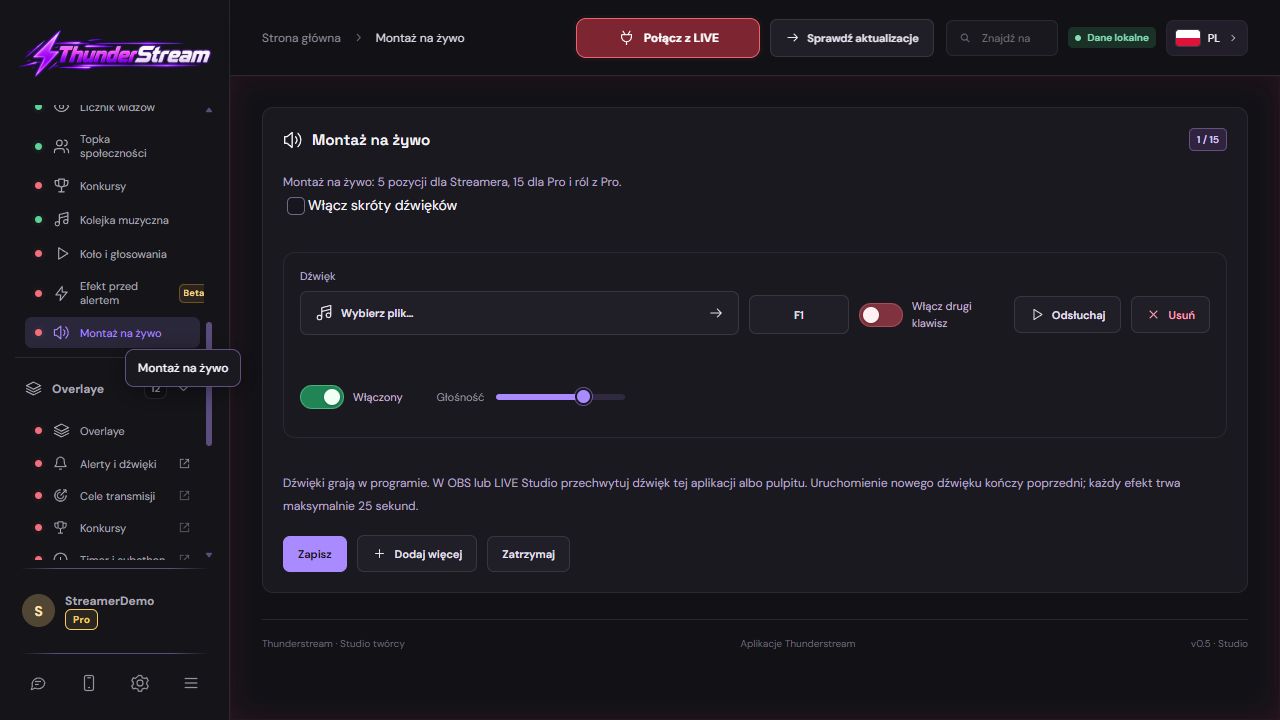 Enlarge the screenshot ↗
Step by step · 5–8
- Action
Select a short sound and confirm.
✓ After this step you will seeNext to the entry you can see the currently set material.
- Action
Click in the key box and press the selected single key.
✓ After this step you will seeThe field shows the memorized button.
- Action
If you want a combo, enable the second button option.
✓ After this step you will seeA place for a second key appears.
- Action
Click the second box and press the second key.
✓ After this step you will seeThe entry contains two different combination items.
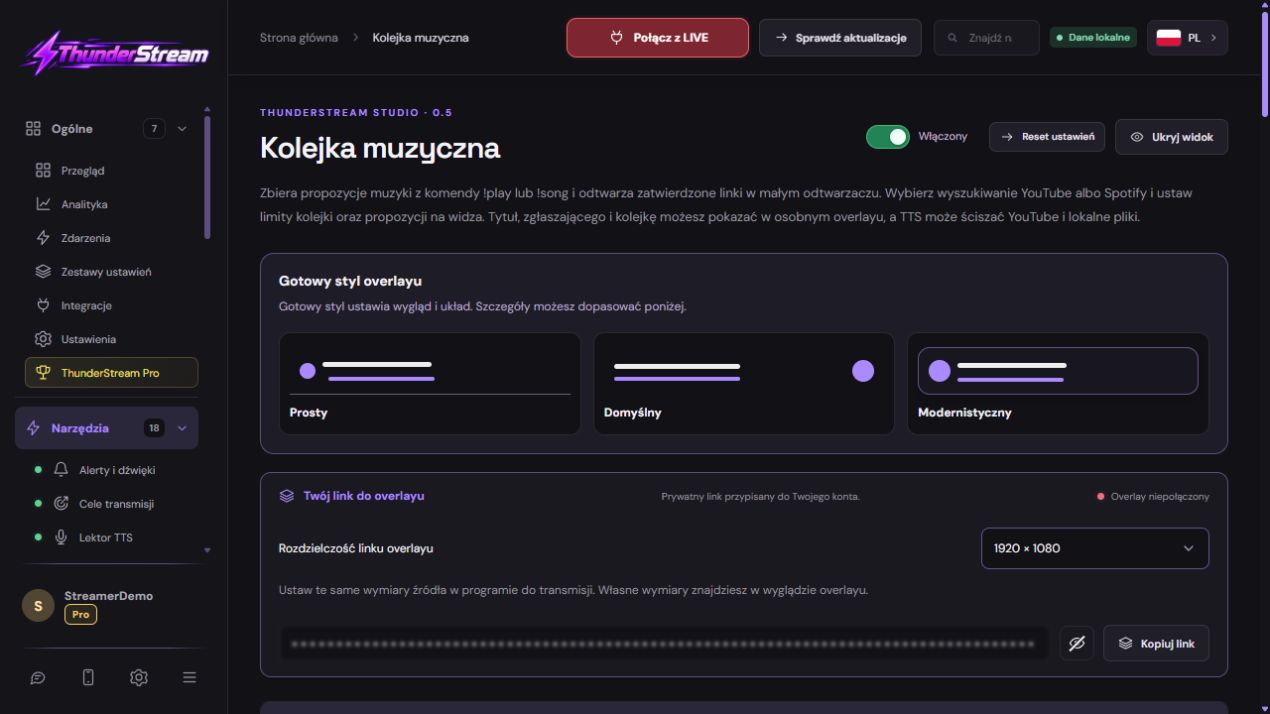 Enlarge the screenshot ↗
Step by step · 9–12
- Action
Save your settings and exit the text input field.
✓ After this step you will seeThe test does not involve writing on a form.
- Action
Press the shortcut; for combos hold the first one and press the second one.
✓ After this step you will seeThe selected material is played.
- Action
Check if the shortcut is conflicting with the game, OBS or your system.
✓ After this step you will seeOne action does not trigger unwanted action.
- Action
Set the OBS to capture program audio or the actual system output.
✓ After this step you will seeThe meter responds to the triggered effect.
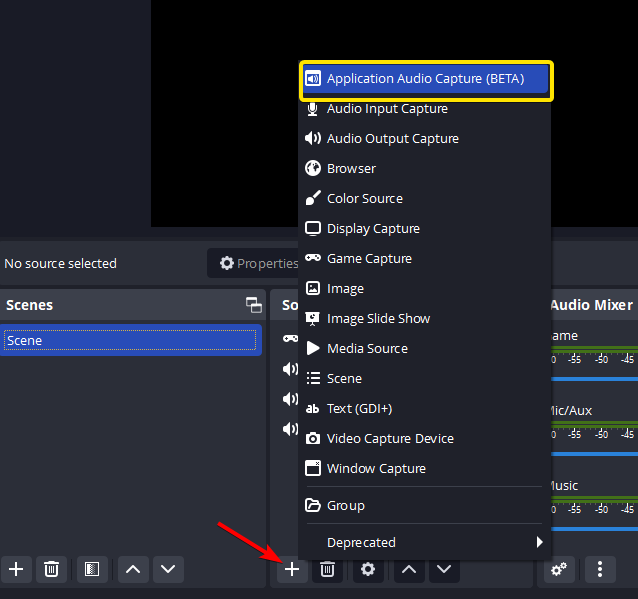 Enlarge the screenshot ↗
Step by step · 13–16
- Action
Record a voice test and one effect test.
✓ After this step you will seeSee if the sound drowns out speech.
- Action
Only now add further entries within the plan limits.
✓ After this step you will seeThe regular plan supports 5 and Pro 15 live montages.
- Action
If Pro has expired, check for entries marked as exceeding the limit.
✓ After this step you will seeYou don't expect inactive redundant entries to work.
- Action
After updating the program, check the shortcuts and system consent if required.
✓ After this step you will seeYou confirm the operation on your system and game window.
The program plays sound, the OBS must receive it
Assigning a shortcut does not guarantee that the effect reached viewers. The sound is created in a computer program. OBS or LIVE Studio must capture the correct application or output device. The overlay image itself does not confirm correct audio routing.
If you collect the entire desktop and the program audio separately at the same time, you can get a double effect. Trigger one sound and watch the meters. Finally, listen to the test file as your own headphones may play something other than the broadcast output.
Choice of abbreviation and material
Avoid keys needed for regular typing or gameplay that could accidentally trigger an effect. Compatibility of global shortcuts depends on the system, permissions and active application. Always check them in the conditions in which you actually play.
Online material may be unavailable after a change of address or file deletion by the provider. Listen to it before broadcasting. Use sounds for which you have appropriate permissions; the fact that they can be found in a search engine does not determine the terms of public use.
An example you can reproduce
Example: The F8 key plays a short effect. Variant with an additional button: you hold the selected first key and press the second one. Check the combination outside the text box and make sure it does not switch the scene in OBS. The sound name and keys should be easy to recognize during LIVE.
What do you see on the screen and how to fix it
Fix one thing at a time and try the same thing again. If you change several options at the same time, it will be difficult to determine what solved the problem. Don't delete a working source or entire configuration just because one widget isn't responding.
If you still need help, write down the program name and version, platform, approximate time of trial, expected result, and what actually happened. Attach a dump without passwords, keys and full private links. This description is much more useful than just the "not working" message.
| Symptom | Check first | Do it |
|---|---|---|
| There is no tool on the website | The function is intended for a program | Open the desktop application and the correct version. |
| The shortcut types text instead of playing | Active form field | Finish editing and check the shortcut in normal view. |
| The sound can only be heard in my home | No capture on OBS | Check the application track and local recording. |
| The effect is twofold | Multiple sound paths or repeated assignment | Leave one entry and one track for trial. |
| After Pro expires, some entries do not work | Limit exceeded | Check the markings and number of active mounts. |
| Material from the Internet does not work | Address unavailable or unsupported | Listen again and select the working file. |
Last attempt before use on LIVE
- Save the changes using the button assigned to the edited function. If there are separate forms, check each changed part separately.
- Open the settings again and compare the most important values. Simply moving the slider does not always mean a permanent save.
- Check the result outside the editor itself: on the target scene, in the recording, or in the reopened configuration.
- If the function uses the platform, separately acknowledge the new handled event during the active LIVE. Don't expect the appearance test to confirm account authorization.
- Save the working values and make a copy before the next major change. Next time you start up, start with a quick check.
Before you go live
- You know what the fields and units you use mean.
- The most important values were saved and checked again.
- The attempt was graded on the finished output, not just in the editor.
- The image is clear and each sound plays only once.
- Working configuration and safe copy preserved.
Frequently asked questions
There is no tool on the website - what should I do?
The function is intended for a program. Open the desktop application and the correct version.
The shortcut enters text instead of playing - what should I do?
Active form field. Finish editing and check the shortcut in normal view.
I can only hear the sound - what should I do?
No capture on OBS. Check the application track and local recording.
The effect is twofold - what to do?
Multiple sound paths or repeated assignment. Leave one entry and one track for trial.