

From the viewer's comment to the running player
The command message must first reach Thunderstream. Then the proposal goes through queue rules and material search. The entry on the list itself does not mean that it is ready to play.
For your first attempt, use a clear artist name and title. Don't start with an hours-long video, a shortened address, or an unlisted playlist, as this makes it difficult to identify the cause of the error.
A dictionary without difficult abbreviations
| Concept | What does this mean in practice? |
|---|---|
| Mixer | List of audio tracks with meters and sliders. Helps determine which app or device is actually making the sound. |
| Audio track | Selected set of sounds saved or sent to output. A file may contain several tracks that play separately. |
| Source | One scene component: game, camera, text, audio, or page with overlay. The order of sources determines what covers what. |
| Event | New information from the platform, such as a message, observation or gift. The appearance test is not always an actual event. |
| URL | Full web address. Copy it using the button in the panel; do not copy fragments and do not add spaces. |
Step by step · 1–4
- Action
Open Music Queue and enable the tool.
✓ After this step you will seeYou can see the queue and order settings.
- Action
Select an available search source.
✓ After this step you will seeYou know where the panel will look for the title.
- Action
Enable the !play title command.
✓ After this step you will seeNew chat requests may be added to the list.
- Action
Add one recognizable song shorter than 7 minutes.
✓ After this step you will seeThe material is checked for length and type.
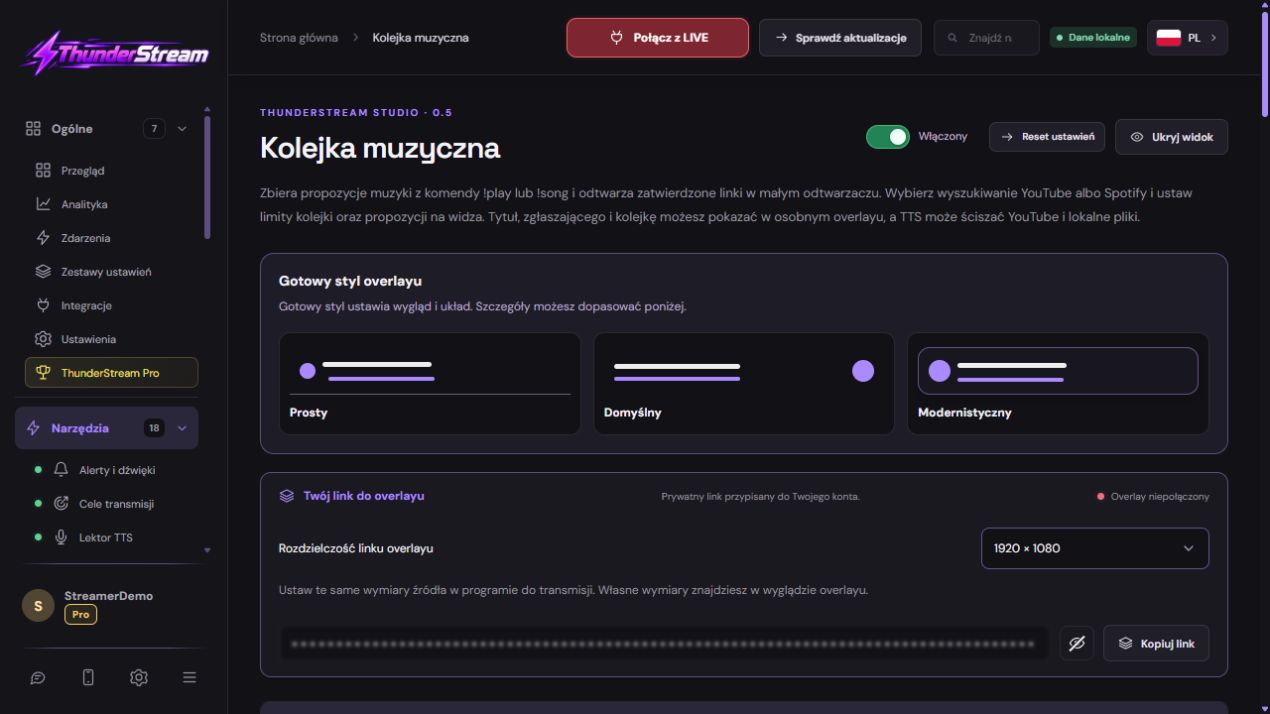 Enlarge the screenshot ↗
Step by step · 5–8
- Action
Enable automatic acceptance and playback of subsequent items.
✓ After this step you will seeThe end of the song triggers further queue service.
- Action
Set a limit per viewer, e.g. 3 active suggestions.
✓ After this step you will seeOne person does not occupy the entire list.
- Action
Leave the replay lock if you don't want duplicates.
✓ After this step you will seeAnother shortened link to the same video does not avoid this rule.
- Action
Enable multi-viewer interleaving if it suits your stream.
✓ After this step you will seeTheir songs may get more even placements.
Step by step · 9–12
- Action
Save and send !play from real chat.
✓ After this step you will seeThe new item has a status and a buyer.
- Action
Add a playlist as a creator in the appropriate form.
✓ After this step you will seeHer positions serve as background when there are no viewer requests.
- Action
Let the queue empty, then add a new short song.
✓ After this step you will seeThe machine also resumes operation after inactivity.
- Action
Use the ban button for unwanted songs.
✓ After this step you will seeThe item goes on the banned list.
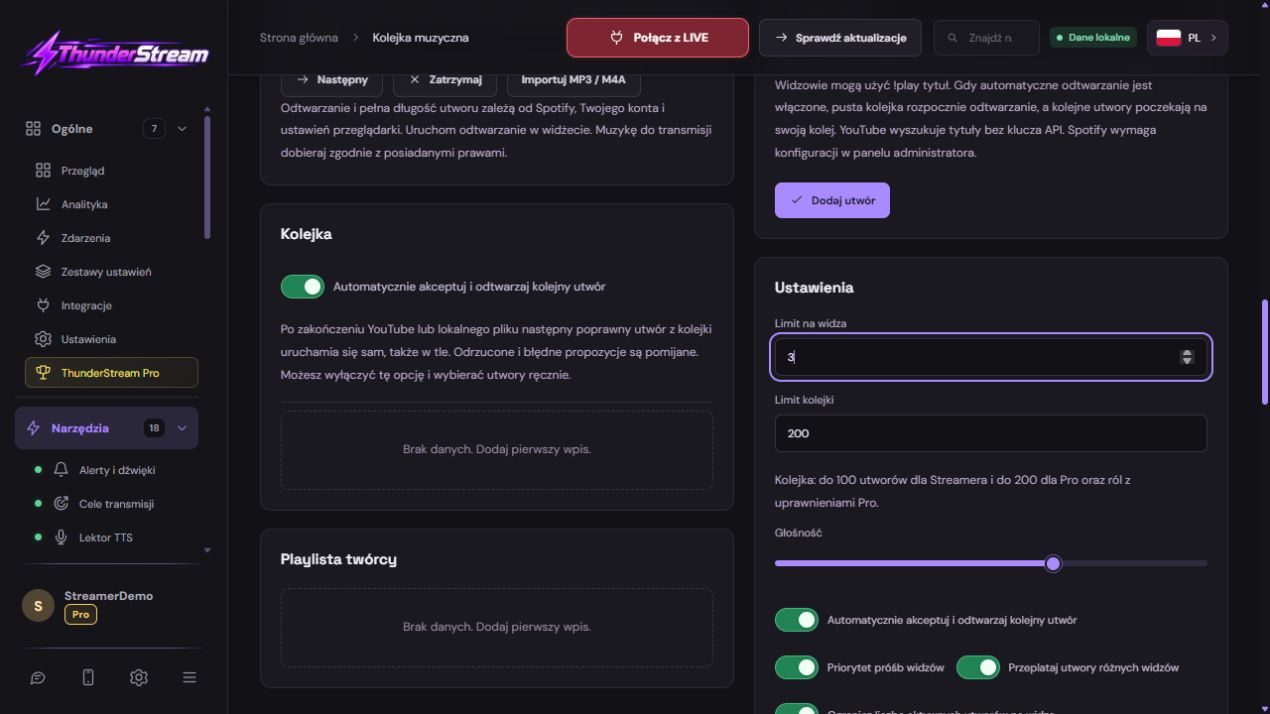 Enlarge the screenshot ↗
Step by step · 13–15
- Action
In blocked users, enter @nick and platform.
✓ After this step you will seeYou block the command of a selected person, not all of them.
- Action
Check the command of the blocked viewer and another viewer.
✓ After this step you will seeThe first one doesn't add the song, the second one still can.
- Action
Switch to another tab while playing.
✓ After this step you will seeAn enabled queue still receives allowed requests.
An example you can reproduce
Add A and B as viewer requests and C as background from the creator's playlist. Check A → B and behavior after exhausting requests. When it becomes empty, send another !play D. This last attempt confirms that the machine has resumed after a break.
Set command acceptance and basic restrictions
Changing tabs in a panel should not be a way to enable or disable commands. An enabled tool also works outside its view as long as the panel or program supporting the transmission is running.
- Open the Music Queue and enable accepting chat suggestions. Check the set command, e.g. !play.
- Turn on the music filter and specify the maximum length. For the test, choose a regular song less than seven minutes long.
- Set a limit on single viewer suggestions and blocking of the same song in the active queue.
- Save your settings and send a new command from the real chat. Confirm the submitter's name and recognized title.
Priorities and fair interweaving of proposals
You can adjust the rules so that one person doesn't take up the entire queue. Separate maximum submissions from playback priority: These settings solve different problems. The first limits the number of items, the second affects their order.
If you use the available viewer priority or interleaving options, test them with suggestions from two different people. Record the order before the change and compare it after the change. Don't judge performance based on just one viewer's works.
| Principle | Why set it up |
|---|---|
| Viewer limit | So that one person doesn't fill out the entire list. |
| Replay lock | So that the same song is not waiting several times at once. |
| Priority | To give priority to a certain type of proposal. |
| Interleaving | So that other viewers can hear your choice. |
Creator playlists from YouTube and Spotify
Content from YouTube and Spotify is supported by players of the appropriate services. Availability, embeddability and playability may vary depending on song, account and provider policies. Merely importing a list does not bypass these restrictions.
- In the playlist section, add the creator's public link to a supported list.
- Check the import result: recognized titles, number of items and any unavailable items. A private list may not provide the data you need.
- Test one song from the list. Importing titles and being able to play them are two separate steps.
- Set the playlist to be used as a backup when viewers don't suggest anything, if that's the way you want it to work.
Automatic forwarding and empty queue
- Turn on autoplay. If your browser requires a first click to trigger sound, do so before broadcasting.
- Add two short songs. Wait for the first one to finish and see if the second one starts without switching options again.
- Once the queue is empty, add another new suggestion. This is a separate test for resuming from idle.
- Check your played history and backup playlist behavior. A viewer suggestion and a permanent playlist item don't have to have the same lifecycle.
I'm looking for a song, it's waiting, player error - what next?
If the search takes too long, check the exact title or the correct link. The system may retry before rejecting; observe the final status instead of adding the same proposal multiple times.
When material is unavailable, the next correct item should be able to move on. Make a note of the song name, status and time. If you have a problem with the audio itself, also check the program output and capture in the OBS. Don't disable your entire queue just because one video won't allow embedding.
What do you see on the screen and how to fix it
Fix one thing at a time and try the same thing again. If you change several options at the same time, it will be difficult to determine what solved the problem. Don't delete a working source or entire configuration just because one widget isn't responding.
If you still need help, write down the program name and version, platform, approximate time of trial, expected result, and what actually happened. Attach a dump without passwords, keys and full private links. This description is much more useful than just the "not working" message.
| Symptom | Check first | Do it |
|---|---|---|
| The command does not add. | No chat, !play disabled or viewer blocked. | Check these three terms separately. |
| He waits but doesn't play. | The machine is turned off, there is no ready result or the player is blocked. | Check status and required first audio click. |
| The piece was rejected. | Type, length, availability or ban. | Use a short piece of music and read the reason. |
| One person doesn't order. | Viewer limit or @nick block. | Compare this person's platform and active positions. |
Last attempt before use on LIVE
- Save the changes using the button assigned to the edited function. If there are separate forms, check each changed part separately.
- Open the settings again and compare the most important values. Simply moving the slider does not always mean a permanent save.
- Check the result outside the editor itself: on the target scene, in the recording, or in the reopened configuration.
- If the function uses the platform, separately acknowledge the new handled event during the active LIVE. Don't expect the appearance test to confirm account authorization.
- Save the working values and make a copy before the next major change. Next time you start up, start with a quick check.
Before you go live
- The command arrives from selected chats.
- Limits and replays work as set.
- Two songs play in succession, and a new entry wakes up an empty queue.
- The audio source is heard in the recording and the player remains running.
- Reopened settings retain the saved values.
- A single attempt is confirmed on the target output.
Frequently asked questions
Can a viewer add the entire playlist himself?
Treat importing a playlist as an activity of the creator. Individual viewer suggestions go through separate rules and limits.
Does adding a link guarantee full playback of the material?
NO. Replay is also subject to the availability and limitations of the applicable service. Check out the song in the embedded player.
Why can I hear the music on my device and not on the LIVE?
The player and the transmission path are separate. Check your application or system audio capture and make a test recording.
What should I do if my screen looks different than the photo?
Check the program name, version and selected feature. The dump is real, but it's from a specific edition and language. Search for a described field by its task. If the option is not available, check the current official support and availability in your account.