

Connecting your account and receiving chat is the first step
Check in Settings → Platforms that you have saved the correct channels and completed the necessary authorization. Then connect active streams. A similar nickname alone does not confirm that you are receiving the same channel.
Prepare four short messages with the names of the platforms, e.g. "Twitch trial". Send them in your real chats and check if they all appear in Thunderstream. This allows you to quickly recognize the lack of one integration.
A dictionary without difficult abbreviations
| Concept | What does this mean in practice? |
|---|---|
| Scene | Ready-made image layout: e.g. a game with a camera or a break board. The scene you choose determines what you show. |
| Source | One scene component: game, camera, text, audio, or page with overlay. The order of sources determines what covers what. |
| URL | Full web address. Copy it using the button in the panel; do not copy fragments and do not add spaces. |
| Event | New information from the platform, such as a message, observation or gift. The appearance test is not always an actual event. |
| Resolution | The width × height of the area, e.g. 1920 × 1080. This is different than shrinking the source rectangle with the mouse. |
Step by step · 1–4
- Action
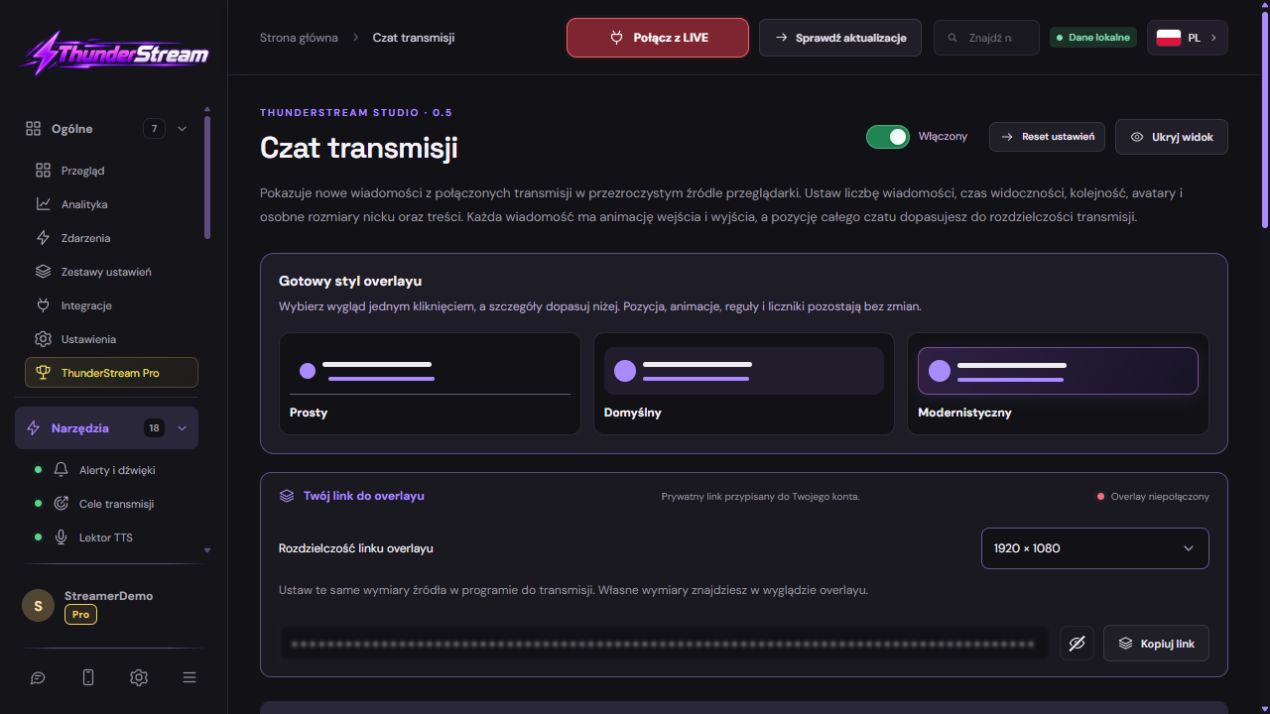
Open Broadcast Chat and enable the tool.
✓ After this step you will seeYou see its settings and conversation preview.
- Action
Choose one ready-made style as a starting point.
✓ After this step you will seeThe layout is consistent before you add details.
- Action
Select the platforms whose comments you want to see.
✓ After this step you will seeUnwanted chat doesn't go to the overlay.
- Action
Set the number of visible messages.
✓ After this step you will seeA regular account has up to 5 and a Pro account has up to 10 entries.
 Enlarge the screenshot ↗
Step by step · 5–8
- Action
Select the icon or platform name next to your nickname.
✓ After this step you will seeThe viewer recognizes the origin of the comment.
- Action
Choose the background and transparency of the bubbles separately for the platforms.
✓ After this step you will seeContent maintains contrast on light and dark game.
- Action
Set the size of avatars and a readable font.
✓ After this step you will seeNickname and message do not blend together.
- Action
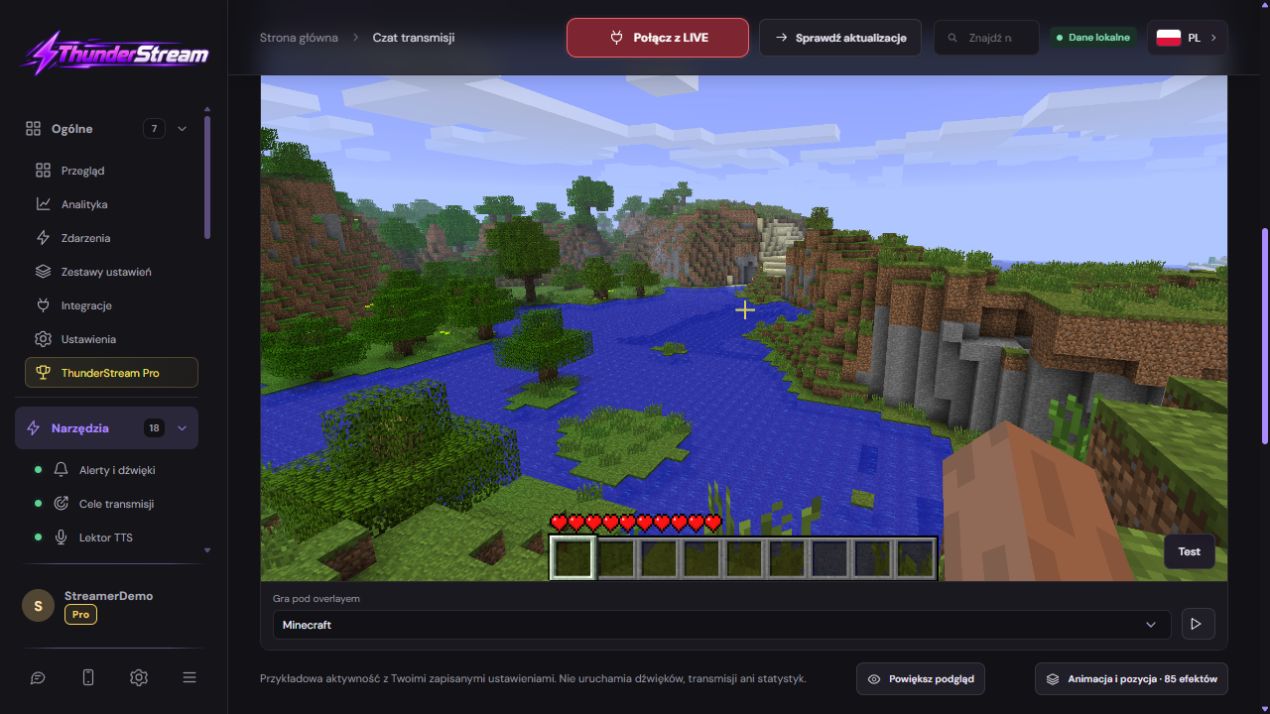
Check the long nickname and comment in two lines.
✓ After this step you will seeBoth fall within the source area.
 Enlarge the screenshot ↗
Step by step · 9–12
- Action
Set the entrance and exit animation and save.
✓ After this step you will seeThe actual older post disappears, not the entire conversation.
- Action
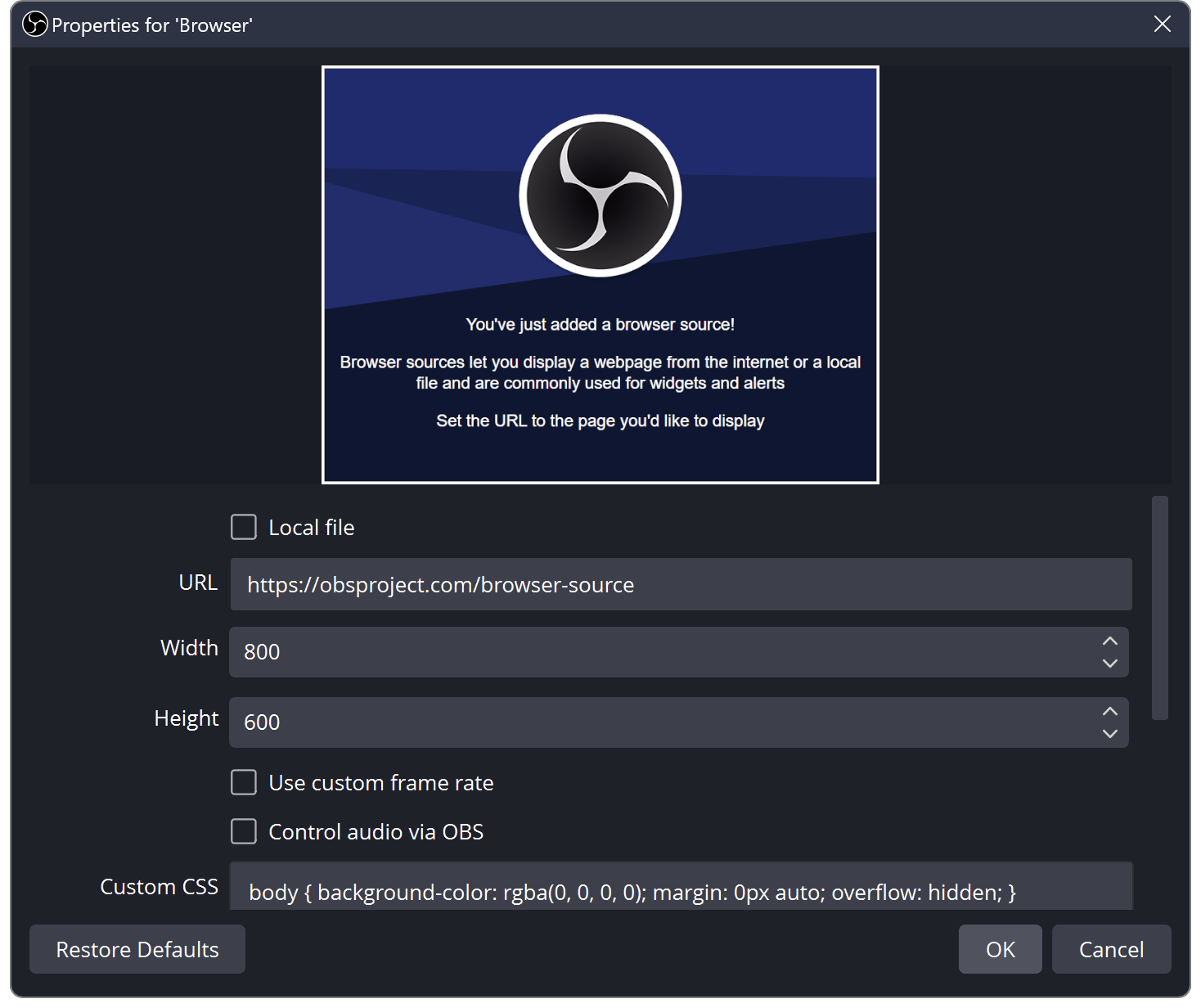
Copy the chat link and add it as Browser in OBS.
✓ After this step you will seeThe source has dimensions consistent with the panel.
- Action
Submit at least 6 entries with a limit of 5.
✓ After this step you will seeThe oldest gives way to the next ones.
- Action
Check supported emojis and deletion of test entry.
✓ After this step you will seeA visible comment respects available moderation data.
 Enlarge the screenshot ↗
Step by step · 13–13
- Action
Watch local footage on your phone.
✓ After this step you will seeThe text is also legible when reduced.
An example you can reproduce
Send "TikTok Attempt" and "Twitch Attempt", then hide Twitch in the chat options and send the new entry only there. Turning off the visibility of this chat does not require deleting your account or disabling its other tools.
Choose what viewers see on screen
Hiding the platform in the overlay does not necessarily mean disconnecting the account. This is an image setting separate from TTS authorization and read policy. If you also want to disable the voice-over for a given platform, check its configuration separately.
- Open Broadcast Chat and browse the selection of platforms.
- Leave the platforms whose messages you want to show on the overlay enabled.
- Set tag: logo or platform name if the selected style provides this option.
- Adjust the bubble color and opacity for each platform, then save your changes.
Clear layout on computer and phone
Start with one ready-made style, and only then adjust the font and colors. Messages should remain legible against the game background, even when the viewer has a small screen. Don't base platform distinctions solely on very similar shades.
Set the visible post limit appropriate for your plan. With five messages visible, also check the entry of the sixth one: the older entry should leave the system, and the remaining entries should smoothly take their previous positions.
| Element | Practical test |
|---|---|
| Long nickname | It should not cover the text or extend beyond the bubble. |
| Message in two lines | The next entry cannot overlap the previous one. |
| Avatar | Check the real photo and the behavior in its absence. |
| Contrast | Check the light and dark part of the scene. |
Emoji of platforms and add-ons
Enabling images in chat and ignoring emojis in the voiceover are two different functions. You can show emotes on screen and at the same time skip their names when reading TTS.
- Enable selected emoji and add-on sources for the platforms you use.
- Check out the regular emoji, platform emoticon, and add-on emoticon on a new message.
- If the preview doesn't show your platform, compare your account connection and sample settings from other platforms.
- Please note that some emotes depend on the channel, subscription or specific provider. Not every text entry is an emoji code.
Deleted messages and bans
If the platform provides a supported moderation event, the visible message may be replaced with a deletion notice. This mechanism applies to entries present on the screen; do not assume that the overlay is a complete archive of the entire chat.
Try it on your own test comment. Remove it on the platform side and check the change on the overlay. Don't apply a real ban to a viewer's account just for visual testing purposes. If the event does not arrive, note the platform and time.
Add a source and test the entire conversation
Common chat overlay does not automatically start broadcasting images to multiple services. You configure Thunderstream's chat sending and receiving program as separate stages.
- Copy the private chat overlay link after saving the settings.
- Add it to the Source Viewer in OBS or Link in the supported version of LIVE Studio.
- Enter matching dimensions, arrange the source over the game and block accidental shifting.
- Send a series of short and long entries. Check the animations, limit, platform symbols and whether the hidden platform actually appears.
What do you see on the screen and how to fix it
Fix one thing at a time and try the same thing again. If you change several options at the same time, it will be difficult to determine what solved the problem. Don't delete a working source or entire configuration just because one widget isn't responding.
If you still need help, write down the program name and version, platform, approximate time of trial, expected result, and what actually happened. Attach a dump without passwords, keys and full private links. This description is much more useful than just the "not working" message.
| Symptom | Check first | Do it |
|---|---|---|
| I only see one platform. | No reception or filter turned off. | Compare the message log and platform visibility option. |
| Nick steps outside the speech bubble. | Font too large or area too small. | Test the long nickname after reducing the font size. |
| Emoji is text. | No platform or add-on information available. | Check the source of the emoji and the new comment. |
| Once it overflows, everything disappears. | Old source or animation problem. | Before LIVE, test the current sequence of several entries. |
Last attempt before use on LIVE
- Save the changes using the button assigned to the edited function. If there are separate forms, check each changed part separately.
- Open the settings again and compare the most important values. Simply moving the slider does not always mean a permanent save.
- Check the result outside the editor itself: on the target scene, in the recording, or in the reopened configuration.
- If the function uses the platform, separately acknowledge the new handled event during the active LIVE. Don't expect the appearance test to confirm account authorization.
- Save the working values and make a copy before the next major change. Next time you start up, start with a quick check.
Before you go live
- Each platform underwent a separate acceptance test.
- The colors and logo are legible on a small screen.
- New messages do not overlap previous ones.
- Image filters and TTS were tested separately.
- Reopened settings retain the saved values.
- A single attempt is confirmed on the target output.
Frequently asked questions
Can I hide only Kick while leaving the account linked?
Yes, use the selection of platforms shown in the chat. Don't remove authorization just to change the appearance of the overlay.
Why do some emotes show up as text?
Check whether the correct source is enabled, emote availability for the channel, and whether the message is recognized as a provider emote.
Why does chat work in the dashboard but not in OBS?
Check the private link, resolution, source position and order above the game. Working message reception does not confirm scene setting.
What should I do if my screen looks different than the photo?
Check the program name, version and selected feature. The dump is real, but it's from a specific edition and language. Search for a described field by its task. If the option is not available, check the current official support and availability in your account.