

Prepare before you start
The panel and events are processed on your computer. Overlay links remain on thunderstream.net.
Do not publish passwords, private keys or full overlay links.
Make a short test before LIVE.
Step by step · 1–4
- Action
Open: Song requests.
✓ After this step you will seeNow playing
- Action
Check: Queue.
✓ After this step you will seePending
- Action
Click: Move up.
✓ After this step you will seeQueue
- Action
Click: Move down.
✓ After this step you will seeQueue
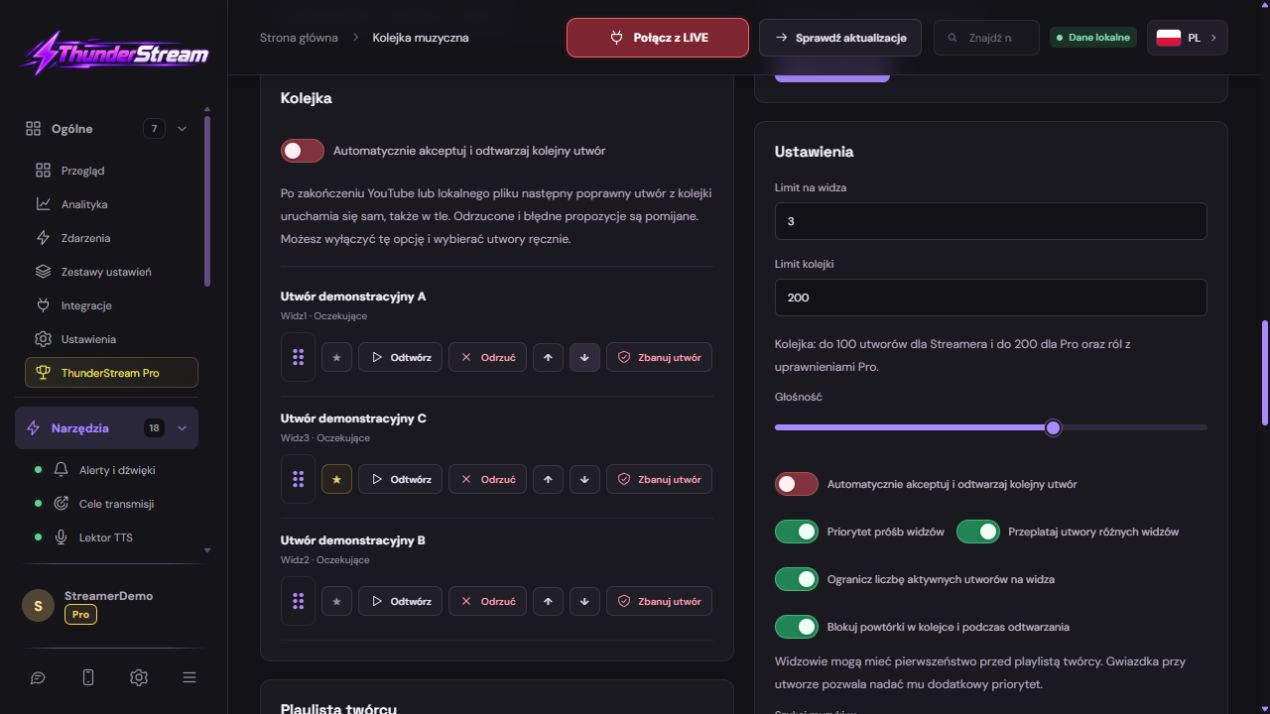 Enlarge the screenshot ↗
Step by step · 5–8
- Action
Click: Drag to reorder.
✓ After this step you will seeDrag to reorder
- Action
Select: Drag to reorder.
✓ After this step you will seeQueue
- Action
Check: Queue.
✓ After this step you will seeChanges saved.
- Action
Check: Queue.
✓ After this step you will seeDrag to reorder
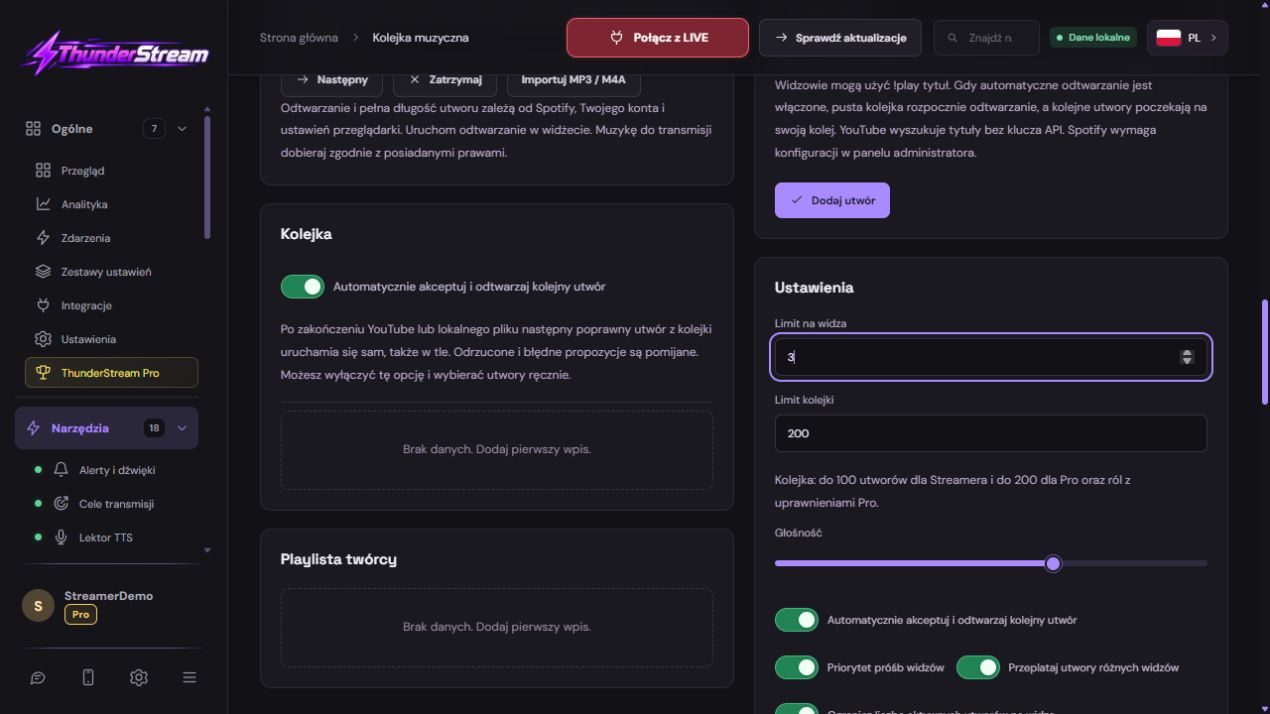 Enlarge the screenshot ↗
Step by step · 9–12
- Action
Click: Move up.
✓ After this step you will seeQueue
- Action
Open: Creator playlist.
✓ After this step you will seeAdd tracks from a public playlist. Import skips duplicates and respects available queue space.
- Action
Click: Priority track.
✓ After this step you will seePriority track
- Action
Open: Song requests.
✓ After this step you will seeChanges saved.
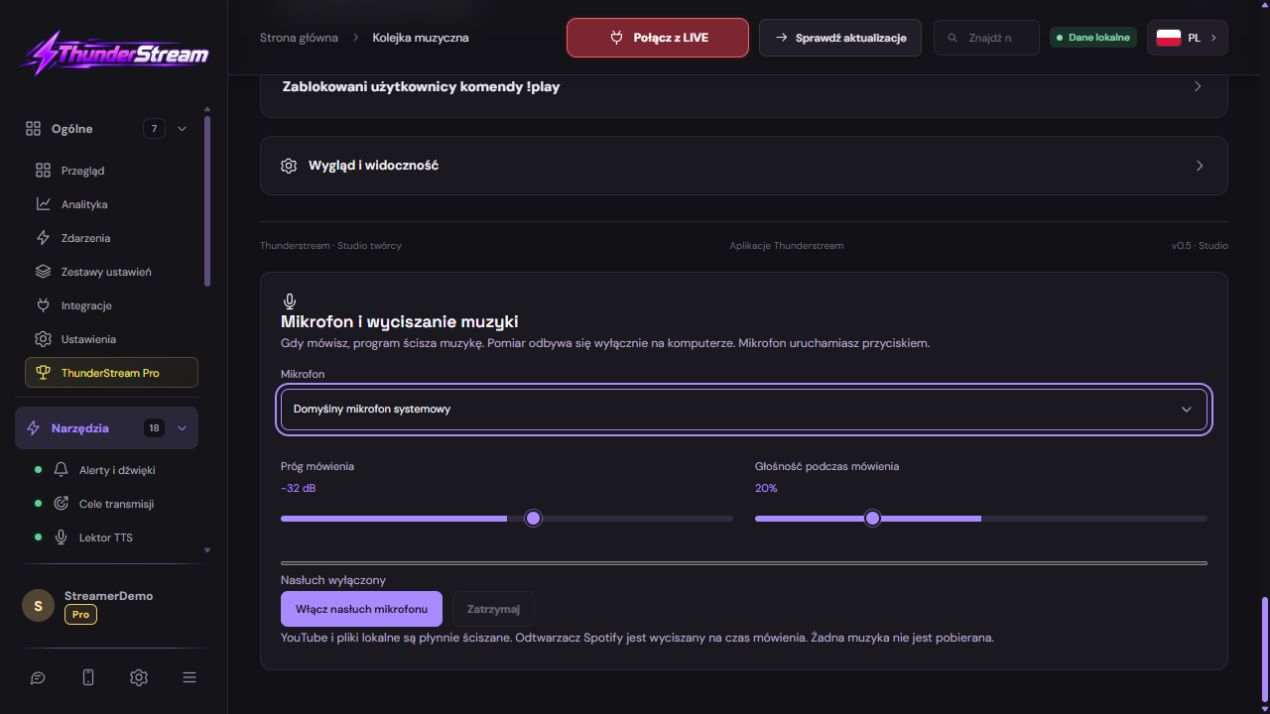 Enlarge the screenshot ↗
Step by step · 13–15
- Action
Click: Banned music list.
✓ After this step you will seeBan a track from the queue or enter its title or link. Further requests for the track will not play.
- Action
Open: Users blocked from !play.
✓ After this step you will seeEnter an account @handle and choose its platform or all platforms. This blocks !play and !song, without blocking the viewer’s other messages.
- Action
Make a short test before LIVE. Automatically accept and play the next song
✓ After this step you will seeAdd tracks from a public playlist. Import skips duplicates and respects available queue space.
Creator playlist
Drag to reorder
Ban a track from the queue or enter its title or link. Further requests for the track will not play.
Enter an account @handle and choose its platform or all platforms. This blocks !play and !song, without blocking the viewer’s other messages.
Creator playlists from YouTube and Spotify
Content from YouTube and Spotify is supported by players of the appropriate services. Availability, embeddability and playability may vary depending on song, account and provider policies. Merely importing a list does not bypass these restrictions.
An example you can reproduce
Move up: C → A → B. Move down: A → B → C.
Drag to reorder. Compare the result with the screenshot. If it differs, check the troubleshooting section.
What do you see on the screen and how to fix it
| Symptom | Check first | Do it |
|---|---|---|
| ↑ / ↓ | Pending | Drag to reorder |
| The command does not add. | No chat, !play disabled or viewer blocked. | Check these three terms separately. |
| He waits but doesn't play. | The machine is turned off, there is no ready result or the player is blocked. | Check status and required first audio click. |
| The piece was rejected. | Type, length, availability or ban. | Use a short piece of music and read the reason. |
| One person doesn't order. | Viewer limit or @nick block. | Compare this person's platform and active positions. |
Last attempt before use on LIVE
Save in this form and reopen the settings.
Compare the result with the screenshot. If it differs, check the troubleshooting section.
Do not publish passwords, private keys or full overlay links.
- Save the changes using the button assigned to the edited function. If there are separate forms, check each changed part separately.
- Open the settings again and compare the most important values. Simply moving the slider does not always mean a permanent save.
- Check the result outside the editor itself: on the target scene, in the recording, or in the reopened configuration.
- If the function uses the platform, separately acknowledge the new handled event during the active LIVE. Don't expect the appearance test to confirm account authorization.
- Save the working values and make a copy before the next major change. Next time you start up, start with a quick check.
Before you go live
- Save in this form and reopen the settings.
- Make a short test before LIVE.
- Compare the result with the screenshot. If it differs, check the troubleshooting section.
- Do not publish passwords, private keys or full overlay links.
Frequently asked questions
↑ / ↓?
Pending. Drag to reorder
The command does not add.?
No chat, !play disabled or viewer blocked.. Check these three terms separately.
He waits but doesn't play.?
The machine is turned off, there is no ready result or the player is blocked.. Check status and required first audio click.
The piece was rejected.?
Type, length, availability or ban.. Use a short piece of music and read the reason.