LIVE connections and four platforms
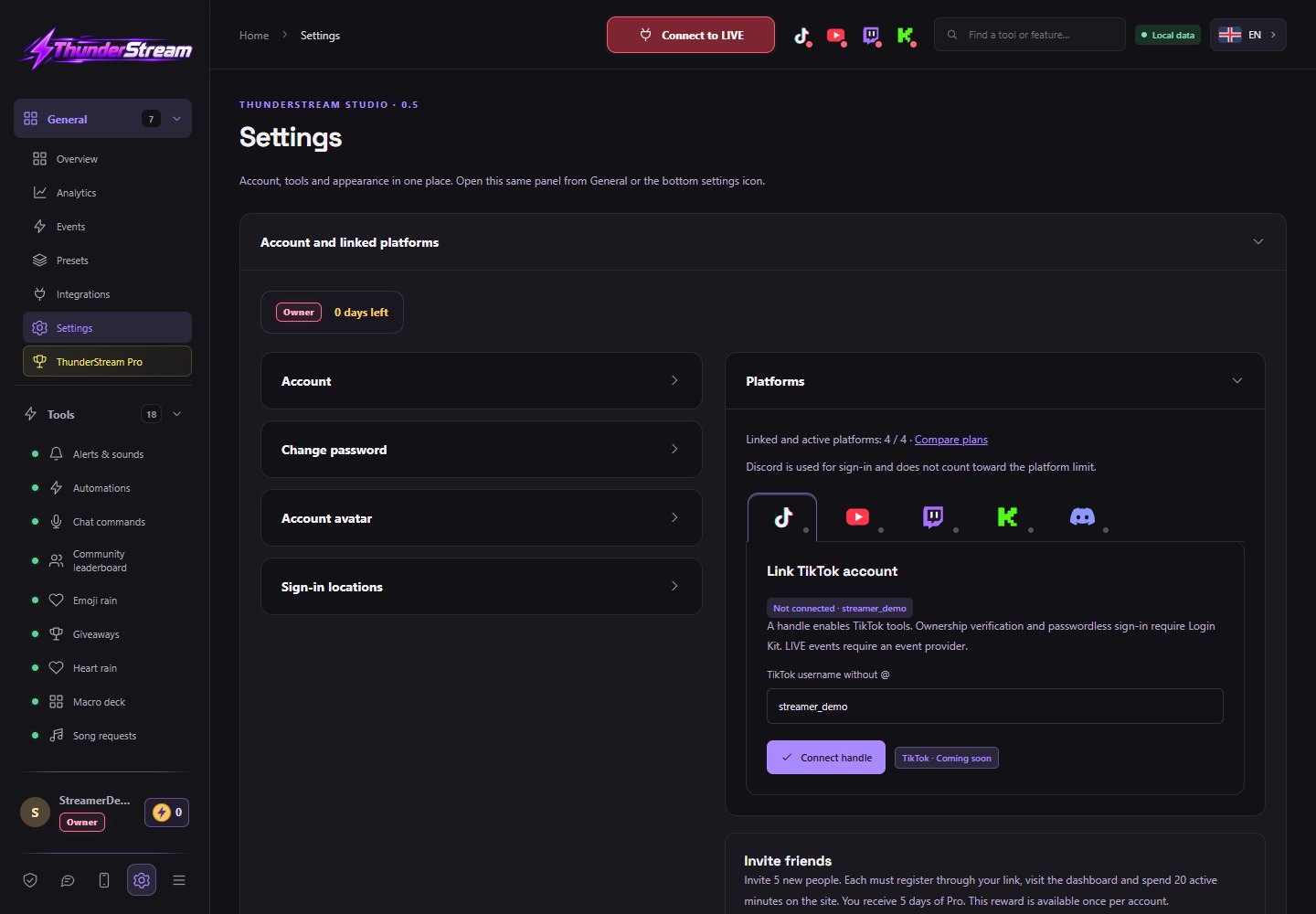
Connect TikTok, YouTube, Twitch and Kick to one panel. Receive events from active broadcasts and use them in tools and overlays.
Learn about the function and settings →Explore Thunderstream.net features: alerts, TTS, chat, music, goals, timer and overlays for TikTok, YouTube, Twitch and Kick. View settings, available variants and actual interface.
You will find LIVE tools, overlay appearance, PC program functions and account configuration in one place. This catalog describes the available opportunities and their conditions. Beta options and administrative tests are marked separately.
Connect TikTok, YouTube, Twitch and Kick to one panel. Receive events from active broadcasts and use them in tools and overlays.
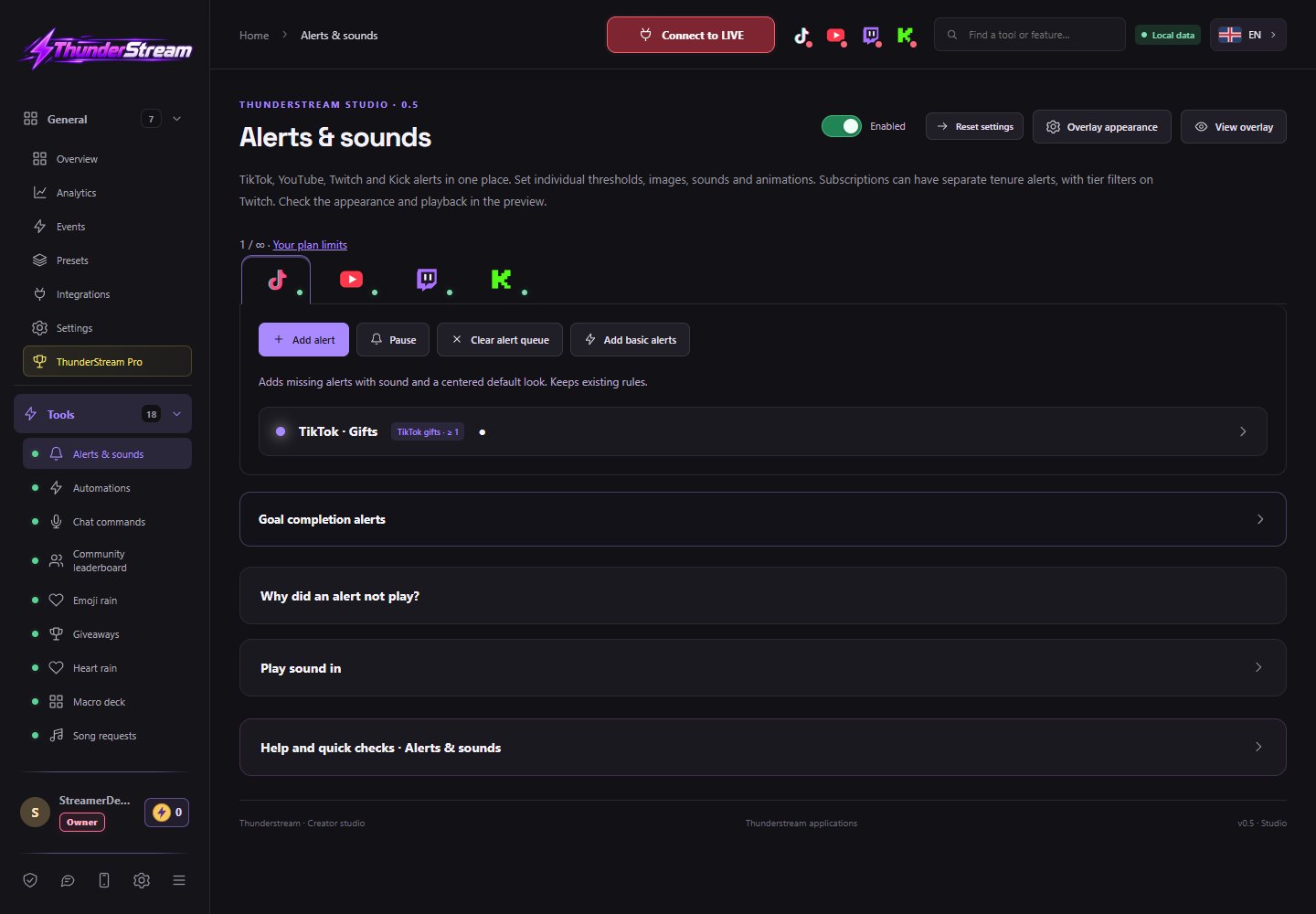
Learn about the function and settings →Create separate TikTok, YouTube, Twitch and Kick alerts. Choose the event, threshold, image, message, sound and appearance of each rule.
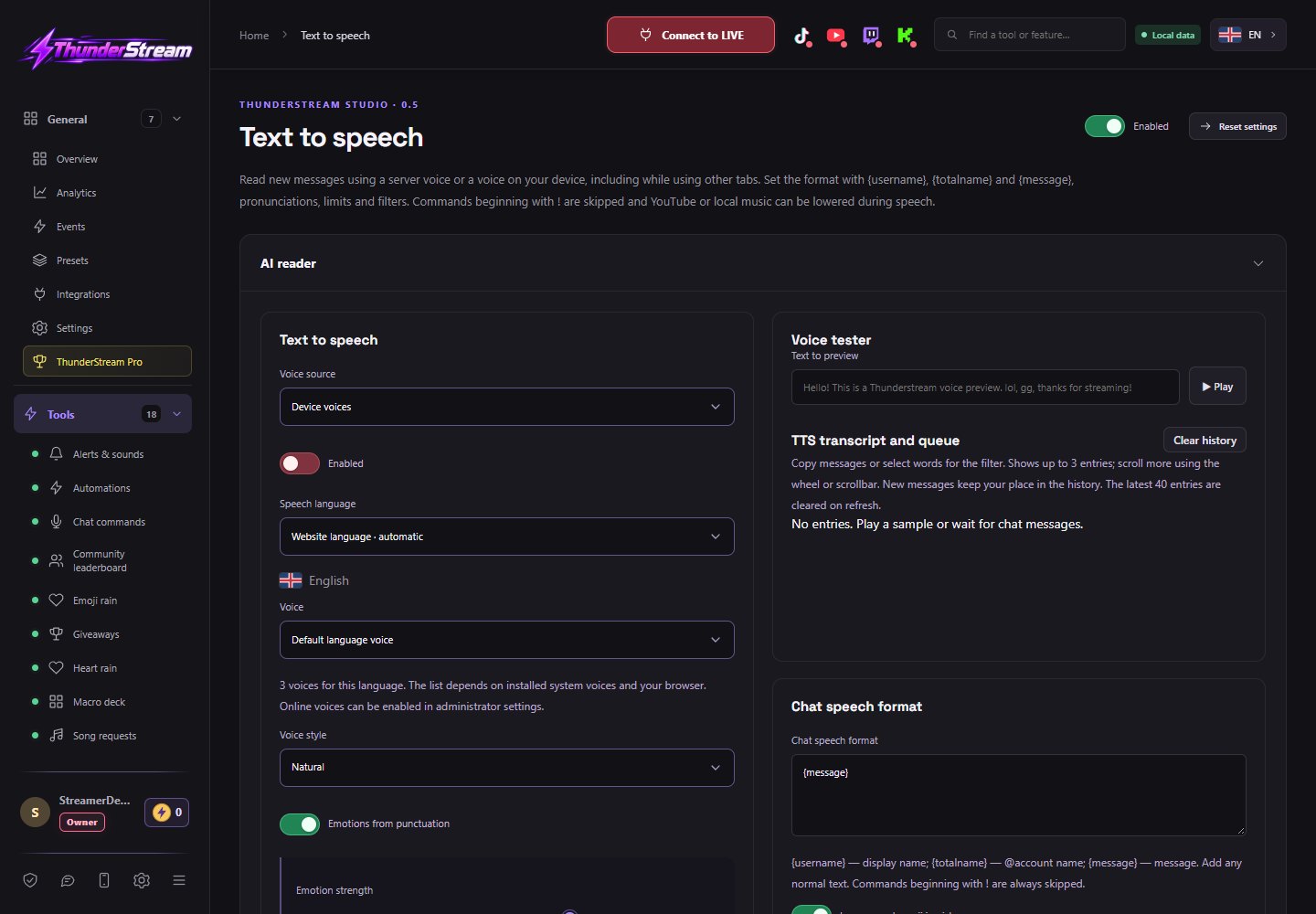
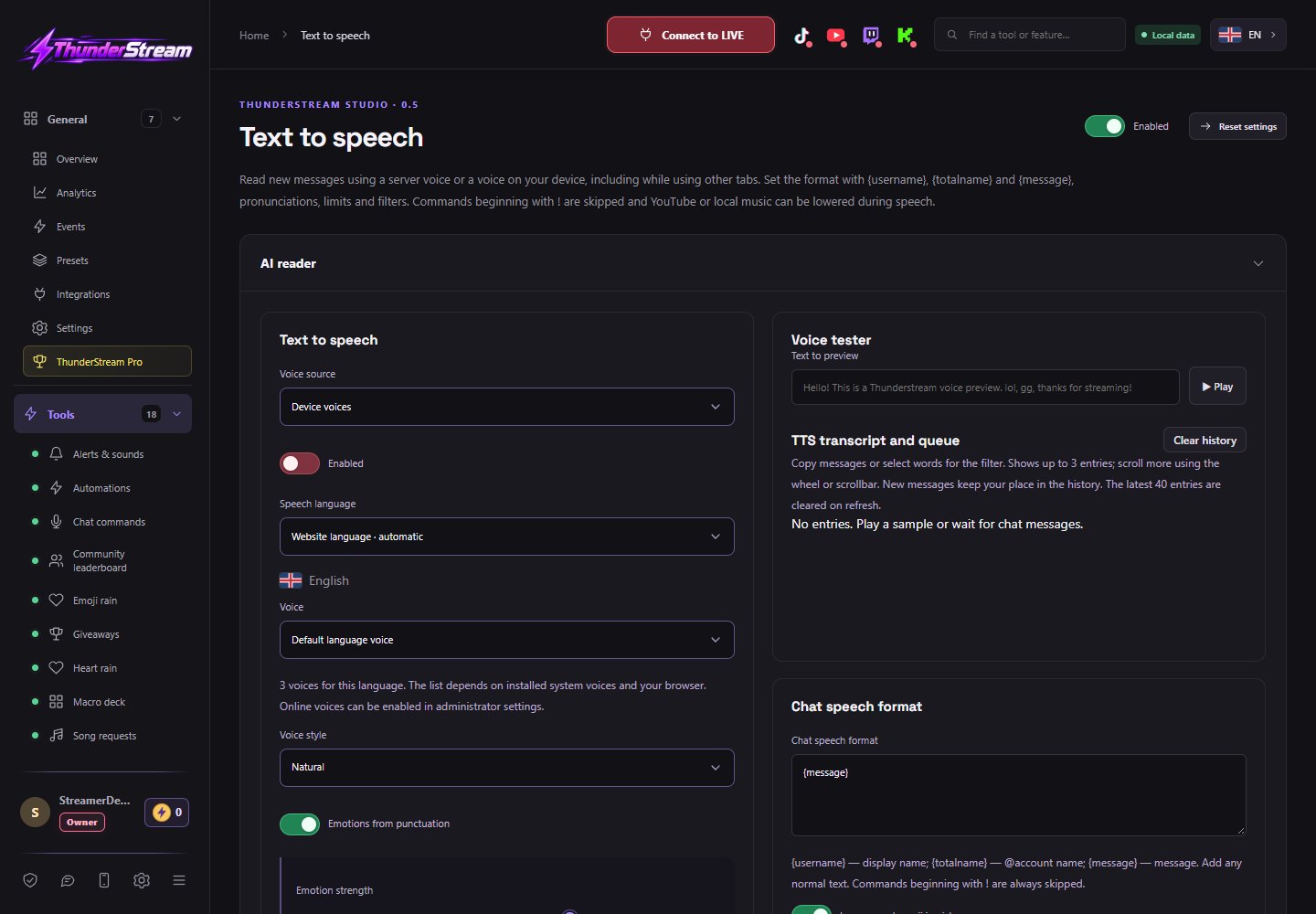
Learn about the function and settings →Read news from four platforms, control queue and votes, and route audio to the panel or source used in the broadcast.
Learn about the function and settings →Filter spam, offensive content, links and attempts to bypass the block before the message is read by the narrator.
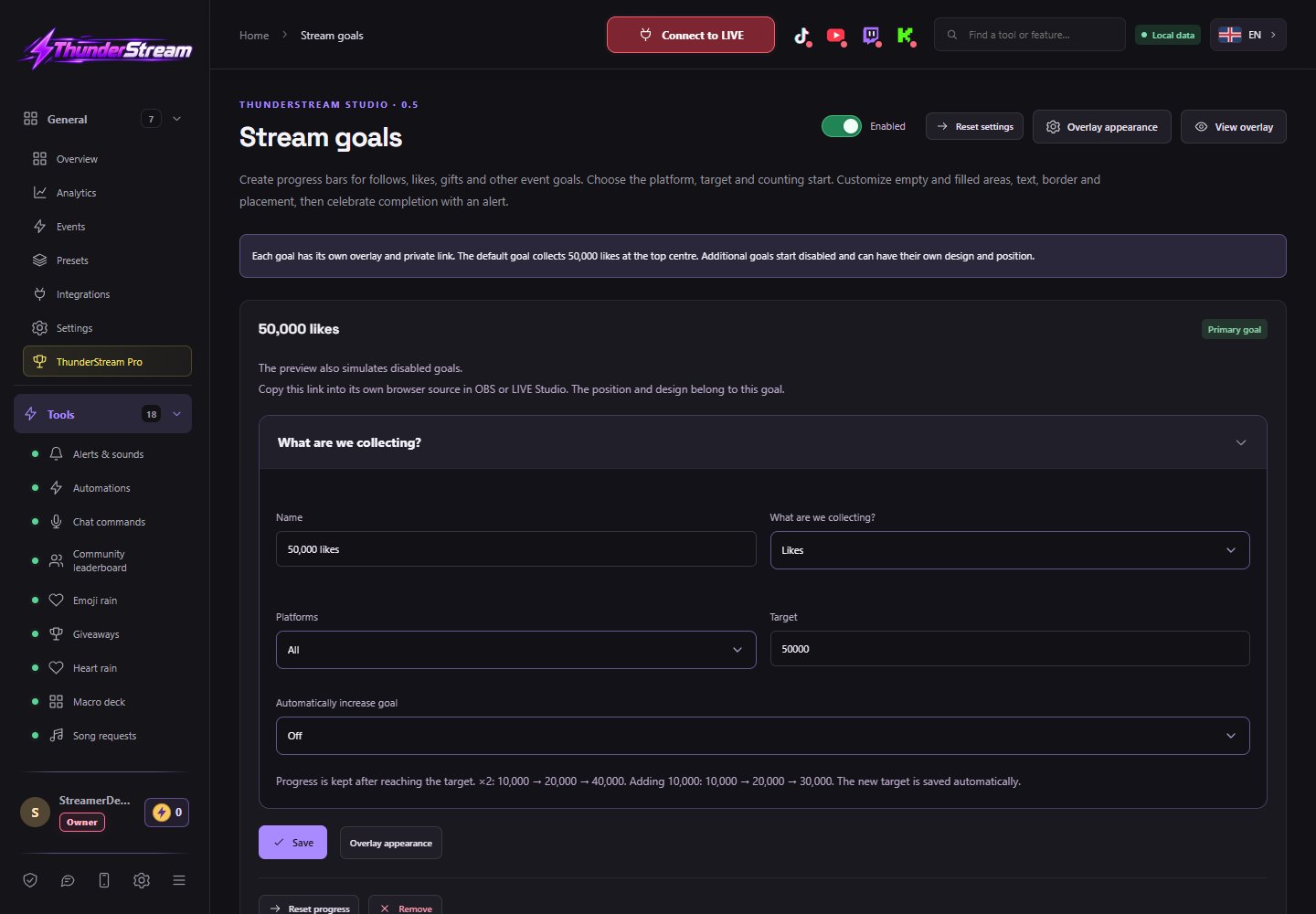
Learn about the function and settings →Build goals for likes, follows, support and other events. Show progress on overlay and automatically raise subsequent frets.
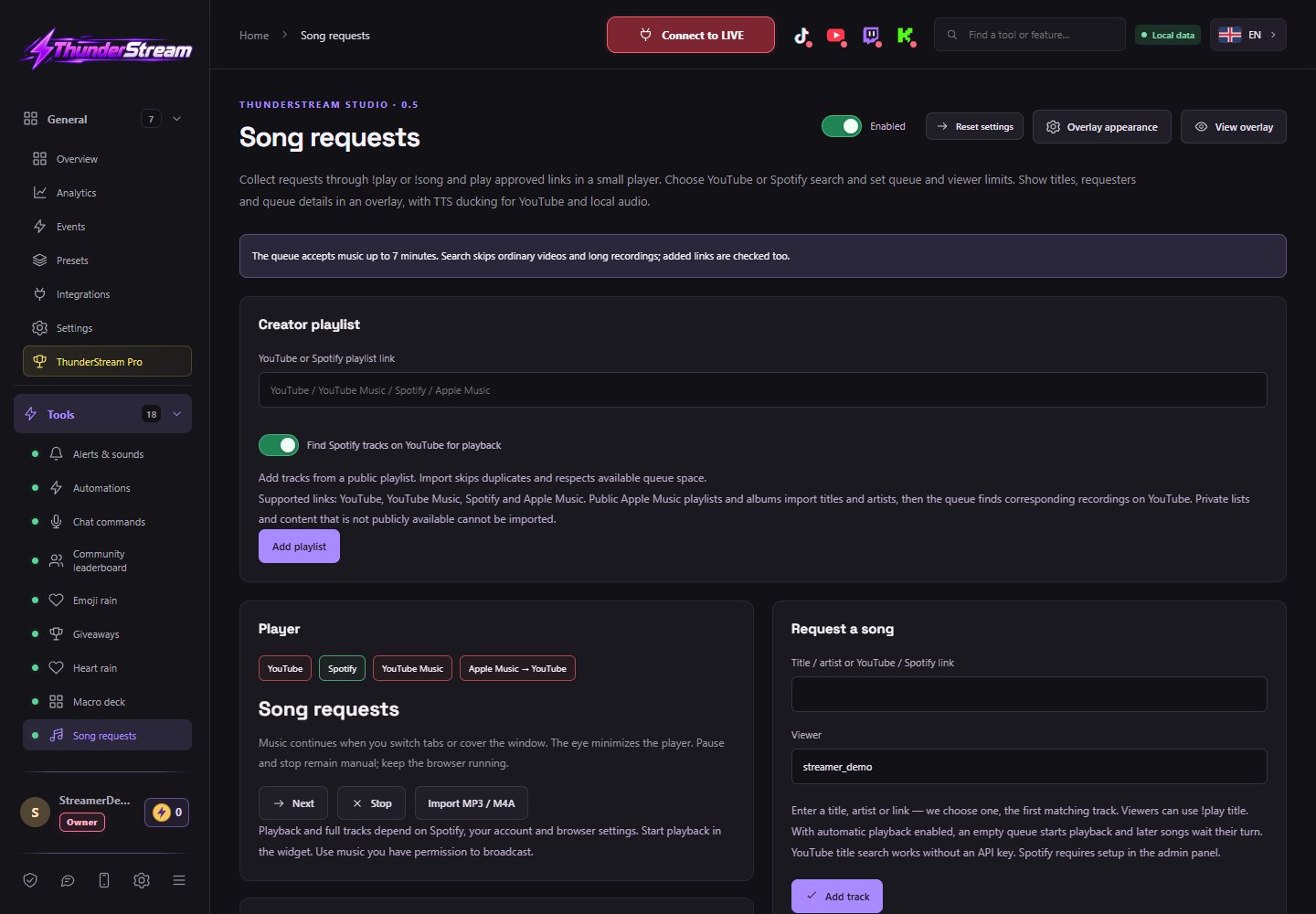
Learn about the function and settings →Accept viewer suggestions via !play, manage the order, and use your own playlist when viewers aren't adding songs.
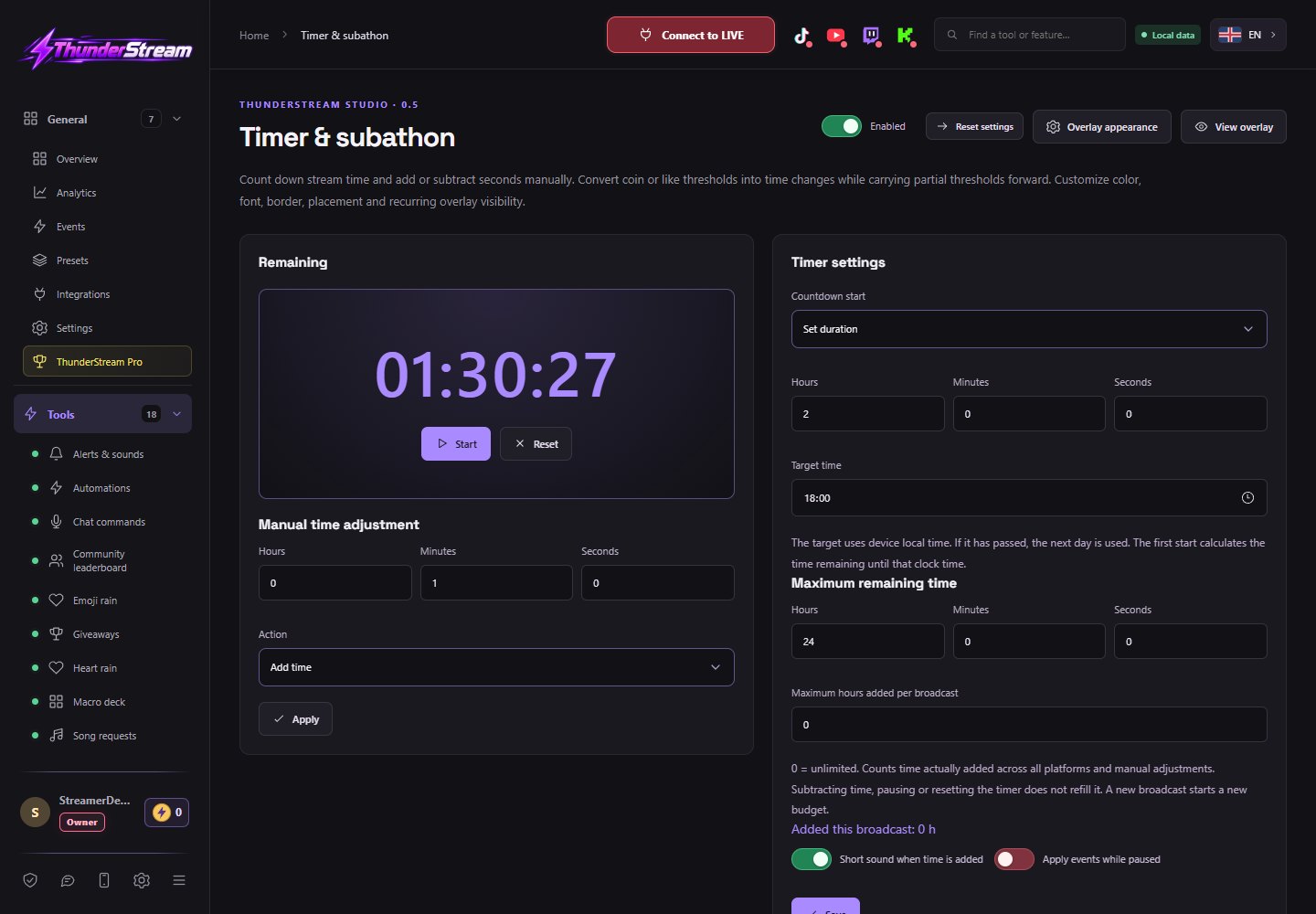
Learn about the function and settings →Start a countdown and add or subtract time with LIVE events, specific Twitch and Kick rewards, and manual changes.
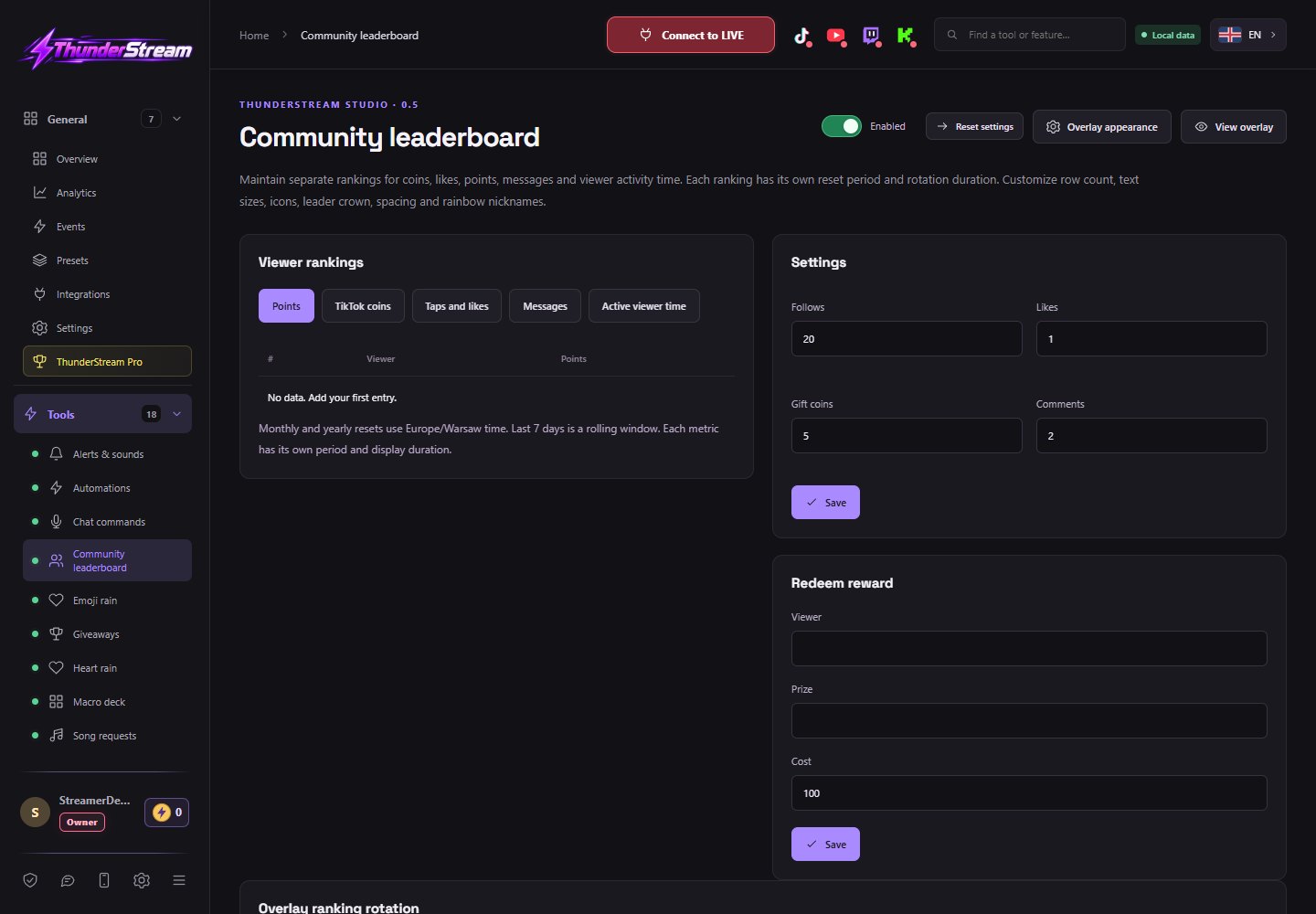
Learn about the function and settings →Recognize viewers in support, likes and activity rankings. Set periods, rotation and way of presenting results.
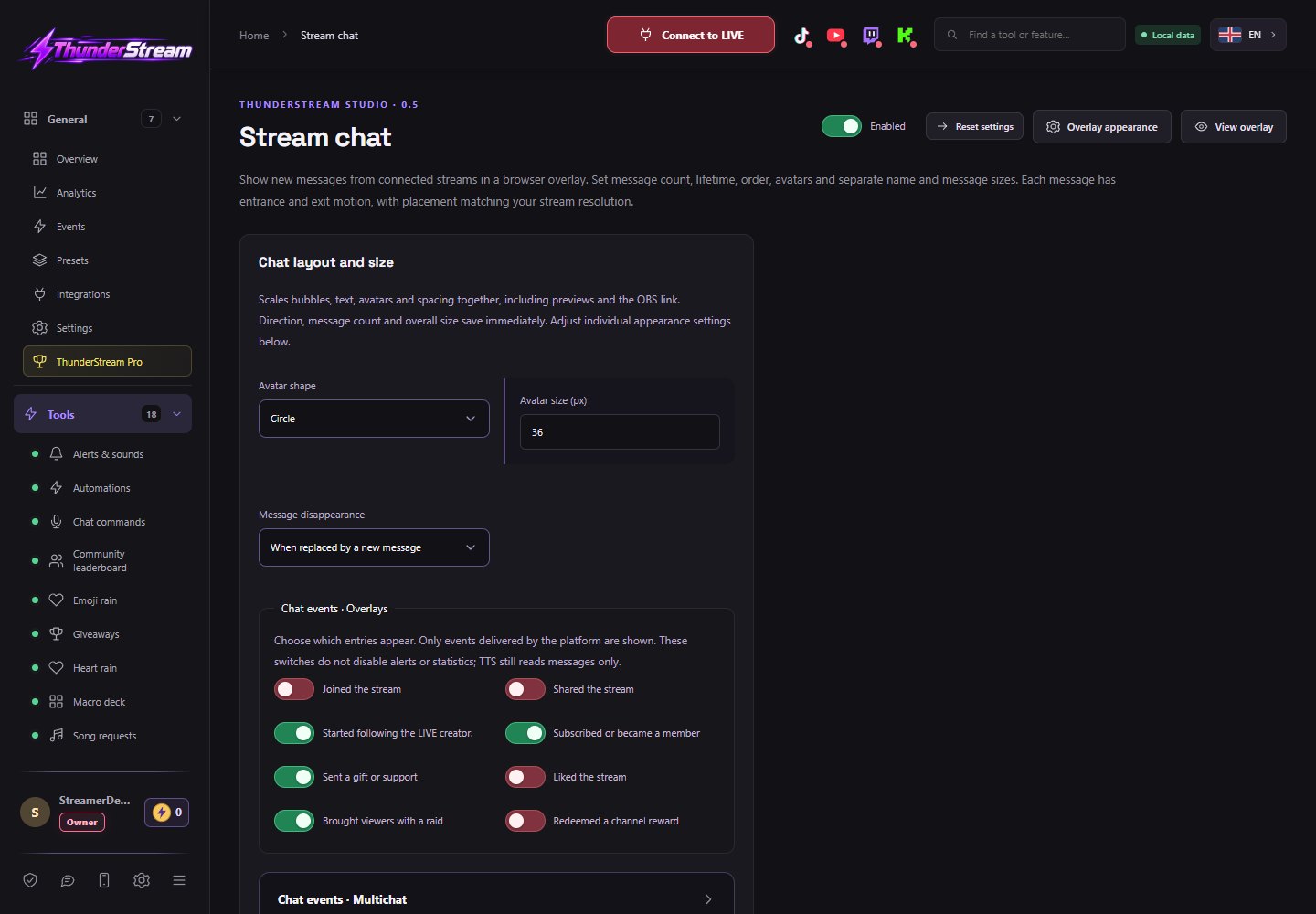
Learn about the function and settings →Show news from multiple platforms in one overlay. Customize speech bubbles, avatars, emojis, events and the behavior of disappearing posts.
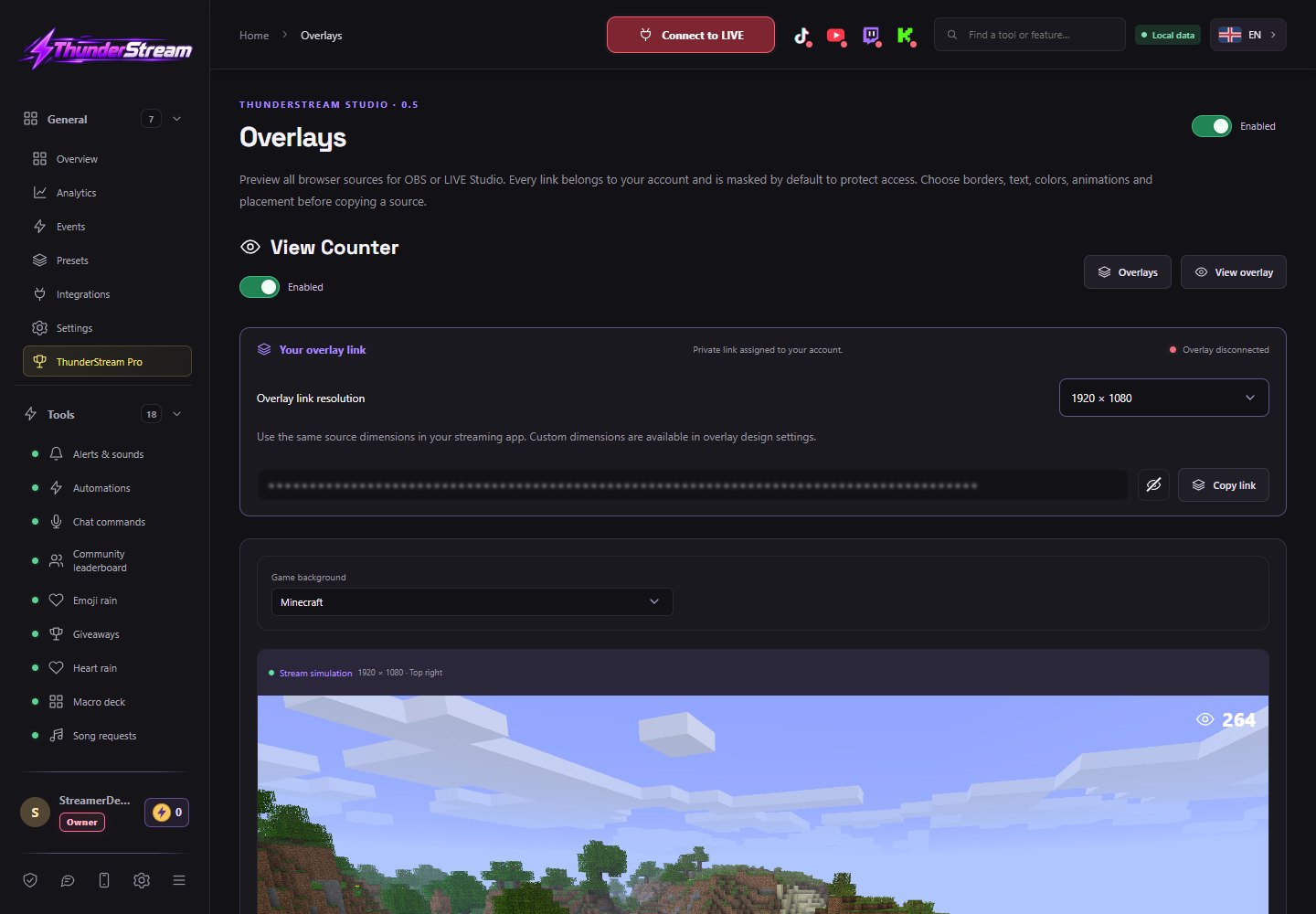
Learn about the function and settings →Display one count of people watching now on selected connected platforms.
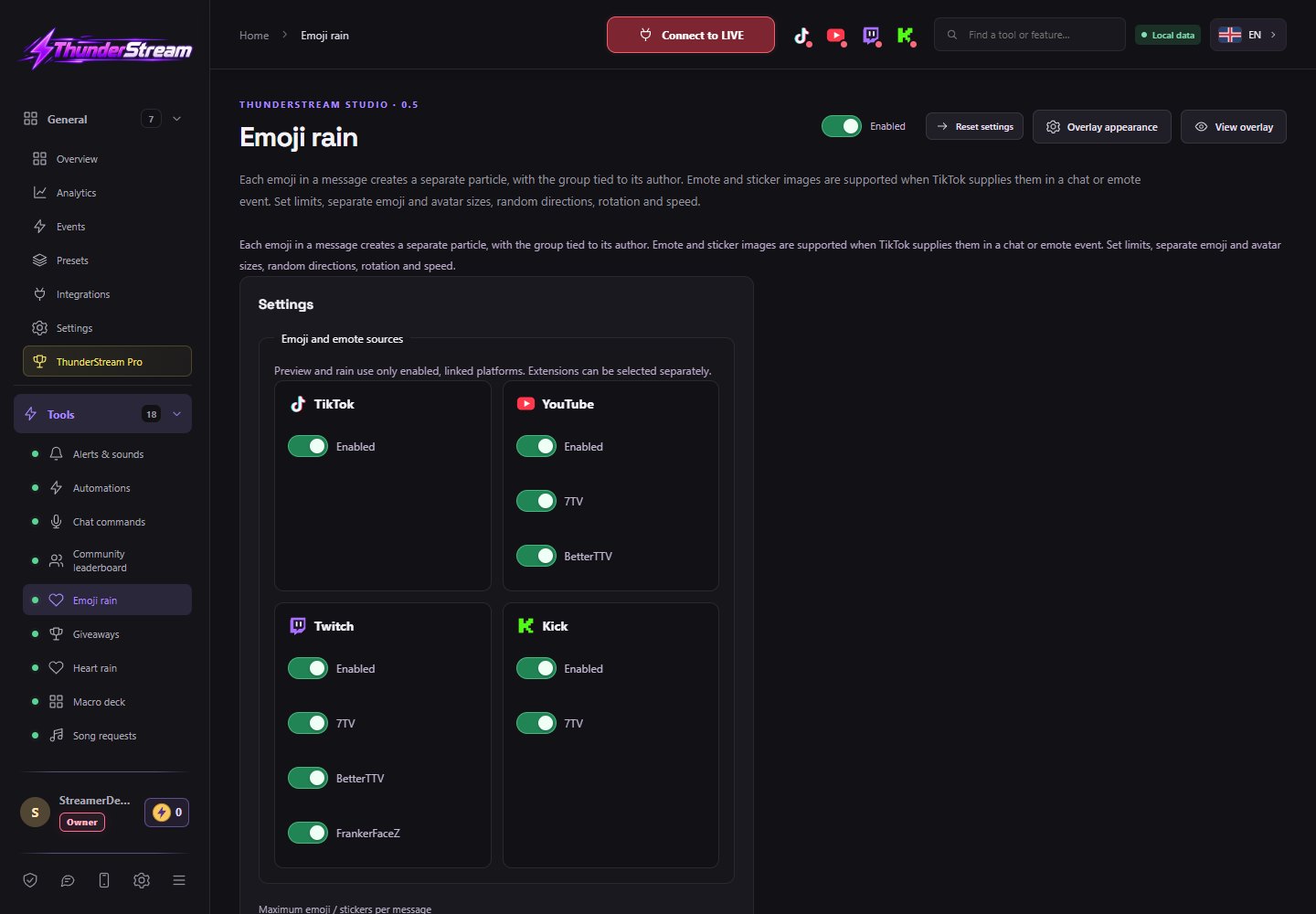
Learn about the function and settings →Turn viewer emojis into animated particles on your stream and select sources for each platform.
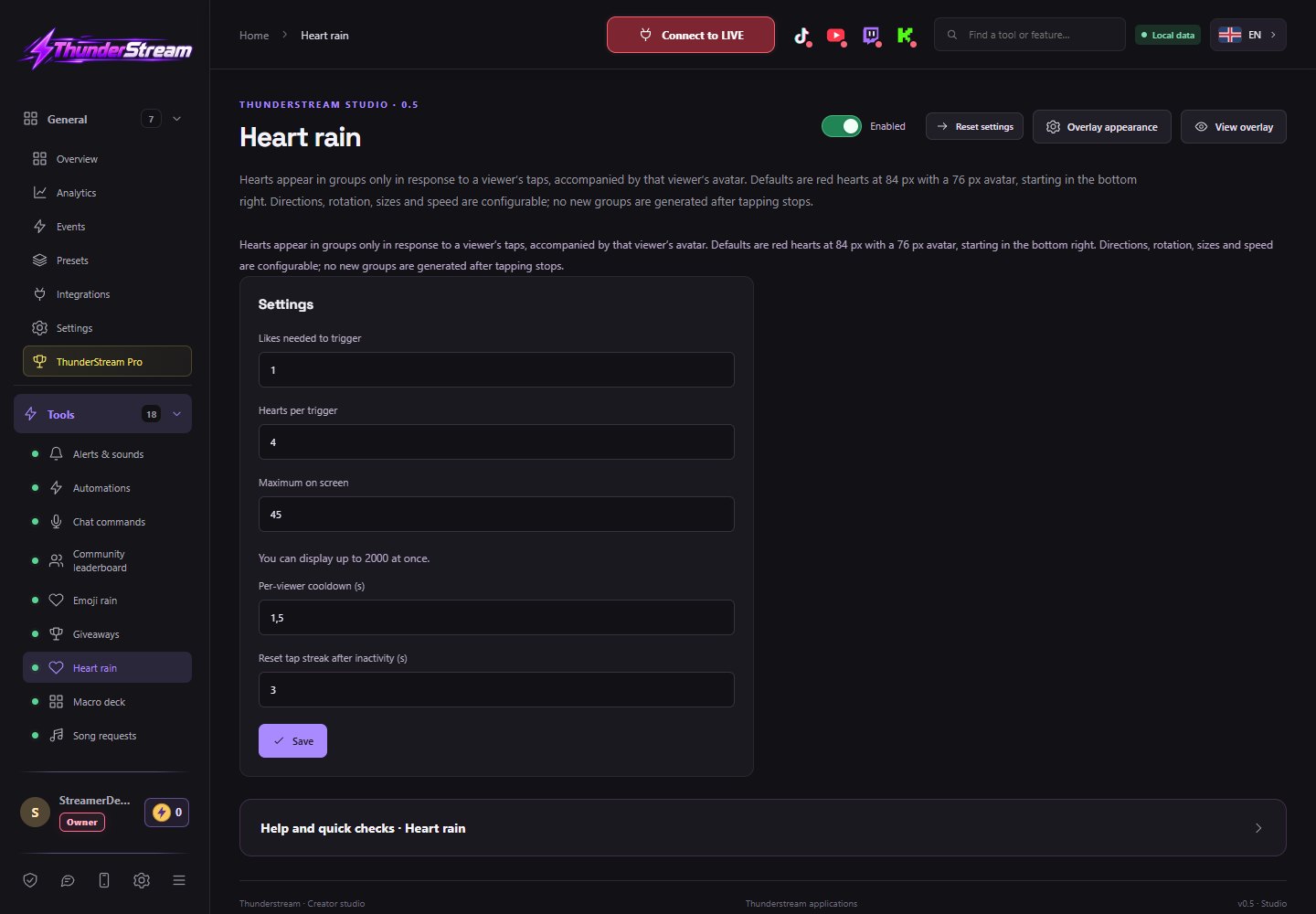
Learn about the function and settings →Trigger animated hearts when you reach the activity threshold and adjust their number, direction and appearance.
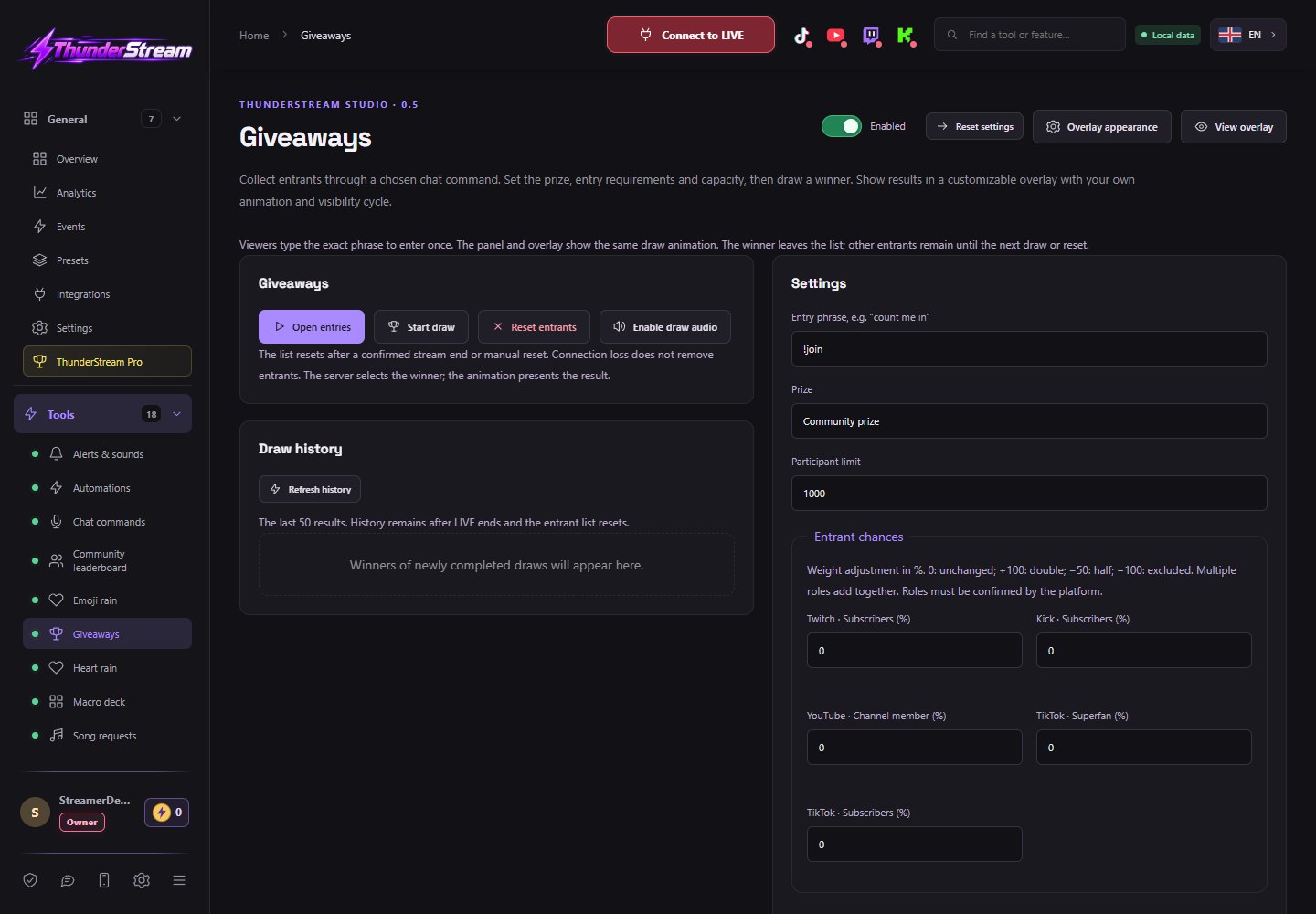
Learn about the function and settings →Collect participants from the chat, match their odds and present the draw and winner on the overlay.
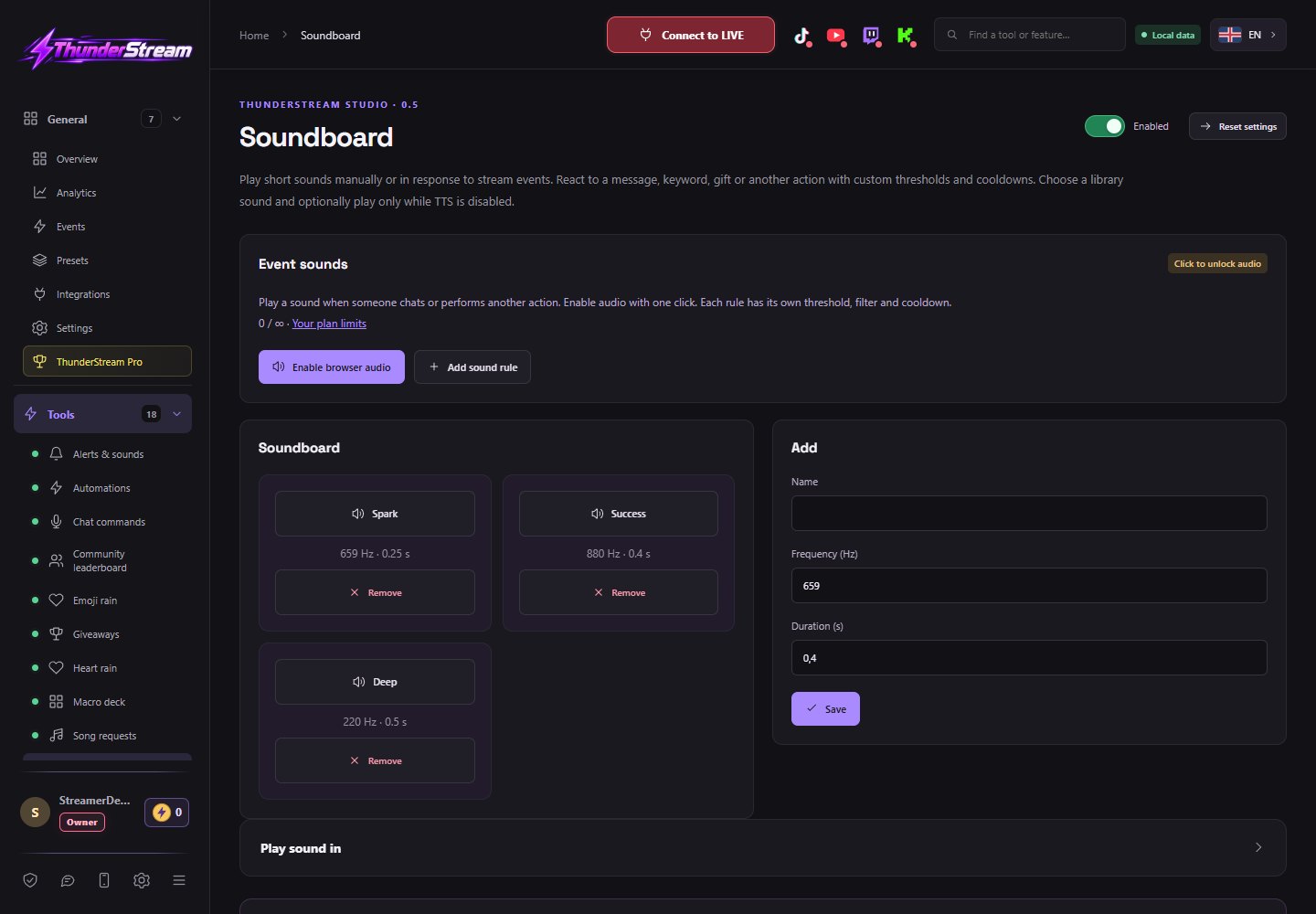
Learn about the function and settings →Trigger sounds with a button or event rule and choose which audio source they should go to.
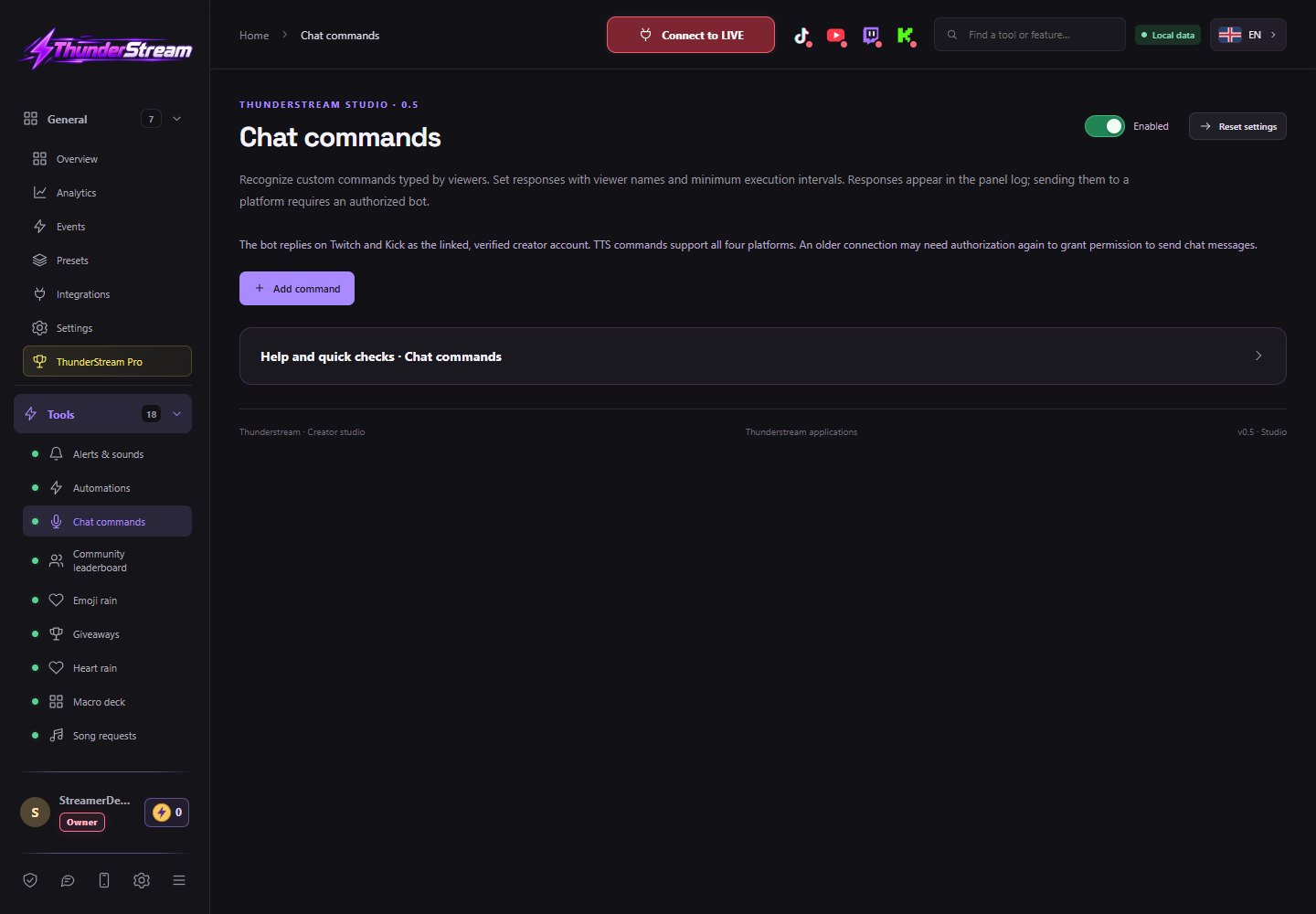
Learn about the function and settings →Define your own commands, role permissions and voice or text responses.
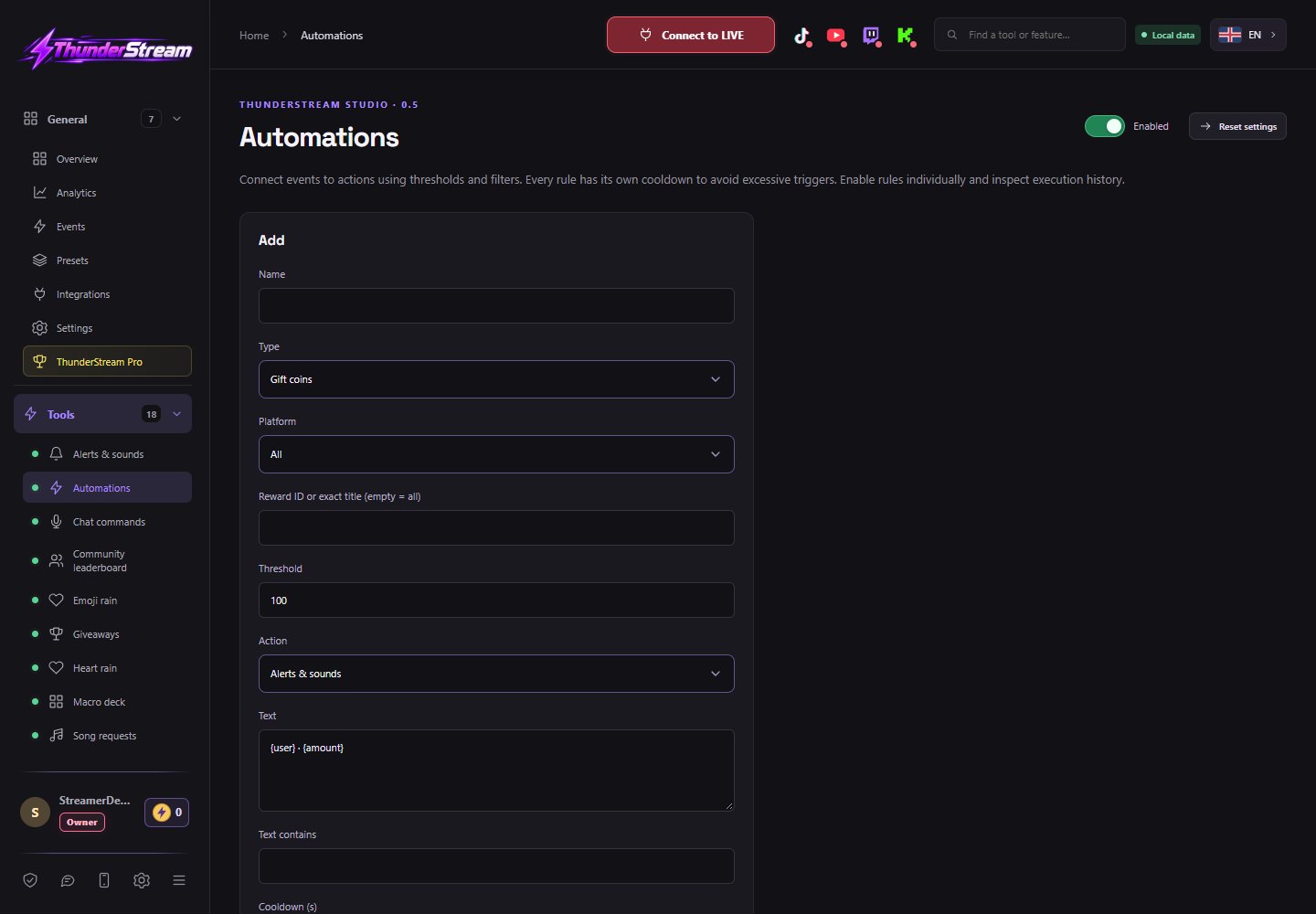
Learn about the function and settings →Link broadcast events to a message, TTS, or other supported action.
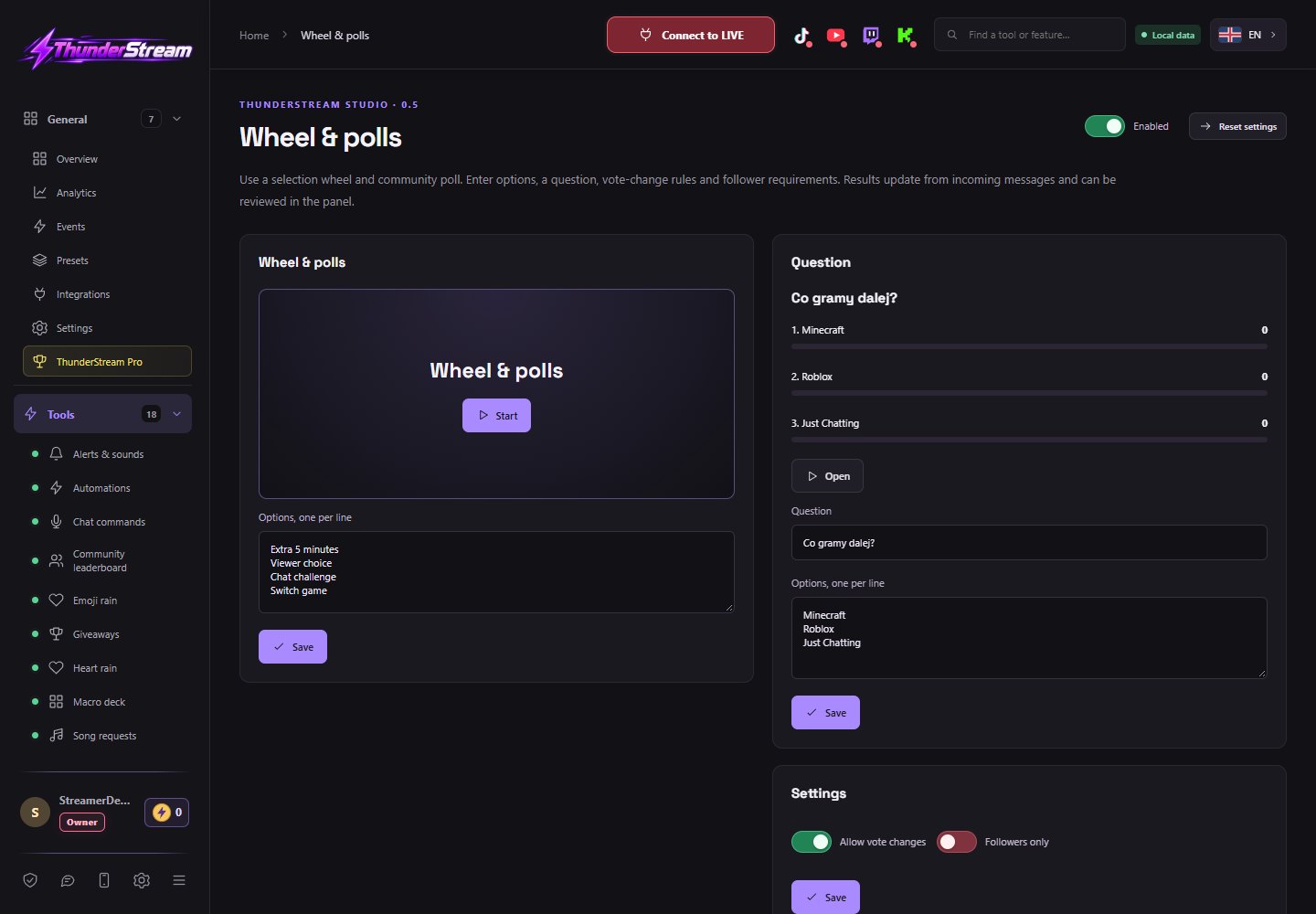
Learn about the function and settings →Prepare a list of options for drawing or voting guided by viewer messages.
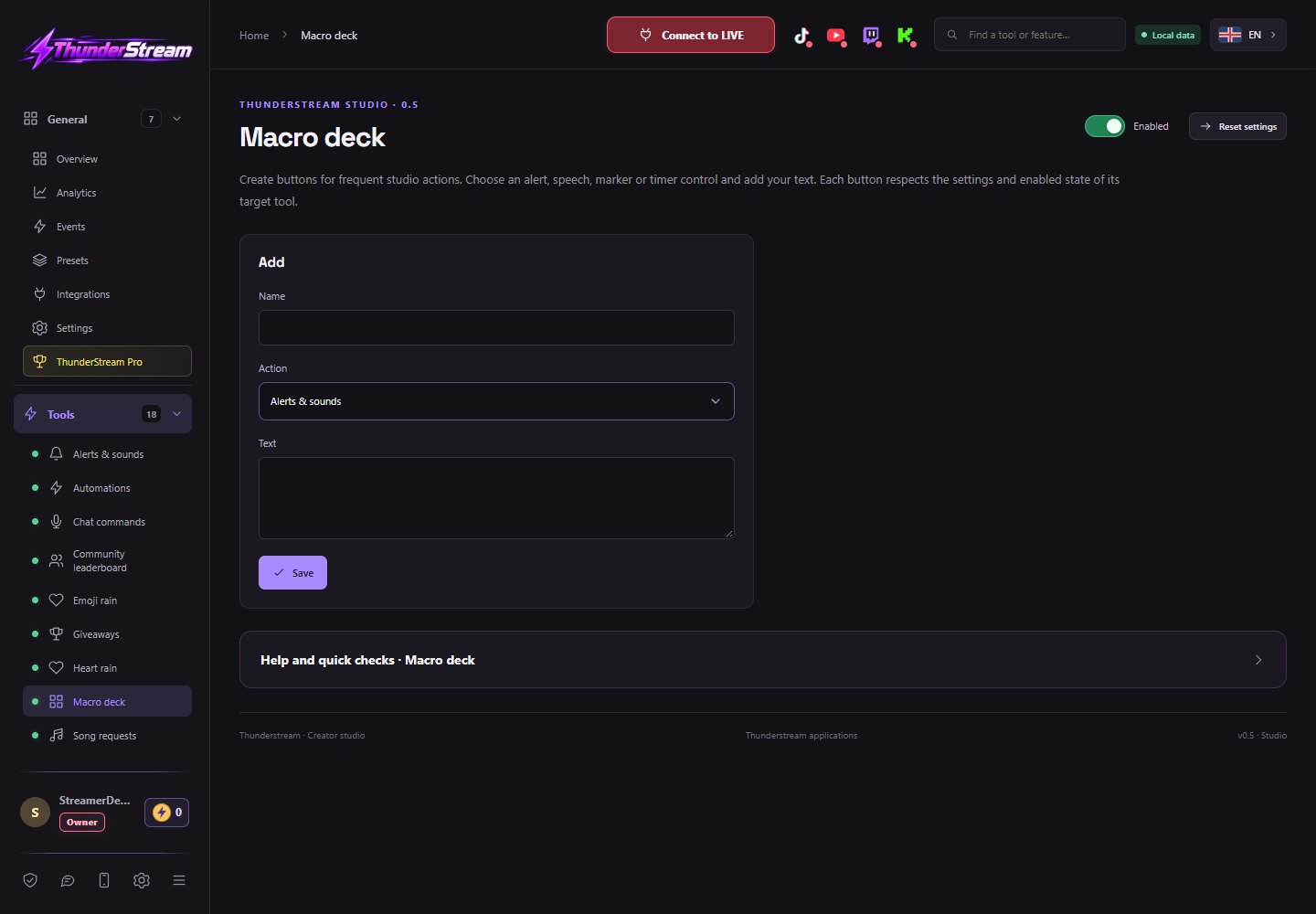
Learn about the function and settings →Prepare your own buttons for frequent actions during the broadcast.
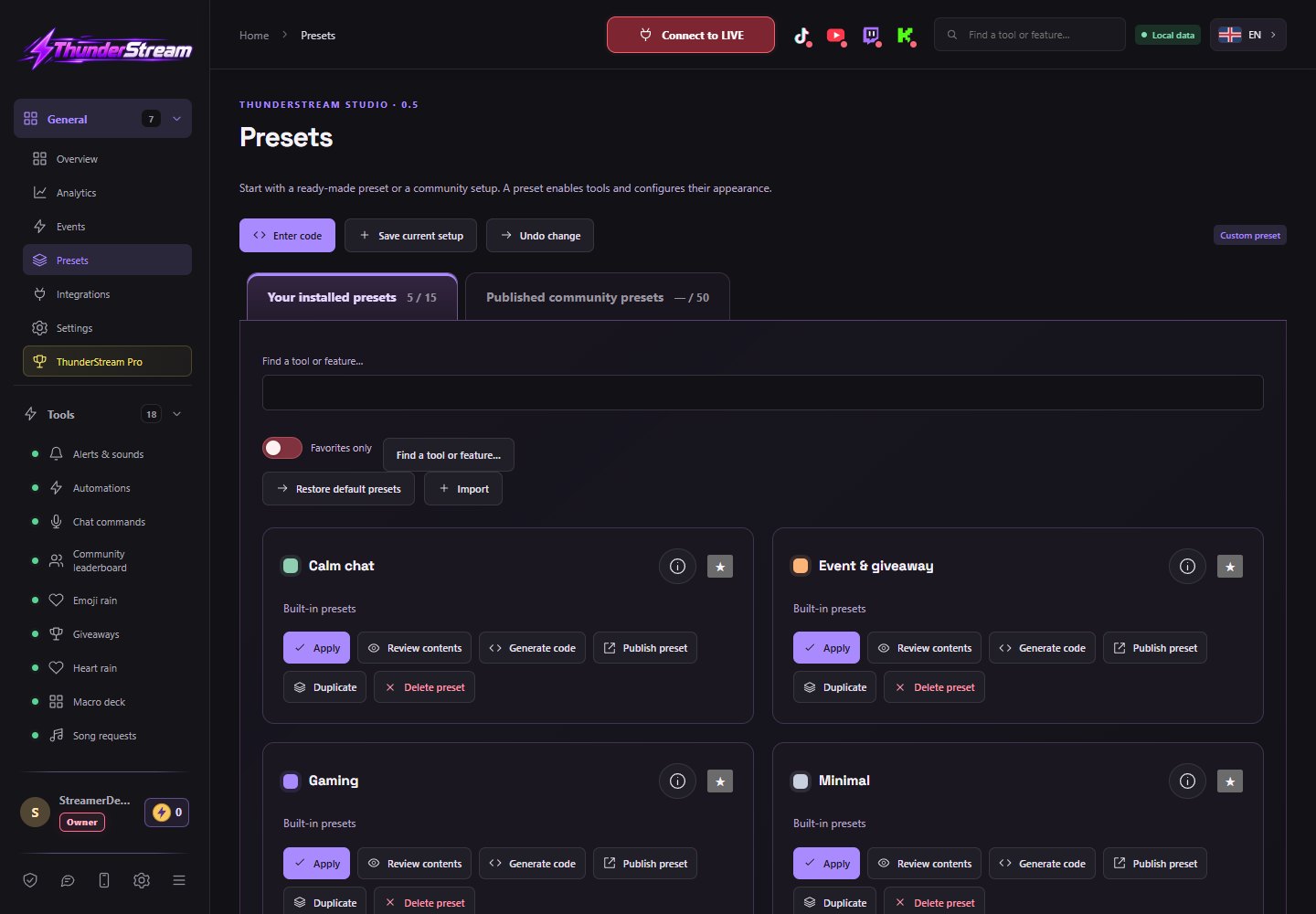
Learn about the function and settings →Install ready-made configurations and share your own kits with the community via shortcode.
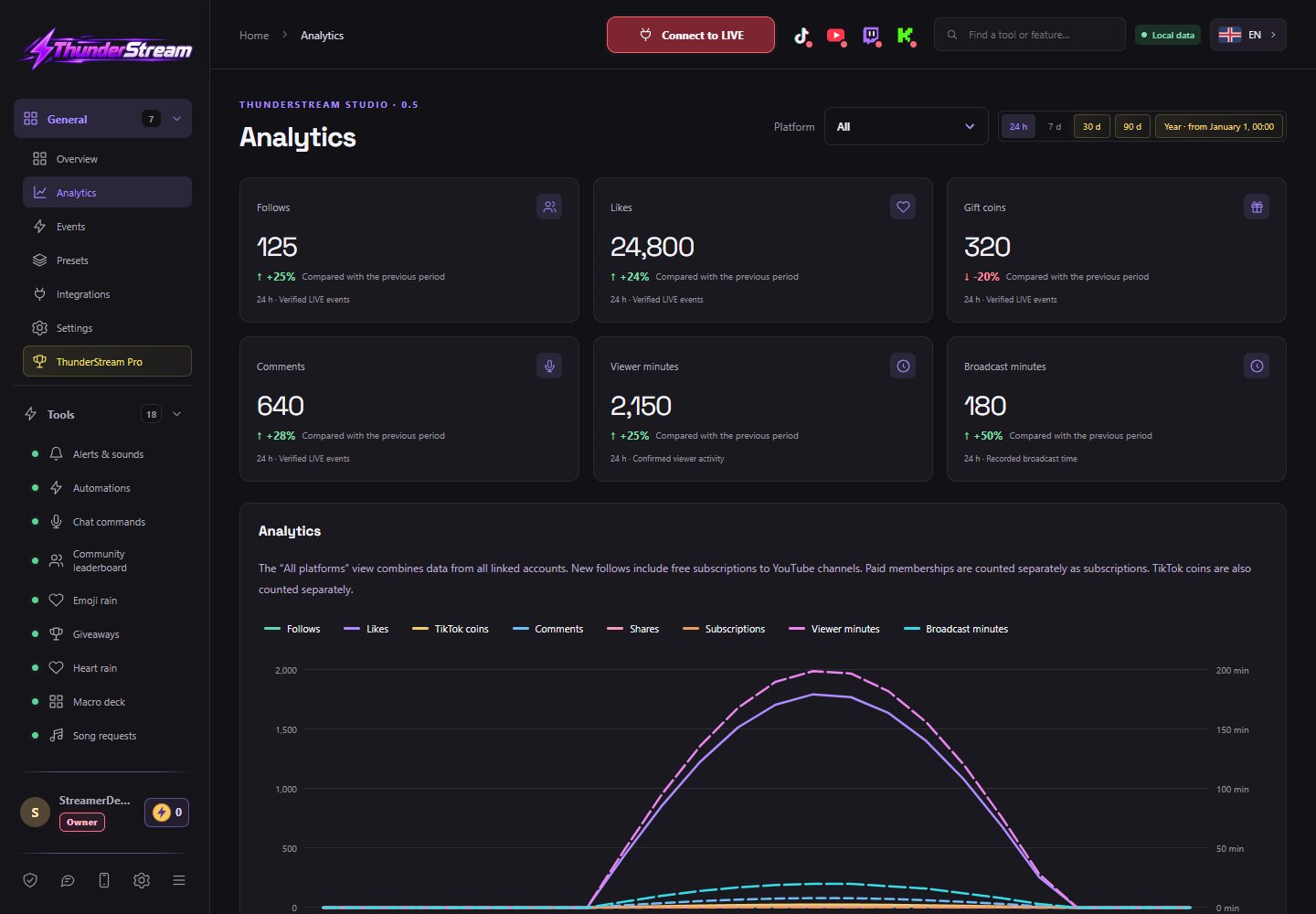
Learn about the function and settings →Compare platform activity, time charts and archived viewer results.
Learn about the function and settings →Check the messages, gifts and other events you receive and why you performed or skipped a reaction.
Learn about the function and settings →Manage account connections and consents that share data with Thunderstream features.
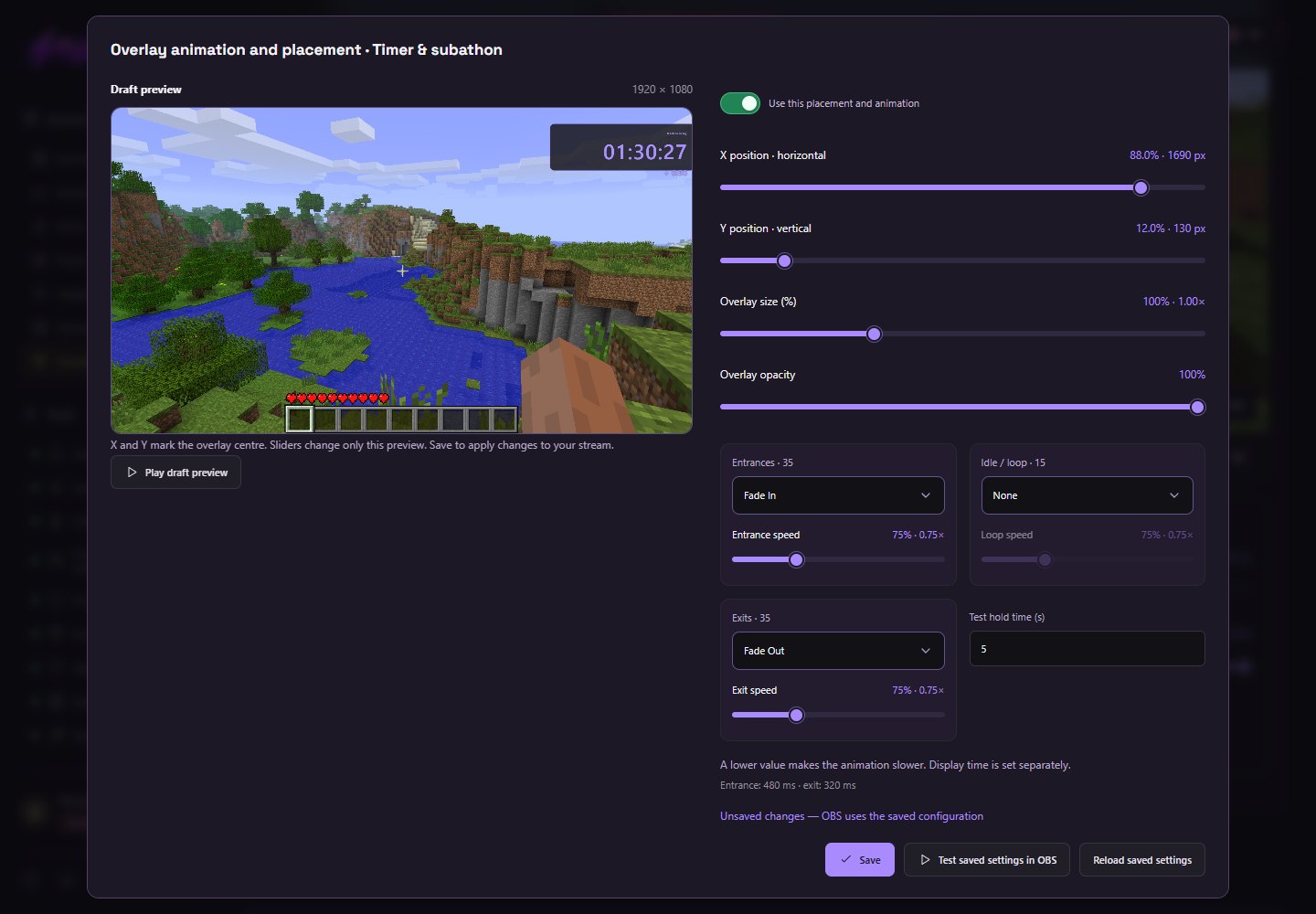
Learn about the function and settings →Edit the appearance and test browser sources for OBS and TikTok LIVE Studio, maintaining separate rules for how the tools work.
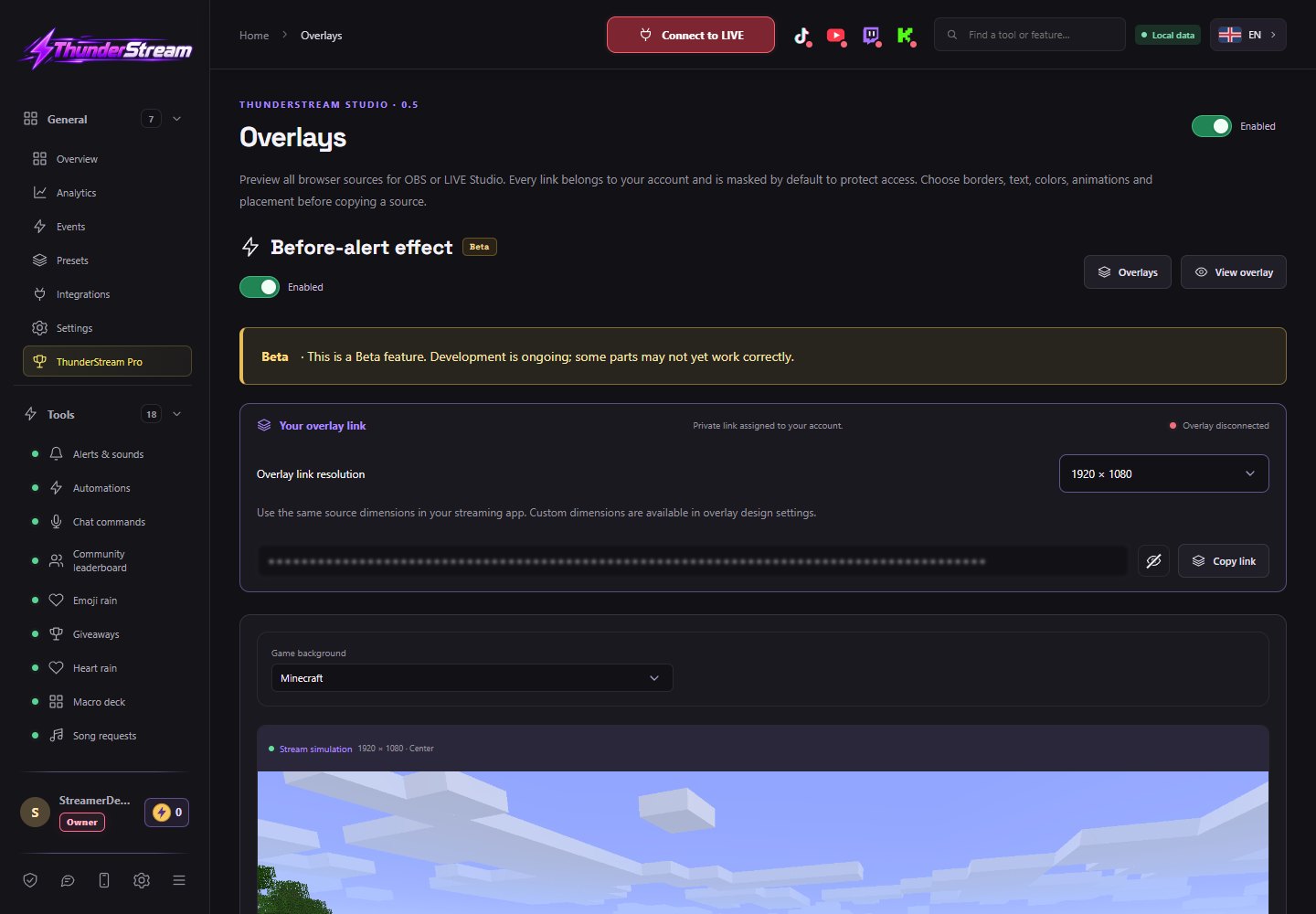
Learn about the function and settings →Create a multi-stage screen effect preceding selected alerts: fire, neon or disco.
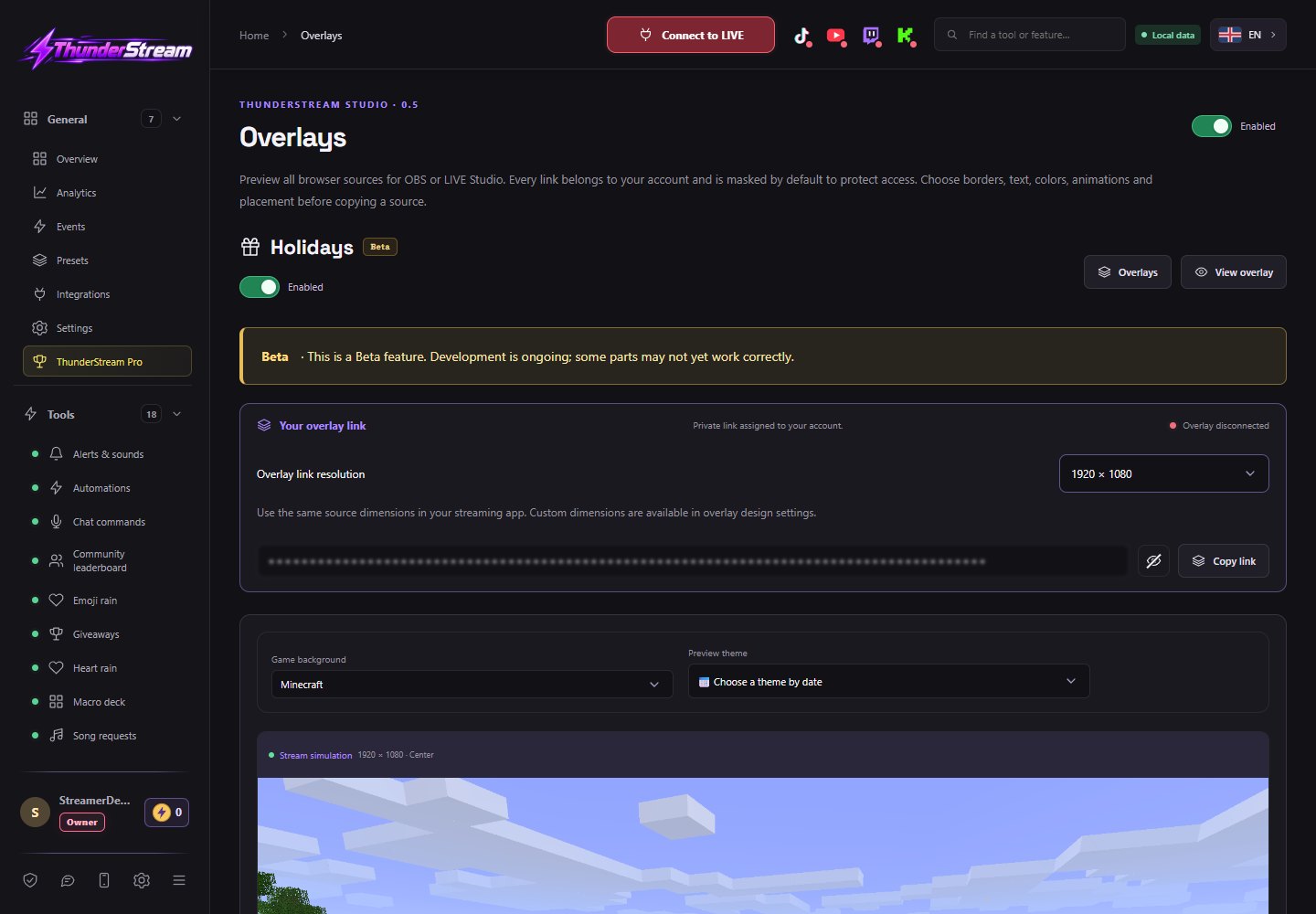
Learn about the function and settings →Add seasonal decorations and animated events to your broadcast by selecting the holidays you celebrate.
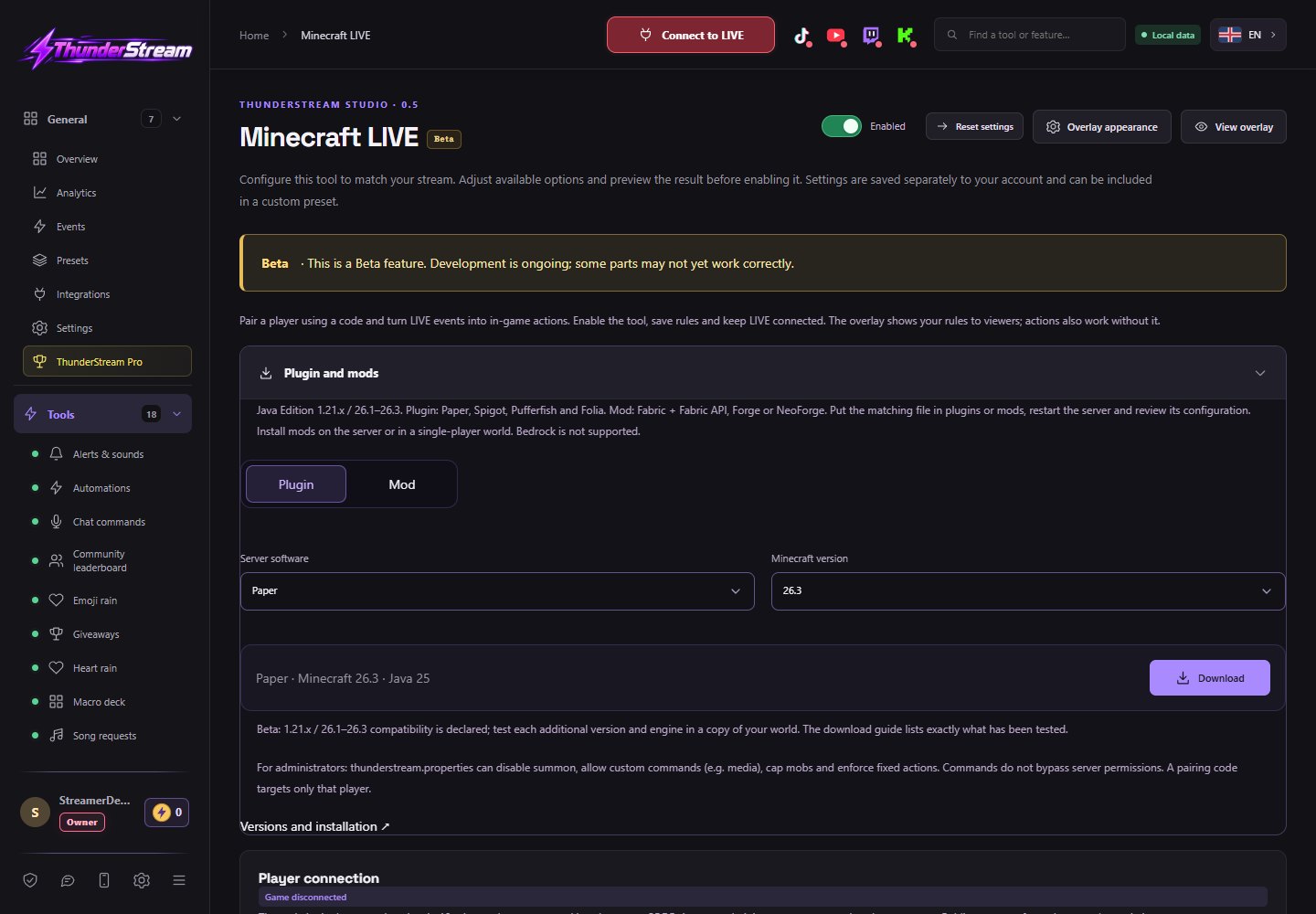
Learn about the function and settings →Link viewer events to Minecraft commands and show available actions as badges on your stream.
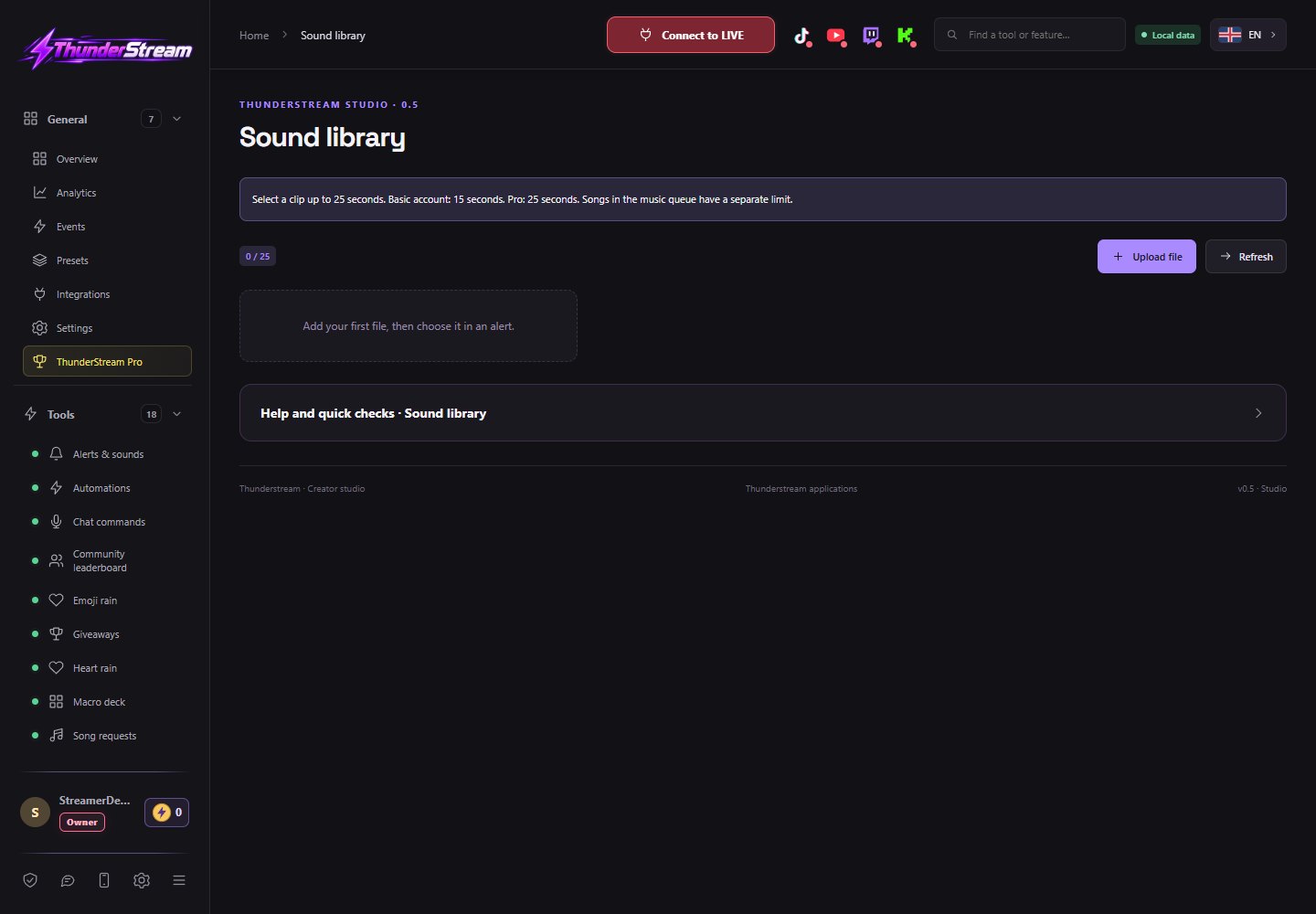
Learn about the function and settings →Store your own materials and use a selection of external sources when configuring tools.
Learn about the function and settings →Change your account, connected platforms, studio look and security without mixing them with the look of your overlays.
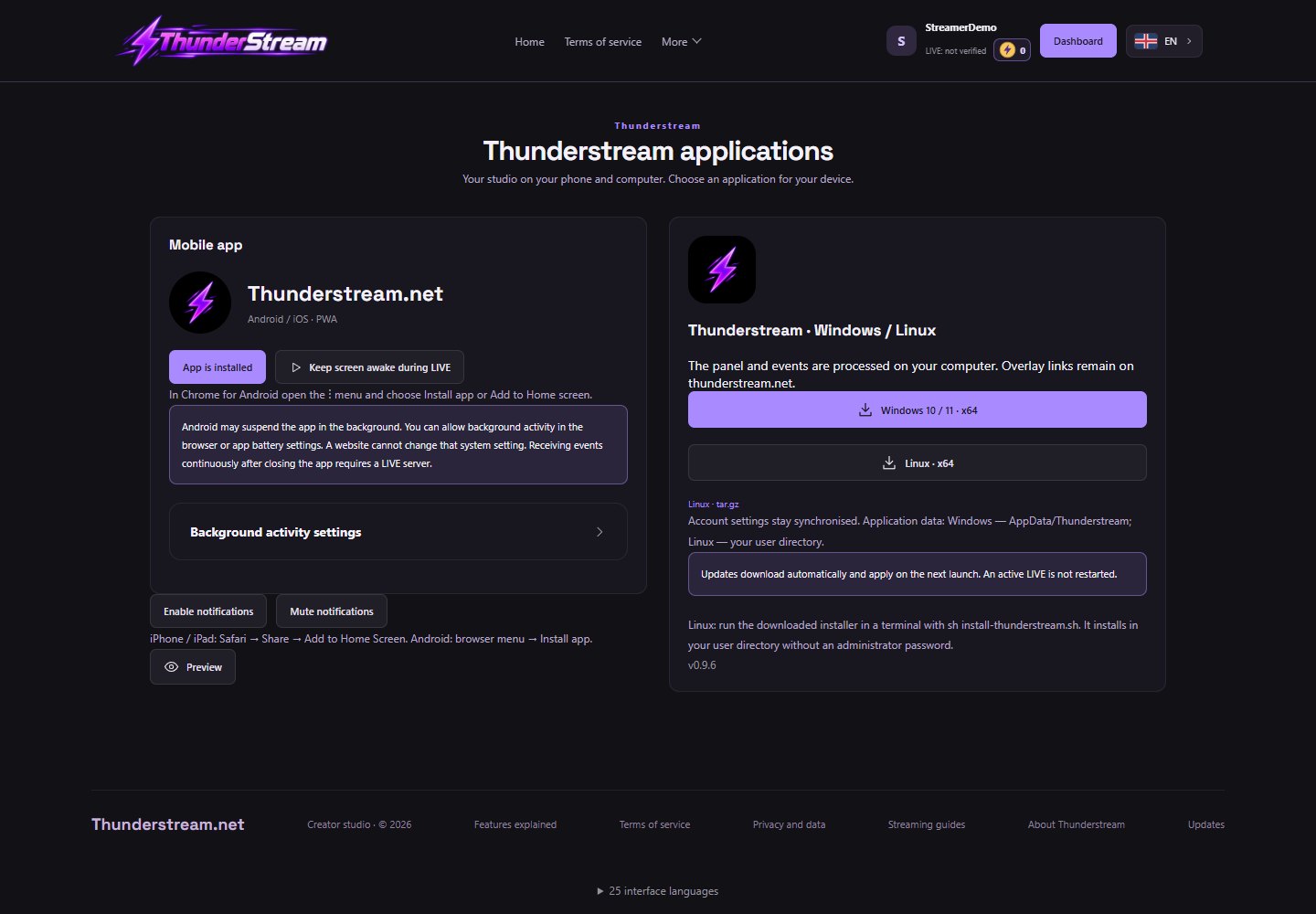
Learn about the function and settings →Use the mobile app as a preview and the Windows or Linux program as a desktop studio.
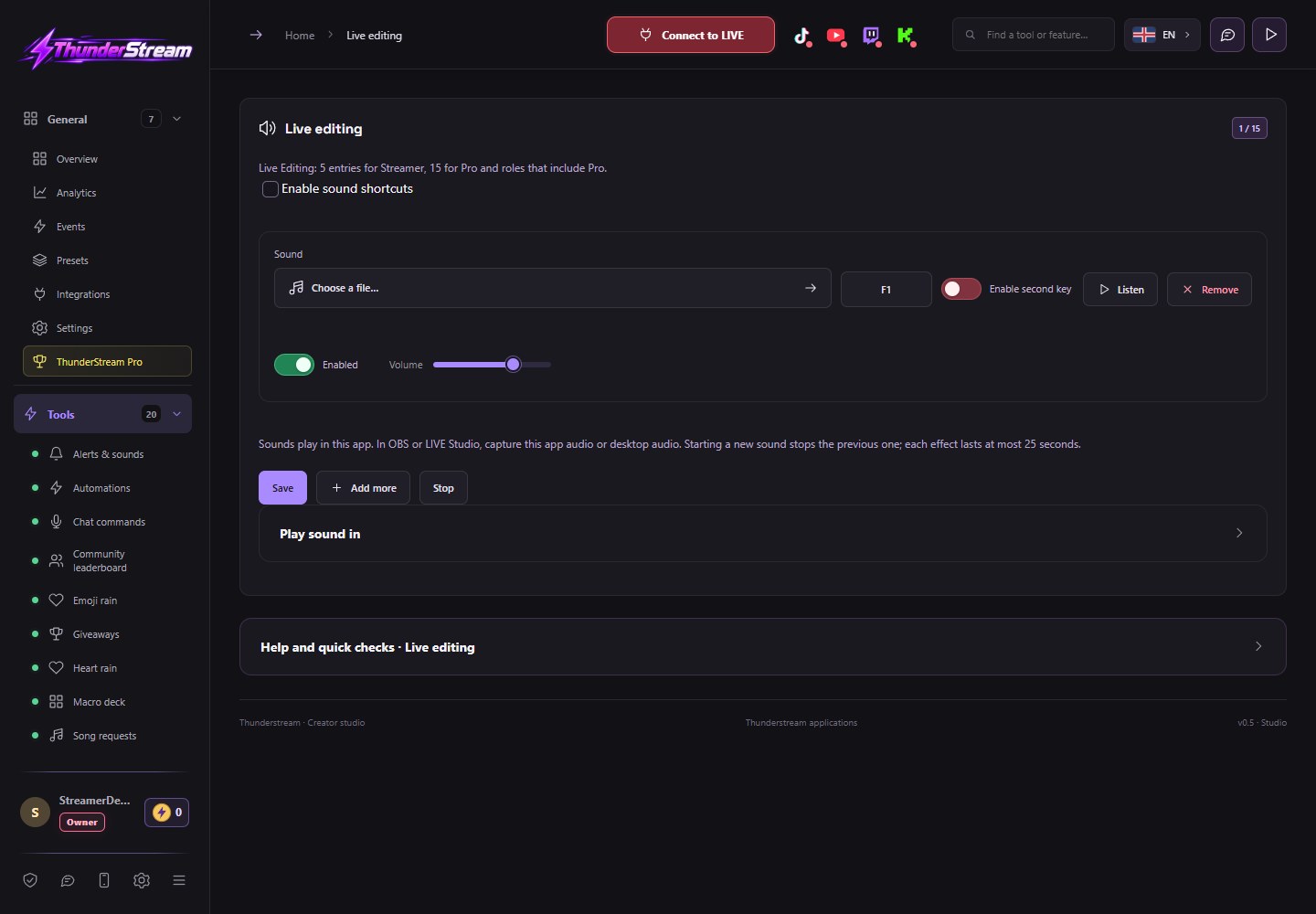
Learn about the function and settings →Assign sounds to your own keys and activate them while broadcasting.
Learn about the function and settings →Record transmission moments using a keyboard shortcut in cooperation with OBS.
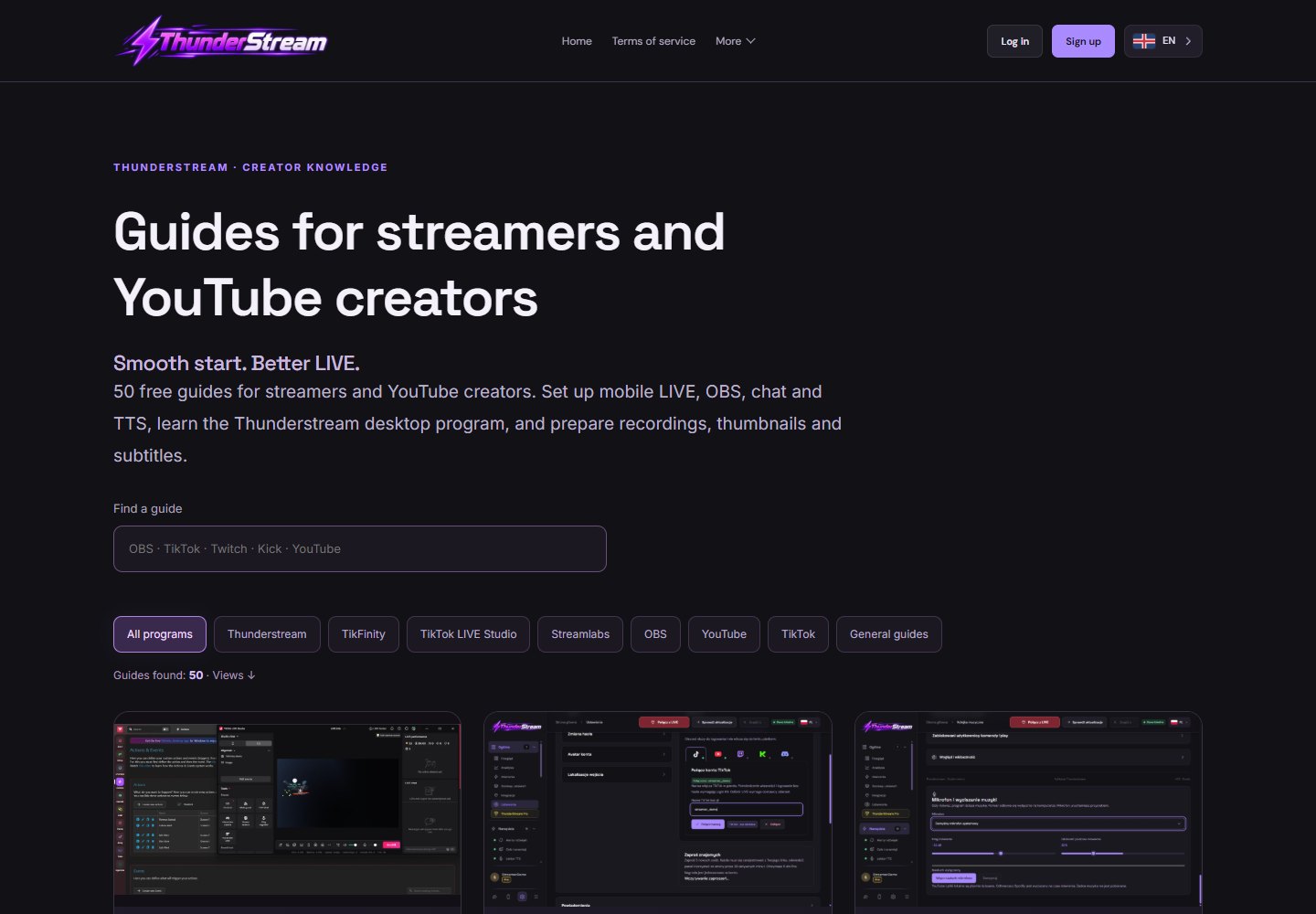
Learn about the function and settings →Read instructions on broadcast setup, tools and content creation in 25 languages.
Learn about the function and settings →Change the language of the panel, website and guides in one common place.
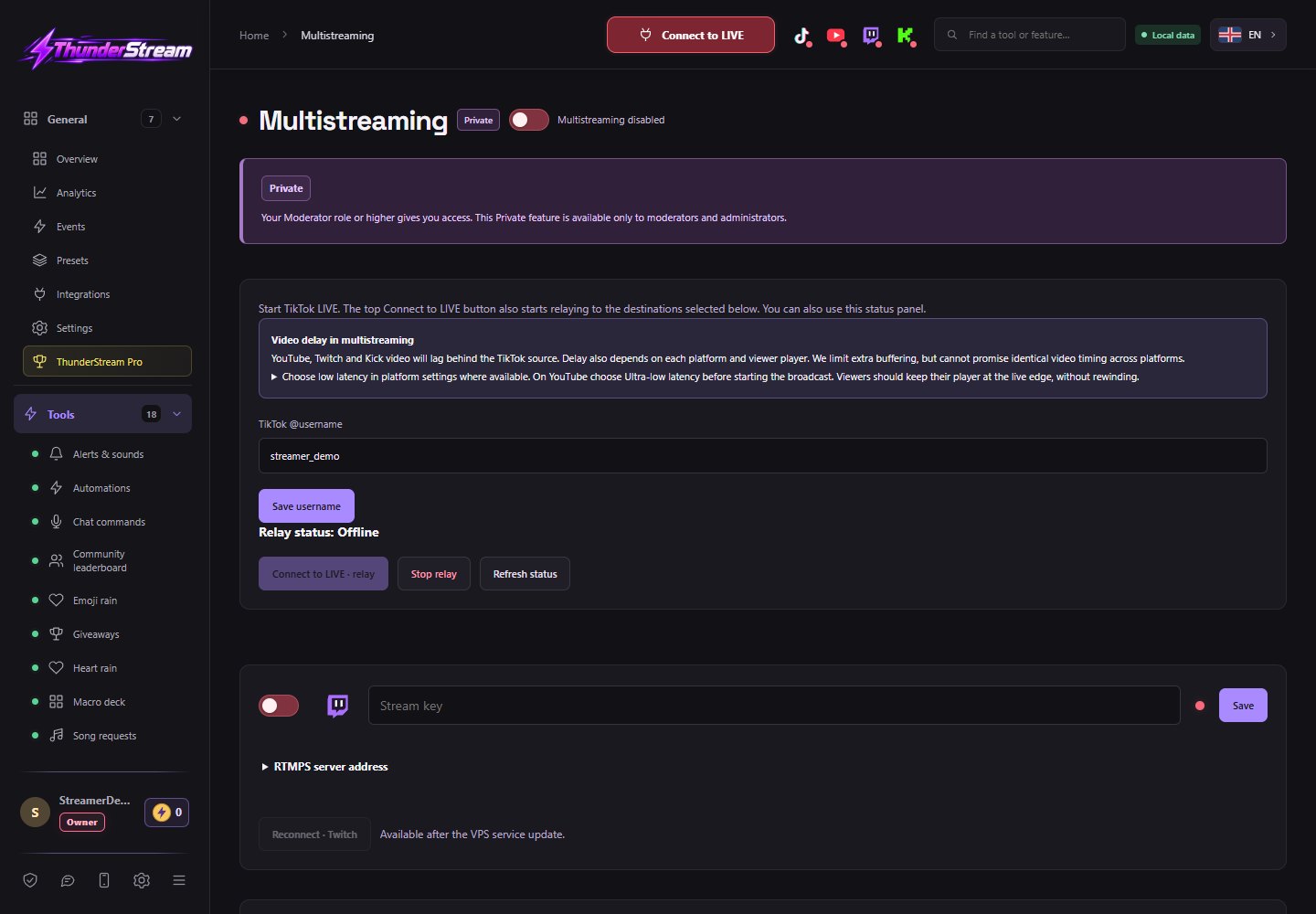
Learn about the function and settings →Test module for forwarding transmissions to additional platforms, available to authorized administration.
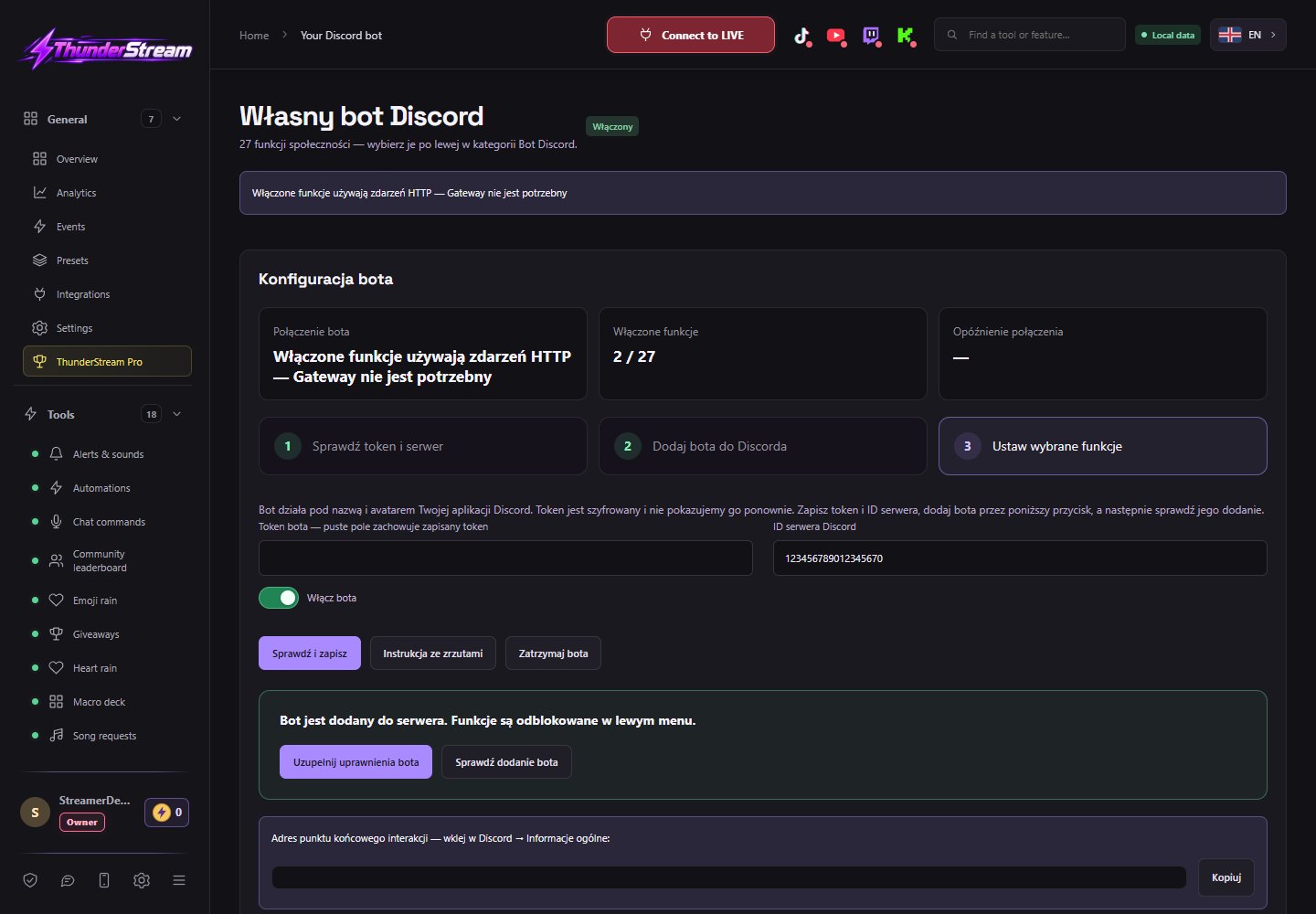
Learn about the function and settings →Connect your own bot application, add it to the server and configure moderation, support and community modules separately.
Learn about the function and settings →Connect your own automations with account data reading without subsequent connections to LIVE platforms.
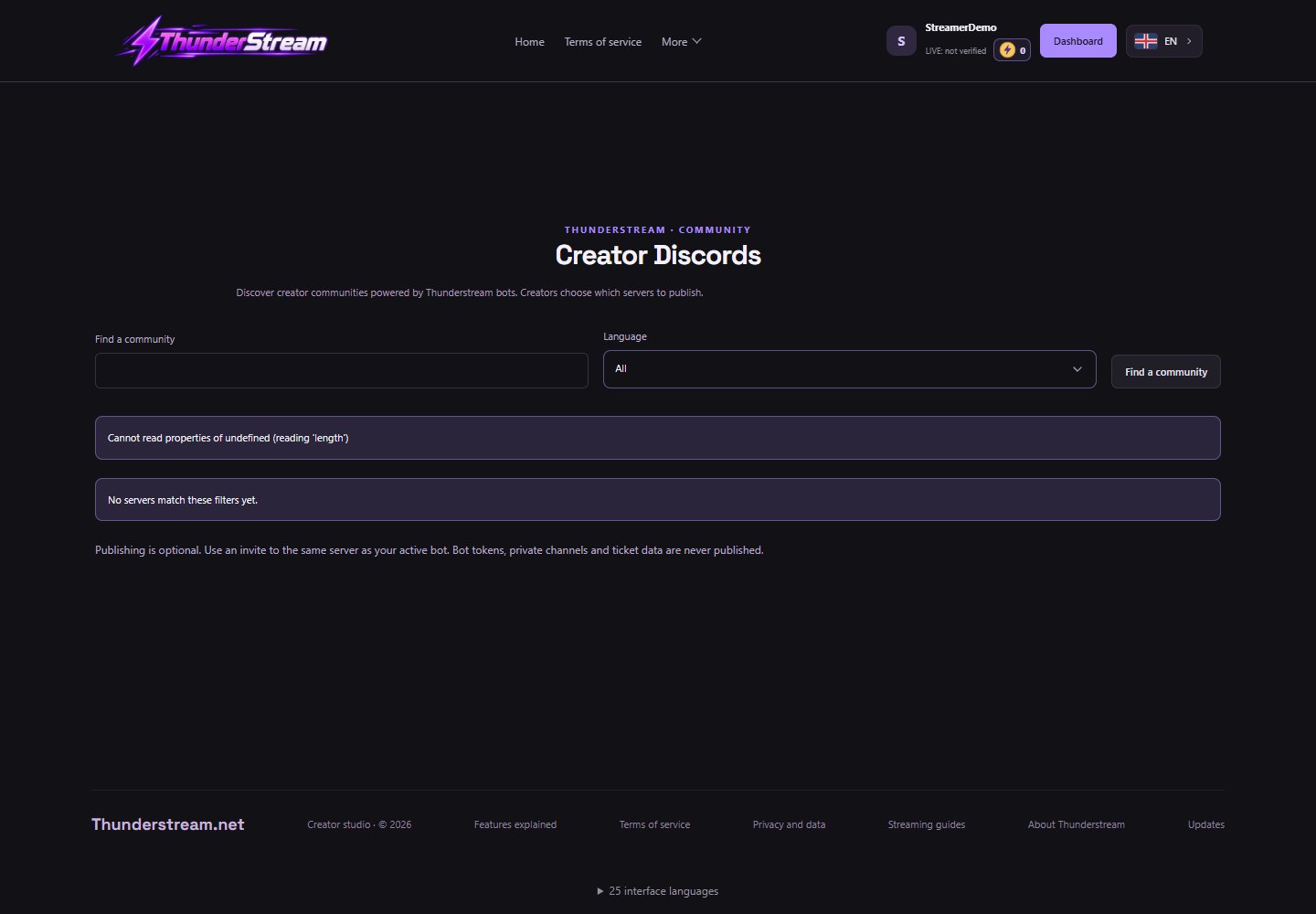
Learn about the function and settings →Meet the communities of creators who have voluntarily shared invitations to servers powered by their own Thunderstream bot.
Learn about the function and settings →No matching functions found. Try a shorter setting name.
NO. The catalog separately identifies PC program tools, Beta features and Private modules. Access to selected limits depends on the plan; Platform events require account connection and appropriate consents.
You change thresholds, commands and rules in Tools. You set the position, animations, colors and appearance of the source in Overlays. Transition and preview buttons connect both places.
NO. The catalog is public documentation of the product. Interface photos are based on demo data, and settings lists do not include passwords, tokens, transmission keys or values saved in accounts.